
If you want a quick shortcut, start here. Use the list-style monthly template if you want a task-focused view that works well on mobile. Use the multiple-month template if you want the full year on one sheet. Use the social media or content calendar templates if you are planning publishing. Use the Gantt or attendance templates if you are coordinating work across people.
Below is a curated list of the best Google Sheets calendar templates, with a note on what each one is actually built for.
| Template | Best For | Format | Mobile-Friendly |
|---|---|---|---|
| List-Style Monthly | Task tracking, daily to-dos | Portrait list | Yes |
| Multiple-Month 2026 | Full-year planning, color coding | Landscape grid | No |
| Social Media Calendar | Post scheduling across platforms | Weekly columns | Limited |
| Content Calendar | Blog and website publishing | List by date | Limited |
| Daily Schedule | Hour-by-hour planning, travel | Time blocks | Yes |
| Google Template Library Yearly | Branded annual calendar | Monthly grid | No |
| Auto-Updating Monthly/Yearly | Reusable planning calendar | Monthly + yearly | Limited |
| Gantt Chart | Project timelines, team overlap | Bar chart by date | No |
| Attendance Calendar | School or workplace attendance | Name by date grid | No |
| Printable Calendar | Paper planning, 12-month tabs | Monthly grid | No |
The 10 Best Google Sheets Calendar Templates
Although you can easily create a calendar template in Google Docs, doing so from scratch takes time. Here are 10 free calendar templates you can copy and start using today. The first three are general-purpose calendars in different formats. The rest are built for specific use cases.
1) List-Style Monthly Calendar Template in Google Sheets
This calendar template is similar to a traditional monthly view, but it works better on mobile and in a compact window. It includes 12 sheets, one for each month of the year.

Access Template (Go to File > Make a Copy)
The list layout makes it easy to view dates in a portrait-friendly format with space to add notes right next to each day. It’s useful for tracking tasks throughout the month without switching between views.
Related: The Free Google Sheets Task List Template
2) Multiple-Month 2026 Google Sheets Calendar Template
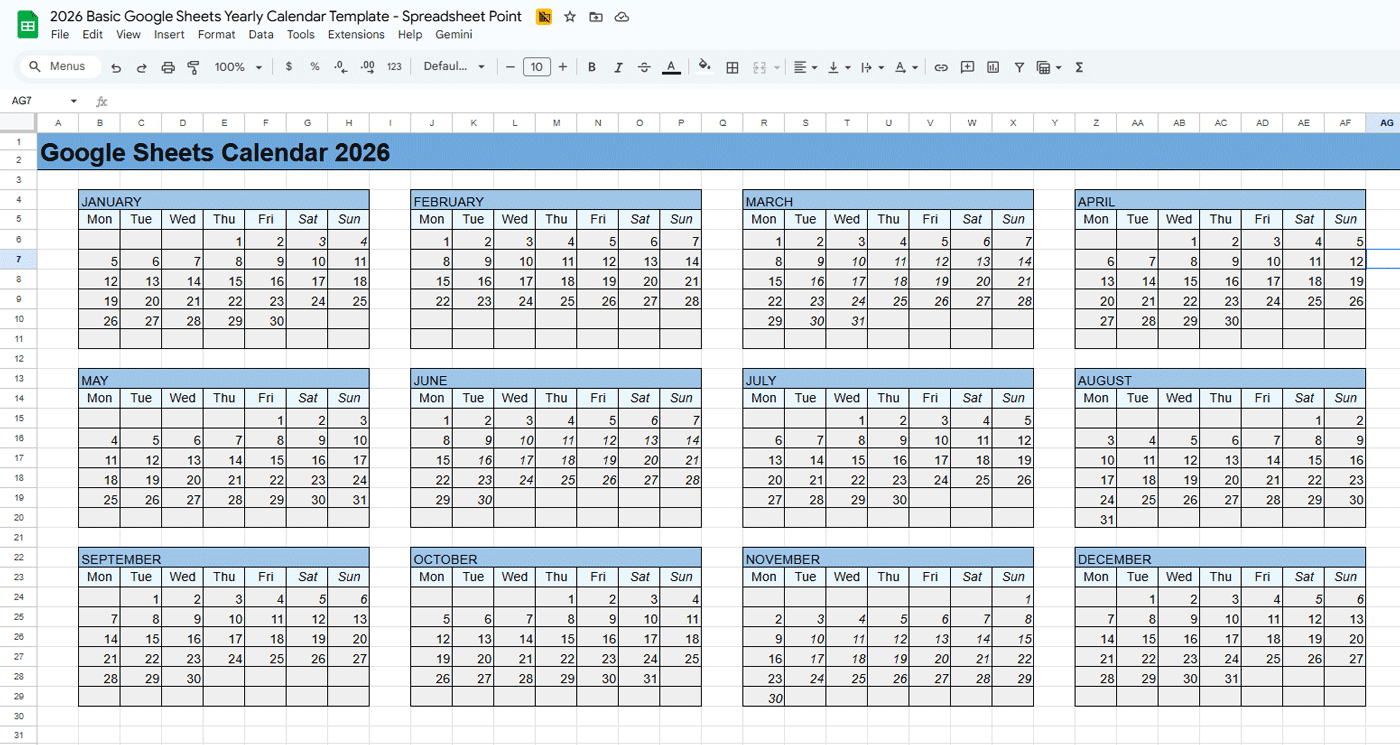
This template shows the entire year on one spreadsheet. It’s not designed for long notes inside each cell, but it works well if you use colors to categorize items. Right-click any date to insert a comment, which makes it useful for light collaboration.
Access Template (Go to File > Make a Copy)
A practical use for this template is marking birthdays, deadlines, and holidays across the year. It prints on a single sheet of paper. Because the layout is landscape, it’s not a good fit for phones.
Related: 5 Google Sheets Project Management Templates
3) Google Sheets Social Media Calendar
Social media campaigns are hard to stay on top of. This template lets you schedule posts and keep timing consistent across platforms. It includes Pinterest, Facebook, and Instagram by default, but you can add more channels or swap them out as needed. See the full social media calendar templates article for more options.

Access Template (Go to File > Make a Copy)
The template tracks days of the week and specific dates, giving you a visual reference for updates across your top networks. Change the column headings if you publish on other platforms like TikTok or LinkedIn.
4) Content Calendar for Google Sheets
A content calendar helps you track blog posts, FAQs, and other website content. It’s also useful for writers managing posts across multiple sites.

Access Template (Go to File > Make a Copy)
For more options, see the full list of content calendar templates in Google Sheets.
5) Daily Schedule Calendar
This daily schedule template works as a detailed single-day planner. To extend it into a multi-day calendar, duplicate the sheet tab and rename each copy to the date you want.

Access Template (Go to File > Make a Copy)
This one is especially useful for travel. When you have a packed itinerary, a time-blocked sheet keeps everything in order without the overhead of a full calendar app.
6) Google Sheets Template Library Yearly Calendar
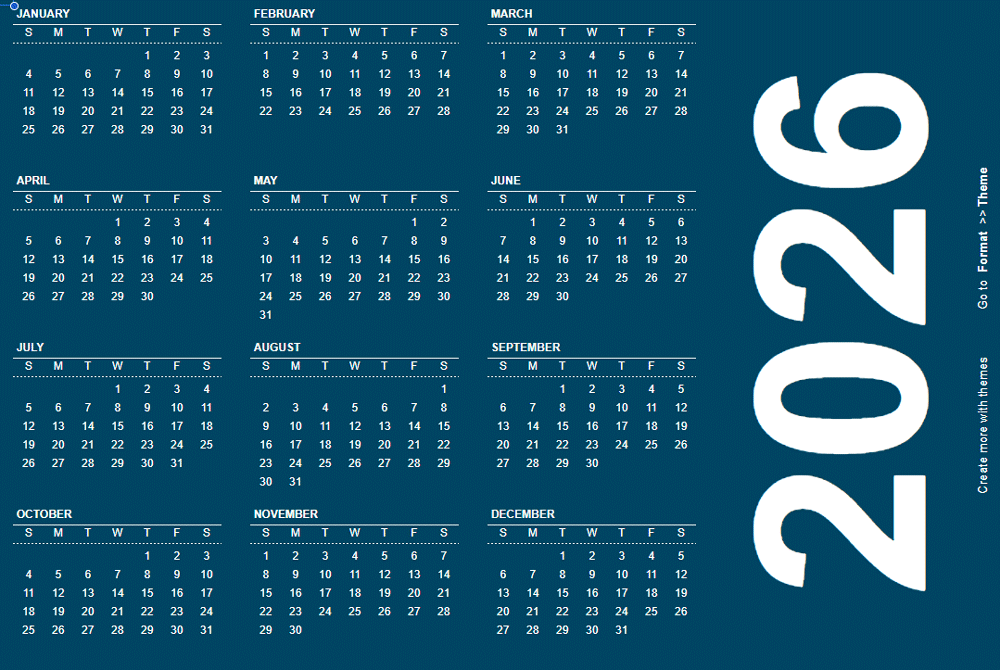
This template comes directly from the Google Sheets template library, but it’s fully customizable. The second tab lets you change the style, and you can adjust the theme under Format > Theme.
Access Template (Go to File > Make a Copy)
The best feature here is that the calendar updates for the year you select, so it stays useful beyond 2026.
7) Auto-Updating Monthly and Yearly Calendar
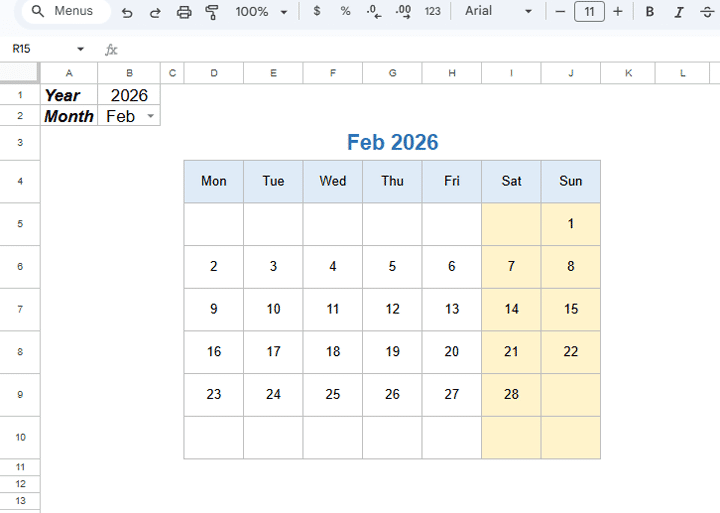
This calendar comes from our sister site Productivity Spot. Change the date in the top left of the first page to generate an automatically updating monthly calendar. A yearly calendar is on the second sheet.
Access Template (Go to File > Make a Copy)
This is the template I recommend in my video on what to look for in a Google Sheets calendar. One thing worth noting: Saturday and Sunday appear on the right in this layout, which can look unfamiliar if you usually start your weeks on Sunday.
8) Gantt Chart Calendar Template
A Gantt chart is a calendar-style way to manage a project with your team. You compare project timelines against dates and see where tasks overlap. If you’re not familiar with how they work, the full Gantt chart guide walks through the setup.

Access Template (Go to File > Make a Copy)
This is the right format when you’re coordinating work across multiple people or need to visualize how tasks stack up against a deadline. See also: Google Sheets project management templates for more options at this level of complexity.
9) Google Sheets Attendance Calendar
This template tracks whether people were present and gives you space to note why someone was absent on a specific date. It works for both schools and workplaces. See the full attendance template article for setup guidance.

Access Template (Go to File > Make a Copy)
10) Printable Google Sheets Calendar Template
This template follows a traditional table calendar design. It includes 12 sheets, one for each month, which makes it straightforward to plan ahead and print individual months as needed.

Access Template (Go to File > Make a Copy)
Keep in mind that a 2026 Google Sheets calendar will look different than one for 2027 or 2028 because the weekday alignment shifts each year.

To use any of these templates, open the link while logged into Google. Select File in the top left, then select Make a copy. This saves the template to your Google Drive so you can edit it.
When to Use Google Sheets for a Calendar (and When Not To)
Google Sheets calendars are strong for sharing and collaboration. If your priority is a calendar your team can edit together, it’s often the right tool. You can also use Google Sheets to make schedules with the same flexibility.
That said, a few limitations are worth knowing before you commit.
No automatic reminders. Google Sheets doesn’t send alerts or notifications. If you need reminders, you’ll want to keep a dedicated calendar app running alongside your spreadsheet. Many people use a Sheets calendar for planning and Google Calendar for alerts.
Recurring events require manual work. Most templates handle recurring items through copying, formulas, or manual repetition. Apps like Google Calendar handle this automatically. If you have a lot of recurring events, the spreadsheet approach can get tedious.
Navigation gets slow at scale. Finding a specific date across multiple months or years can mean a lot of scrolling. This is less of an issue if you keep each month on its own tab.
Color-coding requires a few steps. The multiple-month template works well with color-coded categories, but you’ll need to set up conditional formatting rules yourself. It’s not a one-click feature. The full guide on Google Sheets project management templates covers conditional formatting for planning workflows.
Why Use a Calendar in Google Sheets
For most people, the main advantages are access and sharing. Google Sheets files live in Drive and sync across devices. Update a calendar on desktop and it’s visible on your phone. Share it with collaborators and they can edit in real time. There’s no app to install and no account to create beyond a Google login.
A calendar also helps with breaking down larger projects. When milestones are mapped to dates, the next step is easier to see than the full scope. That’s where something like a budget template or a cleaning schedule template becomes useful alongside a calendar view.
How to Make a Calendar in Google Sheets
The built-in templates above will cover most situations. If you want to build one from scratch, here’s the basic process:
- Add a header row that labels the month and year.
- In the row below, add the days of the week.
- Enter the first date of the month under the correct weekday.
- Use the fill handle (the small square at the bottom right of the selected cell) and drag to autofill the remaining dates.
After the structure is in place, format it for readability. Add borders, adjust column widths, and use conditional formatting so important dates stand out. To get a cleaner printout, go to View > Show > Gridlines and uncheck the box.
Check weekday alignment for your target year. January 2025 started on a Wednesday. January 2026 starts on a Thursday. A template built for one year won’t align correctly for another without adjustment.
What to Look for in a Calendar Template: Video
I also made a video covering what to look for in a Google Sheets calendar template. Check out the SpreadsheetPoint YouTube channel for more guides.
Frequently Asked Questions
Can I create a calendar in Google Sheets from scratch?
Yes. Create a new spreadsheet and add a header row for the month and year. Add the days of the week in the next row. Enter the first date of the month under the correct weekday, then drag the fill handle to autofill the rest of the dates. Repeat the process for additional months, or keep separate tabs for each one.
Does Google Sheets have a built-in calendar template?
Yes. Google Sheets includes a gallery of built-in templates with calendar options. Access it from the Google Sheets homepage by selecting Template Gallery. The templates on this page are also available as free downloads and include more specialized formats than the built-in library offers.
Can I use a Google Sheets calendar offline?
Yes, with some setup. You need to enable offline access in Google Drive settings before going offline. Changes made offline will sync the next time you connect to the internet. The Google Sheets mobile app also supports offline editing.
How do I make a Google Sheets calendar update automatically?
Use the auto-updating template listed above (template #7). It uses a date formula tied to a single input cell. Change the date in the top left and the rest of the calendar recalculates. You can also use the TODAY() function in your own template to create cells that always reflect the current date.
Can I share a Google Sheets calendar with my team?
Yes. Google Sheets supports real-time collaboration. Open the file, click Share in the top right, and enter the email addresses of the people you want to invite. You can give them edit access or restrict them to view-only. Changes sync immediately for all collaborators.
How do I print a Google Sheets calendar?
Go to File > Print, or press Ctrl+P. In the print settings, set the paper size and orientation to match your template (landscape for most multi-month calendars, portrait for list-style and monthly grids). To get a cleaner printout, go to View > Show > Gridlines and uncheck it before printing.
What is the difference between a Google Sheets calendar and Google Calendar?
Google Calendar is a dedicated scheduling app with reminders, recurring events, and integrations with Gmail and Meet. A Google Sheets calendar is a flexible spreadsheet you control and customize. Sheets works better for planning and sharing visual overviews. Google Calendar works better for day-to-day scheduling and alerts. Many people use both.