
Sunday evening, I open a Google Sheet and plan my week. It takes about fifteen minutes. It is the habit that makes the most difference in how the rest of the week goes, and it costs nothing to do.
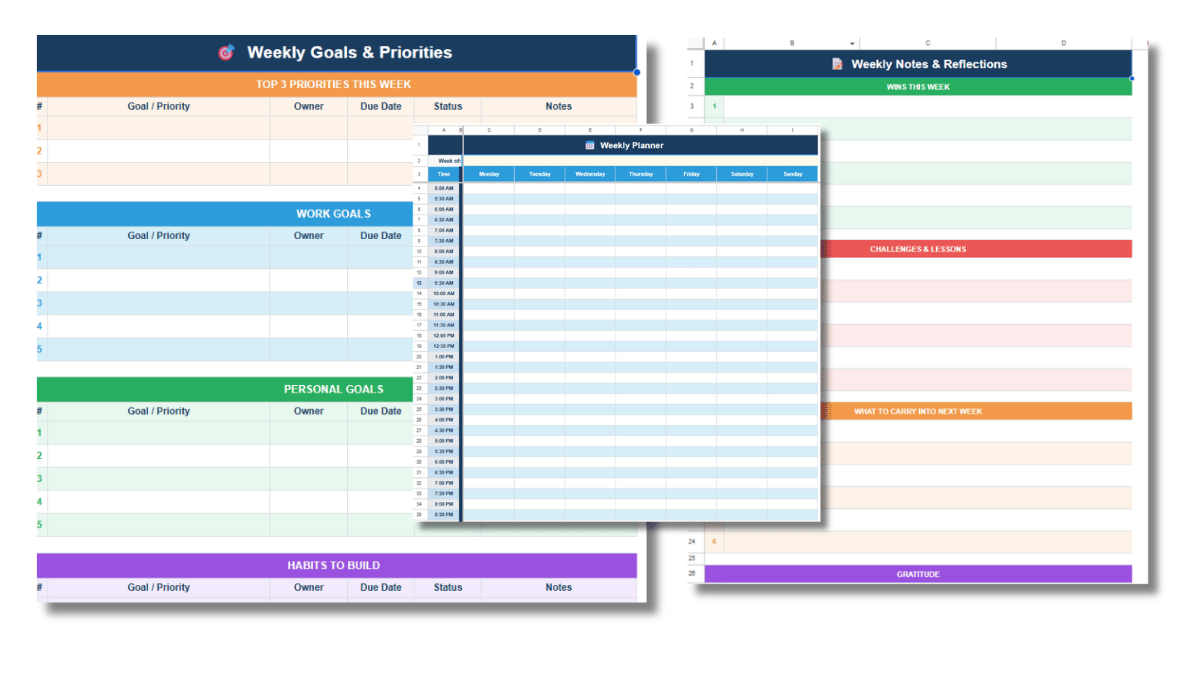
The free weekly schedule template is what I use as the starting point. Copy it to your Google Drive and follow the steps below to build a weekly planning habit that actually holds.
Step 1: Review the Week Before
Before planning the new week, spend five minutes on what just happened. Open the notes tab from last week, or just think through it. What got done? What did not? What took longer than expected?
This review is where most of the useful information lives. A plan built without it tends to repeat the same optimistic errors week after week. A plan built after a quick review accounts for reality and is more likely to hold.
Step 2: Set Your Top Three Priorities
On the Goals and Priorities tab, type your three most important outcomes for the week at the top. Not everything you need to do. The three things that would make this week a success if they were the only things that got done.
Three is a real constraint. If you list ten priorities, you have a to-do list. If you list three, you have a hierarchy. The constraint is the point.
Below the top three, add work goals and personal goals in their own sections. Keeping both categories in the same file matters. Personal goals and work goals compete for the same hours. Seeing them together forces an honest conversation about what the week can actually hold.
Step 3: Block Time on the Weekly Planner
Switch to the Weekly Planner tab. The template has a time block grid covering Monday through Sunday in 30-minute increments. Start by blocking the time that is already committed: meetings, appointments, anything with another person attached to it.
Then block time for your top three priorities. Put those blocks in before anything else. If a priority does not have a time block, it is a wish, not a plan.
Finally, fill in the remaining blocks with other work, admin, and personal time. Leave some blocks empty. A week planned to 100% capacity has no room to absorb anything that goes longer than expected, and something always does.
Step 4: Build Out the Daily To-Do Lists
The Daily To-Do Lists tab has a column for each day with a checkbox column and a task column. Add the specific tasks for each day based on what you blocked on the planner tab.
Keep each task small enough to finish in one sitting. “Plan event” isn’t super helpful as a task. Instead, try something like, “research venues, contact each for pricing” to make the biggest impact. The more granular the task, the more accurately the list reflects the day, and the more satisfying it is to check items off as you go.
The checkbox column works with any character: type a checkmark, an X, or just the letter Y. If you prefer real clickable checkboxes, select the cells and go to Insert, then Checkbox. Both work. The visual feedback of a completed column at the end of the day is worth more than it sounds.
Step 5: Stick to One Weekly File
The template is designed to be reused. At the start of each new week, right-click any tab and select Duplicate. Rename it with the week’s start date. The formatting carries over and you update only the content.
After a few weeks, the file becomes a record of how your time is actually spent, not how you intended to spend it. That record is useful. It tells you which kinds of work consistently take longer than planned, which goals never make it through the week, and where the recurring friction is. You cannot see those patterns from inside a single week. You need the archive.
Using Google Sheets for Business Scheduling
The same file works for a team. Share it via the Share button in the top-right corner of Sheets and give teammates editor access. You can build a version with each person’s tasks in a separate tab, or one shared weekly planner where everyone’s blocks are visible in the same grid.
For a small team, shared visibility into the week’s plan is often all you need. You can see who is working on what, where the overlap is, and whether anyone is overloaded. No project management software required. No monthly subscription. A shared Google Sheet and fifteen minutes on Sunday evening covers most of it.
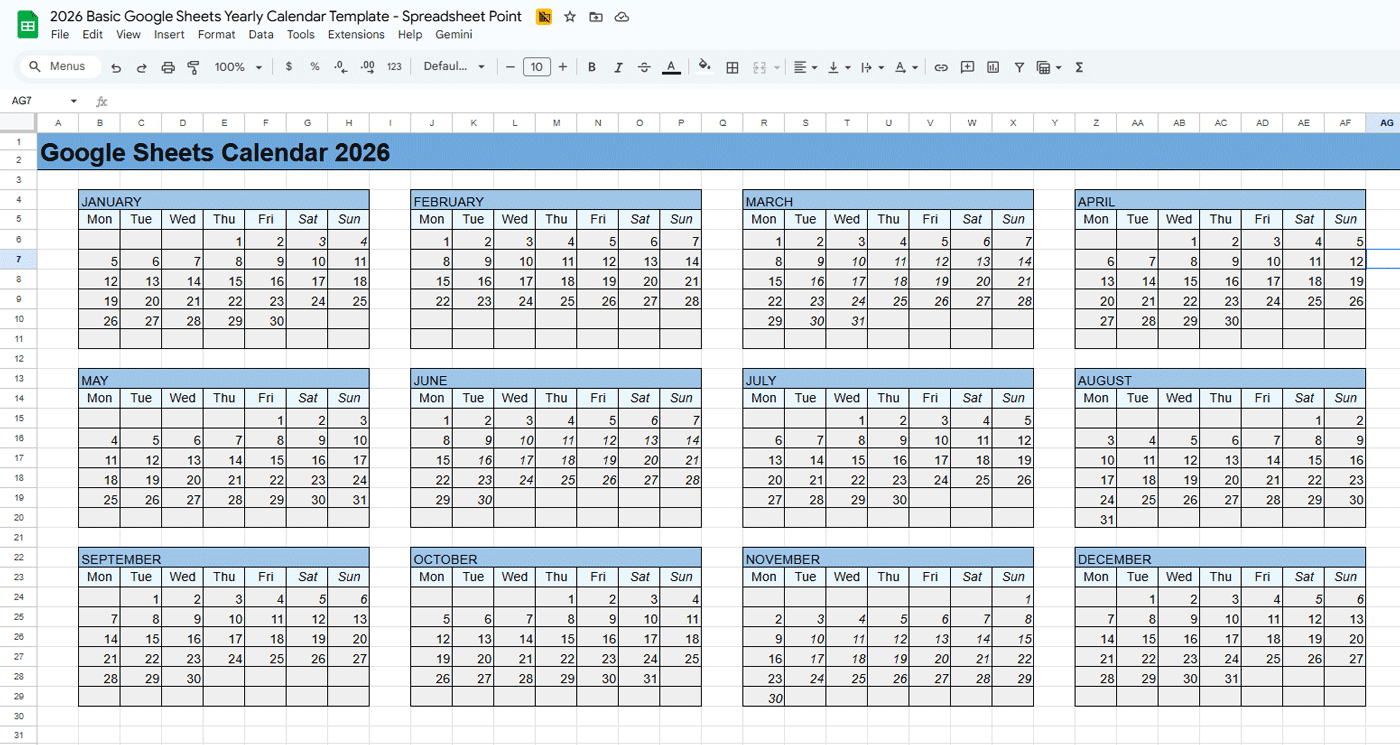
And for bigger plans, there are calendar templates with multiple months (even years). Those help schedule out meetings, events, and projects for even larger teams.
Frequently Asked Questions
How long does weekly planning in Google Sheets take?
About fifteen minutes once you have a routine. The first week takes longer because you are setting up the template and figuring out your categories. After that, reviewing last week, setting priorities, and filling in the time block grid runs about ten to fifteen minutes consistently.
Should I plan the week on Sunday or Monday morning?
Sunday evening works better for most people. Monday morning planning happens under pressure and tends to be rushed. Sunday evening gives you a full picture of the week ahead without the urgency of work already starting. That said, the best time is the time you will actually do it consistently.
What if my week changes after I plan it?
Update the sheet. There is no calendar invite to cancel or system to notify. Edit the cell, move the block, add a task. The flexibility is one of the main advantages of a spreadsheet over a more rigid planning tool.
Is there a free template for planning my week in Google Sheets?
Yes. The SpreadsheetPoint weekly schedule template is free to copy and includes tabs for time blocking, daily tasks, weekly goals, and end-of-week notes. You need a Google account to save a copy to your Drive.