
I started using Google Sheets as a planner out of stubbornness. Every planning app I tried had an opinion about how I should work, and I disagreed with most of those opinions. A spreadsheet has no opinions. It is a grid, and I decide what the grid means.
That was several years ago. I still use it the same way. If you want to try it yourself, the free weekly schedule template has the structure already built. Copy it and spend your energy on planning, not setup.
Why a Spreadsheet Works as a Planner
Planning apps solve a real problem: most people do not know how to structure their week, so they need a tool that imposes structure for them. If that describes you, a dedicated app might be the right call.
If you already have a sense of how you want to work and you just need a surface to capture it, a spreadsheet is faster and more flexible. You add the columns you want. You remove the ones you do not. You are not constrained by what the app developer thought a planner should look like.
The other advantage is cost. A Google account is free. Google Sheets is free. If you are running a small business and keeping an eye on what every tool costs per month, a planning spreadsheet that costs nothing is genuinely appealing. I use shared Sheets with my team instead of a paid planning tool for exactly that reason.
The Four Things a Planner Needs to Do
A good planner covers four things: where your time is going, what tasks you need to complete, what you are working toward, and how last week went. Most planning apps try to do all four. Most of them do at least one of those poorly.
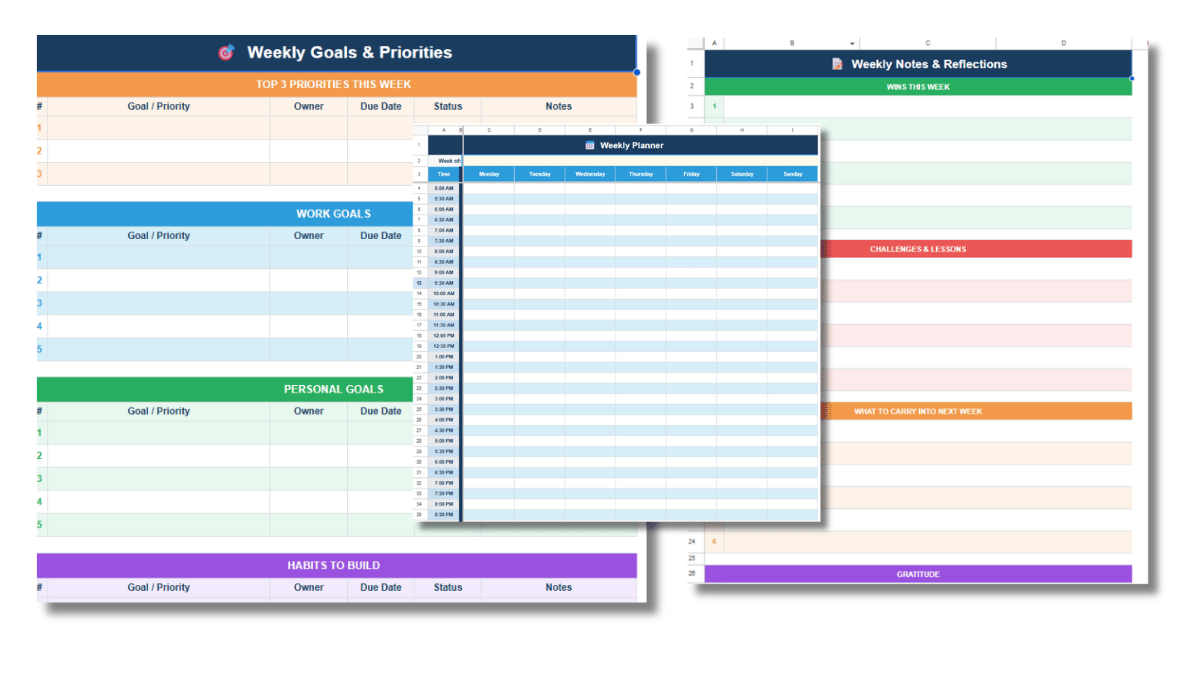
Google Sheets handles all four across separate tabs without any app logic getting in the way. The weekly schedule template uses exactly this structure: a Weekly Planner tab for time blocking, a Daily To-Do Lists tab for tasks, a Goals and Priorities tab for weekly objectives, and a Notes and Reflections tab for end-of-week review.
How to Use Google Sheets as a Daily Planner
The basic setup is a time block grid: days across the top, times down the left side, tasks filling the cells where they intersect. Each cell represents a block of time on a specific day.
Keep entries short. “Deep work: article draft” or “Admin: inbox” is enough. The goal is a visual map of the day, not a detailed project plan inside each cell. Detailed notes belong in a separate column or a separate tab.
Color-code by work type. Use fill color to assign a visual category to each block: focused work, meetings, admin, personal. Once you do this for a week, you can see at a glance whether your time distribution matches your priorities. Most people find that it does not, at least at first.
How to Use Google Sheets as a Weekly Planner
Weekly planning is a layer above daily planning. The daily view fills in the time blocks. The weekly view sets the goals those blocks are in service of.
Keep a goals tab with your top three priorities for the week at the top. Below that, separate work goals from personal goals. The distinction matters because both categories compete for the same finite number of hours. Keeping them in the same file forces you to see them as one budget rather than two separate lists that never interact.
At the end of each week, fill in the notes tab. What went well, what did not, what is carrying into next week. This takes about ten minutes and is the step that makes the file useful over time. Week-over-week, the notes tab becomes a log of what is actually happening in your work, which is more honest than what you intended to happen.
Sharing with a Small Team
This is where a spreadsheet planner beats most dedicated apps for small teams. Click Share, add your teammates’ email addresses, and everyone sees the same file in real time. No per-seat pricing. No onboarding flow. No export required for anyone to see the week’s plan.
For a team of two to five people doing straightforward project work, a shared planning Sheet with each person’s weekly blocks visible in the same file is often enough. You can see who is working on what this week, where the gaps are, and whether the workload is distributed the way you think it is.
It is a low-tech solution. That is mostly a feature. The more infrastructure a planning system requires, the more likely it is to become something you manage instead of something you use.