
Google Docs has no built-in itinerary templates. We made seven free ones you can copy and edit for any trip, event, or occasion. Each template below works in Google Docs and Microsoft Word, and you don’t need any special skills to customize them.
Pick a template, click the download button, and fill in your details. Below the templates, we also walk through how to build your own itinerary from scratch.
Table of Contents
Google Docs Itinerary Templates
As of 2026, Google Docs still does not include itinerary templates in its template gallery. The seven templates below cover the most common categories: personal travel, business trips, vacations, weddings, birthdays, and events. All of them are free to download and edit.
Basic Itinerary Template
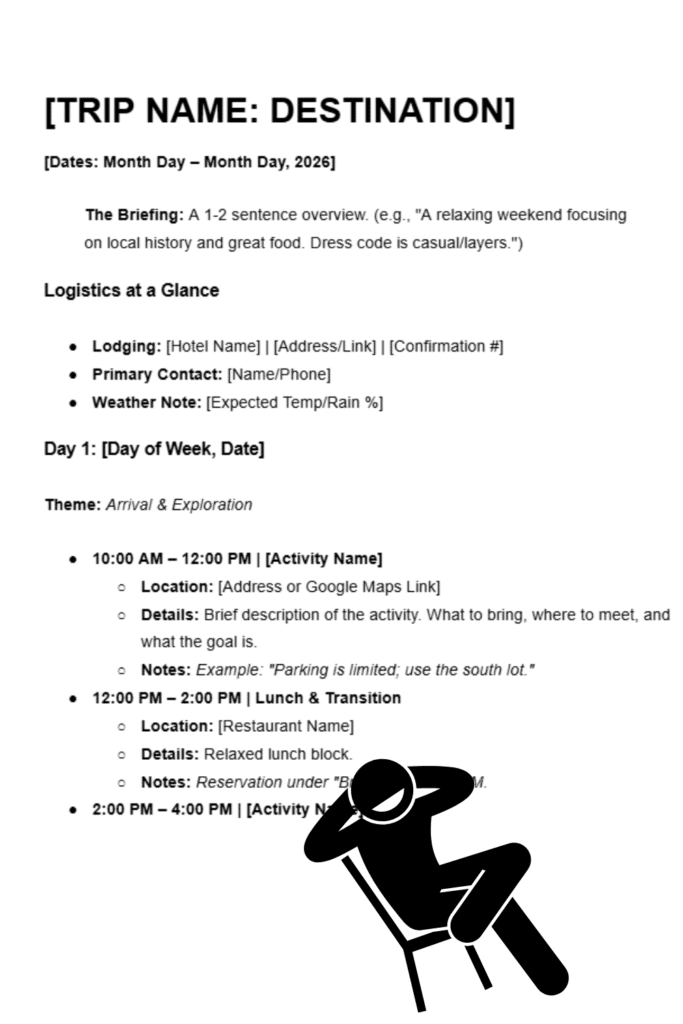
The basic itinerary template works for any kind of trip or event. It includes a summary section, dates and times, and activity details. The layout is deliberately plain so it adapts to any occasion without fighting your content.
Best for: Solo travelers, weekend getaways, and simple event schedules.
You can edit it in Google Docs or Microsoft Word and change color, fonts, or layout to match your style.
Simple Itinerary Template (Tables)

This template organizes everything into tables for easy reading. It includes trip dates, a travel schedule for transportation, and a day-by-day activity schedule. Tables keep the details structured so nothing gets buried in paragraphs of text.
Best for: Multi-day trips with several transportation legs and daily activities.
Meal and Activity Travel Itinerary Template

This travel itinerary template covers meals and activities together in a clean, color-coded format. It includes trip dates, a transportation schedule, and a daily breakdown of both food and entertainment plans. The splash of color makes it easier to scan and more appealing to share on social media or in a group chat.
Best for: Vacation trips where meals and dining are part of the plan.
You can share the itinerary with other people in Google Docs and give them editing access so everyone on the trip can contribute.
Vacation Itinerary Template
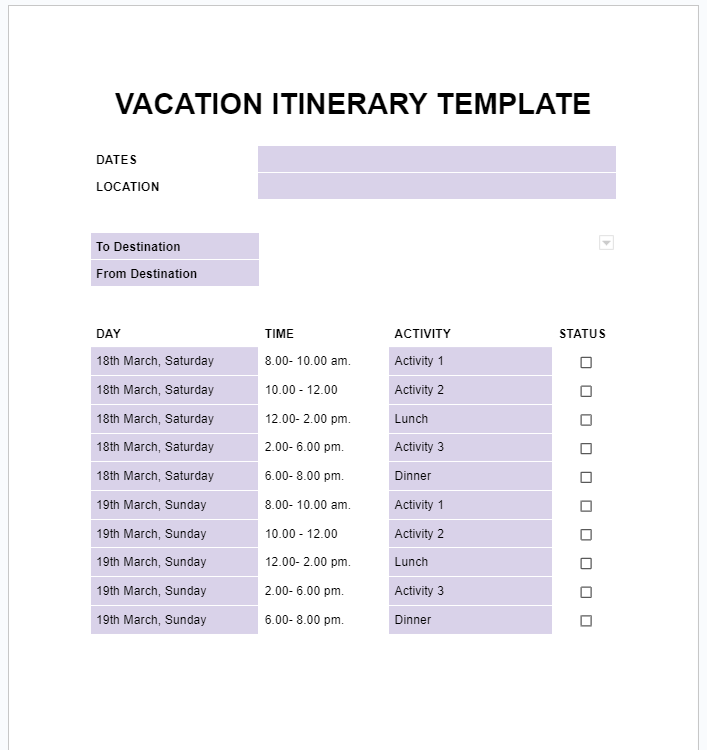
The vacation template uses a grid format with a light purple theme to help you differentiate between activities at a glance. It includes trip dates, transportation details, and a daily activity schedule. It also has a checkbox section similar to a task list, which is useful for packing lists or pre-trip to-dos.
Best for: Family vacations and longer trips with lots of moving parts.
Business Itinerary Template
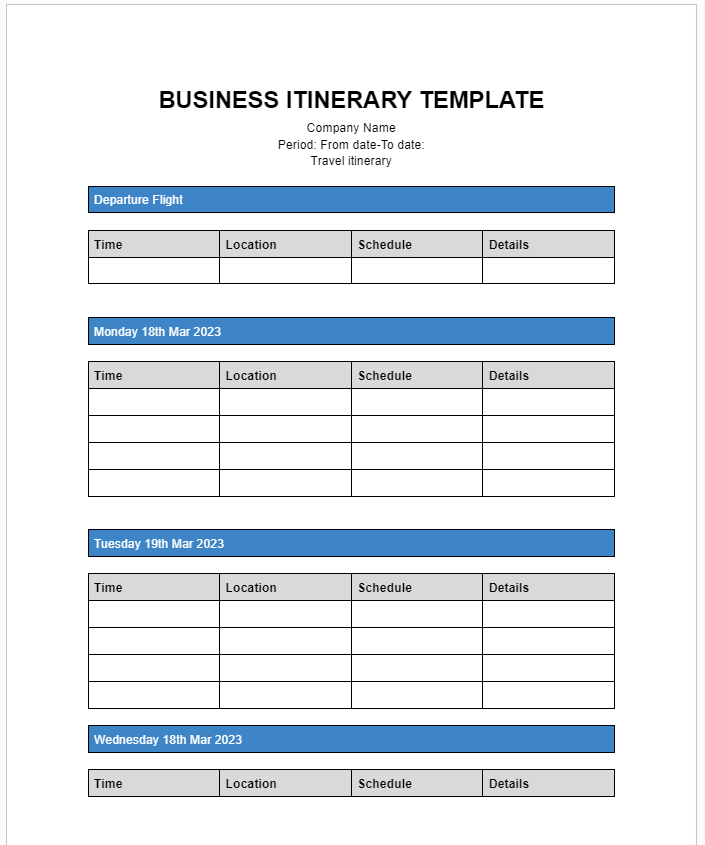
The business itinerary template is more formal and structured for corporate travel. It includes departure and return flight details, accommodation info, and a day-by-day meeting and activity schedule with all dates and times. There is also a notes section for each activity where you can add context like conference room numbers or client contact info.
Best for: Business trips, conferences, and client visits.
Birthday Itinerary Template
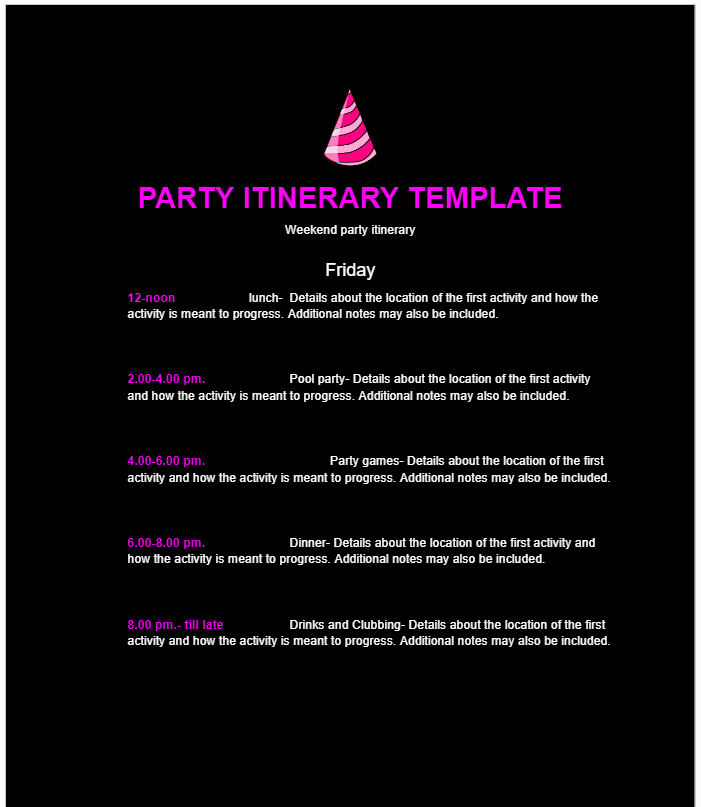
The birthday itinerary template has a dark background with a pop of color. It includes a summary section, dates and times, and activity details. The design works well for milestone birthdays, bachelorette parties, or any celebration where you want the itinerary itself to feel like part of the event. You can edit and personalize it for your occasion.
Best for: Birthday parties, bachelorette parties, and celebration weekends.
Wedding Itinerary Template
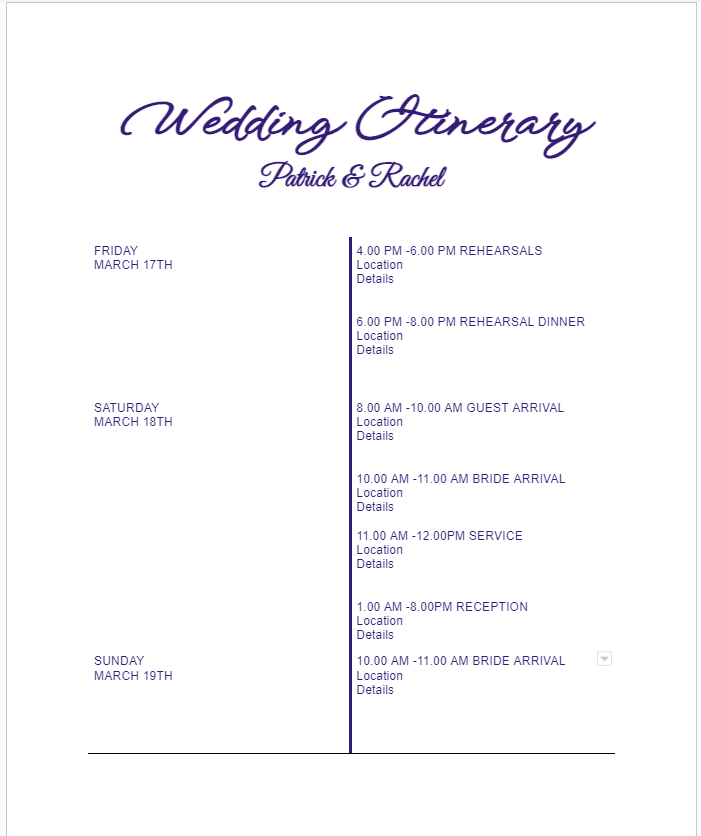
The wedding itinerary template has an elegant layout with a purple font that fits the tone of a wedding timeline. It includes dates and times for all wedding activities, from the ceremony to the reception. You can customize the fonts, layout, and colors in Google Docs to match your wedding theme. For a more detailed wedding planning tool with budgets and guest lists, see our wedding planning spreadsheet.
Best for: Wedding day timelines shared with the bridal party and vendors.
Which Template Should You Use?
Here is a quick breakdown to help you pick the right one:
| Template | Best For | Key Feature |
|---|---|---|
| Basic Itinerary | Any trip or event | Simple, adaptable layout |
| Simple (Tables) | Multi-day travel | Table-based structure |
| Meal and Activity | Vacations with dining plans | Color-coded meals and activities |
| Vacation | Family vacations | Grid layout with checkboxes |
| Business | Corporate travel | Flight, hotel, and meeting details |
| Birthday | Parties and celebrations | Fun dark-themed design |
| Wedding | Wedding day timeline | Elegant layout with schedule |
If you need something with more structure, like budget tracking or multi-tab organization, a Google Sheets itinerary template may be a better fit.
What Should an Itinerary Include?
Your itinerary will look different depending on whether you are planning a vacation, a business trip, or an event. But every itinerary should cover these basics:
- Title: A clear title tells anyone reading the document what it is for. “Smith Family Hawaii Trip, June 2026” is better than “Itinerary.”
- Transportation details: Include how you plan to get to and from each destination. Flights, trains, buses, rental cars, and rideshares all belong here. This also helps you budget and plan what to pack.
- Activities: List what you plan to do each day, including entertainment like restaurant reservations, tours, meetings, or any other scheduled events.
- Dates and times: Attach a date and time to every activity so you and your travel group stay on schedule.
- Location details: Include addresses or at least area descriptions so everyone knows where to go. This is especially important for group trips.
- Expenses (optional): Adding estimated costs for each activity helps you track your budget as you go.
Types of Itineraries
Itineraries fall into a few broad categories depending on the purpose:
- Travel itinerary: The most common type. Used for personal trips and vacations where you need to organize flights, hotels, activities, and transportation across multiple days.
- Business itinerary: A more formal format used for corporate trips, conferences, and client visits. Typically includes meeting schedules, accommodation details, and contact information.
- Event itinerary: Used to schedule activities for a specific event like a wedding, birthday, bachelorette party, or conference. The focus is on time slots and locations within a single day or weekend.
- Group travel itinerary: Built for trips with multiple people. Sharing it through Google Docs makes it easy for everyone to see the plan and suggest changes in real time.
How to Make an Itinerary in Google Docs
If none of the templates above fit your needs, you can build one from scratch in a few minutes:
- Open Google Docs and create a new blank document.
- Add a title at the top. Include the trip name, destination, and dates.
- Create the body of your itinerary. Outline the schedule, transportation, dates, times, and activities for each day.
- Add a table for structure. Go to Insert > Table and select the number of rows and columns you need. Tables make daily schedules much easier to read than plain text.
- Format the document. You can change color themes, adjust fonts, and add images to make the itinerary visually clear.
Once you have finished, double-check the document for errors. Then share it with your travel group by clicking Share in the top right corner of Google Docs. You can give people view-only access or let them edit directly.
Tips for Getting the Most Out of Your Itinerary
Share and Collaborate in Google Docs
One of the biggest advantages of using Google Docs for your itinerary is real-time collaboration. Everyone in your travel group can access the same document, leave comments, and make edits. You do not need to email updated PDFs back and forth.
Use Your Itinerary on Mobile
Google Docs works on iOS and Android through the mobile app. Pull up your itinerary while you are on the go without needing to print anything. If you prefer a hard copy, you can also export the document to PDF from File > Download > PDF Document.
Pair It with a Spreadsheet
Google Docs works well for the narrative parts of your itinerary: descriptions, notes, and day-by-day plans. For the numbers side, like tracking expenses, comparing hotel prices, or managing a guest list, a spreadsheet is a better tool. Our trip planning spreadsheet and budget template pair well with any of the itinerary templates above.
Google Docs vs. Google Sheets for Itineraries
Both work, but they serve different purposes. Google Docs is the better choice when your itinerary is mostly text: descriptions of activities, addresses, notes for your travel group, and day-by-day narratives. Google Sheets is better when your itinerary involves numbers, calculations, or large datasets, like tracking expenses across a two-week trip or managing a calendar with dozens of events.
For most personal trips, Google Docs is enough. For group travel with a shared budget or a complex event with many moving parts, start with a Google Sheets itinerary template instead.
Frequently Asked Questions
Does Google Docs have a built-in itinerary template?
No. As of 2026, Google Docs does not include itinerary templates in its template gallery. You can use one of the free templates above or create your own from a blank document.
How do I share a Google Docs itinerary with my travel group?
Click the Share button in the top right corner of Google Docs. Enter the email addresses of the people you want to share with and choose whether they can view, comment, or edit the document. Everyone will see changes in real time.
Can I print an itinerary from Google Docs?
Yes. Go to File > Print to print directly, or go to File > Download > PDF Document to save it as a PDF first. The PDF option is useful if you want to print at a later time or share a static version.
What is the difference between using Google Docs and Google Sheets for an itinerary?
Google Docs is better for text-heavy itineraries with descriptions, notes, and narratives. Google Sheets is better when you need to track numbers, manage a budget, or organize large amounts of data in rows and columns. For most personal trips, Google Docs is sufficient.
How do I add a table to my Google Docs itinerary?
Go to Insert > Table and select the number of rows and columns you need. Tables help organize daily schedules, transportation details, and activity lists so they are easier to scan.
Can I use these itinerary templates on my phone?
Yes. All of the templates work in the Google Docs mobile app on both iOS and Android. You can view and edit your itinerary on the go.
How do I convert a Google Docs itinerary to PDF?
Open your itinerary in Google Docs and go to File > Download > PDF Document. The file will download to your device and you can print it or share it as a static document.
Wrapping Up
A good itinerary saves you time during the trip and keeps everyone on the same page. The seven free templates above cover the most common use cases, from a simple weekend getaway to a full wedding day timeline. Pick one, fill in your details, and share it with your group through Google Docs.
If you need more structure for budgets or expenses, pair your itinerary with one of our Google Sheets templates.
Related: