
The OKR framework has been around since Intel used it in the 1970s. Google adopted it in 1999, when the company had about 40 employees. It is still how Google runs today, and it is how Spotify, Uber, and hundreds of smaller companies set goals and track progress every quarter.
You don’t need software to run OKRs. We have two free OKR templates for Google Sheets depending on how your team works.
| Simple OKR Template | Advanced OKR Tracker | |
|---|---|---|
| Best for | Individuals and first-timers | Teams and multi-department orgs |
| Scoring | Percentage (0–100%) | 0.0–1.0 scale |
| Check-in log | No | Yes |
| Dashboard | Basic charts | Auto-calculated rollup |
| Levels | Company, team, individual tabs | Company and department objectives |
| Download | Get the simple template | Get the advanced template |
Not sure which to use? If this is your first quarter running OKRs, start with the simple template. It uses percentage-based progress and has separate tabs for company, team, and individual objectives. If you are running OKRs across multiple teams and want weekly check-ins and automatic score rollups, use the advanced tracker.
What are OKRs?
OKR stands for Objectives and Key Results. Objectives are qualitative descriptions of what you want to achieve. Key Results are the specific, measurable metrics that tell you whether you got there.
The split matters. An objective sets direction. Key Results make progress countable.
A company objective might be: “Become the go-to resource for small business financial reporting.” That is a direction, not a number. The key results underneath it are what make it trackable: grow monthly active users to 50,000, hit a Net Promoter Score above 45, and publish 12 new template pages before June 30.
OKRs run on a quarterly cadence for most teams. You set them at the start of the quarter, do a mid-quarter check-in, and score them at the end. The scoring is deliberate: the target score is 0.7, not 1.0. If every key result hits 1.0, the goals were not ambitious enough.
Objectives vs. Key Results vs. Initiatives
These three terms get conflated, so it is worth being precise.
An objective is qualitative and directional. It should be memorable and slightly inspiring. “Increase sales” is not an objective. “Make our sales team the most efficient in the industry” is closer.
A key result is quantitative. It has a start value, a target value, and a deadline. It answers the question: how will we know the objective was achieved? Each objective should have between two and five key results. More than five dilutes focus. Fewer than two makes the objective hard to measure with confidence.
Key results also work best when they follow the SMART criteria:
- Specific — exact about what is being measured
- Measurable — expressed as a number
- Assignable — owned by a specific person or team
- Realistic — achievable with real effort
- Time-related — tied to a specific deadline
If you want a head start on writing SMART goals before you get to OKRs, the SMART goals template covers the format in detail.
An initiative sits below a key result. It is a task or activity that supports progress toward the key result. Initiatives are often not percentage-based. They are things you do rather than things you measure. Conducting five user interviews is an initiative. An NPS score above 45 is a key result.
A common mistake is writing initiatives and calling them key results. “Run 10 customer calls” is an initiative. “Close rate above 28%” is a key result. The distinction keeps OKRs focused on outcomes rather than activity.
How OKR scoring works
OKRs use a 0.0 to 1.0 scoring scale. Each key result gets a score at the end of the quarter based on how close the actual result came to the target. The objective score is the average of its key result scores.
| Score | Status | What it means | What to do |
|---|---|---|---|
| 0.7 to 1.0 | On Track | Hit or approaching target. Strong result for a stretch goal. | Keep going. Set a harder target next quarter. |
| 0.4 to 0.69 | At Risk | Behind pace. Progress was made but the goal was not reached. | Identify blockers. Decide whether to carry forward or retire. |
| 0.0 to 0.39 | Off Track | Significantly behind. Either the goal was wrong or execution broke down. | Do a retrospective. Was the target realistic? Was the owner resourced properly? |
The template calculates scores automatically. Enter the start value, target value, and current value for each key result. The score formula is (Current minus Start) divided by (Target minus Start), clamped between 0 and 1. You never have to do that math manually.
A score of 1.0 every quarter is a signal your team is setting goals that are too easy. A score consistently below 0.4 suggests either the goals are too ambitious or the team needs more support. The 0.7 target comes from the OKR method as described by John Doerr in Measure What Matters, which traces the approach back to Andy Grove at Intel.
OKR examples by department
The template comes loaded with sample OKRs across company and department levels. Here are a few concrete examples to model when writing your own.
Sales
- Objective: Become the top-performing revenue team in our segment
- KR: Grow MRR from $280K to $416K by June 30
- KR: Close 25 new enterprise accounts this quarter
- KR: Bring demo-to-close rate above 28%
Marketing
- Objective: Build a pipeline marketing engine that scales without proportional spend
- KR: Organic leads represent 45% of total leads by end of quarter
- KR: Lower blended CAC from $420 to $336
- KR: Email sequence conversion rate reaches 4.5%
Engineering
- Objective: Deliver a platform our customers can depend on
- KR: 99.9% uptime across all production services
- KR: Reduce P1 incident mean time to resolution to under 30 minutes
- KR: Deploy automated rollback for all services
HR / People
- Objective: Build a high-performance team that stays
- KR: Hire 8 engineers with an average ramp time under 45 days
- KR: Employee satisfaction eNPS above 40
- KR: 95% of Q2 OKRs set by April 7
OKRs vs. KPIs
KPIs (Key Performance Indicators) and OKRs measure different things. The confusion is understandable because they both use numbers, but they serve different purposes in a strategic plan.
KPIs track the ongoing health of the business. They are the metrics you monitor indefinitely: revenue, churn rate, support ticket resolution time, uptime. They tell you whether operations are running well. You use them across the entire company and over long time horizons.
OKRs track progress toward specific goals for a defined period, almost always a quarter. They are time-bound by design. Once the quarter ends, you score the OKRs, learn from them, and set new ones.
A KPI might be “monthly churn rate.” An OKR key result might be “reduce monthly churn from 2.8% to 1.5% by June 30.” The KPI is always being watched. The OKR is a quarterly push to move it in a specific direction.
The KPI dashboard template handles the ongoing tracking side of this. The OKR tracker handles the quarterly goal-setting side. They work well together.
One practical note: avoid using OKRs as performance reviews. When team members know their OKR scores will affect compensation or reviews, they set goals they know they can hit. That is the opposite of what stretch goals are for.
About the templates
Both templates are free Google Sheets files. Here is what each one includes.
Simple OKR template
Four tabs: Company Level OKRs, Team Level OKRs, Individual OKRs, and a Company Level Dashboard. The first three tabs follow the same structure, so you can duplicate them for as many teams or individuals as you need. Right-click any tab, click Duplicate, and rename it after the team or person.
Each tab has a space for the company name, team name or employee name, a mission statement or slogan, and the timeframe the OKRs apply to. Below that, you enter up to three objectives per tab. Each objective has four key result rows with a progress column. Enter a percentage figure for each key result and the Total Objective Fulfilment cell calculates automatically.

Conditional formatting applies to the progress cells automatically:
- Red: 15% or below
- Yellow: 16% to 74%
- Green: 75% and above
The initiatives section sits below each set of key results. It tracks the smaller tasks that support each key result. Progress is optional for initiatives since not all of them need to be quantitative.

The dashboard tab visualizes company-level OKR progress with bar graphs and pie charts. It updates automatically from the other tabs. The titles and headings pull from your entries, so the dashboard reflects your actual objectives without any extra work.

Advanced OKR tracker
Four tabs: OKR Summary, OKR Log, Check-in Log, and Instructions.

OKR Summary tab
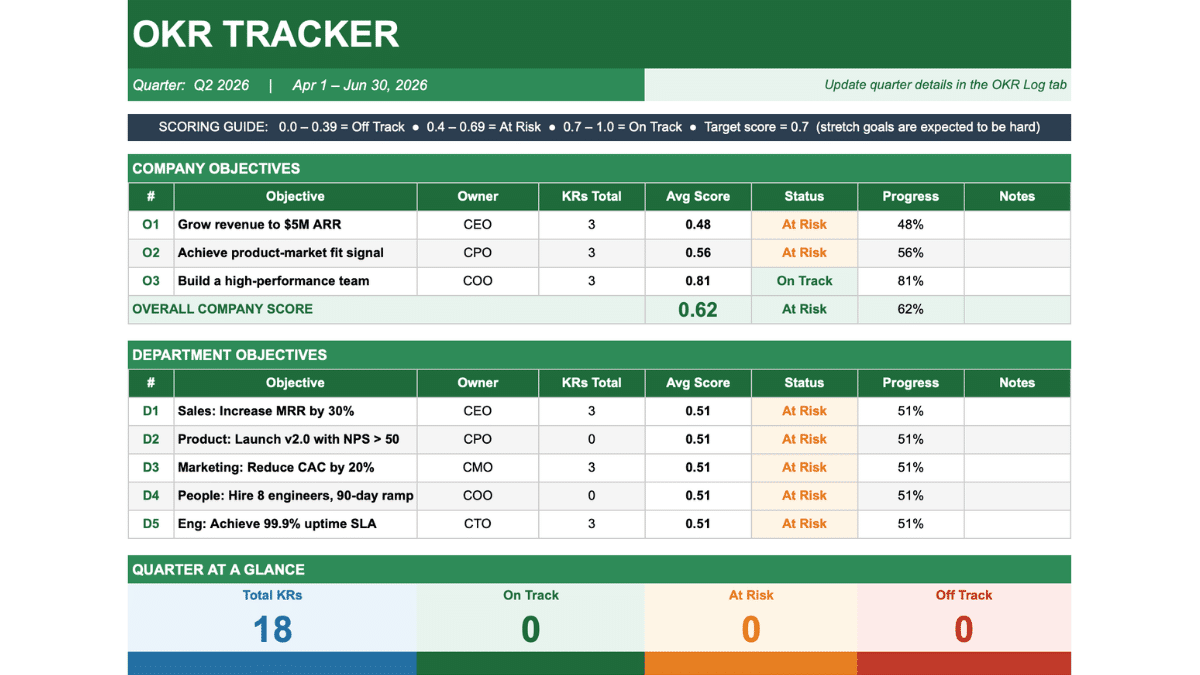
The dashboard view. It shows company-level and department-level objectives with auto-calculated average scores, status labels (On Track / At Risk / Off Track), and progress bars. A scoring guide strip at the top explains the 0.0 to 1.0 scale. A “Quarter at a Glance” section at the bottom shows total KR counts by status as large number tiles.
Everything on this tab is formula-driven. The scores roll up from the OKR Log via AVERAGEIF. No manual updates needed after you enter data.
OKR Log tab
Where all the detail lives. Each row is one key result. Columns cover the objective ID, objective text, key result description, owner, start value, target value, current value, score (0 to 1), status, and notes.

The score and status columns calculate automatically from the values you enter. Update the current value as the quarter progresses and everything else adjusts. The formulas handle the math so you can focus on the work.
The objective ID column has a dropdown. Assign each key result to a company objective (O1, O2, O3) or a department objective (D1, D2, and so on). The OKR Summary tab uses these IDs to group and average scores by objective.
Check-in Log tab
A running record of weekly or bi-weekly check-ins. Each row captures the date, key result, owner, last score, new score, confidence level (High / Medium / Low), and an update note covering progress, blockers, and next steps.
Confidence level is color-coded: green for High, amber for Medium, red for Low. It is a faster signal than the score alone. A key result can be scoring 0.6 but have a High confidence level if the team has a clear path to 0.8. It can also be scoring 0.7 but have a Low confidence level if a blocker appeared mid-quarter.
This tab is the audit trail for the quarter. When you do your end-of-quarter retrospective, the check-in log shows exactly how each key result moved week by week and which blockers came up. For small teams especially, that record is worth more than the final score alone.

Instructions tab
A plain-language setup guide. It covers what OKRs are, the five setup steps, what each tab does, the scoring thresholds, and tips on cadence, goal-writing, and check-in frequency. Read the instructions tab before your first quarter and delete it once you are comfortable with the workflow.
How to use the advanced OKR tracker
These steps apply to the advanced template. The simple template has its own instructions tab covering the percentage-based setup.
Step 1: Define your objectives
Go to the OKR Log tab. In column B, enter the objective ID. Use O1, O2, O3 for company-level objectives and D1, D2 onward for department or team objectives. In column C, write the full objective. In column D, write the specific key result.
Keep objectives to three or fewer for the entire company in a given quarter. More than that and the strategic plan loses coherence. Individual team members should own no more than five key results total.
Step 2: Set start and target values
Column F is the start value. Column G is the target. These numbers anchor the score formula. If the key result is “Grow MRR from $280K to $416K,” the start value is 280000 and the target is 416000.
For binary key results (ship a feature, complete a project), use 0 as the start value and 1 as the target. A score of 0.6 would mean the work is roughly 60% complete.
Step 3: Enter current values throughout the quarter
Column H is the current value. Update it at each check-in. The score in column I recalculates immediately. The OKR Summary tab updates at the same time.
You do not need to touch any formulas. The template handles the calculations. Just enter the number that reflects where things stand today.
Step 4: Log check-ins weekly
Switch to the Check-in Log tab. Add a row for each key result being reviewed. Record the date, the key result name, the owner, the previous score, the new score, the confidence level, and a brief note. The note should cover what happened, any blockers, and what is happening next.
Weekly check-ins take about 15 minutes per team if the log is maintained consistently. Skipping check-ins is the most common reason OKRs lose momentum mid-quarter.
Step 5: Review the summary before meetings
The OKR Summary tab is designed for reviews. Pull it up at the start of any leadership meeting or all-hands. The company score and department scores are visible at a glance, and the status colors make it easy to see where to focus the conversation.
How to set up the templates for your team
Both templates work in Google Sheets and in Microsoft Excel. To use either one in Google Sheets, click the relevant copy link above. Google Drive will create a personal copy in your account.

For the simple template, duplicate the team and individual tabs for each person or team in your company. Right-click the tab, click Duplicate, and rename it. A naming convention like “Q2 2026 Sales OKRs” or “Q2 2026 Engineering OKRs” keeps things clean as the file grows.
For the advanced tracker, the entire company can work from one file. Share the Google Drive link with edit access for team leads and view-only access for team members who only need to check progress. The OKR Summary tab works well as a read-only view for broader team members who want visibility without editing access.
If you prefer to track individual initiatives alongside key results, the task list template pairs well with this one. Use the OKR tracker for quarterly goals and the task list for the week-to-week work that supports them.
Common OKR mistakes
Most teams get OKRs wrong the first quarter. A few patterns come up consistently.
Setting too many objectives. Three company objectives per quarter is about the limit. More than that and the priorities blur. If everything is important, nothing is. The same applies at the team level: three to five key results per person is enough to stay focused without overwhelming the workflow.
Writing tasks instead of outcomes. “Launch the redesigned onboarding flow” is a task. “30-day user retention above 60% after onboarding redesign” is a key result. The distinction changes how teams think about the work. Tasks can be completed without moving the needle. Key results cannot.
Treating a 1.0 as success. A team that scores 1.0 on every key result every quarter set goals that were too easy. The point of the 0.7 target is to aim beyond what feels comfortable. Some key results should feel uncertain when you set them.
Skipping the check-in log. End-of-quarter scores are less useful than weekly progress records. The check-in log is where you catch problems early enough to do something about them. A key result that sits at 0.3 in week six needs attention, not a note in the retrospective.
Using OKRs as performance evaluations. When scores affect reviews or compensation, teams optimize for the score rather than the goal. OKRs work best as a tool for setting specific goals and tracking progress, not as a report card.
Frequently Asked Questions
What is an OKR template?
An OKR template is a pre-built spreadsheet for tracking Objectives and Key Results. It gives you a structured place to write objectives, define measurable key results with start and target values, record progress throughout the quarter, and score each key result at the end. This template also includes a check-in log and a summary dashboard that rolls up scores automatically.
What is the difference between OKRs and KPIs?
KPIs are ongoing metrics that track the health of your business over time: churn rate, revenue, support response time. OKRs are time-bound goals, usually set quarterly, that define what you are trying to improve or achieve in a specific period. KPIs tell you how the business is running. OKRs tell you what you are working toward changing. Many teams use both: KPIs for monitoring, OKRs for pushing forward.
How many OKRs should a company set per quarter?
Three company-level objectives is a common guideline, each with two to five key results. At the team level, individual team members should own no more than five key results total. More than that and focus breaks down. OKRs are designed around the idea that fewer, harder goals produce better results than many manageable ones.
What is a good OKR score?
A score of 0.7 is the target, not 1.0. OKRs are designed around stretch goals, so hitting 0.7 on an ambitious key result is a strong outcome. A team that consistently scores 0.9 or 1.0 is likely setting goals that are too easy. A score below 0.4 warrants a conversation about whether the goal was realistic or whether the team had the resources to pursue it.
Can I use this OKR template for a small business or small team?
Yes. The template works well for small teams of two or three people up to organizations with multiple departments. For very small teams, you may only need the company-level objectives and can leave the department rows blank. The check-in log is especially useful for small teams because it keeps everyone aligned without requiring a formal meeting structure.
How do I track OKRs in Google Sheets?
Two free options are available on this page. The simple template uses percentage-based progress with separate tabs for company, team, and individual OKRs. The advanced tracker uses 0.0–1.0 scoring, has a check-in log for weekly updates, and rolls up objective scores automatically via AVERAGEIF formulas. For both, enter your objectives and key results, update the progress or current value columns throughout the quarter, and the scores and status labels calculate on their own.
What is the difference between a key result and an initiative?
A key result is an outcome: a measurable result that tells you the objective was achieved. An initiative is an activity that supports a key result: a task, project, or action your team takes to move the number. “Conduct 20 customer discovery calls” is an initiative. “Net Promoter Score above 50” is a key result. Both matter, but only key results define success.
How often should OKRs be reviewed?
Weekly check-ins are the standard for fast-moving quarters. Each check-in should update the current value for active key results, log a confidence level, and note any blockers or changes in approach. A mid-quarter review with leadership is also common around week six. Monthly reviews work for slower-moving objectives but often miss problems early enough to correct them within the quarter.
Does this template work in Microsoft Excel?
Yes. The template is built in an Excel-compatible format. Download the file and open it directly in Microsoft Excel. All formulas, dropdowns, and conditional formatting work the same way. To use it in Google Sheets, upload the file to Google Drive and open it as a Google Sheet, or use the direct copy link at the top of this page.