
Google Sheets doesn’t have a built-in “Insert Symbol” menu like Microsoft Word, but there are three reliable ways to add symbols and special characters to a cell. The CHAR function is the fastest if you know the Unicode number. Copying from Google Docs works on any device. Alt codes work on Windows only.
This guide covers all three methods, plus shortcuts for Mac and Chromebook, and a reference table of common Unicode codes you can drop into the CHAR function.
Table of Contents
Method 1: Use the CHAR Function (Fastest, Works Everywhere)
The CHAR function is the native Google Sheets way to insert a symbol. It takes a Unicode number and returns the matching character. It works on Windows, Mac, Chromebook, and the mobile app.
Syntax:
=CHAR(number)
Example: To insert a copyright symbol (©), type this into a cell:
=CHAR(169)
The cell will display: ©
You can also wrap the function around text to combine a symbol with a label:
=CHAR(8364) & " 100"
That returns: € 100
Common CHAR examples:
=CHAR(8364)→ € (Euro)=CHAR(8482)→ ™ (Trademark)=CHAR(174)→ ® (Registered)=CHAR(176)→ ° (Degree)=CHAR(8730)→ √ (Square root)=CHAR(10003)→ ✓ (Check mark)
Tip: If you already have a symbol in another cell and want to know its Unicode number, use =UNICODE(A1). That returns the decimal code, which you can then plug into CHAR elsewhere.
A full reference table is in the CHAR code reference section below.
Method 2: Copy a Symbol From Google Docs
If you don’t know the Unicode number for a symbol, the easiest workaround is to grab it from Google Docs and paste it into your sheet. Docs has a full character picker. Sheets does not.
STEP 1: Open a blank Google Doc.

STEP 2: Click Insert > Special characters.

The special characters dialog opens.

STEP 3: Pick a category from the left dropdown (Symbol, Punctuation, Arrow, Math, Currency, Emoji, etc.).

STEP 4: Pick a subcategory from the right dropdown. For example, picking Symbol > Arrows shows arrow characters.

STEP 5: Click the symbol you want. It gets inserted into your Doc.

STEP 6: Highlight the symbol in your Doc and press Ctrl + C (or ⌘ + C on Mac).
STEP 7: Switch to your Google Sheet, click the destination cell, and press Ctrl + V (or ⌘ + V on Mac).

The same workflow handles emojis. Pick the Emoji category in the Docs dialog and copy-paste from there.


Method 3: Use Alt Codes (Windows Only)
Alt codes let you type a symbol by holding the Alt key and entering a number on the numeric keypad. They work in Google Sheets, but only on Windows with a numeric keypad. They do not work on Mac, Chromebook, or laptop keyboards without a number pad.
How to use Alt codes in Google Sheets:
- Click the cell where you want the symbol.
- Press F2 to enter edit mode.
- Hold Alt, type the number on the numeric keypad, then release.
Common Alt codes:
| Alt code | Symbol | Description |
|---|---|---|
| Alt + 1 | ☺ | Smiley face (outline) |
| Alt + 2 | ☻ | Smiley face (filled) |
| Alt + 3 | ♥ | Heart |
| Alt + 4 | ♦ | Diamond |
| Alt + 5 | ♣ | Club |
| Alt + 6 | ♠ | Spade |
| Alt + 7 | • | Bullet |
| Alt + 8 | ◘ | Inverse bullet |
| Alt + 9 | ○ | Open circle |
| Alt + 16 | ► | Right-pointing triangle |
| Alt + 17 | ◄ | Left-pointing triangle |
| Alt + 18 | ↕ | Up-down arrow |
| Alt + 19 | ‼ | Double exclamation |
| Alt + 24 | ↑ | Up arrow |
| Alt + 25 | ↓ | Down arrow |
| Alt + 26 | → | Right arrow |
| Alt + 27 | ← | Left arrow |
| Alt + 29 | ↔ | Left-right arrow |
| Alt + 30 | ▲ | Up-pointing triangle |
| Alt + 31 | ▼ | Down-pointing triangle |
If Alt codes aren’t working: make sure Num Lock is on, you’re using the numeric keypad (not the row of numbers above the letters), and the cell is in edit mode. On laptops without a number pad, use Method 1 (CHAR) or Method 2 (Google Docs) instead.
Mac and Chromebook Shortcuts
Alt codes don’t work on Mac or Chromebook, but each platform has its own built-in symbol picker.
Mac:
- Click the cell and press F2 to enter edit mode.
- Press Control + Command + Space to open the Character Viewer.
- Search for the symbol or browse by category.
- Double-click the symbol to insert it.
Chromebook:
- Click the cell and press F2 to enter edit mode.
- Hold Ctrl + Shift and press U. A lowercase “u” appears.
- Type the four-character hex Unicode code (for example,
00b0for the degree symbol). - Press Enter or Space.
The CHAR function (Method 1) is the easier cross-platform option if you find yourself doing this often.
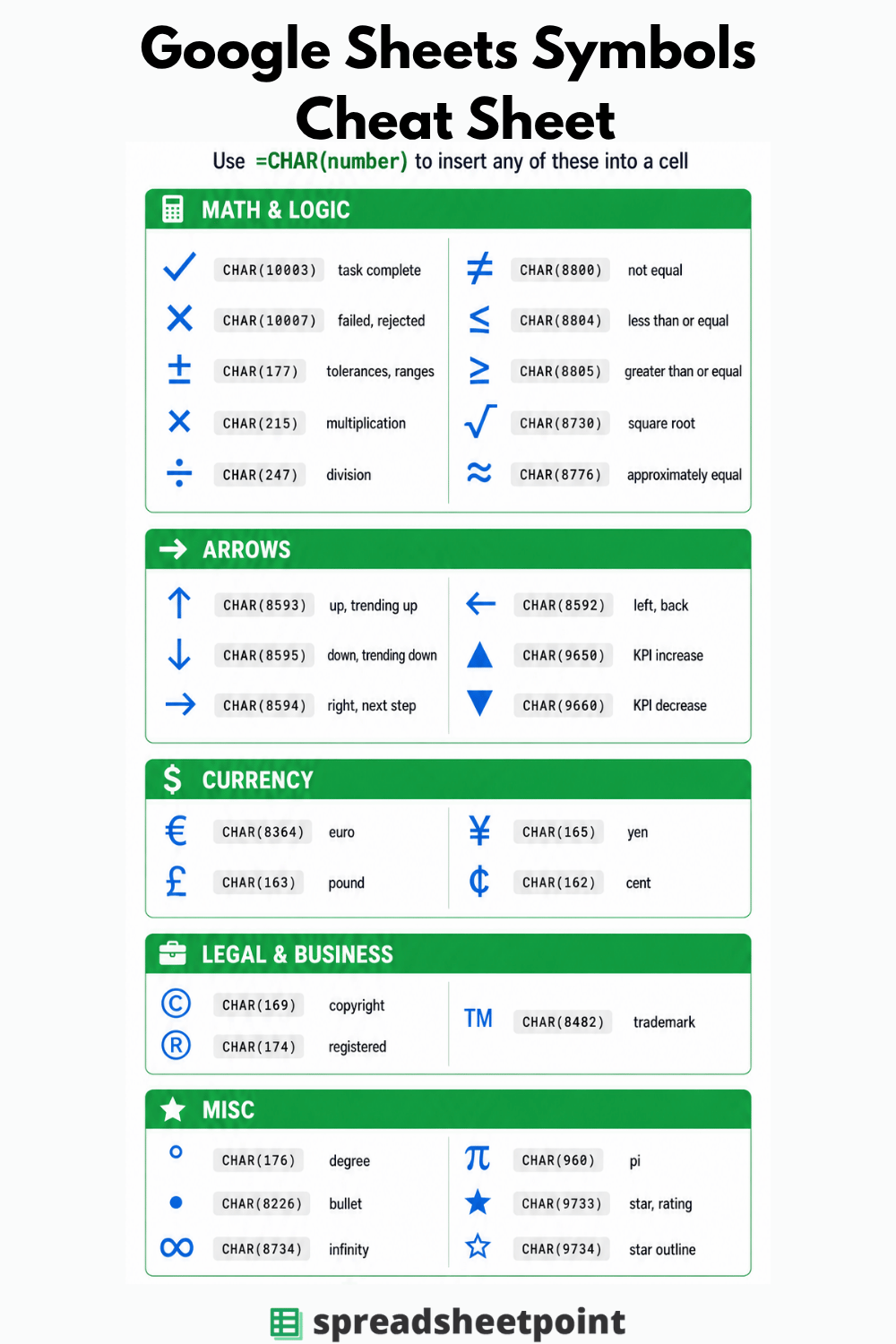
CHAR Code Reference: Common Symbols
These work in any cell as =CHAR(number), on any device.
| Symbol | CHAR code | Description |
|---|---|---|
| © | 169 | Copyright |
| ® | 174 | Registered trademark |
| ™ | 8482 | Trademark |
| ° | 176 | Degree |
| ± | 177 | Plus-minus |
| × | 215 | Multiplication |
| ÷ | 247 | Division |
| ≠ | 8800 | Not equal |
| ≈ | 8776 | Approximately equal |
| ≤ | 8804 | Less than or equal |
| ≥ | 8805 | Greater than or equal |
| √ | 8730 | Square root |
| ∞ | 8734 | Infinity |
| π | 960 | Pi |
| $ | 36 | Dollar |
| € | 8364 | Euro |
| £ | 163 | Pound |
| ¥ | 165 | Yen |
| ¢ | 162 | Cent |
| ↑ | 8593 | Up arrow |
| ↓ | 8595 | Down arrow |
| ← | 8592 | Left arrow |
| → | 8594 | Right arrow |
| ✓ | 10003 | Check mark |
| ✗ | 10007 | X mark |
| ★ | 9733 | Star (filled) |
| ☆ | 9734 | Star (outline) |
| • | 8226 | Bullet |
| ♥ | 9829 | Heart |
| ♦ | 9830 | Diamond |
For symbols not on this list, the official Unicode website has a full lookup tool. Find the symbol, grab its decimal code, and plug it into CHAR().
How to Insert the Same Symbol Into Multiple Cells
Once you’ve added a symbol to one cell, the fastest way to repeat it down a column is the fill handle:
- Click the cell with your symbol.
- Hover over the small blue square in the bottom-right corner of the cell. The cursor turns into a crosshair.
- Click and drag down through the cells you want to fill.
If you used the CHAR function, you can copy the formula instead of the result. Either way the symbol appears in every cell.
Which Method Should You Use?
| Method | Best for | Works on |
|---|---|---|
| CHAR function | Symbols you use often or in formulas | Windows, Mac, Chromebook, mobile |
| Copy from Google Docs | One-off symbols, browsing by category | Any device |
| Alt codes | Quick typing if you have a number pad | Windows only |
| Mac Character Viewer | Browsing symbols on Mac | Mac only |
| Chromebook Unicode entry | Quick hex entry on Chromebook | Chromebook only |
For most people: use Method 2 (Google Docs) for one-time symbols and switch to Method 1 (CHAR) once you find yourself reaching for the same symbol repeatedly.
Frequently Asked Questions
What’s the easiest way to insert a symbol in Google Sheets?
For a one-off symbol, copy it from Google Docs and paste it into your sheet (Method 2). For a symbol you’ll use repeatedly, the CHAR function is faster: =CHAR(169) returns ©, =CHAR(8364) returns €, and so on.
How do I use the CHAR function to insert symbols in Google Sheets?
Type =CHAR(number) in a cell, where number is the Unicode decimal code for the symbol. For example, =CHAR(176) returns the degree symbol (°), and =CHAR(10003) returns a check mark (✓). You can combine CHAR with text using &: =CHAR(8364) & "50" returns €50.
Do Alt codes work in Google Sheets on Mac or Chromebook?
No. Alt codes are a Windows-only feature and require a numeric keypad. On Mac, use Control + Command + Space to open the Character Viewer. On Chromebook, hold Ctrl + Shift + U, type the four-character hex code, and press Enter. Or use the CHAR function, which works on every platform.
How do I insert the same symbol into multiple cells at once?
Add the symbol to one cell, then click and drag the fill handle (the blue square in the bottom-right corner of the cell) down or across to copy it. If you used =CHAR(), the formula will copy and produce the symbol in every cell.
How do I find the Unicode number for a symbol?
Two ways: (1) If the symbol is already in a cell, run =UNICODE(A1) to get its decimal code. (2) Look it up on the official Unicode website or any Unicode character lookup tool. Once you have the decimal number, plug it into =CHAR(number).
Can you insert icons in Google Sheets?
Not directly through a built-in icon menu, but you can paste any Unicode symbol or emoji into a cell, and you can insert images directly into a cell using Insert > Image > Image in cell. For icon-style visuals, that’s usually the better option.
Summary
Three methods cover almost every case for inserting symbols and special characters in Google Sheets:
- CHAR function — fastest, works on every device, best for symbols you use often.
- Copy from Google Docs — easiest if you don’t know the Unicode number; works anywhere.
- Alt codes — handy on Windows with a numeric keypad; doesn’t work on Mac or Chromebook.
Save the CHAR reference table above and you’ll rarely need to leave Sheets to grab a symbol.