
A daily schedule in Google Sheets is easier to build than most people expect. The structure is a simple grid: times down one side, activities filling the cells across from them. The whole thing takes about ten minutes to set up from scratch, or about thirty seconds if you copy an existing template.
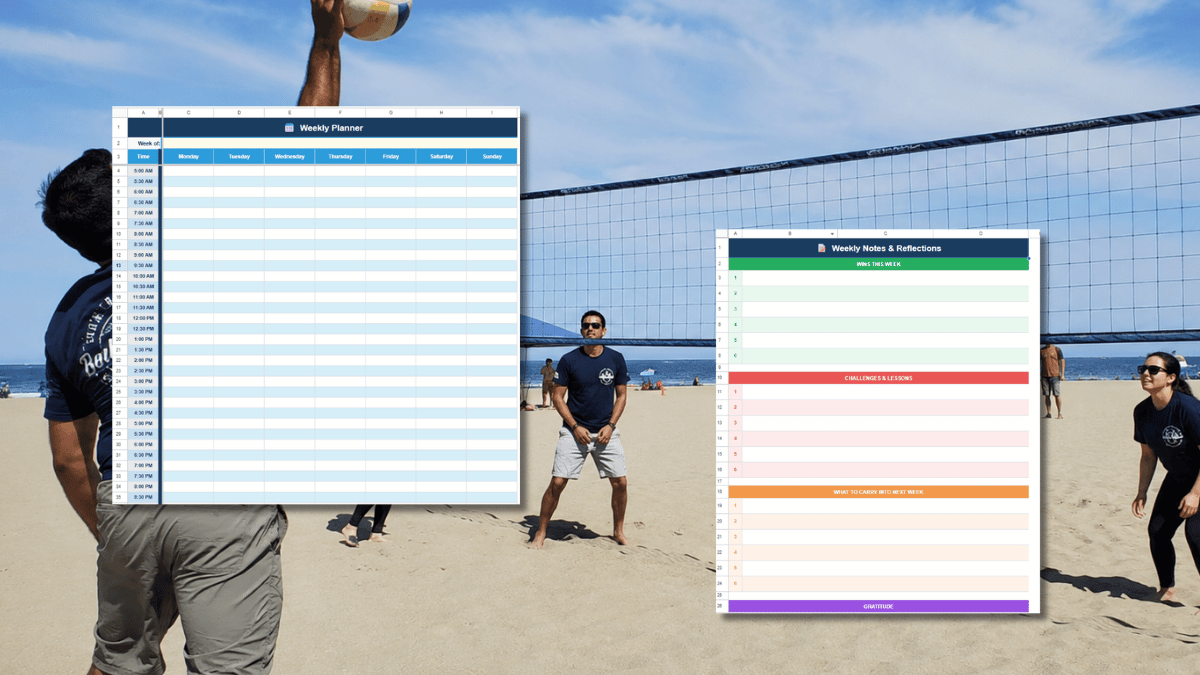
If you want the thirty-second version, my free weekly schedule template has a daily grid already built across all seven days. Copy it to your Drive and start filling it in.
Building a Daily Schedule from Scratch
- Open a new Google Sheets file. Go to Google Sheets: Online Spreadsheets & Templates | Google Workspace , click the plus sign, and start with a blank sheet.
- Set up the time column. In cell A1, type “Time.” In A2, type your first time slot: 6:00 AM, 7:00 AM, or wherever your day starts. In A3, type the next slot, 30 minutes later. Select A2 and A3, grab the fill handle at the bottom-right corner of the selection, and drag down. Sheets will autofill the 30-minute increments automatically.
- Add an activity column. In cell B1, type “Activity.” This is where you enter what you are doing during each time slot. Add more columns for additional days: Tuesday in C1, Wednesday in D1, and so on, or keep it to a single day if you prefer a daily view over a weekly one.
- Freeze the header row. Click View, then Freeze, then 1 row. The “Time” and column headers will stay visible as you scroll down through the time slots.
- Style the header row. Bold the text, add a fill color, and adjust the column widths so the activity column is wide enough for a short description. None of this affects how the schedule works, but it makes it faster to read at a glance.
- Fill in your day. Click the cell where a time row meets the activity column and type what you are doing. Keep entries short: “Focus work,” “Lunch,” “Team call,” “Admin.” The goal is a visual map, not a detailed log.
Adding a To-Do List Next to the Schedule
A time block schedule tells you when you are doing something. A to-do list tells you what needs to get done. The two work better together than either does alone.
Add a column next to your activity column and label it “Tasks.” In each row, list the specific tasks you plan to complete during that block. Then add one more column labeled with a checkmark symbol and use it to track completion. Select those cells, go to Insert, then Checkbox, and Google Sheets will add clickable checkboxes to each row.
This combination is the core of how I track daily work. The time block keeps me honest about how the day is structured. The task list keeps me specific about what I am actually trying to accomplish in each block. The checkboxes make the progress visible, which matters more than it sounds when you are working through a long day.
Sharing the Schedule with a Small Team
One of the main reasons I use Google Sheets for daily scheduling instead of a dedicated app is the sharing model. Click the Share button in the top-right corner, add a teammate’s email, and they can see the same file in real time. No per-seat fee. No onboarding. No export step.
For a small team of two to five people, a shared daily schedule Sheet gives you enough visibility into who is doing what without the overhead of a project management tool. Each person’s day is visible. Overlaps and gaps are easy to spot. The whole thing runs on a free Google account.
Reusing the Schedule Every Day
The fastest workflow is to keep one file and update it each morning. Clear the previous day’s tasks, fill in the current day, and carry over anything that did not get done.
If you want to keep a record of past days, right-click the tab name at the bottom of Sheets and select Duplicate. Rename the duplicate with the previous day’s date before you update it. You end up with a tab for each day, which is a useful archive if you ever want to look back at how you spent a specific period.
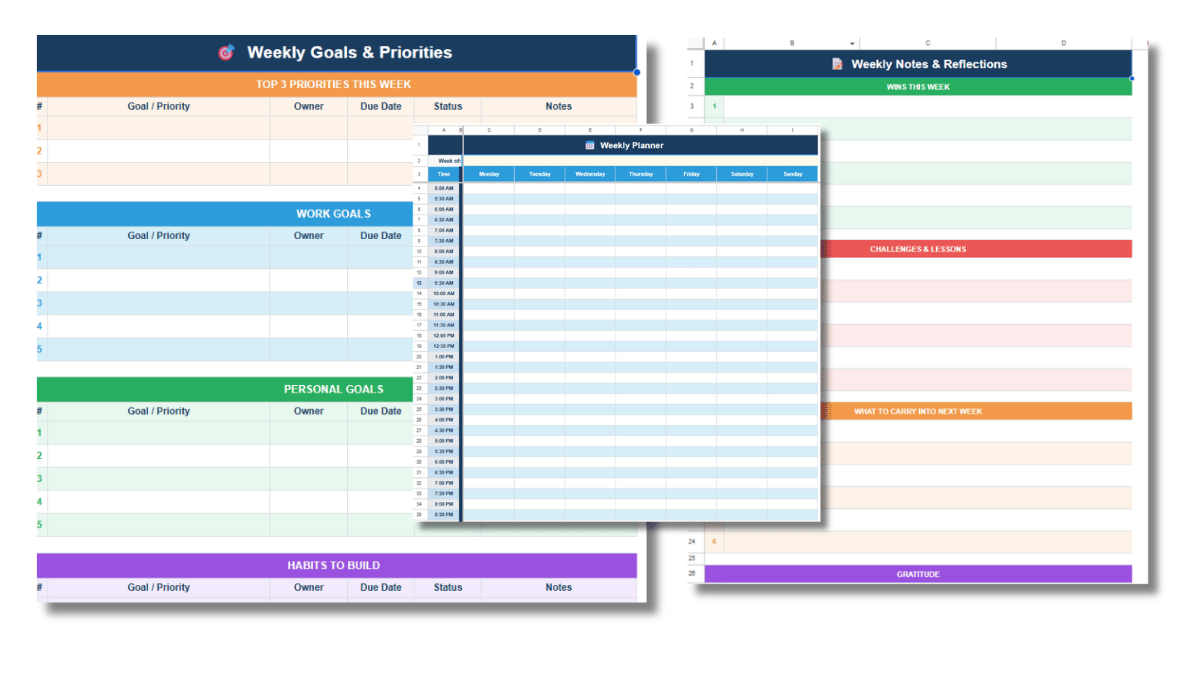
The weekly schedule template does this across a full week. The time block grid covers all seven days in one view, and a daily to-do tab sits alongside it with task tracking built in. Copy it once and the structure is there every week.
Frequently Asked Questions
What is the best time increment for a daily schedule in Google Sheets?
Thirty minutes works for most people. It is granular enough to distinguish different types of work without being so fine-grained that filling in the schedule takes longer than following it. If your days are meeting-heavy, 15-minute increments give more precision. If your work happens in large blocks, one-hour increments are sufficient.
Can I print my Google Sheets daily schedule?
Yes. Go to File, then Print. Set the orientation to landscape, scale to fit the page width, and turn off gridlines if you want a cleaner printout. For a single-day view, portrait orientation usually fits better. Adjust the print area to include only the columns and rows you want on the page.
How do I add color coding to my daily schedule?
Select a cell or a range of cells, right-click, and choose Format cells, then Fill color. Pick a color for that type of work. For automatic color coding based on what you type, use conditional formatting under the Format menu. Set a rule that applies a fill color whenever a cell contains a specific word like “Meeting” or “Deep work.”
Is there a free daily schedule template for Google Sheets?
Yes. This weekly schedule template includes a time-blocked daily and weekly view along with a daily to-do list tab. It is free to copy with a Google account and covers both time blocking and task tracking in the same file.