
Here are two free Google Sheets assignment tracking templates you can copy and start using today: one for managing active tasks and one for mapping your full semester. We also recently released an updated assignment tracker template with a live dashboard, automatic row formatting, and a priority column built in.
When your coursework starts piling up across multiple classes, it gets easy to lose track of what is due and when. An assignment tracker template keeps every task in one place so you can organize your workload, set priorities, and make sure nothing falls through the cracks.
All you need to do is open whichever template fits your needs, hit the Make a copy button, and start filling it in.

Read on to see how each template works and which one is the right fit for your situation.
What Should a Good Homework Spreadsheet Have?
A well-built assignment tracker template gives you the flexibility to manage different types of tasks across different classes without switching between apps or hunting through notes. Before diving into the templates, here are the core components that make a homework spreadsheet actually useful:
- Assignment description: An efficient assignment tracker will have space to jot down notes about each task. This avoids confusion later and helps you anticipate how much effort each item requires.
- Dates: Dedicated fields for due dates let you plan your schedule and compare timelines across assignments. Paired with priority tags, dates help you decide what to tackle first.
- Status updates: Tracking task status tells you at a glance what has started, what is in progress, what is done, and what still needs attention. It also makes it easy to return to anything that needs a second pass.
- Subject and type: Categorizing assignments by class and by type (paper, lab, exam, quiz, project) keeps your tracker organized and makes filtering by coursework straightforward.
- Priority level: A priority column helps you build better workflows around deadlines, especially when multiple assignments land in the same week.
Some trackers also include calendar views, semester-wide layouts, or dashboard sheets for a higher-level overview. The templates below cover all of these bases.
Basic Assignment Tracking Template
This is a simple, free assignment tracker template built in Google Sheets. It covers everything you need to manage active assignments: a countdown to each deadline, status and subject tags, assignment details, and date fields. It runs on a single tab and is ready to use as soon as you make a copy.
Download the free basic assignment tracking template here:
Column A: Days Remaining
This column shows how many days you have left before each assignment is due. Use it to prioritize your workload and decide what needs attention first. The cells update automatically using pre-loaded formulas, so avoid editing them directly. The values pull from the date columns at the end of the row.
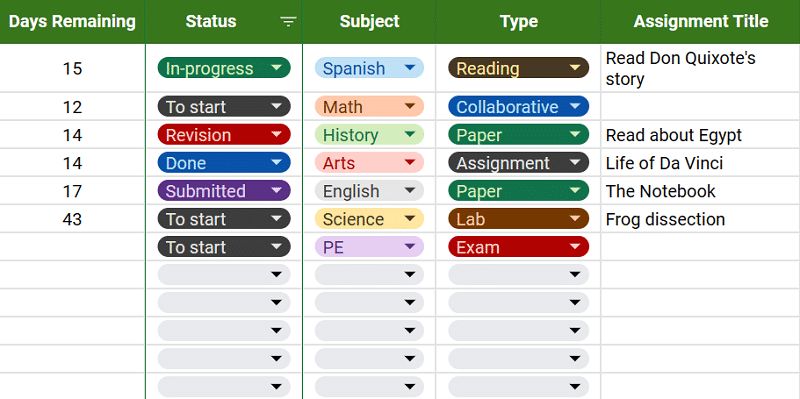
Columns B to D: Status, Subject, and Task Type
These three columns let you tag each assignment by completion status, class, and assignment type. Each field uses a dropdown menu so you can categorize entries quickly without typing. The status and subject values are color-coded, which makes it easier to scan your list and spot what needs action.
The default subject options are based on the American curriculum. If your classes differ, you can update the dropdown options in a few steps:
- Click on any cell in the Subject column to open its dropdown list, then click the pen icon at the bottom of the list.
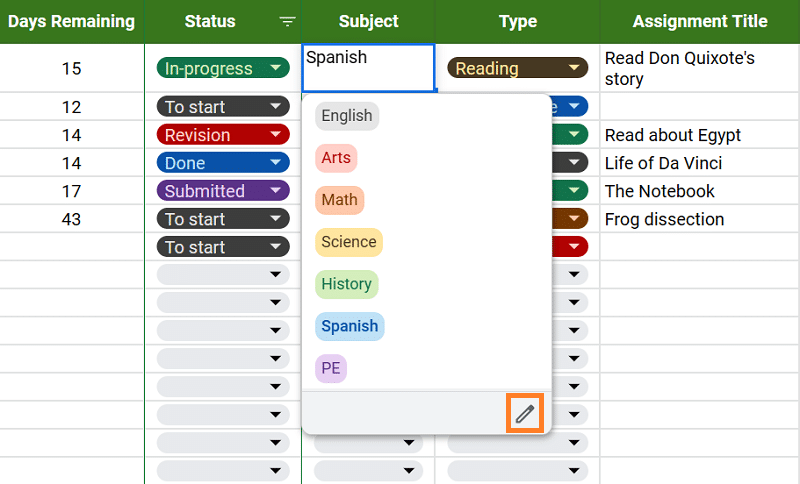
- The dropdown settings panel will open on the left side of the screen.
- Edit the existing options (for example, change Math to Physics).
- Click the Done button when finished.
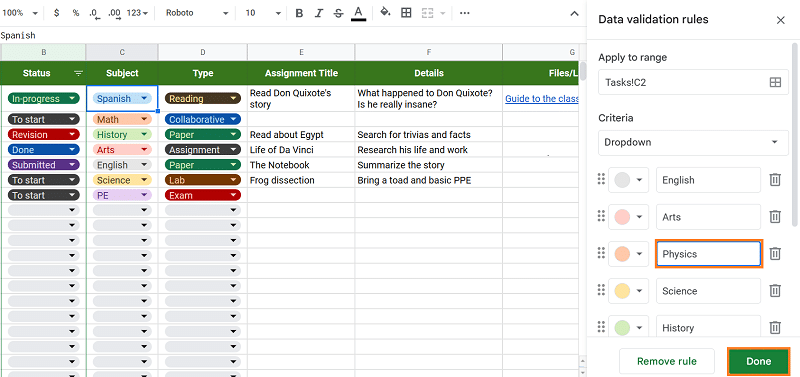
- A prompt may appear asking whether to apply the changes to the full column range.
- Click Apply to all to update all cells in that column at once.
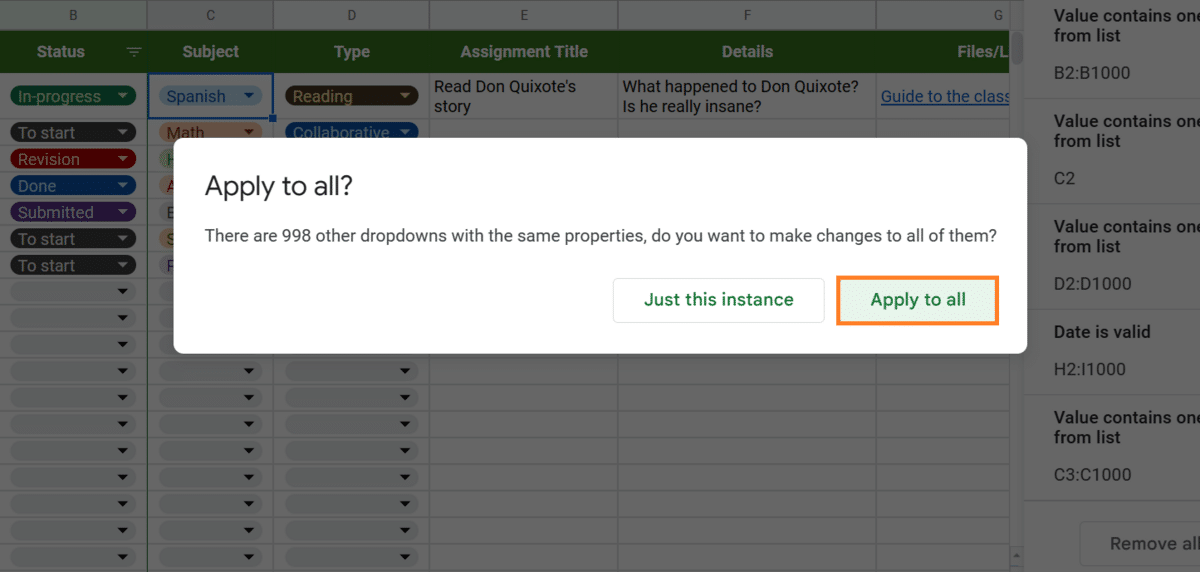
The Status column also includes a filter so you can view only the assignments that match a specific status. Here is how to use it:
- Click the filter icon next to the Status column header.
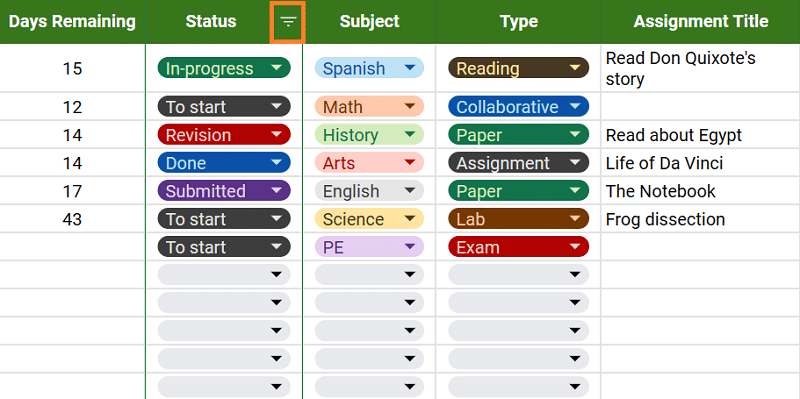
- Scroll down to see the list of status values, each with a checkmark.
- Click Clear to deselect all values.
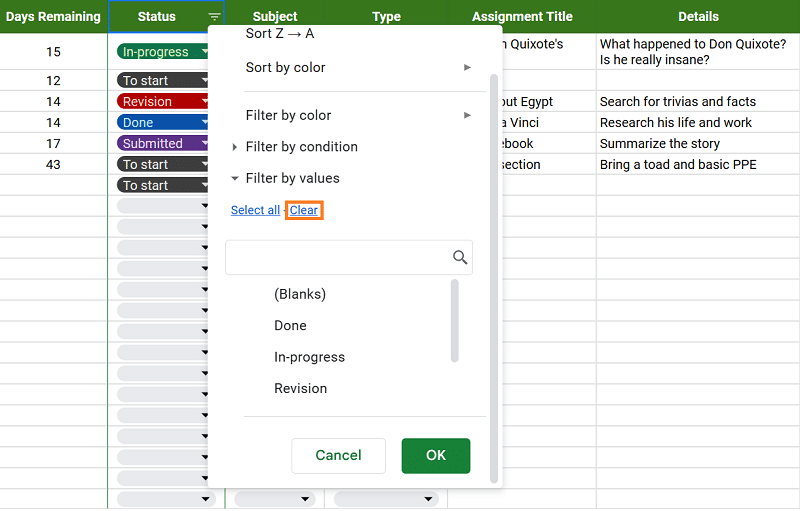
- Select only the statuses you want to see, such as To Start and In Progress.
- Click OK to apply the filter.
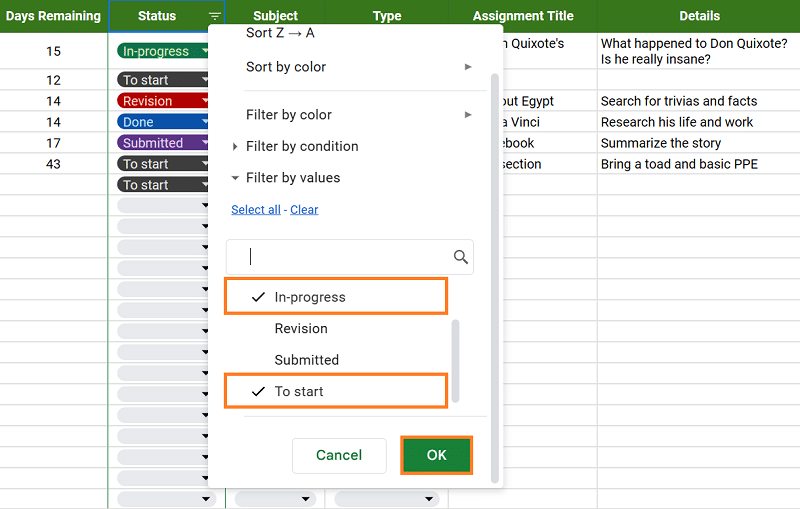
- To reset the view, repeat the steps and reselect all status categories.
Columns E to I: Assignment Details and Dates
Columns E through G hold the core details for each assignment: the title, a description, and any relevant files or links (such as a rubric, resource URL, or reference document). Columns H and I are the date fields: the date the assignment was given and the date it is due. Both fields use data validation rules that only accept valid dates. These values drive the Days Remaining calculation in Column A.
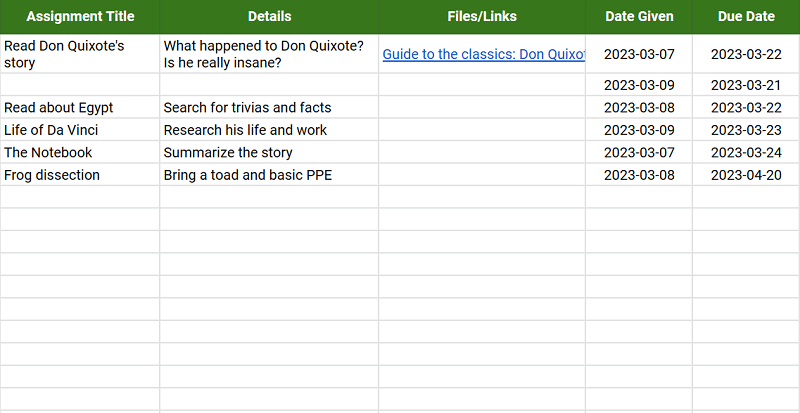
A few tips for getting the most out of this tracker:
- Check and update your status column each morning so your list reflects where things actually stand.
- Sort by Days Remaining at the start of each week to surface your most urgent coursework.
- To add more rows, select the last formatted row, right-click, and choose Insert row below. Copy the row above to bring the formatting and formulas with it.
Updated Assignment Tracking Template
If you want more than the basics, we built an upgraded version of the assignment tracker template with automatic formatting, a priority system, and a full dashboard sheet. It is designed for students managing heavy coursework loads across multiple classes, where a simple list is not enough.
Download the updated assignment tracking template here:
What Is New in the Updated Template
The updated template keeps the same column structure as the basic version but adds several features that reduce manual work and give you better visibility into your workload:
- Auto-numbering: Row numbers fill in automatically as you add new entries. No manual numbering needed.
- Live Days Remaining: The countdown calculates from today’s date every time you open the sheet. It shows a checkmark when an assignment is marked Done and a dash when no due date has been entered.
- Priority column: A new Low, Medium, and High priority dropdown helps you assign ownership over your most critical tasks and build better workflows around competing deadlines.
- Grade/Score column: Log your grades directly in the tracker so your assignment history and performance stay in one place.
- Expanded Type dropdown: The task type field now covers 10 options including Assignment, Paper, Lab, Exam, Quiz, and Project, giving you more flexibility to categorize your coursework accurately.
- Conditional row formatting: Overdue assignments (where Days Remaining hits zero and the status is not Done or Submitted) automatically turn the entire row red so nothing falls through the cracks.
- Days Remaining heat map: Rows with 7 or fewer days remaining turn orange. Rows with 3 or fewer days turn red. You can see urgent timelines at a glance without sorting.
- Automatic status and priority color-coding: Status and priority cells update their color automatically when you select a value. No manual formatting required.
- 30 pre-formatted rows: The sheet comes ready to fill in with 30 blank rows that already carry all formatting and formulas.
Dashboard Sheet
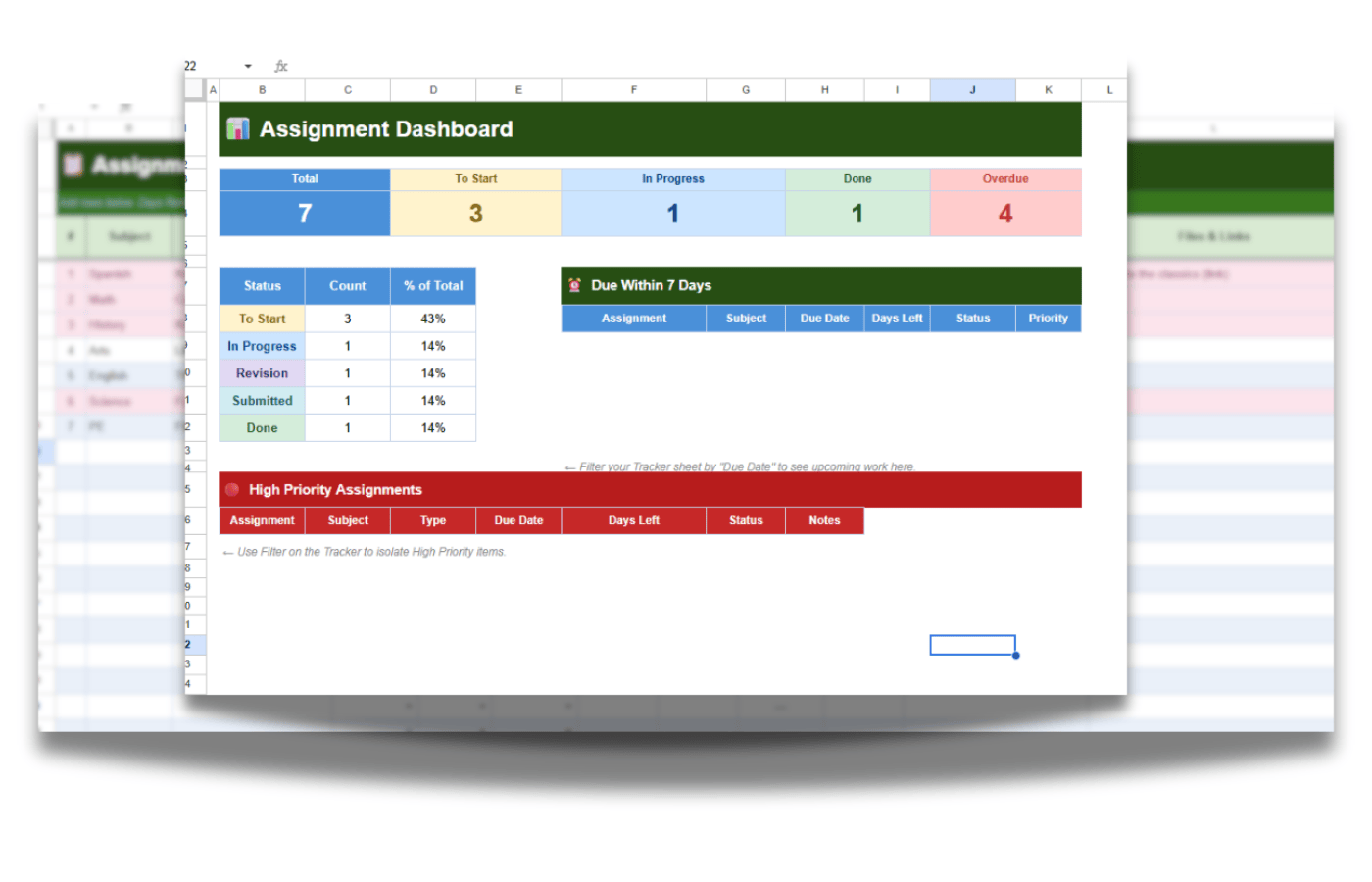
The updated template includes a second sheet: a summary dashboard that gives you a high-level view of where your workload stands. Unlike the basic tracker, which only shows different views of the same row-level data, the dashboard aggregates everything into summary cards and tables you can check at a glance.
The dashboard includes:
- Summary cards: Auto-calculated counts for Total assignments, To Start, In Progress, Done, and Overdue. These update live as you edit the tracker sheet.
- Status breakdown table: A full breakdown of your assignments by status, including both counts and percentages.
- Upcoming due dates section: A view of assignments due soon, so you can plan your week without scrolling through the full list.
- High-priority work section: A filtered view of assignments tagged as High priority, regardless of due date.
The dashboard works well as a daily check-in. Open it first thing to get a quick read on your workload before switching to the tracker sheet to update status and add new assignments.
Which Template Should You Use?
Use the basic template if you want something lightweight and quick to set up. It covers the core use case well: log your assignments, track status, and watch the deadline countdown. It works in Microsoft Excel too if you prefer to keep things off the cloud.
Use the updated template if you are managing a full course load with multiple assignment types, need to track grades alongside deadlines, or want the dashboard to replace manual status updates at the start of each day. The conditional formatting and priority system also make it a better fit if you tend to have several high-stakes items due in the same window.
Both templates use Google Sheets, which means they are free, accessible from any device, and easy to share with a study partner or group.
Semester Assignment Spreadsheet
If you want to plan your full course load ahead of time rather than track assignments one by one, this template takes a different approach. Instead of a row-per-assignment list, it gives you a calendar-style view of your entire semester laid out by week. It is simpler than the other two templates and works best as a planning tool at the start of a term.
Get the template here: Semester Assignment Spreadsheet
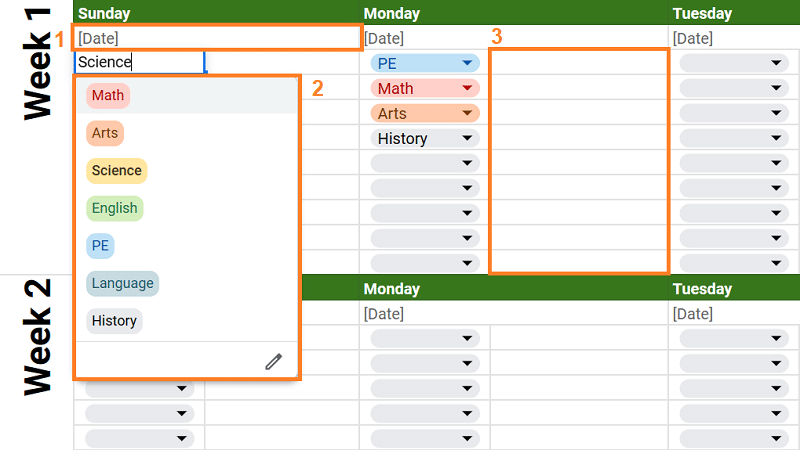
The spreadsheet covers 15 weeks structured around the American semester calendar, with columns for each day of the week. There are three fields to fill in:
- Date: Enter the relevant date under the correct day of the week for each assignment or event.
- Tags: Categorize each entry by subject using the color-coded tag system, which matches the layouts used in the other templates.
- Assignment Details: Add a short description of the task in the space beside each tag.
This template works well alongside either of the other two trackers. Use the semester spreadsheet at the start of term to map out your full coursework schedule from your syllabus, then use the basic or updated assignment tracker for day-to-day task management as deadlines approach. The two workflows complement each other rather than overlap.
It does not include gantt-style timelines, automated status updates, or formula-driven columns. If you need those features, the updated template is the better fit. The semester spreadsheet is intentionally minimal so you can fill it in quickly and get a bird’s-eye view of how your workload is distributed across the term.
Why Use a Spreadsheet to Track Assignments?
Dedicated planner apps and school portals exist, but a Google Sheets assignment tracker has a few advantages worth considering:
- Flexibility: You can adapt the template to fit your specific courses, assignment types, and grading system. No app forces its own structure on you.
- Different views in one file: With multiple sheets in a single workbook, you can switch between a detailed task list, a semester calendar, and a summary dashboard without leaving the file.
- Works on any device: Google Sheets runs in the browser and on the mobile app, so your tracker is accessible whether you are at your desk or between classes. It also exports cleanly to Microsoft Excel if you ever need an offline copy.
- Free and shareable: All three templates are free to copy. You can share them with classmates or a study group without any account requirements on their end.
Frequently Asked Questions
Can I use this assignment tracking template on my phone?
Yes. All three templates run in Google Sheets, which has a free iOS and Android app. You can view and edit your tracker from your phone, including updating status dropdowns and entering due dates. The dashboard sheet in the updated template is also viewable on mobile, though it is easier to navigate on a larger screen.
How do I add more rows to the template?
Select the last formatted row in the tracker, right-click, and choose Insert row below. To carry over the existing formulas and formatting, copy the row above before inserting and paste it into the new row. In the updated template, the conditional formatting and Days Remaining formula will apply automatically to any row you add this way.
Can I use this template for multiple classes at once?
Yes, and that is exactly what the Subject column is for. Each row can be tagged to a specific class using the subject dropdown, and you can filter by subject to focus on one course at a time. The updated template dashboard also breaks your workload down by status across all classes so you can see the full picture at once.
What is the difference between the basic tracker and the updated template?
The basic tracker is a straightforward nine-column list with a deadline countdown, status tags, and subject categories. The updated template adds a priority column, a grade field, automatic row color-coding for overdue and urgent assignments, an expanded task type dropdown, and a separate dashboard sheet with summary cards and status breakdowns. If you want a lightweight tracker, use the basic version. If you are managing a full course load and want better visibility into your workload, use the updated one.
What is the difference between the tracker and the semester spreadsheet?
The tracker templates manage assignments at the task level: one row per assignment, with status, priority, and deadline details. The semester spreadsheet gives you a calendar-style overview of your full term laid out by week. They serve different purposes and work well together. Use the semester spreadsheet to map out your coursework from your syllabus at the start of term, and use the tracker for day-to-day assignment management.
How do I customize the subject dropdown to match my classes?
Click on any cell in the Subject column and open its dropdown list. Click the pen icon at the bottom of the list to open the data validation settings. Edit the existing subject options to match your classes, then click Done. When prompted, click Apply to all to update the dropdown across the entire column.
Will the Days Remaining column update automatically?
Yes. In both the basic and updated templates, the Days Remaining column calculates from today’s date every time the sheet loads. You do not need to update it manually. In the updated template, the column also shows a checkmark when an assignment is marked Done and a dash when no due date has been entered.
Does this assignment tracker work in Microsoft Excel?
The basic template is compatible with Microsoft Excel. You can download it from Google Sheets as an .xlsx file and most of the formatting and formulas will carry over. The updated template uses some Google Sheets-specific features, including the dashboard sheet, so it works best in Google Sheets. If you primarily use Excel, the basic tracker is the better starting point.
Related: