
Keeping track of your social media presence without a plan is how you end up posting whatever comes to mind at 8pm on a Tuesday. A social media calendar fixes that. It puts every post on a schedule, keeps your platforms organized in one place, and makes it easier to stay consistent without burning out.
Google Sheets is one of the best tools for the job. It’s free, shareable, and flexible enough to build exactly the calendar you need.
We’ll show you how to build one from scratch, or skip straight to a ready-made template:
- Social Media Content Calendar 2026: SpreadsheetPoint Template (Featured)
- Weekly-Monthly-Yearly Google Sheets Social Media Calendar
- Daily Google Sheets Social Media Content Calendar Template
Table of Contents
What Is a Social Media Calendar?
A social media calendar is a planning tool that maps out what you’re posting, where, and when. Instead of deciding on the fly, you schedule content in advance by day, week, or month so nothing falls through the cracks.
Most social media calendars include the same core elements:
- The date and time each post goes live
- The platform: Instagram, TikTok, YouTube, Pinterest, Facebook, Reddit, or others
- The content type: video, image, story, carousel, link post, etc.
- Caption notes or copy drafts
- Links to assets like images, videos, or audio
- Publish status: idea, drafting, scheduled, published
What you track depends on how you use it. A solo creator, agency content marketer, and in-house marketing team will build very different calendars. That’s why Google Sheets works so well. You shape it around your workflow, not the other way around.
Why You Should Use a Social Media Calendar Template for Google Sheets
It Keeps You Productive
Every social media post involves more work than it looks. Writing the copy, sourcing the visual, editing, and formatting for the platform. It adds up fast. When you’re jumping between tasks and switching windows constantly, you lose momentum. Content planning should be fun. And a content roadmap helps.
A calendar lets you work in batches. Write all your captions on Monday. Schedule all your posts on Wednesday. Everything runs smoother when you’re not making micro-decisions all day. Productivity is key for anyone in the marketing industry, so built-in automations are key.
It Keeps You Consistent
Whether you post daily or twice a week, consistency is what builds an audience. A calendar makes your schedule visible. You can see gaps before they happen and fill them before the week starts, rather than scrambling at the last minute.
Consistent posting also builds trust. Your audience knows content is coming. That reliability compounds over time. A calendar template makes it easy to stay on track without relying on memory.
It Keeps You Organized
When all your platforms live in one sheet, you stop losing things. No more hunting through notes apps, DMs, or drafts folders for that caption you wrote last Tuesday. Open the calendar, find the row, done.
A dashboard view lets you see every platform in a single place: Instagram, TikTok, Pinterest, YouTube, Facebook, Reddit. That kind of organization makes it easier to spot imbalances, like three weeks of Instagram content and nothing queued for YouTube.
It Helps You Strategize
When your content history lives in a spreadsheet, patterns become obvious. You can compare months, see which content types get published consistently versus which ones stall in drafts, and plan around upcoming events, launches, or seasonal moments before they arrive.
It also makes it easier to manage your content as a project, with owners, deadlines, and clear stages from idea to publication.
It Makes Collaboration Easier
If you work with a team, a shared Google Sheets calendar keeps everyone aligned without endless status meetings. Designers, copywriters, and social media managers all see the same pipeline. Everyone knows what’s due and what still needs work.
Pair it with a task list template and you have a clean production workflow without paying for a project management tool. That way, the team can ideate in a shared spreadsheet before individual marketers schedule posts.
How to Build a Social Media Calendar in Google Sheets
You can build a functional calendar in about 30 minutes. Here’s a streamlined version of the process. Feel free to adapt it. The best calendar is the one that fits your actual workflow.
- Open a new spreadsheet. Go to Google Sheets and click Blank to start fresh.
- Set up the month header. In cell A1, type the first date of your month (e.g., 1/1/2026). Then go to Format > Number > Custom date and time and set it to display Month and Year only. Merge A1 across the top columns for a clean header.
- Add your column headers. Common columns: Date, Day, Platform, Content Type, Caption / Topic, Visual Notes, Status. Adjust based on what you actually need to track.
- Populate the dates automatically. Format column B as a date column (Format > Number > Date). Type =A1 into the first date cell, then =B4+1 in the cell below it. Drag the fill handle down to cover all 7 days of the first week.
- Pull the day names. In column A, format the cells as a custom date showing Day only, then type =B4 and drag down. The days will populate automatically from your date column.
- Divide into weeks. Merge a row above each week’s dates and label it Week 1, Week 2, etc. This breaks the calendar into visual chunks and makes it easier to scan.
- Add dropdowns for Platform and Status. Highlight the Platform column, go to Data > Data validation, and set a list of values: Instagram, TikTok, YouTube, Pinterest, Facebook, Reddit. Repeat for a Status column with values like: Idea, Drafting, Ready, Scheduled, Published.
- Add checkboxes for quick tracking (optional). Highlight the cells you want checkboxes in, go to Data > Data validation, and select Checkbox under criteria. Useful for marking posts complete without changing a dropdown.
- Complete the month. Repeat the week structure down the page until you’ve covered all days in the month.
- Duplicate for additional months. Right-click the sheet tab and click Duplicate. In the first cell of the new sheet, use the formula =EDATE(‘Month 1’!A1,1) to shift all dates forward by one month automatically. Rename the tab to match the new month.
- Clean up overflow dates. Some months have fewer days than others. Delete any extra rows that fall into the next month at the bottom of each sheet.
The result is a rolling calendar where changing the first date of Month 1 cascades through every sheet. For a version that’s already built and branded, grab one of the templates below.
Download Social Media Calendar Google Sheets Templates
These are free to use. Click any link to make a copy directly to your Google Drive.
Featured Template
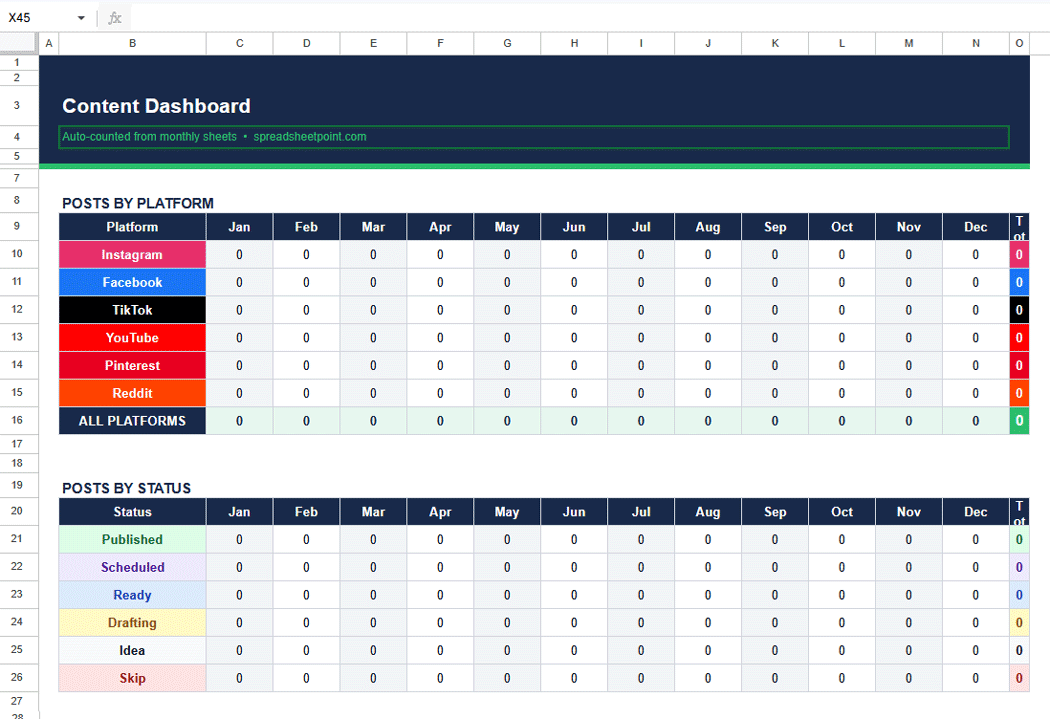
- Social Media Content Calendar 2026: Covers all 12 months with tabs for Instagram, TikTok, YouTube, Pinterest, Facebook, and Reddit. Includes a Dashboard tab that auto-counts posts by platform and status, plus a Post Ideas bank. Change the year in one cell, and every sheet updates. This is our most advanced free spreadsheet for content creators and social media managers. It has separate tabs for each month and functions as a full social media calendar for the marketing team. The dashboard tab has a monthly view so you can see the number of posts per month across platforms, and it’s color-coded by social platform.
Additional Templates
- Weekly-Monthly-Yearly Google Sheets Social Media Calendar: A neat and clean breakdown with specific columns for hashtags, image links, and more. Tabs for months. Easy to customize for any year. Monthly calendars are especially helpful for capturing seasonal trends in the editorial calendar.
- Daily Google Sheets Social Media Content Calendar Template: Day-by-day spreadsheet template for tracking focused hour-by-hour social media campaigns. Time slots are crucial for this one. Like the rest, can easily be shared between team members after you make a copy.

- Social Media Report Dashboard Template: A high-level view of your content calendar that measures engagement, followers, and more. This is one of those crucial visual-first displays that shows key performance metrics with charts. It can make or break an annual review.

- Daily Social Media Schedule Template: More of a freeform spreadsheet template made for tracking notes in a single month view.

- Weekly Social Media Marketing Calendar Template: Note that this one is super simple and has options for Twitter and Pinterest, in addition to Instagram, Facebook, and YouTube. No time slots. Just cells for ideation with notes and captions in separate columns.
Note: To use the Weekly-Monthly-Yearly calendar, change the date in cell A1 and all other sheets update automatically.
Related: How to Make a Schedule in Google Sheets
Frequently Asked Questions
How do I create a social media calendar in Google Sheets?
Open a blank spreadsheet, set up columns for date, platform, content type, caption notes, and status. Use the formula =B4+1 to auto-populate dates down the page, and add data validation dropdowns for platforms (Instagram, TikTok, YouTube, Pinterest, Facebook, Reddit) and status stages. Duplicate the sheet for each month and use =EDATE() to shift dates forward automatically. Or skip the build and get a free copy of our free 2026 template here.
Is there a 2026 social media calendar template for Google Sheets?
Yes. Our 2026 Social Media Content Calendar covers all 12 months, includes tabs for every major platform, and has a live Dashboard that counts posts by platform and status. It’s free to copy and fully editable. You can also update the year in one cell to make it work for 2027 and beyond.
How do I make a monthly social media calendar?
Create one sheet per month. Add a row for each day with columns for platform, content type, topic, and status. Use date formulas to auto-populate the days so you’re not typing them manually. Merge a header row at the top and format it with the month and year. Color-code by platform or status to make the calendar easier to scan at a glance. The full build process is covered in the how-to section above.
What platforms should I include in my social media calendar?
Include every platform you actively post to. The most common are Instagram, TikTok, YouTube, Facebook, Pinterest, and Reddit. If you manage multiple accounts on the same platform, add a column for the account name. The goal is to see your full publishing schedule in one place. The more complete your calendar, the more useful it becomes.
Can I use a Google Sheets calendar for a team?
Yes, and it’s one of Google Sheets’ biggest advantages. Share the file and set permissions: view only for stakeholders, edit access for the production team. Everyone sees the same pipeline in real time. Combine it with a content calendar template and a task list to build a simple production workflow without paying for extra tools. Note that these also work with Microsoft Excel. Just make a copy, then download.
Start Posting With a Plan
A social media calendar doesn’t need to be complicated. A clean spreadsheet with the right columns is all it takes to go from reactive posting to a content schedule that actually holds.
Grab the 2026 Social Media Content Calendar template, make a copy here, and fill in the month. That’s the whole process.
Related Reading: