
Most goals die from vagueness. You know what you want, roughly when you want it, and then weeks pass without a single measurement.
A goal tracking spreadsheet fixes this by giving every goal a number, a deadline, and a daily record of whether you moved closer or fell behind. No app subscription. No account. Just a Google Sheet you control.
This free template handles three types of goals: numeric targets (save $5,000, read 24 books), streaks (30 consecutive workout days), and milestones (finish all 12 modules of an online course). It includes a daily log, automatic progress calculations, and a dashboard that tells you whether your pace will get you there on time.
Click here to make a copy of the goal tracking spreadsheet.

What the Template Includes
The spreadsheet has four tabs. Each one serves a specific role in helping you track progress from setup through daily logging to a summary view.
Goal Setup
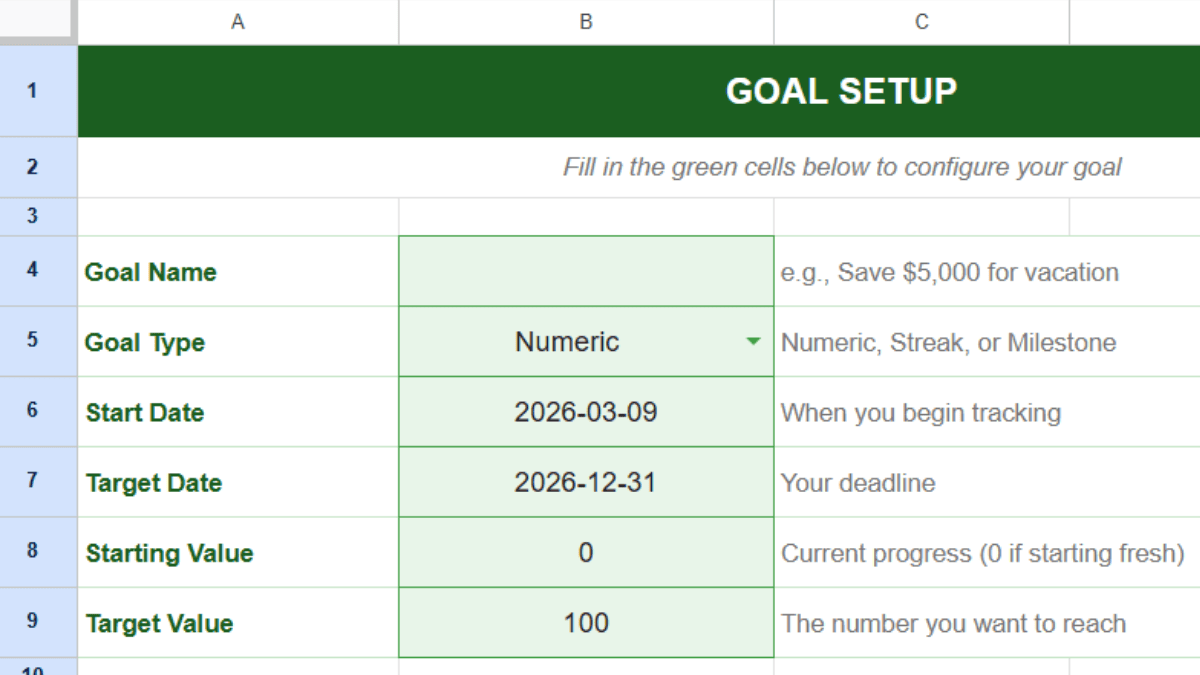
This is where you define what you are working toward. Enter your goal name, pick a goal type (Numeric, Streak, or Milestone), set your start date and target date, and fill in your starting and target values.
The tab auto-calculates three things: total days in your timeline, days remaining, and the daily pace required to finish on schedule. These numbers update every time you open the file.
If your goal is time-bound with a firm deadline, the pace calculation becomes especially useful. It tells you the minimum daily output needed to stay on track, whether that means dollars saved, pages read, or miles logged.
Daily Log
This tab is where you spend most of your time. Each row captures one day of progress across eight columns:
| Column | What It Does | Auto-Calculated? |
|---|---|---|
| Date | The day you are logging | No |
| Value | Your current total (e.g., $2,400 saved) | No |
| Change | Difference from the previous entry | Yes |
| Cumulative | Total progress since your starting value | Yes |
| % Complete | How far you are toward the target | Yes |
| Streak | Consecutive days logged without a gap | Yes |
| Milestone | Mark “Yes” when you hit a key checkpoint | No |
| Notes | Context, roadblocks, anything worth remembering | No |
The log holds 200 pre-formatted rows. Positive changes highlight green. Negative changes highlight red. Rows where you mark a milestone turn yellow so you can scan them later.
Two columns need your input each day: the date and your current value. Everything else populates from formulas.
Dashboard
The Dashboard pulls from Goal Setup and Daily Log automatically. Nothing on this tab requires manual entry.
It shows:
| Metric | What It Tells You |
|---|---|
| Current Value vs. Target | Where you are and where you need to be |
| % Complete | Overall progress with a visual progress bar |
| Days Elapsed / Days Remaining | How much of your timeline is used up |
| % Time Elapsed | Whether time is outpacing your progress |
| Current Streak / Best Streak | Consistency tracking for habit-style goals |
| Required vs. Actual Daily Pace | The number you need vs. the number you are hitting |
| Pace Status | “Ahead of pace,” “On track,” or “Behind pace” |
| Milestones Reached | Total checkpoints completed |
The pace status cell changes color. Green when you are ahead. Yellow when you are close. Red when you are behind. This single indicator gives you clarity on whether to maintain your current effort or adjust.
Instructions
The fourth tab explains how to configure the template for each goal type. It covers numeric goals, streak goals, and milestone goals with step-by-step setup instructions and examples.
How to Set Up the Spreadsheet
Make a copy of the template, then follow these steps.
Step 1: Define Your Goal
Go to the Goal Setup tab. Type your goal name in cell B4. Pick a goal type from the dropdown in B5. Your three options are Numeric, Streak, and Milestone.
Step 2: Set Your Timeline
Enter your start date in B6 and your target date in B7. The spreadsheet calculates the total days, days elapsed, and days remaining from these two end dates.
Step 3: Set Your Values
Enter your starting value in B8. This is where you are right now. If you are starting from zero, leave it at 0. Enter your target value in B9. This is the number that means you are done.
The required daily pace appears automatically in cell B15. It divides the remaining distance by the remaining days.
Step 4: Delete the Sample Data
The Daily Log tab has three sample rows to show how formulas behave. Select rows 3 through 5, right-click, and clear the contents. Your log is now empty and ready.
Step 5: Start Logging
Each day, go to the Daily Log tab. Enter the date in column A and your current value in column B. The remaining columns calculate automatically.
If you hit a key checkpoint, select “Yes” from the Milestone dropdown in column G. Use the Notes column for anything worth recording: what worked, what slowed you down, schedule conflicts, or resource constraints.
Three Ways to Use the Template
Numeric Goals
Numeric goals are the most common. Saving money, accumulating miles, reading books, completing sales calls. The target is a number and every entry moves you closer.
Set Goal Type to “Numeric.” Enter your current total as the Starting Value and your target as the Target Value. Each day, log your new cumulative total in the Value column. The spreadsheet calculates the rest.
This works for personal targets and for a business goal tied to revenue, units shipped, or leads generated. The same structure applies regardless of categories. If you need to share progress with stakeholders or team members, the Dashboard tab gives them a single screen to review.
Streak Goals
Streak goals track consistency. Days without smoking. Consecutive workouts. Writing every morning. The value is not how much, but how many days in a row.
Set Goal Type to “Streak.” Set the Target Value to your desired streak length (30, 60, 90 days). Each day you complete the habit, enter the date and a value of 1. The Streak column counts consecutive calendar days with entries. Skip a day and the count resets to 1.
The Dashboard shows your current streak alongside your best streak. That comparison is often enough motivation to keep going. If you want more granular habit tracking with multiple habits per day, the habit tracker template for Google Sheets is built for that.
Milestone Goals
Some goals do not have a clean number to chase. Finishing a certification course, completing phases of a home renovation, or working through a project planning checklist. Progress is measured in checkpoints, not increments.
Set Goal Type to “Milestone.” Set Target Value to the total number of milestones. As you complete each one, increment the Value column and mark “Yes” in the Milestone column. Milestone rows highlight yellow for easy scanning.
This approach also works for strategic plans broken into phases, where each phase represents a distinct deliverable. The dashboard tracks how many milestones you have reached against your total, which keeps the big picture visible even when daily work feels incremental.
Tips for Getting the Most Out of It
Log at the same time every day. Consistency in logging leads to consistency in effort. Tie it to something you already do, like your morning coffee or your end-of-day routine.
Watch the pace status, not just the percentage. Being 40% complete means nothing without knowing how much time has passed. The pace indicator compares your rate of progress to the rate required. That is the number that matters.
Use milestones even for numeric goals. Saving $5,000 is easier when you mark $1,000, $2,500, and $4,000 as milestones along the way. The yellow highlighting creates visual anchors in your log.
Track one goal per file. The template is built for a single goal. To track multiple goals, duplicate the entire file and rename each copy. This keeps your Daily Log clean and your Dashboard focused.
Do not skip bad days. A day where you made zero progress or went backward is still a data point. The Notes column exists for this. Recording roadblocks and off days gives you information you can act on later. Sustainable growth comes from understanding the pattern, not ignoring the dips.
Review weekly, not just daily. Open the Dashboard every Sunday. Check whether your actual pace matches the required pace. If you are behind, adjust your schedule for the week ahead. Small corrections early prevent large gaps later.
Customizing the Template
The spreadsheet uses plain cell references with no structured tables or named ranges. You can rename tabs, add columns, or adjust formulas without breaking dependencies, as long as you update cross-sheet references where needed.
A few ideas:
Add a “Category” column to the Daily Log if your goal has sub-categories (e.g., tracking savings across multiple accounts). Add a second chart tab if you want visual trend lines beyond the dashboard. Connect the goal tracker to a budget template if your goal is financial, or to a workout template if you are tracking fitness.
If you are managing a team goal, consider linking progress to a project management template where individual tasks feed into the overall target. The same principle applies to any collaborative effort where multiple resources and team members contribute to a shared outcome.
For goal-setting methodology, the SMART goals template for Google Docs pairs well with this tracker. Define your goal there, then measure it here.
Why a Spreadsheet Instead of an App
Goal tracking apps lock you into their structure. They decide what fields exist, how progress is displayed, and what counts as a streak. Most of them cost money after the trial ends.
A spreadsheet gives you the same core function (daily logging, automatic progress, visual feedback) with full control over every column and formula. You own the data. You can export it, chart it, or hand it to someone else without migrating platforms.
Google Sheets also makes collaboration simple. Share the file with a manager, a coach, or an accountability partner. They see the Dashboard without needing an account on another platform. For a business goal shared across departments, this matters more than a polished UI.
If you want to build a more visual reporting layer on top of your data, the guide on how to make a Google Sheets dashboard walks through charts, conditional formatting, and layout techniques that apply directly to goal tracking data.
How do I track multiple goals at the same time?
Duplicate the entire spreadsheet file for each goal. Each copy gets its own Goal Setup, Daily Log, and Dashboard. This keeps formulas clean and prevents one goal’s data from interfering with another. Name each file clearly (e.g., “Goal Tracker – Savings” and “Goal Tracker – Running”).
Can I use this for a team or business goal?
Yes. Share the Google Sheet with team members and assign one person to update the Daily Log. The Dashboard gives stakeholders a live view of progress without needing a separate reporting tool. For goals with multiple contributors, consider adding a “Contributor” column to the log so you can filter by person.
What happens if I miss a day?
The streak counter resets to 1 on the next entry. Your cumulative progress and percentage are unaffected. The gap shows up naturally in the date column. Missing a day does not break any formulas.
How do I add more than 200 rows to the Daily Log?
Select the last formatted row, copy it, and paste it into as many rows below as you need. The formulas use relative references, so they adjust automatically. For goals longer than 200 days, this takes about 30 seconds.
Can I convert this to Excel?
Open the Google Sheet, go to File, then Download, then Microsoft Excel (.xlsx). The formulas and formatting carry over. Conditional formatting rules may need minor adjustments depending on your Excel version.
What types of goals work best with this template?
Any goal with a measurable target and a deadline. Savings targets, fitness benchmarks, reading challenges, course completions, project planning phases, sales quotas, and habit streaks all fit. The template is less useful for goals that lack a clear number to track, like “be more creative” or “improve my leadership.” For those, define a proxy metric first (books read, workshops attended, feedback sessions held) and track that instead.
How is this different from a habit tracker?
A habit tracker monitors whether you completed a set of daily actions. A goal tracker measures cumulative progress toward a specific target. This template does both: the Streak column tracks daily consistency, while the Value and % Complete columns track total progress. If your focus is purely on daily habits without a numeric endpoint, a dedicated habit tracker spreadsheet is the better fit.