
Our free Google Sheets calorie tracker spreadsheet is ready to copy right now. If you’d rather build your own, this guide walks through every formula step by step. Either way, you’ll have a working calorie counter in Google Sheets by the end.
What Our Free Google Sheets Calorie Tracker Does
The template is built around three tabs: entries, summaries, and charts. Here’s what each one does.
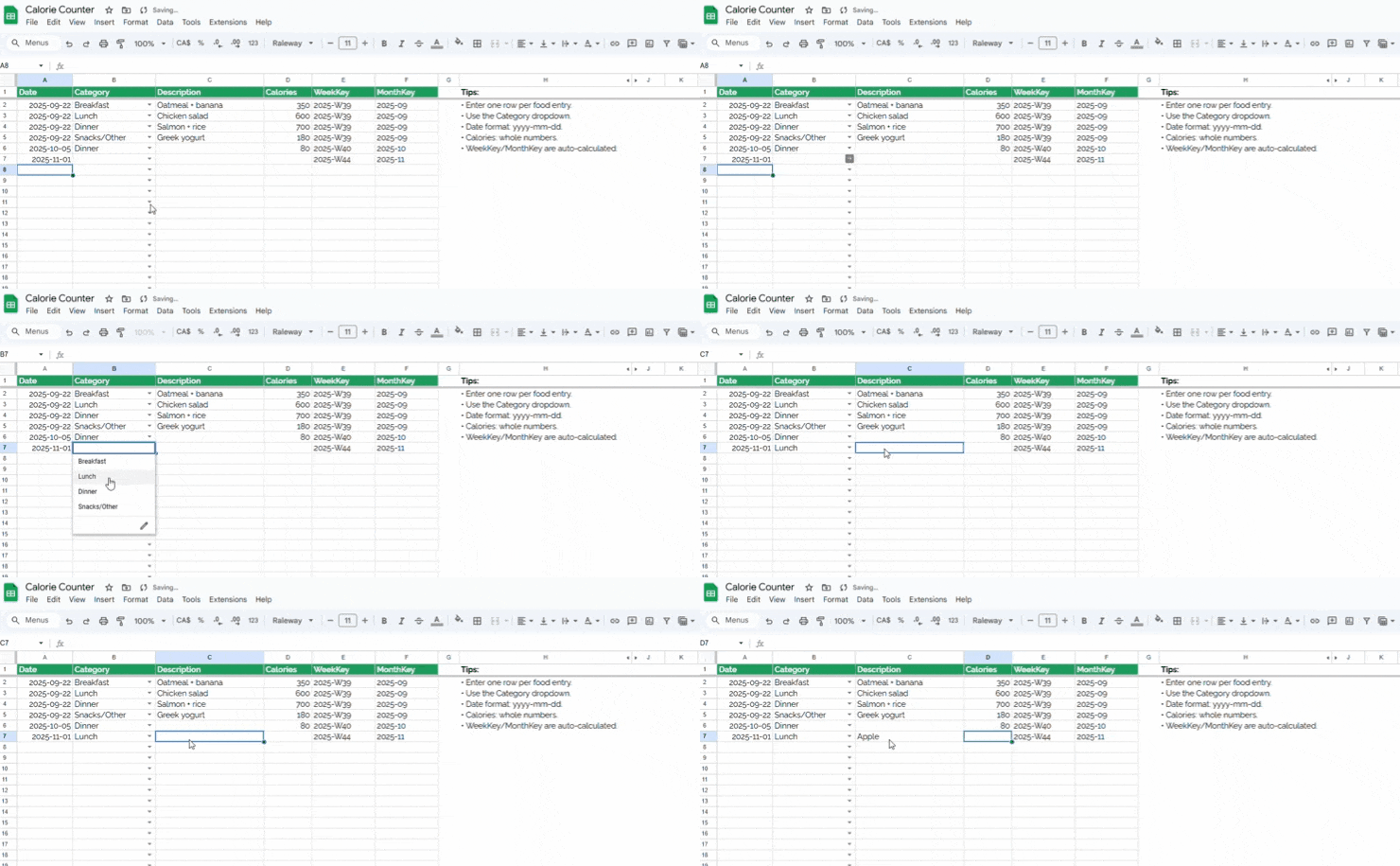
- Entries tab: Log each food item with a date, category (breakfast, lunch, dinner, snacks, or other), description, and calorie count. One row per item.
- Automatic week and month keys: Built-in formulas detect the week number and month for each entry. No manual grouping required.
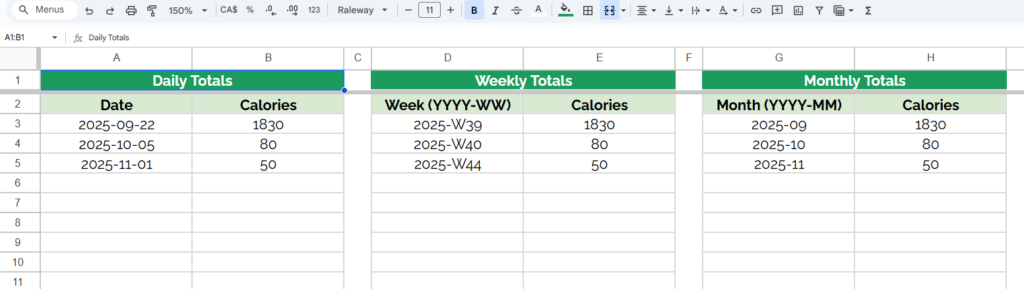
- Summaries tab: Daily, weekly, and monthly calorie totals that update automatically as you log entries.
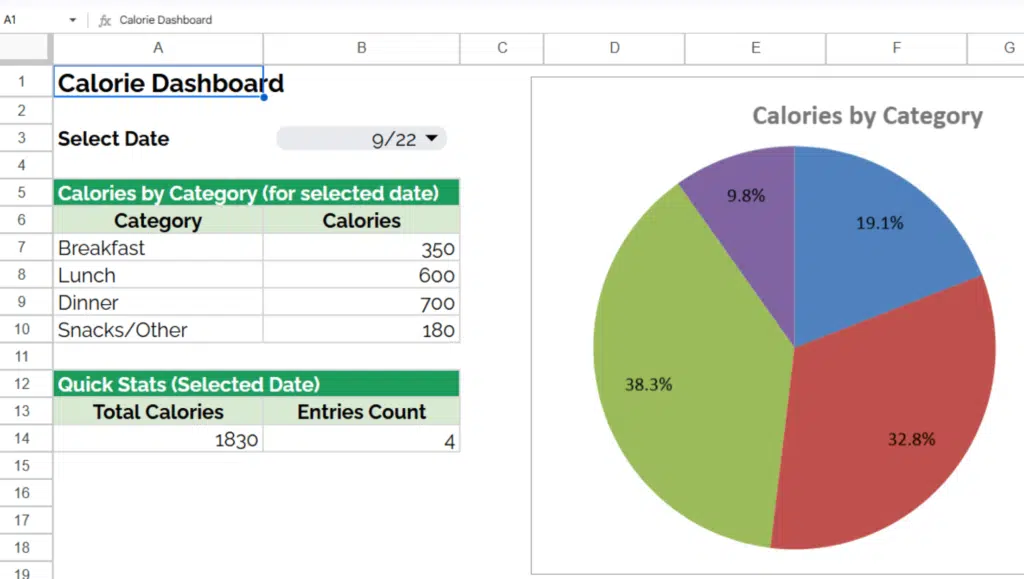
- Charts tab: A pie chart that breaks down calories by meal category for any date you select from a dropdown. You can see at a glance where most of your calories are coming from.
The template uses TEXT, WEEKNUM, UNIQUE, FILTER, and SUMIF together. If you want to understand how those formulas work before building your own version, the step-by-step guide below covers all of them.
Why Track Calories in a Spreadsheet?
Calorie tracking is one of the more reliable tools for reaching health goals. When you can see what you’re eating and how much, you can spot patterns and adjust. The question is usually which tool to use.
Apps like MyFitnessPal work well. We’ve used it and liked it. Note that we’re not affiliated with them in any way. But a spreadsheet offers something apps don’t: full visibility into how the math works and the freedom to build exactly what you need.
You can also pair this with a TDEE calculator spreadsheet to find your daily calorie target based on your weight goals. That gives you the number to aim for; this tracker tells you how close you’re getting.
If you want to go further, a weight loss spreadsheet or a meal planning spreadsheet can sit alongside this tracker in the same Google Drive folder.
How to Build a Calorie Counter in Google Sheets
If you prefer to build from scratch, here’s the full process.
Step 1: Create the entries tab
- Open a blank Google Sheet.
- Set up columns for Date, Category, Description, and Calories.
- Add a dropdown list to the Category column using Data Validation. Include: Breakfast, Lunch, Dinner, Snacks, and Other.
- Format the Date column to display dates consistently (e.g., MM/DD/YYYY).
This tab is your daily food log. One row per item. Keep descriptions short and consistent so the summaries stay clean.
Step 2: Add formulas for week and month keys
These two columns let you group your data by week and month automatically.
In a Week Key column:
=WEEKNUM(A2)
Replace A2 with whatever cell holds your date. This returns the week number of the year (1 through 52).
In a Month Key column:
=TEXT(A2,"MMM-YYYY")
This returns something like “Apr-2026,” which you’ll use later to group monthly totals. Both columns fill down automatically as you add rows.
One note on WEEKNUM: by default, weeks start on Sunday. If your week starts on Monday, use =WEEKNUM(A2,2) instead. The second argument changes the start day.
Step 3: Build the summaries tab
This is where your daily, weekly, and monthly totals live. The logic is the same for all three; only the grouping column changes.
First, pull a unique list of dates using UNIQUE:
=UNIQUE(Entries!A2:A)
This gives you one row per date that has entries. Then, next to each date, use SUMIF to total the calories:
=SUMIF(Entries!$A:$A,E2,Entries!$D:$D)
Here, E2 is the date from your UNIQUE list, column A is the date column in entries, and column D is calories. The formula adds up every calorie entry that matches that date.
For weekly totals, repeat the pattern using your Week Key column instead of the date column. For monthly totals, use the Month Key column.
Step 4: Add a chart for meal breakdowns
A pie chart works well here. It shows which meal categories are contributing the most calories on any given day, which is often more useful than the total number alone.
- Add a dropdown list on the Charts tab with your available dates using Data Validation.
- Use FILTER to pull only the entries for the selected date:
=FILTER(Entries!B2:D, Entries!A2:A=SelectedDate)
Replace SelectedDate with the cell reference for your dropdown. Then use SUMIF to group those filtered results by category (Breakfast, Lunch, Dinner, Snacks, Other). Build the pie chart from that summary table.
When you change the date in the dropdown, the chart updates automatically.
Can I Add Protein, Fat, and Carbs?
Yes. The template tracks calories only by default, but extending it to macros is straightforward. Add a column to the entries tab for each macro: Protein (g), Fat (g), Carbs (g). Then duplicate the SUMIF logic in the summaries tab for each new column.
Nutrition facts labels list all four values, so logging them takes about the same time as logging calories alone. If you track macros for fitness goals, the Google Sheets workout template can run alongside this tracker in the same file.
Using This Template on Your Phone
Google Sheets works on iOS and Android. The free mobile app gives you full access to the spreadsheet, so you can log meals right after eating rather than reconstructing them at the end of the day. The formulas all run the same way on mobile. The dropdown menus work too.
If you track habits alongside calories, the habit tracker template is worth pairing with this one.
Get the Free Calorie Tracker Spreadsheet
The template is ready to use. Copy it to your Google Drive and start logging.
- Daily, weekly, and monthly calorie totals that update automatically
- Meal category breakdown with an interactive pie chart
- Dropdown menus for date and category selection
- Your data stays in your own Google account
Final Thoughts
Counting calories is one of the simplest and most effective ways to reach your health goals. Whether you want to lose weight, build muscle, or maintain your current lifestyle, tracking what you eat gives you clear insight into your daily habits. While many people rely on apps, a calorie tracker spreadsheet in Google Sheets can be just as powerful and far more customizable.
Calorie tracking works when you actually do it. A spreadsheet removes the friction of subscriptions and opaque algorithms. You see the formulas, you own the data, and you can change anything.
If you want to go deeper, start with the TDEE calculator to find your target, then use this tracker to hit it.
Frequently Asked Questions
Can I use this calorie tracker in Excel instead of Google Sheets?
Most of the formulas translate directly to Excel. SUMIF, TEXT, and WEEKNUM all work the same way. UNIQUE and FILTER are available in Excel 365 and Excel 2021. If you’re on an older version of Excel, you can replace UNIQUE with a manual list and FILTER with an array formula using IF and ISNUMBER(MATCH()).
How do I add protein, fat, and carb columns to the tracker?
Add columns to the entries tab for each macro. Then copy the SUMIF logic from the calories column in the summaries tab and point it at each new column. The formulas are identical; only the column reference changes.
What does the WEEKNUM formula return and why does it matter?
WEEKNUM returns the week number of the year for a given date (1 through 52). By default, weeks start on Sunday. Use =WEEKNUM(A2,2) if you want weeks to start on Monday. The week key lets you group your entries by week in the summaries tab without manual sorting.
Can I log multiple food items in the same meal category?
Yes. Each row is a separate food item. Log as many breakfast entries as you need on any given day. The SUMIF formula in the summaries tab adds them all together automatically.
How do I reset the tracker for a new month?
You don’t need to. The month key column groups entries by month automatically. If you want a clean slate, you can delete old rows from the entries tab, but the summaries and charts will update either way as long as the formulas reference the full column range.
Is the calorie tracker template free?
Yes. It’s a Google Sheet. Copy it to your Google Drive and it’s yours to use and modify however you want. No account required beyond a standard Google account.
How do I access this spreadsheet on my phone?
Download the Google Sheets app on iOS or Android. Open your Google Drive, find the copied template, and tap to open it. All formulas and dropdown menus work on mobile.
Can I combine this with a weight loss or TDEE spreadsheet?
Yes. The easiest approach is to keep them as separate tabs within the same Google Sheets file. You can cross-reference your daily calorie totals against your TDEE target without any additional formulas. The TDEE calculator template and the weight loss spreadsheet both work alongside this tracker.