
Track your business revenue, expenses, and net profit month by month with a free Google Sheets income statement template. This guide walks you through building a complete monthly income statement from scratch, with every formula included. You can also grab the free template below and start using it with your own workflows immediately.
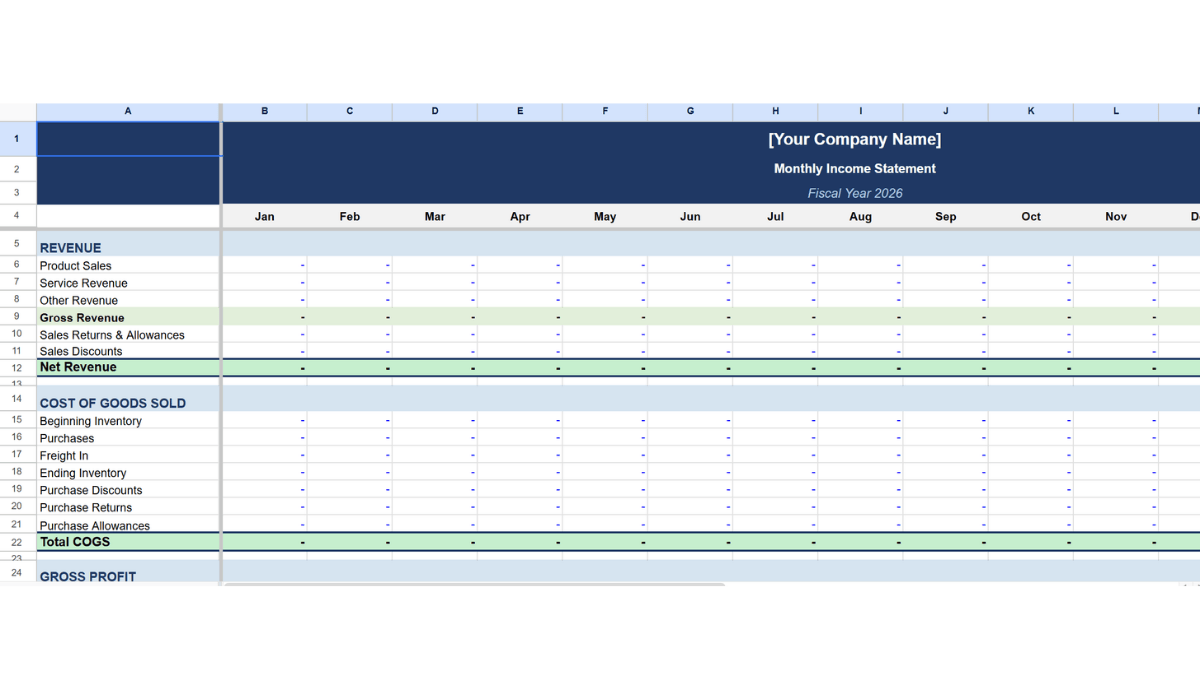
Get Your Own Copy from Our Template Gallery Here
This Google Sheets template uses a multi-step income statement format, which separates revenue, cost of goods sold (COGS), gross profit, operating expenses, and net income into distinct sections. Most small and mid-sized businesses use this format because it shows exactly where profit is being made or lost at each stage. If you run a service business with no inventory, you can skip the COGS section and go straight from net revenue to operating expenses. In either case, it’s a valuable asset for any small business that needs to do financial analysis.
Note: You can modify the columns and row labels to match your business. Just make sure your cell references stay accurate when you add or remove rows.
Table of Contents
How to Create a Monthly Income Statement in Google Sheets
If you want to create your own from scratch, this is the easy way to do it. You can build it around your own financial goals, based on a personal budget or a business. Feel free to use my step-by-step process every step of the way or alter it to suit your unique revenue streams and expenses.
And remember, I’ve done the heavy lifting for you. If you want to get started immediately, just use my premade template (located at the top and bottom of this article).
Open a New Sheet
Open a new Google Sheets spreadsheet and rename it “Income Statement” so it is easy to locate in your Drive.
Create a Header
Step 1: Select cells A1:N1 in row 1, click the merge cells icon in the toolbar, and type your company name.

Step 2: Merge cells A2:N2 in row 2 and type “Income Statement.”

Step 3: Merge cells A3:N3 in row 3 and enter the financial year (for example, “FY26”).

Step 4: Select all three merged rows and click the fill color icon to apply a background color.

Your finished header should look like this:

With the header in place, you can build the four core sections below it: Revenue, Gross Profit, Operating Expenses, and Net Profit.
Revenue
Step 1: Below the header, create a revenue section with rows for each revenue stream. Column A holds the labels, and columns B through M hold the values for January through December. A typical setup looks like this:

Step 2: Calculate Gross Revenue by summing all sales line items. For January in this example, the formula is:
=B5+B6+B7
You can also use =SUM(B5:B7) for the same result. The SUM function is cleaner when you have many line items.

Step 3: Calculate Net Revenue by subtracting sales returns and allowances from the gross revenue. For January:
=B10-B8-B9

Copy both formulas across columns C through M to fill in February through December.
Tip: Format all value cells as currency by selecting them and going to Format > Number > Currency. This applies dollar signs and two decimal places automatically.
Gross Profit
Step 1: Below the revenue section, add a Cost of Goods Sold (COGS) section. COGS represents the direct costs of producing the goods your business sells. Include rows for Beginning Inventory, Purchases, Freight In, Ending Inventory, Purchase Discounts, Purchase Returns, and Purchase Allowance.

Step 2: Calculate COGS with this formula:
=B13+B14+B15-B16-B17-B18-B19
This adds Beginning Inventory, Purchases, and Freight In, then subtracts Ending Inventory, Purchase Discounts, Purchase Returns, and Purchase Allowance.
Step 3: Calculate Gross Profit by subtracting COGS from the Net Revenue you calculated in the previous section:
=B11-B20

Copy both formulas across all 12 months.
Service businesses: If you sell services rather than physical products, you likely have no inventory. In that case, skip the COGS section entirely and subtract your direct service delivery costs (contractor fees, hosting, tools) from net revenue to get your gross profit.
Operating Expenses
Step 1: Create an operating expenses section below gross profit. Common line items include rent, utilities, salaries, insurance, marketing, office supplies, depreciation, professional fees, software subscriptions, and miscellaneous expenses. Adjust these to match your actual business categories.

Step 2: Calculate total operating expenses using the SUM function:
=SUM(B23:B32)

Step 3: Calculate Operating Income Before Tax by subtracting total operating expenses from gross profit:
=B21-B33

Step 4: Add a tax rate row below operating income. Enter your applicable tax rate as a percentage (for example, 17%).

Step 5: Calculate Net Profit by subtracting the tax amount from operating income:
=B34-(B34*B35)

Copy all formulas across the remaining months. Always double-check cell references when you add or remove rows.
Adding Quarterly and Annual Totals
A monthly income statement becomes much more useful when you can see quarterly and full-year totals at a glance. After column M (December), add four quarterly total columns and one annual total column:
- Column N: Q1 total. Use
=SUM(B5:D5)to sum January through March for each row, then copy down. - Column O: Q2 total. Use
=SUM(E5:G5)for April through June. - Column P: Q3 total. Use
=SUM(H5:J5)for July through September. - Column Q: Q4 total. Use
=SUM(K5:M5)for October through December. - Column R: Annual total. Use
=SUM(N5:Q5)to add all four quarters, or=SUM(B5:M5)to sum all 12 months directly.
Quarterly columns make it easy to spot seasonal trends and compare performance across periods. If you want to go a step further, add a row below each quarterly column that calculates the quarter-over-quarter percentage change using =(CurrentQuarter-PreviousQuarter)/PreviousQuarter.
Highlighting Negative Values with Conditional Formatting
Losses and negative net income should stand out immediately. Select all your value cells (B5 through your last column and row), then go to Format > Conditional formatting. Set the rule to “Less than” with a value of 0, and choose a red fill or red text color. Now any month where your business posts a loss will be flagged automatically.
You can apply the same technique to individual sections. For example, set a conditional format on the gross profit row to highlight in yellow when margins drop below a target threshold.
Visualizing Trends with a Chart
Adding a chart gives you an instant visual summary of how your business performs over the year. Select your monthly Net Revenue and Net Profit rows (including the month labels), then go to Insert > Chart. A line chart works well for tracking trends, while a bar chart makes it easy to compare revenue against expenses month by month.
Customize the chart by clicking on it and selecting the three-dot menu. Add a title (“Monthly Revenue vs. Net Profit”), label your axes, and choose colors that make the two data series easy to distinguish.
Protecting Completed Months
Once you close a month and finalize the numbers, protect those cells so no one accidentally edits them. Select the column for the completed month, right-click, and choose Protect range. Set permissions to “Only you” or a specific list of editors. This is especially useful when multiple people access the same spreadsheet.
Single-Step vs. Multi-Step Income Statement
The template in this guide uses a multi-step format, which separates revenue, COGS, gross profit, and operating expenses into distinct sections. This gives you visibility into margins at each stage of the business.
A single-step income statement is simpler. It groups all revenues together and all expenses together, then subtracts total expenses from total revenues in a single calculation to get net income. This format works well for freelancers and very small businesses that do not need to track COGS or gross margin separately.
If you prefer the single-step approach, you can modify this template by removing the COGS and Gross Profit sections and replacing them with a single “Total Expenses” row that sums all costs.
Automating Your Income Statement with SUMIF
If you track transactions in a separate tab (for example, a raw data sheet with columns for Date, Category, and Amount), you can pull values into your income statement automatically using SUMIF or SUMIFS.
For example, to pull all “Product Sales” transactions for January from a “Transactions” tab:
=SUMIFS(Transactions!C:C, Transactions!A:A, ">="&DATE(2026,1,1), Transactions!A:A, "<"&DATE(2026,2,1), Transactions!B:B, "Product Sales")
This approach eliminates manual data entry. Every time you log a new transaction in the data tab, your income statement updates automatically. For more advanced filtering, the QUERY function can aggregate and sort transaction data with SQL-like syntax.
Who Uses an Income Statement?
An income statement (also called a profit and loss statement, P&L statement, or statement of operations) is reviewed by both internal and external stakeholders:
- Internal users such as management and board members use income statements to evaluate business performance and make decisions about spending, hiring, and growth.
- External users such as investors, lenders, and competitors review income statements to assess profitability, expansion potential, and spending patterns.
For a complete picture of your business finances, pair your income statement with a balance sheet (which tracks assets, liabilities, and equity) and a cash flow statement (which tracks the actual movement of cash in and out of the business). Together, these three reports form the core of financial reporting for any business.
Google Sheets vs. Accounting Software for Income Statements
| Feature | Google Sheets | Accounting Software (QuickBooks, Wave, etc.) |
|---|---|---|
| Cost | Free | Free (Wave) to $30+/month (QuickBooks) |
| Setup time | 15 to 30 minutes with a template | 1 to 3 hours with bank connections |
| Customization | Fully customizable layout, formulas, and categories | Limited to software’s chart of accounts |
| Automation | Manual entry or SUMIF/QUERY formulas from a data tab | Automatic bank feed imports and categorization |
| Collaboration | Real-time sharing with any Google account | Varies by plan, often requires paid seats |
| Learning curve | Low if you already use spreadsheets | Moderate; accounting terminology required |
| Best for | Freelancers, micro-businesses, custom reporting needs | Growing businesses with high transaction volume |
Google Sheets is the better choice when you need full control over your layout, have a manageable number of monthly transactions, or want to avoid subscription costs. Accounting software makes more sense when your transaction volume grows large enough that manual entry or formula-based automation becomes a bottleneck.
Formula Quick Reference
Here is a summary of every formula used in this income statement template:
| Calculation | Formula | What It Does |
|---|---|---|
| Gross Revenue | =SUM(B5:B7) |
Adds all sales line items |
| Net Revenue | =B10-B8-B9 |
Gross revenue minus returns and allowances |
| COGS | =B13+B14+B15-B16-B17-B18-B19 |
Beginning inventory + purchases + freight minus ending inventory and purchase adjustments |
| Gross Profit | =B11-B20 |
Net revenue minus COGS |
| Total Operating Expenses | =SUM(B23:B32) |
Sum of all operating expense line items |
| Operating Income Before Tax | =B21-B33 |
Gross profit minus total operating expenses |
| Net Profit | =B34-(B34*B35) |
Operating income minus tax |
Additional Resources
Your income statement is one piece of the financial puzzle. These related templates help you track other critical parts of your business:
- Profit and Loss Template for Google Sheets
- Expense Tracker Template for Google Sheets
- Net Worth Tracking Spreadsheet
- Balance Sheet Template for Google Sheets
- Google Sheets Accounting Template (hub for all financial templates)
Conclusion
An income statement tracks the core equation of any business: revenue minus cost of goods sold minus operating expenses minus taxes equals net profit. Building one in Google Sheets gives you full control over the layout, the formulas, and how you categorize your finances.
The key formulas to remember are SUM for totaling line items, simple subtraction for calculating margins at each stage, and SUMIF or SUMIFS if you want to automate data entry from a transactions tab. Add quarterly columns, conditional formatting for losses, and a chart for trends, and you have a professional financial reporting tool at no cost.
Grab the free template to get started, or follow the step-by-step guide above to build one that matches your exact business structure.
Frequently Asked Questions
What is the difference between a single-step and multi-step income statement?
A single-step income statement groups all revenues and all expenses into two totals, then subtracts expenses from revenues in one step. A multi-step income statement breaks the calculation into stages: net revenue, gross profit (after COGS), operating income (after expenses), and net profit (after tax). The multi-step format gives you more insight into where your margins are strong or weak.
How do I add quarterly and annual totals to my income statement?
Add columns after December for Q1, Q2, Q3, Q4, and an Annual Total. Use the SUM function to add the three months in each quarter (for example, =SUM(B5:D5) for Q1), and sum all four quarters or all 12 months for the annual total.
Can I use this template for a service business with no inventory?
Yes. If your business sells services rather than physical products, skip the COGS section (Beginning Inventory, Purchases, Freight In, etc.) and subtract your direct service costs from net revenue to calculate gross profit. You can also remove the COGS rows entirely and go straight from revenue to operating expenses.
How do I protect completed months so they cannot be edited?
Select the cells or column for the month you want to lock, right-click, and choose “Protect range.” Set the permissions so only you (or specific editors) can modify those cells. This prevents accidental changes to finalized financial data.
What is the difference between an income statement and a cash flow statement?
An income statement shows revenues and expenses on an accrual basis, meaning it records transactions when they are earned or incurred, not when cash changes hands. A cash flow statement tracks the actual movement of cash in and out of the business. You can have positive net income on your income statement but negative cash flow if customers have not paid their invoices yet.
How often should I update my income statement?
Most small businesses update their income statement monthly. This gives you enough data points to spot trends and catch problems early. If your business has high transaction volume or seasonal swings, consider reviewing weekly and closing monthly.