
Adding a button to a Google Sheet takes three steps: create the button, assign a macro or script, then click to run it. The payoff is one-click automation on any task you do often enough to get tired of clicking through menus for.
I build these into nearly every shared sheet I use with a team. If someone else is going to run a monthly report or send a batch of emails, a button is safer and faster than asking them to open the Apps Script editor and find the right function.
Here is how to make one, wire it up, and avoid the common gotchas.
When a Button Is Worth It
A button makes sense in any scenario where the same action gets run more than a few times. A few examples where I use them:
- A shared team sheet where I want teammates to run a report without touching the code
- A monthly workflow that formats data, sends emails, or archives rows
- A dashboard where a “Refresh” button pulls updated values from another tab or an external source
- A template I share with clients, so they can run the automation without learning Apps Script
If you only plan to run the macro once, skip the button. If you plan to run it every Monday morning, the five minutes you spend building one will pay back within the first month.
How to Make a Button in Google Sheets
The process has three parts:
- Create the button (by inserting an image or drawing one)
- Assign a macro or script to the button
- Click the button to run it
Step 1: Create the Button
You have two options: insert an image and use that as your button, or draw one yourself using the built-in drawing tool. Both work. The drawing tool gives you more control over the look and is what I use most of the time.
Option A: Insert an Image as a Button
- Click the Insert menu.
- Select Image, then Insert image over cells.
- In the Insert image dialog, pick your source. You can upload from your computer, paste a URL, pull from Google Drive, or search Google Images.
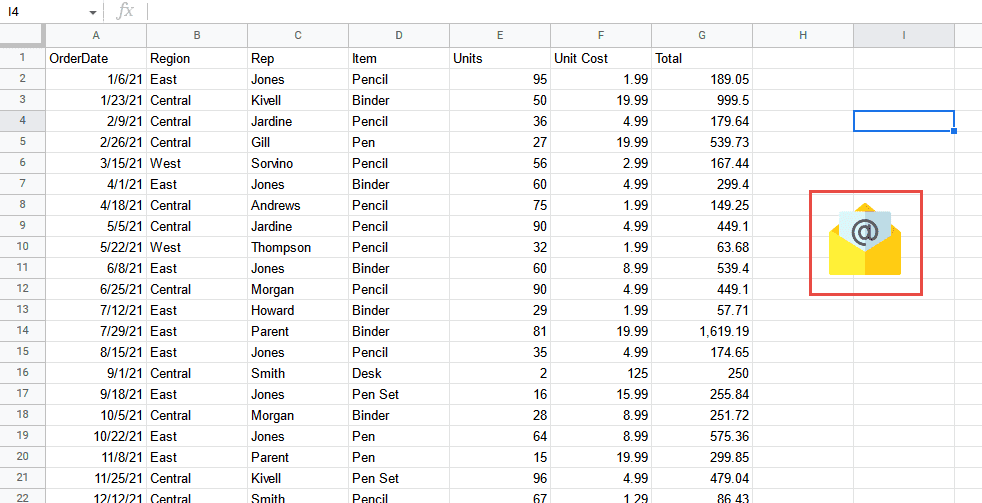
- Once the image loads, drag it into position and resize it as needed.

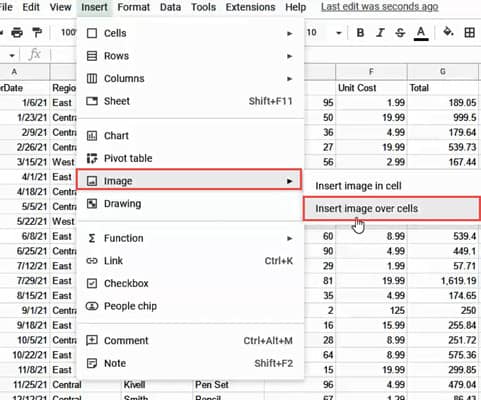
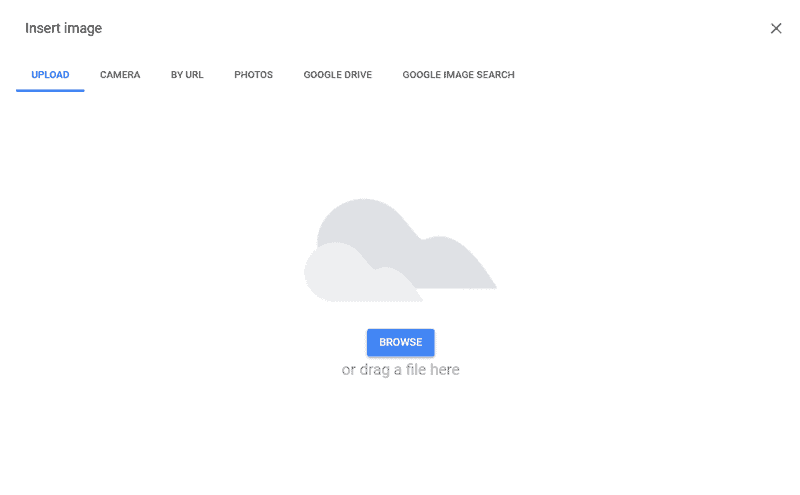
Always choose over cells rather than in cell. Image-in-cell locks the image to one cell’s footprint, which limits sizing and placement. Image-over-cells floats the image, which is what you want for a button.
Option B: Draw the Button
For a button that looks the way you want it to, the drawing tool is the better path.
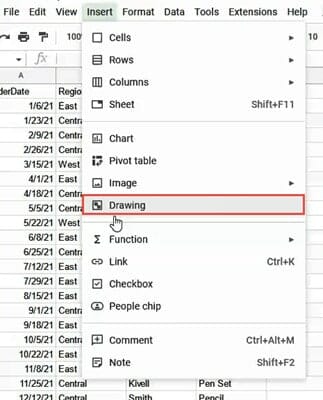
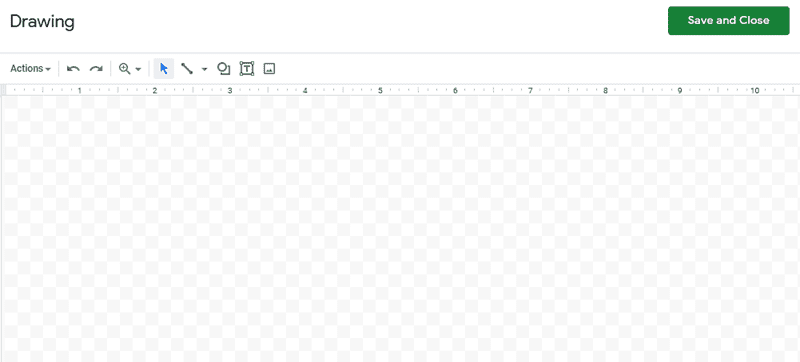
- Click Insert, then Drawing.
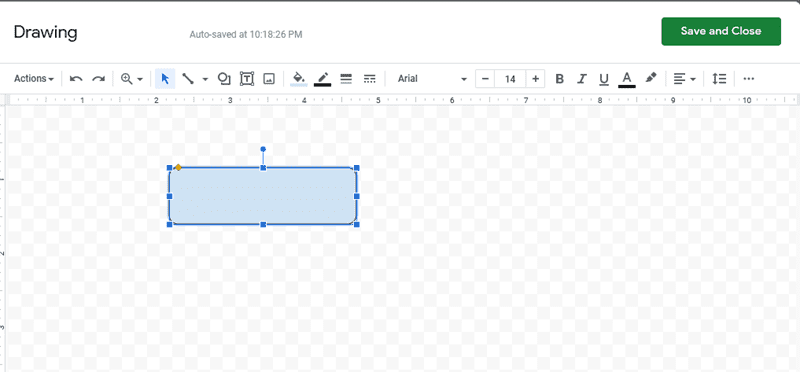
- In the Drawing window, click the Shape tool and pick the rounded rectangle from the Shapes category.
- Drag on the canvas to create the rectangle at roughly the size you want the button.
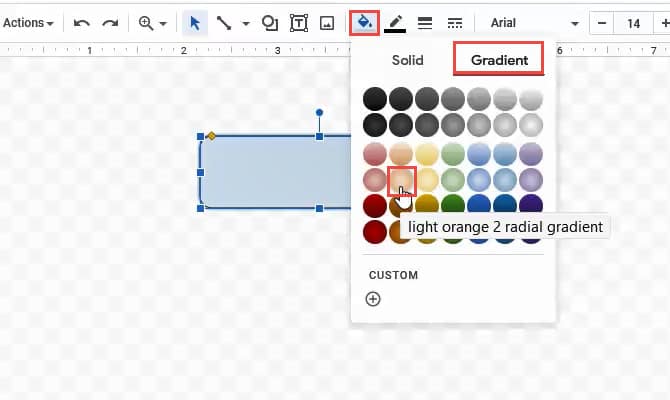
- Use the Fill color tool to set the background. A gradient fill gives the button a bit of depth (I use light orange radial most often).
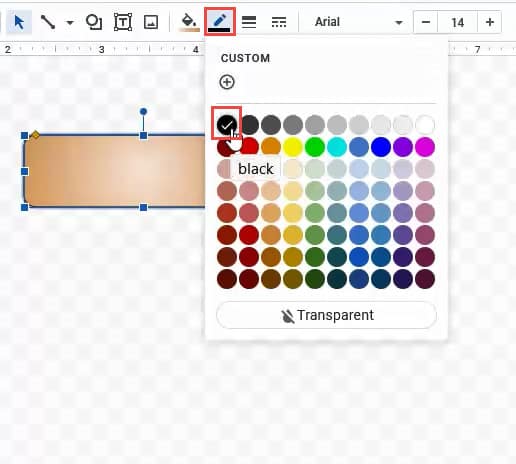
- Use the Border color tool to add a contrasting outline. Black works for most color choices.
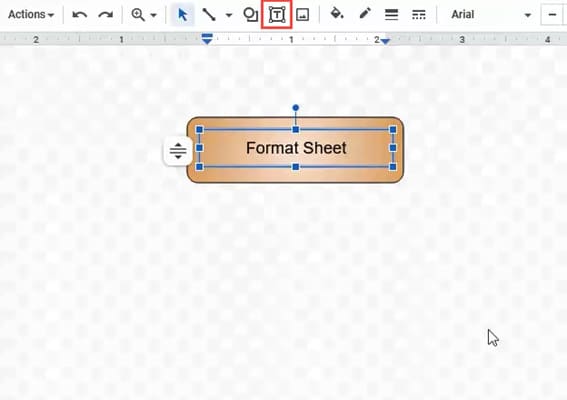
- Click the Text box tool, drag a text box inside the rectangle, and type the label. Keep it short: “Run Report,” “Send Emails,” “Refresh.” Skip the bold text unless the button is large enough that it needs it for legibility. Also skip any hyperlink on the label text, because a link on the label can intercept the click and break the button’s behavior.
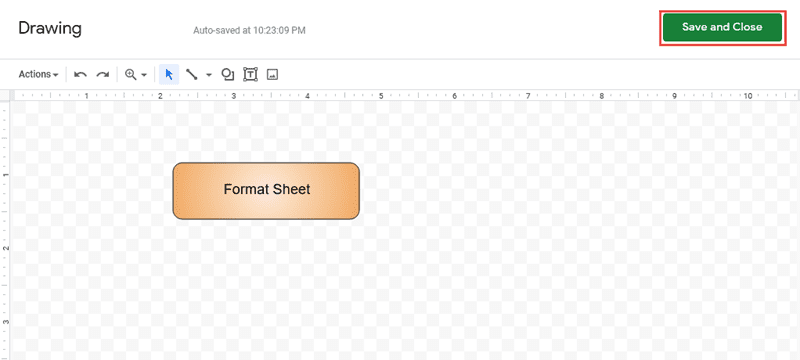
- Click Save and Close.

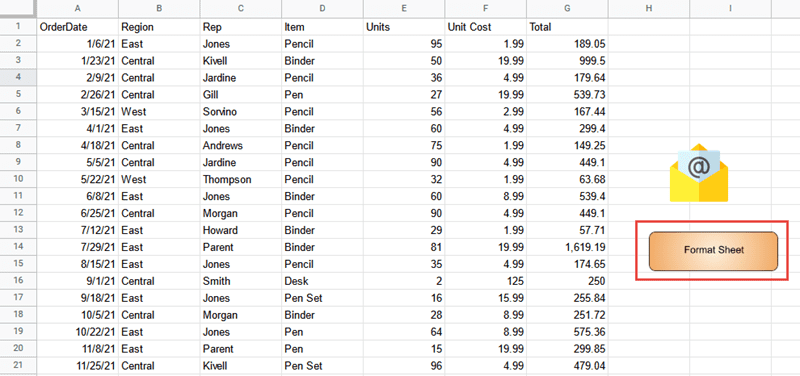
Once the drawing is in your sheet, you can drag it to reposition or drag its corners to resize. The drawing tool also has an Image option of its own, which lets you import an image and edit it with the drawing tools. This is useful if you want to layer text on top of an icon.
Step 2: Assign a Macro or Script to the Button
A button does nothing until you connect it to code. You have two paths: record a macro, or write an Apps Script function. Macros are easier and good for simple formatting or data-manipulation repetition. Scripts are more powerful and can do anything Apps Script supports, including sending emails, calling APIs, and working with AI services.
Assign a Macro
If the action you want is something you already do by hand (formatting, sorting, clearing a range), a recorded macro is the fastest way to get there.
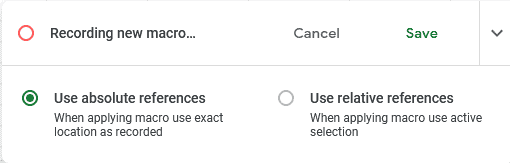
- Go to Extensions, then Macros, then Record macro.
- Choose Use relative references or Use absolute references. Relative is right when the macro should act on whatever cell is currently selected. Absolute is right when it should always hit the same range.
- Perform the actions you want recorded (font changes, fills, formula entry, whatever).
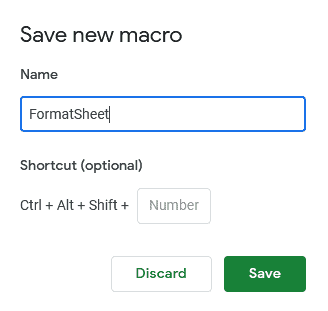
- Click Save in the toolbar at the bottom.
- Give the macro a clear name and save again.
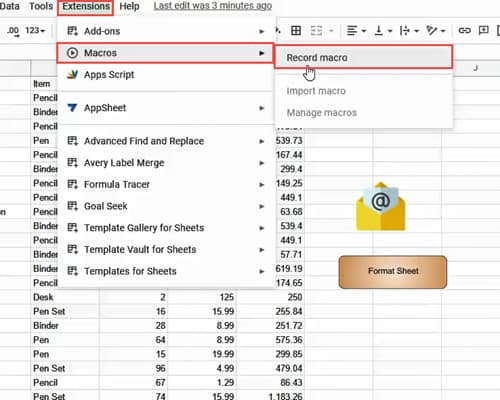
For a deeper walkthrough of recording macros, see the full macro recording guide.
Now connect the macro to the button:
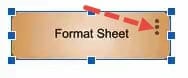
- Click the button once to select it.
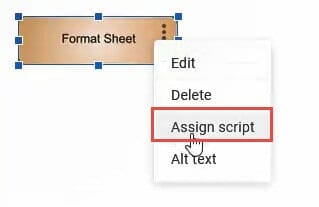
- Click the three-dots menu in the top-right corner of the button.
- Choose Assign script.
- In the dialog, type the function’s name. This is the name you gave the macro when you saved it, no parentheses, no arguments.
- Click OK.
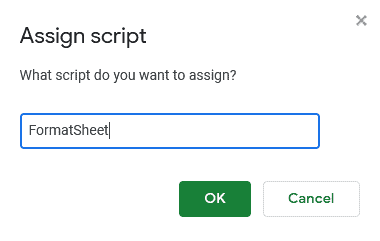
Assign an Apps Script Function
For anything more complex than a recorded macro, write your own function in the Apps Script editor (Extensions, then Apps Script). The official Apps Script documentation covers the full API.
Here is a working example that reads a list of email addresses from one tab and a subject and message from another, then sends an email to each address:
function sendEmail() {
  var ss = SpreadsheetApp.getActiveSpreadsheet();
  var sheet1 = ss.getSheetByName('Sheet1');
  var sheet2 = ss.getSheetByName('Sheet2');
  var subject = sheet2.getRange(2, 1).getValue();
  var message = sheet2.getRange(2, 2).getValue();
  var n = sheet1.getLastRow();

  for (var i = 2; i < n + 1; i++) {
    var emailAddress = sheet1.getRange(i, 1).getValue();
    MailApp.sendEmail(emailAddress, subject, message);
  }
}
To wire this up to a button:
- Paste the function into the Apps Script editor and save the project.
- Click the button in your sheet to select it.
- Click the three-dots menu on the button.
- Choose Assign script.
- Type
sendEmailin the input field and click OK. Enter only the function’s name, no parentheses.
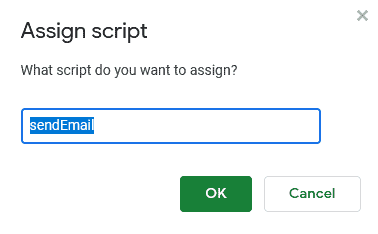
Step 3: Click the Button to Run It
Click anywhere outside the button first to deselect it, then click once on the button itself. The first time you run a script, Google will ask you to authorize it. Follow the prompts, accept the permissions the script needs, then run the button again.
After authorization, the button runs instantly on every click.
Make a Button That Jumps to a Specific Sheet
One of the most common uses for a button is navigation. On a sheet with a lot of tabs, a button labeled with a tab name is faster than scanning the tab bar. Here is the code:
function goToPage() {
  var ss = SpreadsheetApp.getActiveSpreadsheet();
  ss.setActiveSheet(ss.getSheetByName('sheetname'), true);
}
Replace sheetname with the actual name of the tab you want to jump to. Assign goToPage to a button and place the button wherever the jump is useful.
If you have multiple destinations, duplicate the function with different names (goToSummary, goToData, goToReport) and assign each to its own button.
Troubleshooting: Why Your Button Isn’t Working
A few things trip people up:
- Function name mismatch. The name you typed in the Assign script dialog has to match the function’s name in the Apps Script editor exactly, including capitalization. No parentheses. No arguments.
- Authorization not granted. The first run triggers Google’s permission flow. If you canceled out of it, the button won’t do anything. Run it again and complete authorization.
- Script saved in the wrong project. Button-assigned scripts have to live in the bound script for this specific spreadsheet, not in a standalone script project. Open the Apps Script editor from Extensions, not from script.google.com, to make sure you’re editing the right one.
- Mobile app limitation. Buttons don’t run on the Google Sheets mobile app. The button will display, but tapping it does nothing. Use the desktop web app to trigger the script.
- Accidental hyperlink on the label. If you added a hyperlink to the text inside a drawn button, the click opens the link instead of running the script. Remove the link from the label.
Edit or Delete a Button
To change the button itself, click it once to select it, then click the three-dots menu. You’ll see options to edit the drawing, assign a different script, delete the image, or add alt text.
To change which script the button runs, click the three-dots menu and choose Assign script again. Replace the function name and click OK.
Frequently Asked Questions
How do I create a button in Google Sheets?
Go to Insert, then either Image (to use an image as a button) or Drawing (to design one yourself). Add your shape or image, then click the three-dots menu on the completed button and choose Assign script to wire it up to a macro or Apps Script function.
Can I add a button to Google Sheets?
Yes. Google Sheets supports buttons created from images or from drawings, and both types can run a macro or an Apps Script function when clicked.
How do I make a macro button in Google Sheets?
Record a macro under Extensions, then Macros, then Record macro. Save it with a clear name. Then create a button, click the three-dots menu, choose Assign script, and type the macro’s name in the input field.
How do I make a button go to a specific sheet in Google Sheets?
Paste this into the Apps Script editor and replace sheetname with your tab name:
function goToPage() {
  var ss = SpreadsheetApp.getActiveSpreadsheet();
  ss.setActiveSheet(ss.getSheetByName('sheetname'), true);
}
Assign goToPage to your button.
Why isn’t my Google Sheets button working?
Most often it’s one of four things: the function name in the Assign script dialog doesn’t match the function’s name in the Apps Script editor, the script hasn’t been authorized yet, the script is in the wrong project, or you’re using the mobile app (which doesn’t support buttons).
Can I assign the same script to multiple buttons?
Yes. You can point as many buttons as you want at the same function. This is useful when you want the same action available from different parts of a large sheet.
Can I make a button on the Google Sheets mobile app?
You can view a button that was created on the desktop, but tapping it on the mobile app will not run the assigned script. Buttons only execute on the desktop web app.
How do I edit a button after I’ve created it?
Click the button once to select it, then click the three-dots menu in the top-right corner. From there you can edit the drawing, change the assigned script, delete the button, or add alt text.
More Google Sheets Automation Guides
- How to Record a Macro in Google Sheets
- Does Google Sheets Have Macros?
- How to Insert a Text Box in Google Sheets
- Google Sheets Tips and Tricks
- Essential Google Sheets Formulas
- How an Excel Banking Macro Handles the Boring Part
Once you have one button working, wiring up a whole panel of them takes about the same amount of time. Build the first one this week and see what else on your sheet deserves a single click.