
Get the free shopping list spreadsheet template below. It works in Google Sheets and Excel, and it takes about 30 seconds to set up.
The template has three tabs: Shopping List, By Category, and How to Use. Most people spend their time on the first two.

Get the template here. Note that you’ll need to be logged into a Google account to get your free copy.
What’s in the template
The Shopping List tab is the main view. Each row has a checkbox in column B, an item name, a category dropdown, quantity, unit price, and a subtotal that calculates automatically. There’s a budget field at the top so you can see where you stand as you add items. Type an x in the Done column to check something off while you shop.
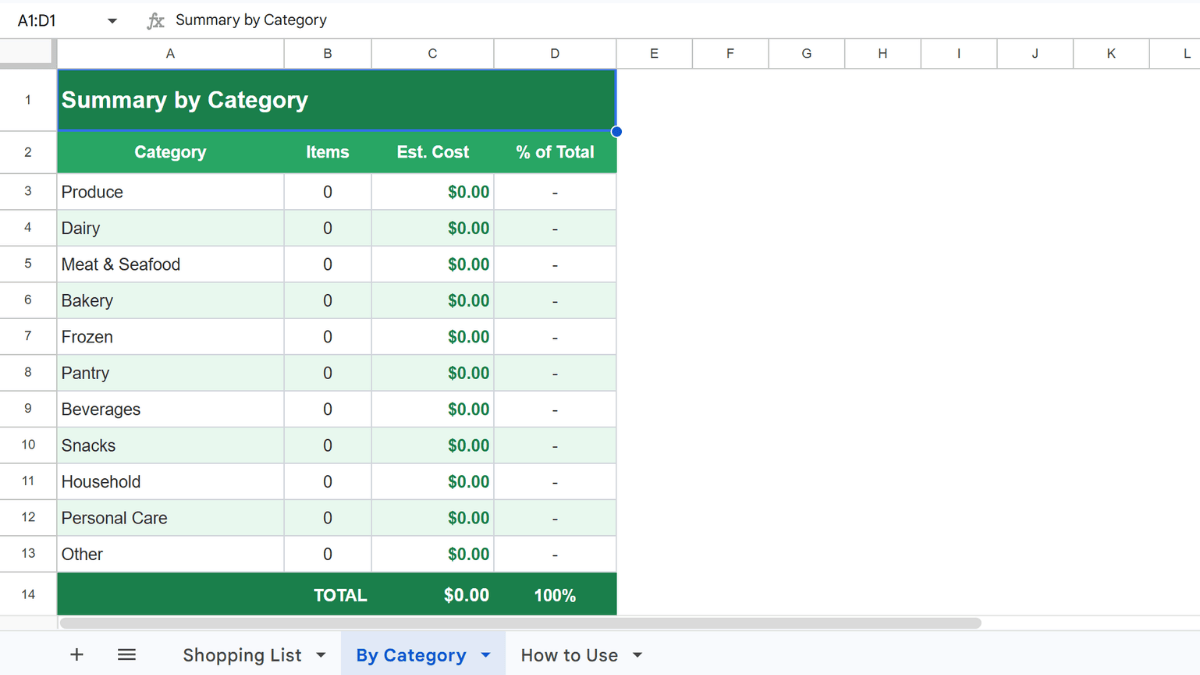
The By Category tab summarizes your grocery shopping by department. It shows how many items are in each category, the estimated cost, and what percentage of your total budget each category represents. If you’re trying to figure out where your grocery budget is actually going, this tab makes it obvious fast.
Categories included: Produce, Dairy, Meat & Seafood, Bakery, Frozen, Pantry, Beverages, Snacks, Household, Personal Care, and Other.
How to use it
Enter your budget in the field at the top of the Shopping List tab. Then add your items, select a category from the dropdown, and enter the quantity and unit price. The subtotal and running total update in real time as you fill it in.
If you’re planning meals for the week before you shop, it helps to build your shopping lists one menu at a time. Go through each meal, add the ingredients you don’t already have, and assign categories as you go. By the time you’re done, the By Category tab gives you a clean breakdown before you ever leave the house.
The template is shared, so anyone with the link can edit it. If you’re splitting grocery shopping with someone else, you can both pull it up on your devices and see the same list.
Why a spreadsheet instead of a grocery list app
The main grocery list app argument is convenience. They’re on your phone, they remember your usual items, and some of them sync across devices automatically.
The main spreadsheet argument is control. You can structure your shopping lists however your household actually works, add columns for things a generic app won’t have, and tie the list to a monthly budget without paying for a premium tier. There’s no understanding of your data that gets locked inside a platform you don’t own.
If you already live in Google Sheets for other things, keeping your grocery list there too means one less app to check. The expense tracker template pairs well with this one if you want to log what you actually spent after each trip.
Tips for getting more out of it
Keep a second tab for your standard weekly groceries. Copy from it into the Shopping List tab each week instead of rebuilding from scratch. Takes about a minute.
Use the budget field honestly. If your real weekly grocery number is $120, enter $120. The template can only tell you what you put into it.
The By Category summary is most useful when you fill in the category dropdown for every row. If everything lands in “Other,” the summary tab doesn’t tell you much.
If you track household expenses more broadly, this fits neatly alongside a monthly budget template. The category totals from your grocery tab can roll up into a broader spending picture without any extra setup.
Can I use this template on my phone?
Yes. The Google Sheets app works on both iOS and Android. Open the template link on your phone, tap “Use Template,” and it will save to your Google Drive. The layout is designed for desktop but the Shopping List tab is usable on mobile, especially for checking items off as you shop.
Can I share it with someone else?
Yes. Once you’ve saved it to your Drive, use the Share button in Google Sheets and send the link to whoever you’re shopping with. Set permissions to “Editor” so they can add items or check things off. Changes show up in real time on both ends.
Can I add more categories?
Yes. To add a category, go to the category dropdown in column D of the Shopping List tab, click on a cell, and select Data > Data validation. Edit the list of values to include your new category. Then add a corresponding row to the By Category tab and update the SUMIF formula to pull from it.
Does this work in Excel?
Yes. Download the .xlsx version from the link above. The formulas and layout work in Excel. The checkbox column uses an “x” input rather than a native checkbox control, which keeps it compatible across both platforms.
How is this different from the grocery list template?
The Google Sheets grocery list template is a simpler one-tab version for quick trips. This shopping list template adds budget tracking, the By Category summary tab, and subtotals per item, which makes it better suited for full weekly shops where you want to see total spend by department.