
A run of show template for Google Sheets keeps your entire event team aligned from the first registration check-in to the final curtain call. Whether you are coordinating a multi-day conference, producing a live stream, or managing a virtual workshop, a solid run of show eliminates the chaos that derails even well-planned events.
Below you will find four free run of show templates you can copy directly into Google Sheets. The featured template includes auto-calculating timelines, status tracking with dropdown menus, a key contacts sheet, and a pre-event checklist. You can also build your own from scratch using the step-by-step instructions further down.
Table of Contents
Get The Free Google Sheets Run of Show Templates
We built four run of show templates to cover different event planning needs. The first is our recommended all-in-one version, which combines the best elements of the other three into a single workbook with multiple tabs. The remaining three templates each focus on a specific use case if you prefer something simpler.
- All-in-One Run of Show Template (Recommended)
- Timing Run of Show Template
- Production Run-of-Show Template
- Virtual Event Run of Show Template
What Is a Run of Show Spreadsheet?
A run of show (also called a run sheet or cue sheet) is a minute-by-minute timeline that outlines everything happening during an event. It tells every person on the production team exactly what needs to happen, when it needs to happen, and who is responsible for making it happen.
Think of it as the master control document for your event. While an attendee-facing agenda might say “2:00 PM: Keynote Presentation,” a run of show breaks that single line into a sequence of production cues: when the lights dim, when the intro video plays, when the speaker takes the stage, when the microphone goes live, and when the slides advance to the first screen.
Event planners, production managers, stage managers, and moderators all rely on this document to keep things running on time. If a speaker goes long during one of the keynotes, the run of show makes it easy to see exactly which segments need to be trimmed so the rest of the day stays on track.
Run of Show vs. Production Schedule vs. Event Agenda
These three documents serve different audiences and levels of detail. Here is how they compare:
| Document | Audience | Detail Level | Purpose |
|---|---|---|---|
| Run of Show | Event staff, production crew, stage managers | Minute-by-minute cues, transitions, and technical instructions | Execute the event in real time with clear ownership of every task |
| Production Schedule | Production crew, vendor teams | Hour-by-hour task blocks | Coordinate load-in, setup, rehearsal, and breakdown across the full event site |
| Event Agenda | Attendees, speakers, sponsors | High-level session times | Tell attendees where to be and when |
A production schedule breaks down the tasks your crew will handle hour by hour across the entire event site. A run of show zooms in on the event itself, tracking every cue and transition minute by minute. The event agenda is the simplified, public-facing version your attendees see. For large conferences and multi-day events, you will likely need all three.
What to Include in a Run of Show Template
Every run of show template needs a core set of columns. Depending on your event’s size and complexity, you can add or hide columns to match. Here are the essentials:
| Column | What It Tracks | Why It Matters |
|---|---|---|
| Start Time | When each segment begins | Keeps the entire schedule anchored to the clock |
| End Time | When each segment ends | Helps the team anticipate the next transition |
| Duration | Length of each segment in minutes | Enables auto-calculation of start/end times and total event length |
| Segment / Activity | Name and description of what is happening | The core content of the run of show |
| Owner | Person or team responsible | Creates clear ownership so nothing falls through the cracks |
| Location / Stage | Where the segment takes place | Critical for multi-room events with breakout sessions and parallel tracks |
| Status | Not Started, In Progress, Complete, Skipped | Lets event managers track progress in real time during the event |
| Audio / Video / Lighting | Technical cues for AV crew | Prevents missed cues during keynotes, live streams, and recorded segments |
| Notes | Special instructions, contingency plans, or reminders | Catches the details that do not fit elsewhere |
For smaller workshops or team meetings, you may only need five or six columns. For a produced conference with lighting rigs, signage changes, and vendor coordination across multiple stages, you will want all of them.
Why Use a Run of Show Template
Live events are complex. Even a straightforward half-day workshop has dozens of moving parts: speaker transitions, AV cues, break timing, and room resets. A run of show template puts all of these details in one place so your entire team can reference a single source of truth.
Here is what a good run of show template gives you:
It prevents small delays from snowballing. When a panel runs five minutes long, you can immediately see which upcoming segments can absorb the delay and which ones need to start on time regardless. Without a run of show, those five minutes cascade into chaos by the afternoon.
It creates accountability. Every segment has an owner, so there is never a question about who is responsible for cueing the next speaker, starting the breakout session, or confirming the live stream is active.
It serves as the communication backbone. When something changes mid-event (and something always changes), you update the run of show and every team member with access sees it instantly. No more shouting into walkie-talkies or chasing people down hallways.
It also improves your planning process for future events. After the event, your completed run of show becomes a record of what actually happened, including what ran long, what got skipped, and where the bottlenecks appeared. That document is invaluable the next time you plan something similar.
Why Use Google Sheets for a Run of Show?
Traditionally, production teams printed paper run-of-show templates and handed them out to event staff. That works until you need to make a change, and then every printed copy is instantly outdated. Worse, individual team members add their own handwritten notes that never get shared with the rest of the crew.
Google Sheets solves this by giving your team a single, cloud-based document that updates in real time. Here is why it works so well for run of show planning:
Real-time collaboration is the biggest advantage. Multiple team members can view and edit the same spreadsheet simultaneously. When a production manager updates the timeline, every event staffer with the link sees the change immediately.
Permission controls let you decide who can edit and who can only view. Give your stage managers and production leads edit access. Share a view-only link with speakers, moderators, and vendor contacts so they can see the latest schedule without accidentally changing anything.
Mobile access through the Google Sheets app means your team can pull up the run of show on their phones while they are on the event floor, backstage, or managing registration at the front desk.
Comments and notifications let team members flag concerns or ask questions directly in the spreadsheet. Tag someone with an @mention and they get an email notification, which is far more reliable than a text message during a busy event.
You also get built-in version history. If someone accidentally deletes a row or overwrites a formula, you can restore any previous version of the spreadsheet in seconds.
When Should You Create a Run of Show?
Start building your run of show as soon as you have a rough agenda locked in. For most events, that is four to eight weeks before the event date. The earlier you start, the more time your team has to identify gaps in the planning process and build in contingency plans.
Here’s a practical timeline:
Six to eight weeks out, draft the high-level segments: registration, opening remarks, keynotes, breakout sessions, meals, and closing. This becomes the skeleton of your run of show.
Three to four weeks out, fill in the details: assign owners to every segment, add duration estimates, and note any production cues for audio, video, and lighting. Share the draft with your key team members for feedback.
One week out, finalize the run of show after your rehearsal or walkthrough. Lock in exact timings, confirm all speaker names, and add any last-minute instructions. This is also when you should share view-only access with speakers and vendor contacts.
During the event, keep the run of show open and update it live. Mark segments as complete, note any timing changes, and use it as your central communication hub.
Our Run of Show Templates for Google Sheets
We built four templates to cover different levels of event complexity. The all-in-one template is our recommended starting point for most event planners. The other three focus on specific use cases if you need something more targeted.
All-in-One Run of Show Template (Recommended)
This template combines the best features of our other three templates into a single Google Sheets workbook with three tabs: the main Run of Show timeline, a Key Contacts sheet, and a Pre-Event Checklist.
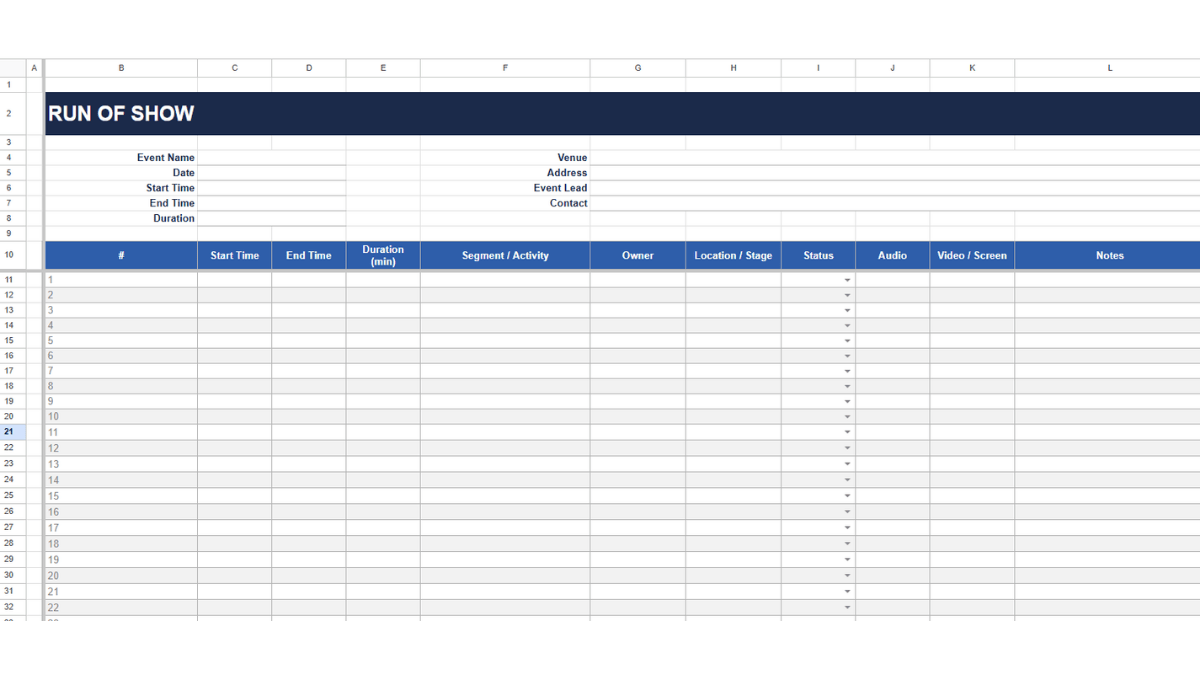
The main timeline tab gives you 50 rows with auto-calculating start and end times. Enter the event start time once at the top, then fill in the duration for each segment. The spreadsheet calculates every start and end time automatically. If you change the duration of any segment, every time below it updates instantly.
Each row includes columns for the segment name, owner, location, status, audio cues, video/screen notes, and general notes. The status column uses a dropdown menu with four options (Not Started, In Progress, Complete, Skipped) and conditional formatting that color-codes each status automatically. A summary row at the bottom shows total duration and a completion counter.
The audio and video columns are positioned on the right side of the sheet, making them easy to hide for simpler events that do not need production cues. Just right-click those column headers and select “Hide columns” in Google Sheets.
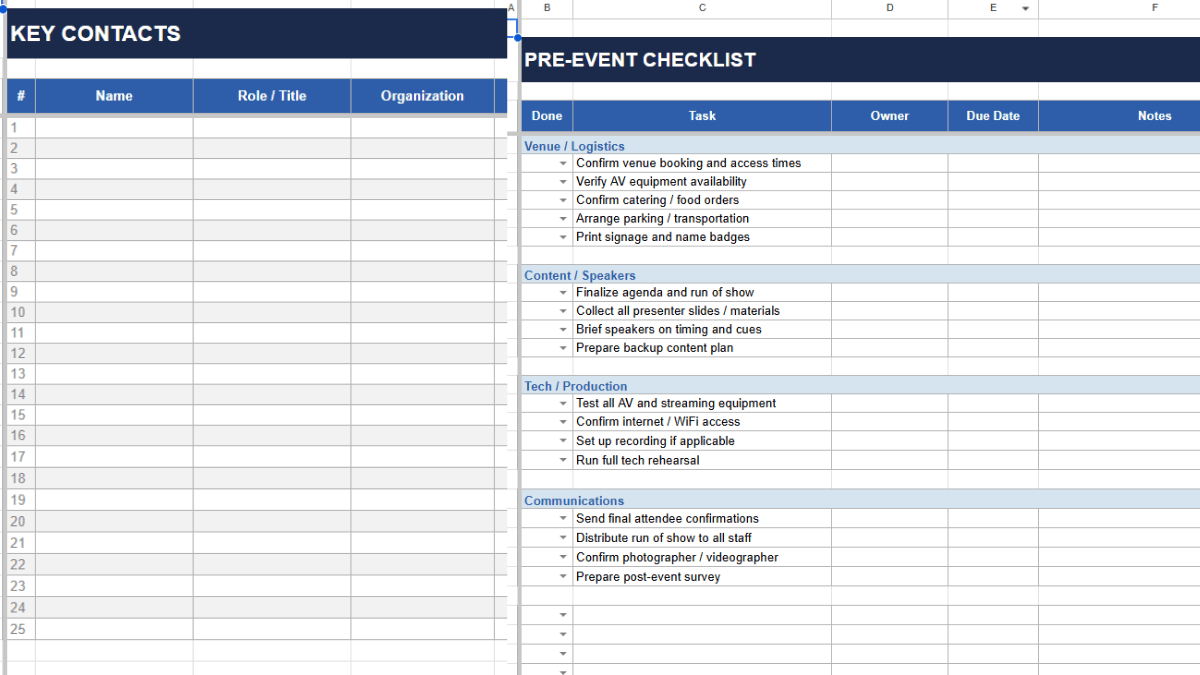
The Key Contacts tab stores names, roles, organizations, phone numbers, and emails for everyone involved in your event. The Pre-Event Checklist tab comes pre-loaded with common tasks organized by category: venue and logistics, content and speakers, tech and production, and communications. Each task has a completion status, owner, due date, and notes field.
Timing Run of Show Template
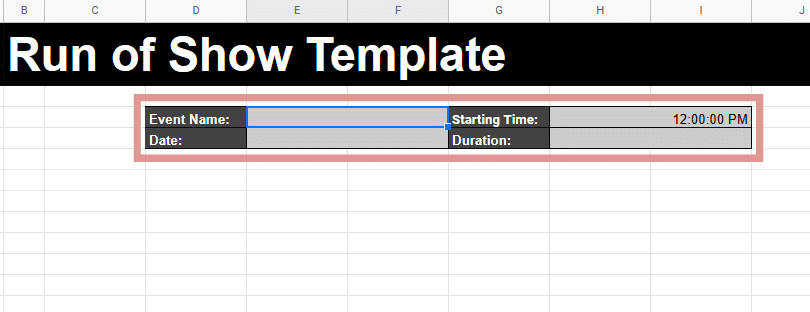
This template focuses on the event timeline. The header section captures your event name, date, starting time, and total duration. Once you enter the starting time, the spreadsheet automatically populates the start time for every row below.
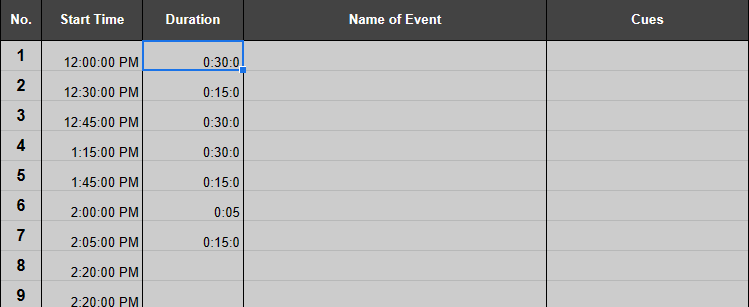
Add the duration for each segment and the next row’s start time calculates automatically. For example, if the first segment starts at 12:00 PM and lasts 30 minutes, enter the duration as 0:30. The start time for the next segment updates to 12:30 PM. This cascading formula saves you from recalculating the entire schedule every time a segment changes length.
Beyond timing, there are columns for cues, screens (with three separate screen slots), lights, audio, and notes. This makes it a solid choice if your primary concern is keeping technical cues in sync with the event’s timeline.
Production Run-of-Show Template
This template shifts the focus from technical cues to task ownership. The header captures event name, date, start and end times, duration, and full venue details including address, phone number, and email.
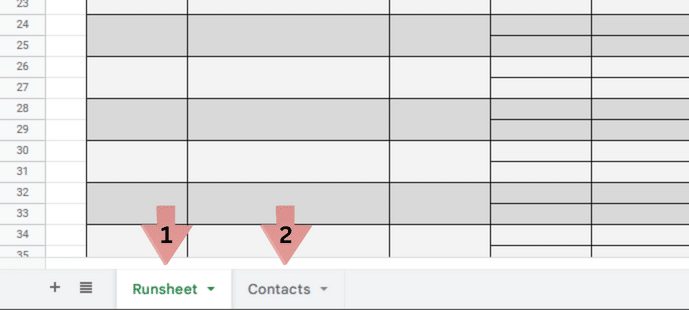
The main Runsheet tab tracks time, event description, location, responsibility, and notes. The dedicated Contacts tab stores names, designations, phone numbers, and emails for everyone on your team. This is a good fit if you have a large crew and your top priority is making sure every person knows their responsibilities at every point during the event.
Virtual Event Run of Show Template
This template was designed for virtual events where your team is working from their own screens. The layout runs horizontally to look like a visual timeline, and the larger fonts make it easy to keep this open in a small window alongside your video conferencing software.
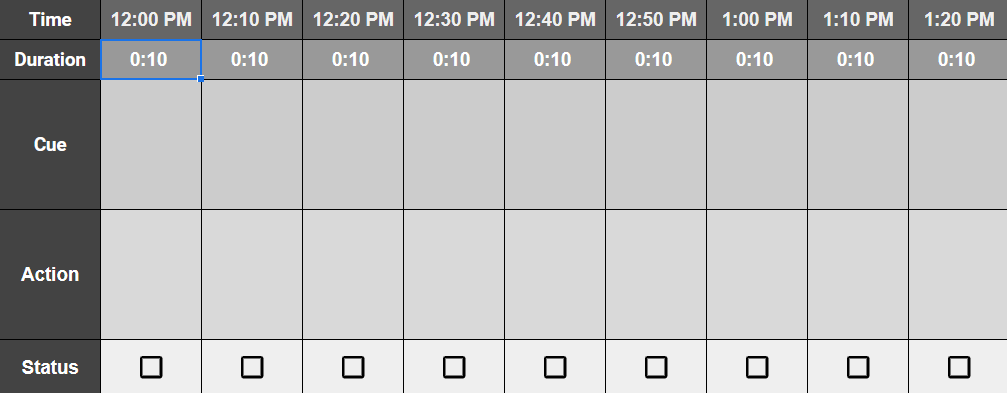
Each time block has rows for duration, cue, action, and a checkbox to mark completion. The simplified design keeps the focus on what is happening right now rather than overwhelming remote team members with production details. This works best for webinars, virtual workshops, and online team meetings where you need a quick-reference timeline more than a full production document.
How to Build a Run of Show Template from Scratch
If you prefer to build your own rather than copying one of ours, here is how to set up a run of show template in Google Sheets with auto-calculating times and status tracking.
Step 1: Set Up the Event Header
Create a header section at the top of your spreadsheet with fields for Event Name, Date, Start Time, End Time, Venue, and Event Lead. This keeps the essential details visible at all times without scrolling.

Step 2: Create Your Column Headers
Below the event header, set up your column headers. At minimum, include: #, Start Time, End Time, Duration, Segment/Activity, Owner, and Notes. If your event needs production cues, add columns for Audio, Video/Screen, and Lighting.
Step 3: Add the Auto-Calculating Time Formulas
This is the formula that makes a run of show template genuinely useful. In the first data row, set the Start Time cell to pull from the event start time in your header. For example:
=IF(C6<>"",C6,"")
This pulls the start time from the header into your first row. For the End Time, add the duration (entered in minutes) to the start time:
=IF(AND(C11<>"",E11<>""),C11+E11/1440,"")
The division by 1440 converts minutes into the fractional day format that Google Sheets uses for time values. For every subsequent row, set the Start Time to equal the End Time of the row above:
=IF(D11<>"",D11,"")
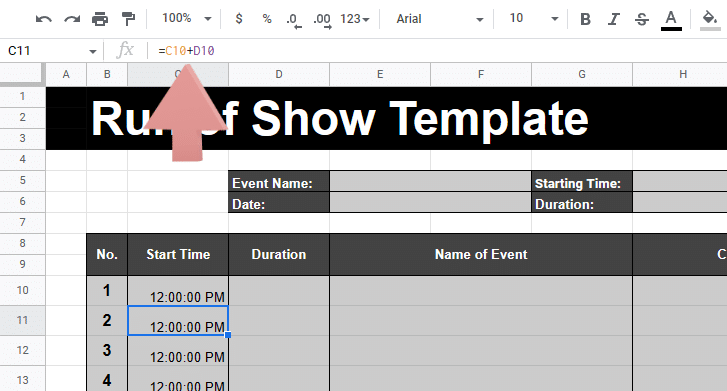
Now when you enter a duration for any segment, every start and end time below it recalculates automatically. Change the event start time in the header and the entire schedule shifts.
Step 4: Add Data Validation for Status Tracking
Select all cells in the Status column. Go to Data > Data validation > Criteria, choose “Dropdown,” and enter your options: Not Started, In Progress, Complete, Skipped. This gives your team a clean dropdown list instead of freeform text entry.
Step 5: Add Conditional Formatting
Highlight the Status column, then go to Format > Conditional formatting. Create rules that change the cell color based on value: green for Complete, yellow for In Progress, orange for Not Started, and red for Skipped. This gives event managers an instant visual overview of where things stand.
Step 6: Freeze the Header Rows
Go to View > Freeze and freeze the rows above your first data row. This keeps your column headers visible as you scroll through a long timeline, which is essential during a live event when you need to find a specific segment quickly.
Adapting Your Run of Show for Different Event Types
A single run of show template can flex to cover very different events. Here is how to adapt yours based on format:
Conferences and Produced Events
Use all available columns including audio, video, and lighting. Add a Location/Stage column if you have multiple rooms or stages. Include buffer time (five to ten minutes) between major segments to allow for transitions between speakers, room resets, and AV checks. For multi-track events, consider creating a separate tab for each stage or track to keep the document from getting too wide.
Workshops and Trainings
You can likely hide the technical cue columns and focus on the Segment, Owner, Duration, and Notes columns. Add instructions for facilitators in the Notes column, including how to handle timing if a discussion runs long. Workshops tend to be more fluid, so build in larger buffer windows than you would for a scripted conference.
Webinars and Virtual Events
Add columns for Platform/Tool (Zoom, Teams, or your streaming software), Screen Share Content (which slides or demo to show), and Chat/Q&A instructions for moderators. Virtual events punish bad timing more than in-person ones because attendees can leave with a single click. Keep segments short and include clear transition cues between speakers so your production team knows exactly when to swap the active presenter.
Run of Show Best Practices
After helping thousands of event planners through our templates, here are the practices that separate smooth events from stressful ones:
Build in buffer time. Add five to ten minutes of padding between major segments. This absorbs the inevitable delays from speakers running long, AV hiccups, and room transitions. If you do not need the buffer, your event simply runs slightly ahead of schedule, which no attendee has ever complained about.
Assign every single line to an owner. A run of show without clear ownership is just a fancy schedule. Every segment, every transition, every technical cue should have a name next to it. When the curtains need to open, someone specific should be responsible for making that happen.
Include contingency plans for the segments that matter most. What happens if the keynote speaker’s laptop will not connect? What if the live stream drops? Add a brief contingency note in the Notes column for high-stakes moments. You do not need a backup plan for every line, but you absolutely need one for the moments that define your event’s success.
Do a full walkthrough with your team before the event. Share the run of show with everyone involved and walk through it segment by segment. This is when you catch the gaps: the transition nobody owns, the breakout session with no assigned room, the vendor load-in that conflicts with registration setup.
Keep updating during the event. A run of show is a living document. Assign someone the specific job of updating timing and status in real time. When the rest of the team sees “Complete” turning green down the status column, it builds confidence and keeps everyone moving forward.
Get Started
A good run of show template takes the stress out of event planning and gives your entire team a single document to rally around. Grab our all-in-one run of show template, make a copy in Google Sheets, and start filling in your event details. If you are planning a larger event, pair it with our event budget template to keep your finances just as organized as your timeline.
Planning a wedding? Our wedding planning spreadsheet includes a day-of schedule that works alongside a run of show to cover every detail from the ceremony to the reception.
Frequently Asked Questions
What is the difference between a run of show and an event agenda?
An event agenda is a high-level schedule shared with attendees that lists session times and topics. A run of show is an internal document for event staff that includes minute-by-minute cues, task ownership, technical instructions, and transition details. The agenda tells attendees where to be. The run of show tells your team how to make it all happen.
How far in advance should you create a run of show?
Start drafting your run of show six to eight weeks before the event, as soon as you have a rough agenda locked in. Fill in details at three to four weeks out, and finalize everything after your rehearsal or walkthrough about one week before the event.
What columns should a run of show template include?
At minimum: start time, end time, duration, segment name, owner, and notes. For produced events, add columns for location/stage, status, audio cues, video/screen, and lighting. You can always hide columns you do not need.
Can you use a run of show template for virtual events?
Yes. Virtual events benefit from a run of show just as much as in-person ones. Add columns for the platform or tool being used, screen share content, and chat or Q&A management instructions. Since virtual attendees can leave with a click, tight timing and smooth transitions are even more important.
How do you share a run of show in Google Sheets with your team?
Click the Share button in Google Sheets and add email addresses for your team. Give production leads and event managers Editor access so they can update the document in real time. Share a Viewer link with speakers, vendor contacts, and other stakeholders who need to see the schedule but should not edit it.
Should you include buffer time in a run of show?
Always. Add five to ten minutes between major segments to absorb delays from speaker overruns, AV checks, and room transitions. Buffer time prevents a single delay from cascading through your entire schedule. If you do not use it, the event simply runs a few minutes ahead.
What is a cue sheet and how is it different from a run of show?
A cue sheet is essentially another name for a run of show. Both refer to a document that outlines every production cue in sequence. Some event professionals use “cue sheet” when the document focuses more heavily on technical cues (lighting, audio, video) and “run of show” when it covers the full event flow including non-technical elements like speaker introductions and break timing.
How do you update a run of show during a live event?
Assign one person the specific role of updating the run of show in real time during the event. They should mark completed segments, adjust timing for delays, and note any changes. Because Google Sheets syncs instantly, every team member with the link will see updates the moment they are made.