
Building a work schedule in a spreadsheet sounds basic. It is. That’s why it works.
Most small teams need something that shows who’s working, what shift, and whether they’re covered on Friday. This template does that. It gives immediate clarity on work hours, with all the relevant information in one place. Work schedules, weekly schedules, shifts, all free and available on any device.

→ Make a free copy of the employee shift schedule template
What the weekly shift schedule template covers
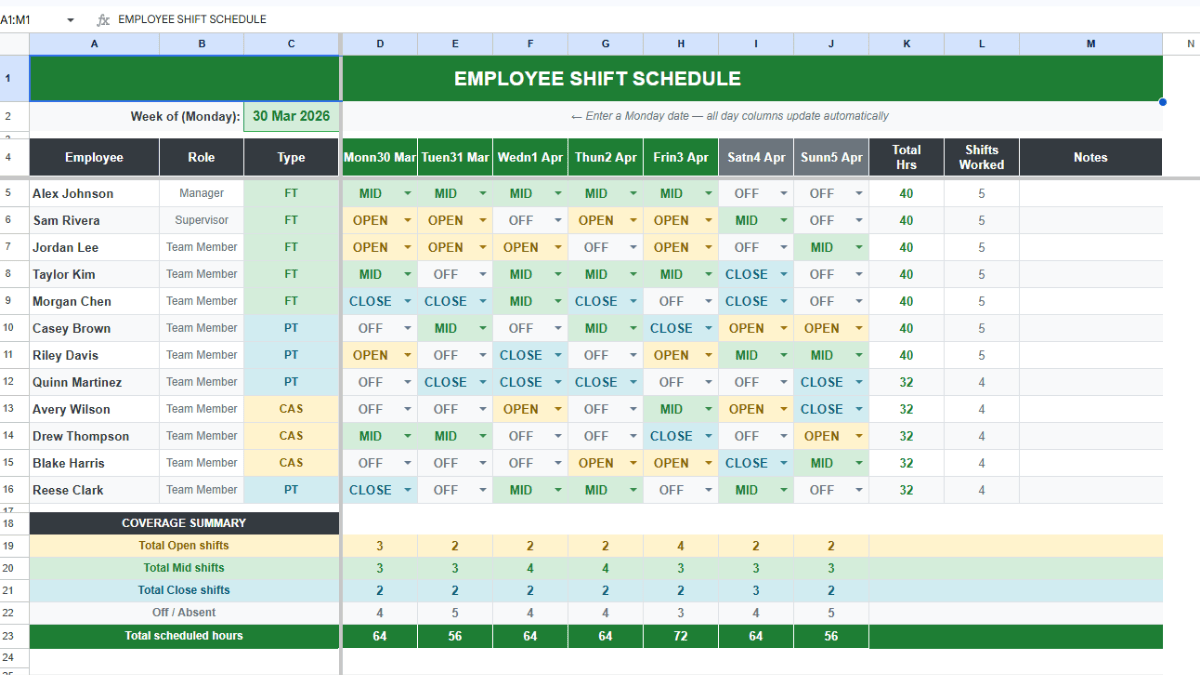
It’s a weekly shift schedule built in Google Sheets. You enter a Monday date in one cell and all the day columns update automatically. From there, you assign shifts to employees using a dropdown in each cell: OPEN, MID, CLOSE, OT, SPLIT, SICK, VAC, TR, or OFF.
Each row holds one employee. Columns track their name, role, and employment type. At the end of each row, the template calculates total hours worked for the week and counts shifts worked. At the bottom, a coverage summary shows how many Open, Mid, and Close shifts are filled per day, along with total scheduled hours. That’s the section that tells you whether you’re thin on Saturday before you’ve committed to it.
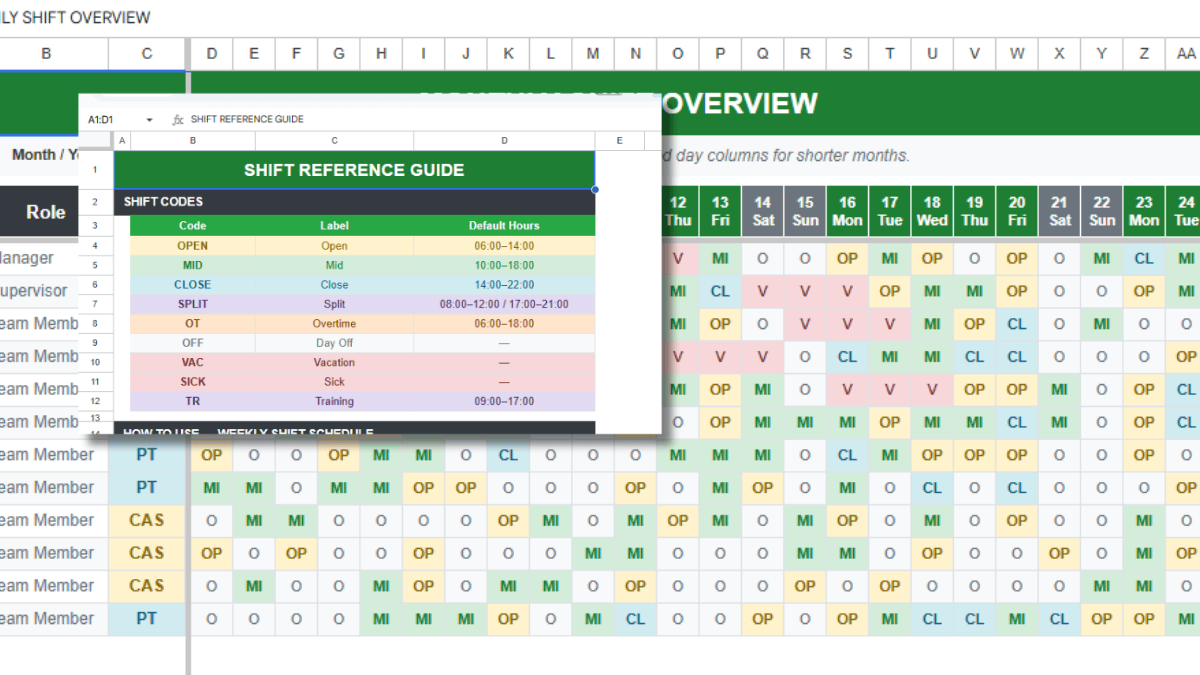
There’s a built-in shift key at the bottom that defines each option with start times and end times. OPEN runs 06:00 to 14:00. MID runs 10:00 to 18:00. CLOSE runs 14:00 to 22:00. OT covers an extended 06:00 to 18:00 block. The rest are absence or special-case labels.
The workbook also includes a Monthly Overview tab and a Shift Reference tab. Both come pre-built.
How to set it up
Go to File > Make a Copy. That saves the template to your Google Drive and lets you edit freely without touching the original.
Enter your Monday date in cell C2. All seven days of the week update from there.
Replace the sample employee names in column A with your team. Fill in roles and employment types. The defaults are FT, PT, and CAS, but those are editable.
Assign shifts using the dropdown in each cell. The coverage summary at the bottom updates as you go. Before you publish the schedule, check that section for gaps at peak hours.
Customizing shift types
If your operation doesn’t use OPEN/MID/CLOSE, those are easy to change. Click any shift cell, open Data > Data Validation, and update the list of accepted values. Then update the shift key section to reflect the new labels and their hours.
If you run night shifts, add a NIGHT option the same way. The one thing to check is whether the total hours formula handles end times past midnight correctly. If the shift crosses over into the following day, the underlying formula may need a small adjustment to count the hours right.
The template comes built for 12 employees. Adding more is straightforward: insert rows between the last employee row and the Coverage Summary, then copy the format and formulas down from an existing row. Insert, don’t append below the summary or the totals break.
Why Google Sheets works here
Scheduling software exists. Some of it is good. But for teams under 20 people, the overhead usually isn’t worth it. No per-seat cost, no onboarding, no new login to hand out. Everyone already knows how to open a Google Sheet.
Real-time collaboration is built in. Multiple managers can schedule different departments at the same time without version conflicts. When the schedule is done, share a view-only link with employees so they can check their shifts from any device. Or export it as a PDF and post it in the break room. Or download it as an Excel file and hand it off to someone who doesn’t use Google Sheets. All of those work.
For teams that track schedules for compliance reasons, the Google Sheets format also makes archiving easy. Duplicate the weekly tab, name it by date, and keep it in the same workbook. If a question comes up about a past work schedule, the record is there.
Using the data you’re already collecting
After a few weeks of completed schedules, you have something worth looking at. Which days consistently run short on coverage? Which employees are carrying more shifts than the rest? How do total scheduled hours track against your actual busiest days?
Copy each week’s data into a summary tab and build a simple pivot table. Google Sheets handles this without any additional tools. For anyone watching labor costs on a weekly basis, this kind of visibility adds up.
The template doesn’t automate any of that analysis. But it gives you clean, consistent data to work with, which is the part that’s usually missing.
If you want to use this in Excel
Go to File > Download > Microsoft Excel (.xlsx). Most formulas carry over. The dropdowns do too. If any data validation behavior doesn’t transfer cleanly, reapply it manually in Excel through the Data tab. The structure translates without much friction.
Frequently Asked Questions
Is this template actually free?
Yes. Click the link, make a copy to your Google Drive, and it’s yours. No account beyond a standard Google account is needed.
Can I use this in Excel instead of Google Sheets?
Yes. Open it in Google Sheets, then go to File > Download > Microsoft Excel (.xlsx). Most formulas and dropdowns transfer. If any data validation doesn’t carry over, reapply it in Excel through the Data tab.
How do I add more employees?
Insert rows between the last employee row and the Coverage Summary section. Copy the format and formulas down from an existing row. Don’t append below the Coverage Summary or the totals will break.
Can I track night shifts?
Yes. Add a NIGHT option to the shift dropdown via Data > Data Validation and update the Shift Key with the correct hours. If the shift crosses midnight, check whether the total hours formula handles end times on the following day correctly.
How do I share the schedule with employees?
Share a view-only link from Google Sheets so employees can check shifts from any device in real-time. Or export to PDF via File > Download > PDF for a printable version to post on-site.
Does the template flag overtime automatically?
The Total Hrs column shows total scheduled hours per employee for the week. You can see who’s approaching overtime, but you’d need to add a conditional formatting rule or formula to flag it automatically based on your threshold.
What if my shifts don’t match OPEN, MID, and CLOSE?
Edit the dropdown via Data > Data Validation on any shift cell. Replace the default labels with your own, then update the Shift Key section with the correct start times and end times for each shift.
Can I use this to plan multiple weeks at once?
Yes. Duplicate the Weekly Shift Schedule tab for each week, rename each tab by date or week number, and fill them in independently. It’s a straightforward way to map out rotations or shift patterns several weeks ahead.