
Every few months, someone discovers the Google Sheets QUERY function and has the same reaction: why did nobody tell me about this?
It happens because QUERY doesn’t look impressive at first glance. It’s just a formula. But once you see what it actually does, you realize you have been doing a lot of spreadsheet work the hard way.
The Problem It Solves
Here’s a common scenario. You have a dataset: hundreds of rows, sales data by region and rep and date. Your manager wants the top 10 deals from the West region this quarter, sorted by revenue, with only the rep name and deal size showing.
You’re not going to drop this into an LLM and have it spit out results. You’re protective of your data, and your team understands basic cybersecurity principles.
The normal approach is just filtering, hiding columns, maybe sorting manually and copying the result somewhere. Then your manager asks for the same thing but for the East region. Of course. So , you do it all again.
The QUERY approach:
=QUERY(A1:F500,"SELECT B, F WHERE C = 'West' ORDER BY F desc LIMIT 10",1)That single formula filters by region, picks only the columns you want, sorts by revenue, and caps the output at 10 rows. Change “West” to “East”, and you’re done.
No manual steps. No repeated work. The output updates automatically whenever the source data changes.
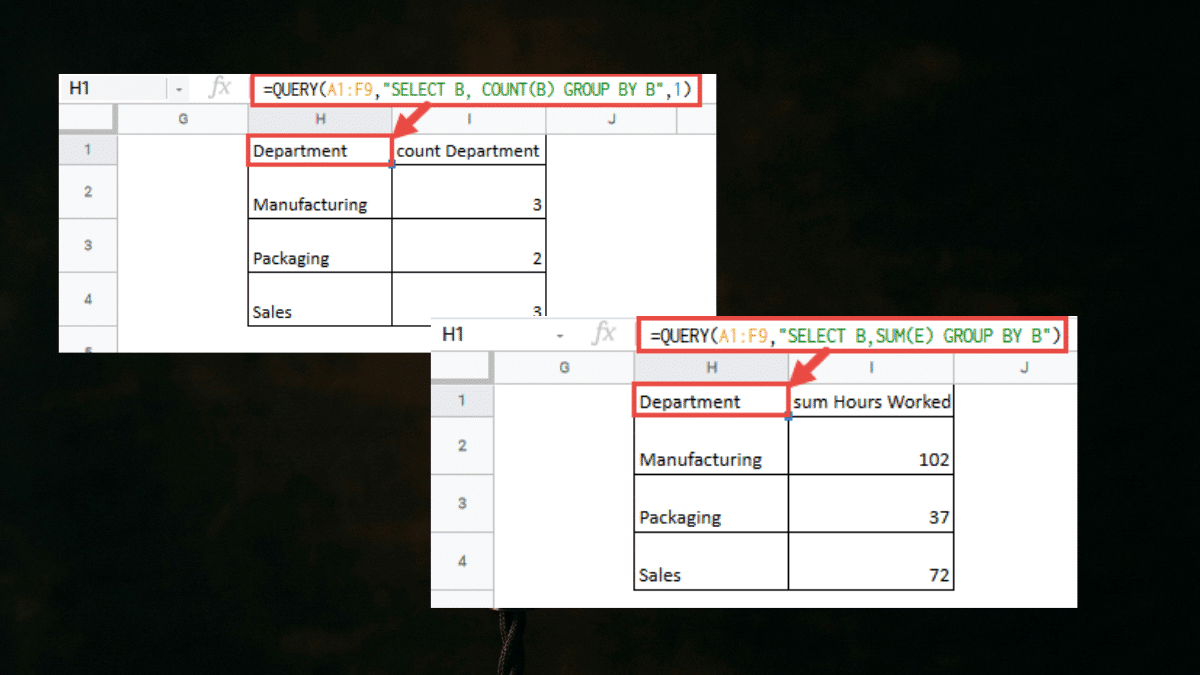
It Reads Like Plain English
That is the other thing that surprises people. The QUERY function uses a syntax borrowed from SQL, but you do not need to know SQL to use it. The clauses read almost like instructions you would give to a colleague:
- SELECT these columns
- WHERE this condition is true
- ORDER BY this column
- LIMIT the results to this many rows
Stack them together and you have a formula that does in one step what most people handle with a combination of FILTER, SORT, and manual column hiding.
The Use Cases Add Up Fast
The more you use QUERY, the more places you find for it. Dashboard summaries that update automatically. Reports filtered by a dropdown so anyone on the team can slice the data without touching the source. Cross-sheet pulls that grab only the columns you need from a messy import. Revenue totals grouped by category without building a pivot table.
It is one of those tools where learning it once saves you hours over the course of a year.
Where to Start
The full syntax takes maybe 20 minutes to get comfortable with. The basics take about 5. If you have a dataset sitting in Google Sheets right now that you regularly filter or sort by hand, that is the perfect place to try it.
Our complete guide to the Google Sheets QUERY function walks through every clause with real examples you can copy directly into your own sheet, including how to use cell references to make your queries dynamic, how to pull data from other tabs and other files, and how to handle the errors that trip up most first-time users.
So if you’re looking to save time with an efficient formula, query is a good place to start.