
Most project trackers fail for the same reason: they track tasks without showing status. You end up with a list of things to do and no way to tell what’s moving, what’s stuck, or what finished last week. A project manager checking in on Monday morning needs clarity, not a spreadsheet full of task names.
This project update template, which functions as a living project status tracker, solves that. It gives every task a current status, an owner, a priority, and a deadline. One glance tells you where the project stands. It is a simpler alternative to a full project status report template, built for teams that need project progress visibility without the overhead of dedicated software.
Below is a free project status tracker template for Google Sheets. It includes a Task Log, a Dashboard that updates automatically, and an Instructions tab. Copy it, rename the categories, and start tracking.
Get the free spreadsheet template here.

What the Template Includes
The template has three tabs. Each one serves a different purpose, and together they cover the key elements of lightweight project tracking.
Task Log
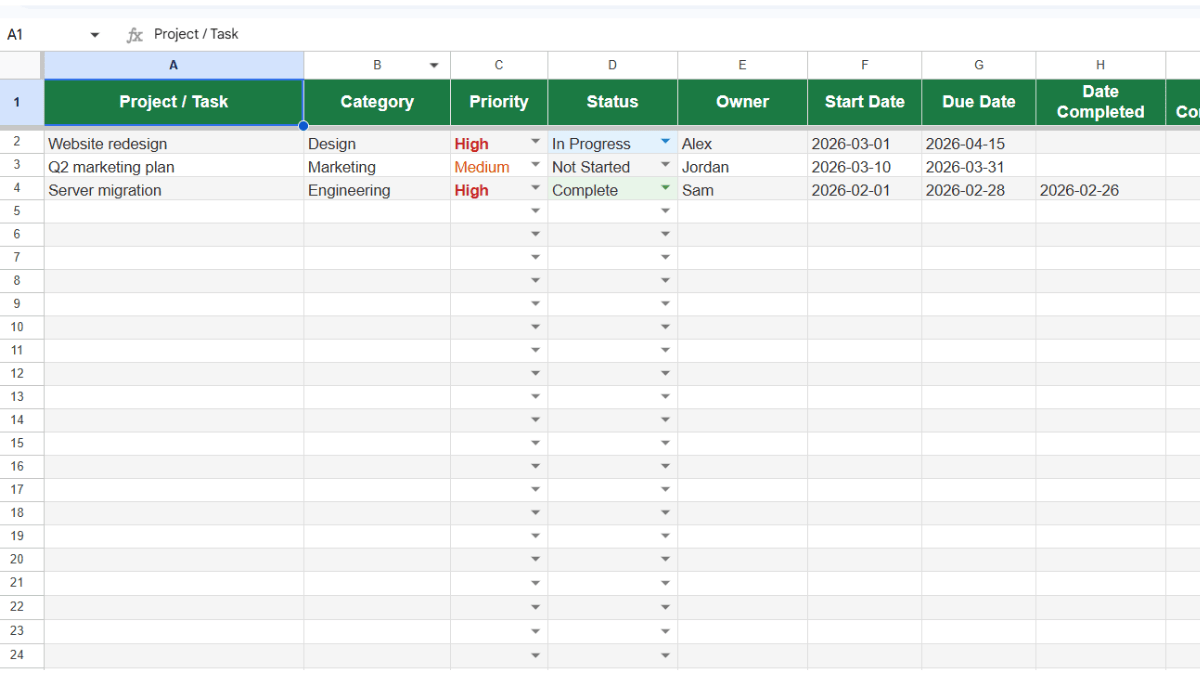
This is where you enter your data. Each row is one task or deliverable. The columns cover the essentials:
| Column | What It Does |
|---|---|
| Project / Task | Name of the task or deliverable, the project name |
| Category | Group tasks by department, project, or type |
| Priority | High, Medium, or Low (dropdown) |
| Status | Tracks the current state of the task |
| Owner | The person responsible |
| Start Date | When work began or is scheduled to begin |
| Due Date | Target completion date |
| Date Completed | When the task was actually finished |
| % Complete | Progress from 0% to 100%, shown with a data bar |
| Notes | Context, blockers, or additional details |
Priority and Status use data validation dropdowns, so entries stay consistent across the project team. Best practices include using a regular update schedule like the end of the week for all updates. Status cells are color-coded automatically using conditional formatting: green for Complete, blue for In Progress, yellow for On Hold, red for Cancelled.
Dashboard
The Dashboard pulls everything from the Task Log using COUNTIF and COUNTIFS formulas. Nothing to update manually. Dashboards like this one give you a summary of project health without requiring you to scan every row.
It shows four sections:
Status Summary counts how many tasks fall into each status category. Total tasks, not started, in progress, on hold, complete, and cancelled.
Priority Breakdown shows the split across high, medium, and low priority. This is useful when key stakeholders ask where resources are going.
Key Metrics includes completion rate (percentage of tasks marked complete), average progress across all tasks, the number of overdue tasks, and how many are currently active. These metrics give you a read on whether the project is on track without digging through individual rows.
Owner Workload is a manual section where you can add team members and their task counts. In Google Sheets, you can replace this with a UNIQUE/COUNTIF combination or build a pivot table from the Task Log data.
With the dashboard, it’s easy to create a quarterly status report for project stakeholders. It’s an at-a-glance way to check the project’s timeline anytime.
Instructions
The third tab explains every column, how the Dashboard works, and how to customize the template for your workflow. It covers adding new categories, extending the tracker beyond 100 rows, and editing the status dropdown options.
How to Set Up the Tracker
Open the template and make a copy to your Google Drive. Then follow these steps.
Step 1: Define Your Categories
The Category column has no dropdown restriction. Type whatever groupings make sense for your work. Common examples: department names, project phases, client names, or content types. Pick one system and stick with it so filtering works cleanly.
Step 2: Enter Your Tasks
Add one task per row. Start with the task name, category, and priority. Set the status to Not Started for new items. Add the owner and due date. If certain tasks represent milestones, note that in the Category or Notes field so they stand out when you filter.
For the % Complete column, enter values as decimals. 0.5 equals 50%. A visual data bar fills in automatically to show progress at a glance.
Step 3: Update as Work Progresses
Change the Status dropdown as tasks move through stages. Update % Complete as accomplishments are logged. When a task finishes, set the status to Complete and fill in the Date Completed field.
The Dashboard updates instantly. No need to refresh or recalculate.
Step 4: Use Filters to Focus
In Google Sheets, go to Data and create a filter on the Task Log. Filter by Status to see only active tasks. Filter by Owner to check someone’s workload. Filter by Priority to focus on what matters most. The filter views in Google Sheets let each team member apply their own filters without changing what others see.
Using This Tracker for Status Reporting
A project status tracker and a progress report serve different purposes, but they share the same data. The tracker is the living document. The report is the snapshot you send to sponsors and stakeholders.
If your organization requires weekly reports, this template gives you the raw material. Filter the Task Log to show only items updated in the past week. Screenshot the Dashboard for a quick visual. Paste both into an email or a slide, and you have a weekly status update without building a separate report from scratch.
For a monthly status report, the same approach works at a wider interval. Pull a summary of achievements from the completed tasks, note any blockers in the Notes column, and list upcoming action items. The Dashboard’s completion rate and overdue count serve as the executive summary. If your reporting process requires a more formal structure, pair this tracker with a dedicated project status report template that includes sections for project budget, schedule variance, and risk.
The tracker itself does not replace a standardized reporting process. It feeds one. That distinction matters for any project manager who needs to deliver insights to leadership on a regular frequency.
When to Use a Spreadsheet vs. Project Management Software
Spreadsheets work well when the project is straightforward and the team is small. If you have fewer than 100 tasks and a team of 10 or fewer, a Google Sheets tracker covers most of what you need: task assignment, status tracking, deadline visibility, and a shared view of progress.
The advantages are real. There is no learning curve. Everyone already knows how to use a spreadsheet. Sharing is instant through Google Drive. You can customize columns, formulas, and formatting without waiting on a product roadmap. For most workflows, that flexibility matters more than automation.
Dedicated project management tools like Asana, Monday.com, or Jira make more sense when you need automated notifications, complex task dependencies, detailed permission controls, or reporting across multiple projects. They also handle the project’s complexity better when there are hundreds of tasks with overlapping schedules and cross-team dependencies. If your spreadsheet tracker starts feeling cramped, that is usually the signal to move to something purpose-built.
For most small teams and individual project managers, a well-structured spreadsheet is enough. And it is free.
Tips for Getting the Most Out of This Tracker
Set a review cadence. A tracker only works if people update it. Pick a day each week for the team to update their task statuses. Monday mornings or Friday afternoons tend to stick. Consistency is what separates a useful tracker from an abandoned one.
Use the Notes column for blockers. When a task stalls, write down why. This turns the Notes column into a running log of decisions and obstacles that is useful during retrospectives and progress reports.
Sort by Due Date regularly. Sorting the Task Log by the Due Date column surfaces upcoming deadlines and makes it obvious when something is overdue. It also helps when building executive summaries for stakeholders who want to see what is due next.
Duplicate the file for new projects. Rather than adding more rows and categories to a single file, copy the template for each new project. One tracker per project keeps things clean and makes archiving easier.
Combine with other templates. If your project involves content production, pair this tracker with a content calendar template. For projects with budget exposure, use it alongside a budget spreadsheet to track the project budget separately. The tracker handles status and ownership. The other templates handle the specifics.
Sync with your calendars. Copy key deadline dates from the tracker into Google Calendar or Outlook so the project team gets reminders outside of the spreadsheet. Spreadsheets are good for tracking. Calendars are good for reminding.
Key Components of a Good Project Status Tracker
Not every tracker needs every feature. But the ones that get used tend to share a few components.
A clear task list with one row per deliverable. A status field with a fixed set of options (not free text). An owner column so every task has a name attached to it. A due date column that lets you sort and filter by deadline. And some kind of summary view, whether that is a dashboard, a pivot table, or a set of COUNTIF formulas at the top.
Beyond those basics, the right additions depend on the project’s complexity. A project budget column makes sense for teams that track spend per task. A schedule variance column helps if planned and actual timelines need to be compared. A timeline visualization like a Gantt chart is useful for projects with dependencies, but overkill for a simple task list.
The goal is a tracker that the project team actually updates. Every column you add creates maintenance. Add what you need. Leave the rest out.
How to Customize the Template
The template is designed to be modified.
Add columns. Common additions include Budget, Hours Estimated, Hours Actual, or a Dependencies column. Insert them before the Notes column so Notes stays at the end as a catch-all.
Edit the Status dropdown. If your workflow has different stages, change the data validation on column D. You might replace On Hold with Blocked, or add a Review stage between In Progress and Complete. Update the conditional formatting rules to match any new status values.
Extend beyond 100 rows. The template comes pre-formatted for 100 tasks. To add more, copy the formatting and data validation from the last formatted row and paste it down as far as you need. Update the Dashboard formulas to reference the expanded range.
Build a pivot table. For larger projects, create a pivot table from the Task Log to summarize tasks by owner, category, or status without cluttering the Dashboard tab.
Other Useful Project Templates
This project status tracker focuses on task-level status and ownership. Depending on your needs, you might also want:
- A project management template that includes Gantt chart views and timeline planning for more complex projects.
- A task list template with a built-in progress bar if you want something lighter for personal to-do tracking.
- An assignment tracking template designed for academic work with due dates and grade tracking.
Frequently Asked Questions
Can I use this project status tracker in Excel?
Yes. The template is built as an .xlsx file, so it opens in Excel with full formatting and formulas intact. The dropdowns, conditional formatting, and data bars all work in Excel. If you prefer Google Sheets, open the file in Google Drive and it will convert automatically.
How do I share this tracker with my team?
Upload the file to Google Drive, then click Share and add your team members. Set permissions to Editor so everyone can update their own tasks. For view-only access (useful for sponsors and stakeholders), set the permission to Viewer. Each person can apply their own filter views without affecting anyone else.
What does the Overdue Tasks metric count?
It counts any task where the due date has passed and the status is not Complete or Cancelled. Tasks marked On Hold or In Progress with expired due dates are counted as overdue. To clear overdue items, either update the due date or mark the task complete.
Can I track multiple projects in one spreadsheet?
You can, using the Category column to separate projects. Filter by category to focus on one project at a time. For larger efforts, duplicating the template for each project keeps the data cleaner and the Dashboard more useful.
How do I add more status options?
Select the Status column (D2 through your last row), go to Data, then Data Validation. Edit the list of items to include your new status values. After adding new options, update the conditional formatting rules on that column so each status gets its own color.
Is there a way to get notifications for overdue tasks?
Google Sheets does not send notifications natively. You can set up a Google Apps Script trigger that checks for overdue tasks daily and sends an email summary. Another option is connecting your sheet to a tool like Zapier, which can monitor for changes and send Slack or email alerts when a task goes overdue.
How is this different from a Gantt chart template?
A Gantt chart focuses on timeline visualization, showing when tasks start and end on a horizontal bar chart. This project status tracker focuses on current status, ownership, and priority. Gantt charts are better for scheduling and dependency planning. Status trackers are better for day-to-day execution and knowing where things stand right now.
How often should I update the tracker?
It depends on the project’s pace. For fast-moving projects, daily updates keep the data accurate. For longer initiatives, weekly updates are enough. The key is picking a frequency and sticking with it. If team members only update when reminded, the tracker loses its value as a source of truth.