
A deal in your head is not in your pipeline. A deal in your pipeline without a close date and a probability is not a forecast. Most sales tracking falls apart somewhere between those two problems.
This free sales tracker template for Google Sheets gives you a deal log, an auto-calculated pipeline dashboard, quota tracking by rep, win rate by lead source, and a monthly summary. Enter a deal and the numbers update immediately. Done right, it’s the single source of truth for sales management. Track sales activities from across platforms, and simplify lead management with the platform your team already uses everyday.
Get Your Free Copy of The Tracker
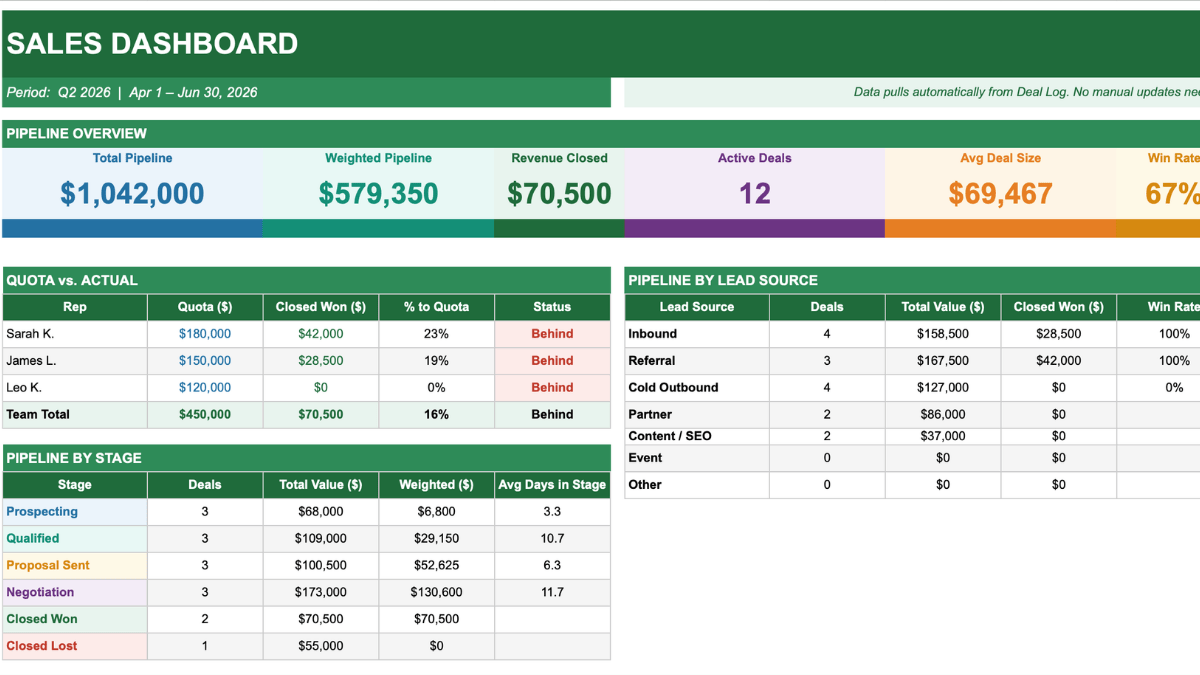
What this sales tracker template includes
The template has four tabs: Sales Dashboard, Deal Log, Monthly Summary, and Instructions. The first three are crucial for tracking the sales team’s performance, and the final tab is helpful for setup.
Sales Dashboard tab
Six top-line numbers update automatically from whatever is in the Deal Log: total pipeline value (excluding closed lost deals), weighted pipeline, revenue closed, active deal count, average deal size, and win rate.
Below the scorecard, a quota vs. actual table shows each rep’s quarterly quota, their closed won revenue, percentage to quota, and status (On Target, At Risk, or Behind). The status cells are color-coded and update in real time as deals close.
Two breakdown tables sit below that. Pipeline by Stage shows deal count, total value, weighted value, and average days in stage for each of the six stages. Pipeline by Lead Source shows the same deal count and value breakdown by where deals originated, with win rate per source shown as a data bar. That last column is often the most useful thing in the whole template. Two sources can produce the same number of deals and very different win rates. This is the place to quickly spot trends and actionable opportunities.
Deal Log tab
One row per deal. The columns are: deal number, company, contact, stage, deal value, probability, weighted value, close date, days in stage, lead source, product or service, owner, and next action notes.
Stage and lead source both have dropdowns. The weighted value column calculates automatically as deal value multiplied by probability. Stage color-coding applies via conditional formatting: blue for Prospecting, teal for Qualified, amber for Proposal Sent, purple for Negotiation, green for Closed Won, red for Closed Lost.
The probability column is a manual input. Default values are built into the instructions (10% for Prospecting through 100% for Closed Won) but you can override any of them. A deal in Negotiation where you have a verbal commitment is not the same as a deal in Negotiation where you are waiting on procurement to respond. The probability field is where that distinction lives.
A totals row at the bottom shows total pipeline value and total weighted value across all active deals.
Monthly Summary tab
Eight months of history pre-loaded (October 2025 through May 2026) with rows for revenue closed, deals won, deals lost, new deals added, quota, percentage to quota, average deal size, and win rate. The first five months have sample data to show the shape of the thing. Update each month manually at the end of the period. A running YTD revenue total sits below the main table.
Instructions tab
Setup guide, stage definitions with default probability for each, and tips on keeping closed-lost deals in the log, updating stages consistently, and making the SUMIFS formula work correctly when you have multiple reps.
How to use the sales tracker
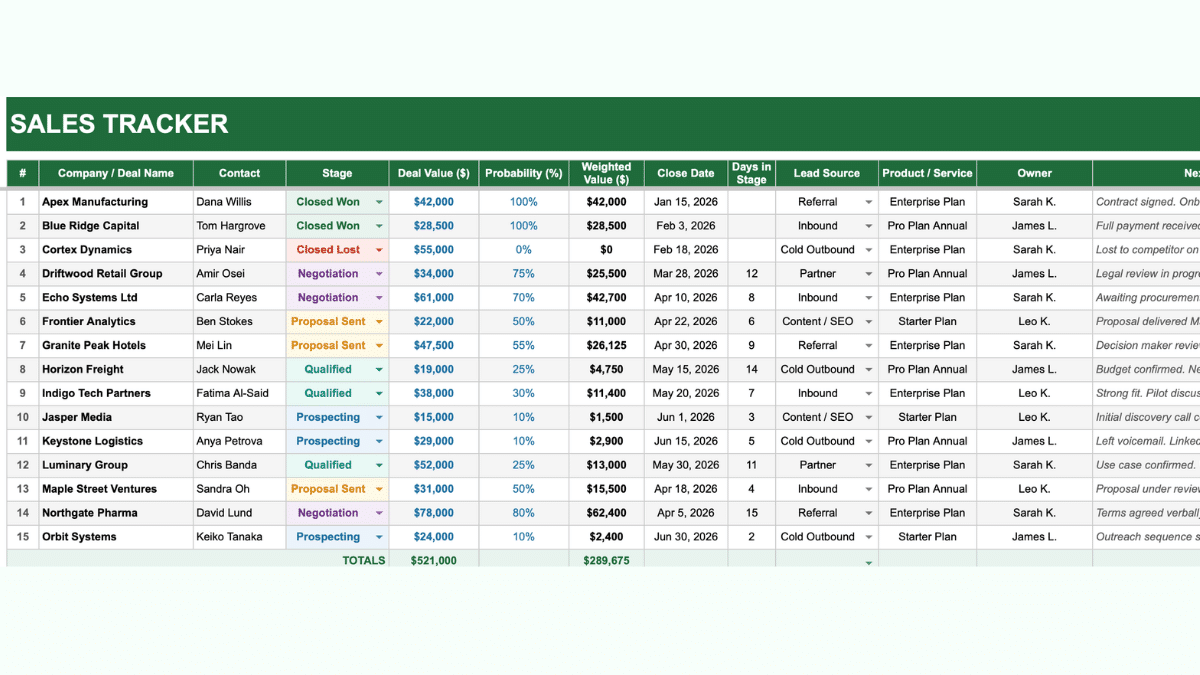
Step 1: Add your deals to the Deal Log
Go to the Deal Log tab. Enter each open deal as a row. Company name, contact, deal value, expected close date, lead source, product or service, and owner. The deal number column fills in manually.
Enter the stage using the dropdown in column E. Enter the probability as a decimal in column G (0.50 for 50%). The weighted value in column H calculates immediately.
This should be done for all customer interactions where a deal was pitched. Train new sales reps on this during onboarding, and the sales tracker becomes a cost-effective alternative to a full CRM. That’s crucial for bootstrapping, and the sales tracker tool’s at-a-glance real-time insights can also help managers efficiently follow up on each deal every week with the team.
Step 2: Set quota targets on the dashboard
Switch to the Sales Dashboard tab. In the Quota vs. Actual table, enter each rep’s quarterly quota in column C. The Closed Won and percentage to quota columns pull from the Deal Log automatically using the owner name to match deals to reps. The names in the Deal Log owner column need to match the names in the quota table exactly for this to work.
Step 3: Update deals as they progress
When a deal moves to a new stage, update the Stage dropdown. When probability changes, update column G. When a deal closes, change the stage to Closed Won or Closed Lost. The dashboard updates across all sections the moment you make the change.
Keep Closed Lost deals in the log. They feed the win rate calculation and the lead source breakdown. Deleting lost deals makes your win rate look better than it is and makes it impossible to see which sources are actually converting.
Step 4: Update the Monthly Summary at end of period
At the end of each month, enter that month’s revenue closed, deals won, deals lost, and other metrics in the Monthly Summary tab. This is a manual step. It takes about five minutes and builds the trend view that makes quarter-over-quarter comparisons possible.
Understanding pipeline stages and probability
The template uses six stages. Here is what each one means and what default probability is assigned.
| Stage | Default Probability | What it means |
|---|---|---|
| Prospecting | 10% | Initial contact made. Not yet qualified. |
| Qualified | 25% | Budget, authority, need, and timeline confirmed. |
| Proposal Sent | 50% | Formal proposal or quote delivered. |
| Negotiation | 75% | Terms being discussed. Verbal agreement likely. |
| Closed Won | 100% | Deal signed. Revenue booked. |
| Closed Lost | 0% | Deal lost. Keep in log for win/loss analysis. |
Override any probability at the deal level. Stage defaults exist for convenience, not as rules. A deal in Proposal Sent where you have a strong internal champion is worth more than 50%. A deal in Negotiation that has gone quiet for two weeks is worth less than 75%. The weighted pipeline figure is only as accurate as the probabilities behind it.
Total pipeline vs. weighted pipeline
Two different numbers. Total pipeline is the sum of all active deal values at face value. Weighted pipeline multiplies each deal value by its close probability and sums the result.
Total pipeline tells you the ceiling. Weighted pipeline tells you the realistic forecast. If your total pipeline is $500K and your weighted pipeline is $120K, you have a wide funnel with low confidence deals at the top. If both numbers are close together, most of your deals are late-stage with high probability.
Neither number is better than the other. They answer different questions. Total pipeline answers “how much opportunity is in the system.” Weighted pipeline answers “what should we actually expect to close.”
How to use the win rate by lead source breakdown
The Pipeline by Lead Source table on the Sales Dashboard shows win rate as a data bar next to a percentage for each source. This is where most sales teams find their most actionable number.
A source with high deal volume and low win rate might still be worth investing in if the deals are large. A source with low volume and high win rate is worth examining more closely. Referrals consistently outperform cold outbound on win rate for most businesses, which is a useful thing to see visually rather than just assume.
The calculation uses COUNTIFS on both Closed Won and Closed Lost deals for each source. That is why keeping lost deals in the log matters. Remove them and the win rate calculation loses its denominator.
Tracking multiple reps
The template supports three named reps in the Quota vs. Actual table by default. Add more rows if needed. The formula pulling closed revenue per rep is a SUMIFS that matches on owner name, so the name in the Deal Log owner column needs to match exactly. “Sarah K.” and “Sarah K” are not the same. Check for trailing spaces if a rep’s numbers look wrong.
For team totals, the Team Total row in the quota table sums the individual rep rows rather than recalculating from the Deal Log. This keeps the formula simple and avoids double-counting if you have deals without a named owner.
Sales tracker vs. CRM
A CRM like Salesforce, HubSpot, or Pipedrive does more than this template. It tracks every email and call, links contacts to accounts, automates follow-up sequences, and stores a complete interaction history. For teams doing high volumes of outbound activity, that infrastructure is worth the cost and setup time.
A Google Sheets sales tracker makes sense when you want pipeline visibility without the overhead of a full CRM, when your team is small enough that everyone knows every deal, or when you are running a project-based sales motion with a manageable number of active deals at any time. It also works well as a lightweight layer on top of a CRM for managers who want a clean summary view without exporting reports.
The two are not mutually exclusive. Some teams use both: the CRM for activity tracking and the spreadsheet for pipeline review in weekly team meetings.
What to do with this template after a deal closes
Mark it Closed Won or Closed Lost in the Stage column. Leave the row in the Deal Log. The dashboard will remove it from active pipeline totals automatically (the total pipeline formula excludes Closed Lost, and the dashboard won’t count closed deals as active). It still counts in win rate, revenue closed, and lead source analysis.
At the end of the quarter, archive the Deal Log by duplicating the tab and renaming it (e.g. “Q2 2026 Deals”). Start a fresh Deal Log for the new quarter. Keeping each quarter’s data in a separate tab makes it easy to compare performance across periods without rebuilding anything.
If you need to report revenue in more detail across a full year, the profit and loss template picks up where this one leaves off. The revenue numbers from your Monthly Summary feed directly into a P&L format. And if you send invoices once deals close, the invoice template is a natural next step in the same workflow.
For teams that want to see sales performance alongside marketing, operations, and finance metrics in one place, the KPI dashboard template covers the full picture. Revenue closed, win rate, and average deal size are all metrics that fit naturally into the sales category of that dashboard.
Frequently Asked Questions
How do I add more sales reps to the quota table?
Go to the Sales Dashboard tab. In the Quota vs. Actual table, insert a new row above the Team Total row. Enter the rep’s name in column B and their quota in column C. The Closed Won formula for the new row should match the pattern in the existing rows: a SUMIFS on the Deal Log filtering by both “Closed Won” stage and the rep’s owner name. Make sure the name matches exactly how it appears in the Deal Log owner column.
Can I change the pipeline stages to match our own sales process?
Yes. The stage names in the dropdown are controlled by the data validation on column E of the Deal Log. Select cells E5 through E100, go to Data and then Data Validation, and edit the list. Update the dropdown values to match your stage names. Also update the stage names in the Pipeline by Stage table on the Sales Dashboard so the COUNTIF and SUMIF formulas reference the correct names. The conditional formatting colors can also be updated if you want the stage color-coding to reflect your new labels.
Does this template work in Microsoft Excel?
Yes. The template is built in Excel-compatible format. Open it directly in Excel and all formulas, dropdowns, and conditional formatting work the same way. To use it in Google Sheets, upload the file to Google Drive and open it as a Google Sheet, or use the direct copy link at the top of this page.
The win rate for a rep looks wrong. What should I check?
Two things to check first. One: confirm the rep’s name in the Deal Log owner column matches exactly what is in the quota table, including capitalisation and spacing. Two: confirm that lost deals have not been deleted from the Deal Log. Win rate is calculated as Closed Won deals divided by the sum of Closed Won and Closed Lost. If there are no Closed Lost deals in the log, the formula returns blank rather than 100% to avoid misleading results.
How do I track deals across multiple quarters?
At the end of each quarter, duplicate the Deal Log tab and rename it with the quarter (for example, Q2 2026 Deals). Clear the current Deal Log and start fresh for the new quarter. The Sales Dashboard pulls from the active Deal Log tab, so it will reflect only the current quarter’s deals. Past quarters remain accessible in the archived tabs for reference and comparison.
My weighted pipeline seems too low. How do I fix it?
Weighted pipeline is deal value multiplied by probability. If it looks low, the most likely cause is that probabilities in column G have not been updated as deals have progressed. A deal sitting in Negotiation at 10% probability will drag the weighted total down significantly. Review the probability column for each active deal and update it to reflect its current close likelihood. The weighted pipeline updates as soon as you change any probability value.
Can I add a column for expected contract length or recurring revenue?
Yes. Insert a new column in the Deal Log between any of the existing columns. The safest approach is to insert it after the Notes column at the end so the dashboard formulas referencing specific column letters are not disrupted. If you insert it in the middle, check that the dashboard SUMIF and SUMIFS formulas still reference the correct columns for Deal Value (column F) and Stage (column E).