
The quickest way to strikethrough text in Google Docs is the keyboard shortcut: press Alt + Shift + 5 on Windows, or Cmd + Shift + X on Mac. Highlight your text first, then use the shortcut and the strikethrough applies instantly.
If you prefer menus, or need to use strikethrough text on mobile, this guide covers every method with screenshots for each step.
Table of Contents
What Is Strikethrough in Google Docs?
Strikethrough puts a horizontal line through selected text, like this. It signals that a word or phrase has been deleted, corrected, or is now invalid without actually removing it from the document. It’s meant to look like a pen crossed off a word.
Common uses include:
- Marking text for deletion during editing or proofreading
- Showing revisions when collaborating with others
- Crossing off completed items in a to-do list or checklist
- Creating a visual effect in headers or titles
Strikethrough in Google Docs works the same way as strikethrough in Excel: the formatting stays visible so anyone reading the document can see what changed and why.
How to Strikethrough in Google Docs: Keyboard Shortcut
The keyboard shortcut is the fastest way to use strikethrough in Google Docs. Two seconds and you’re done.
On Windows: press Alt + Shift + 5
On Mac: press Cmd + Shift + X
- Select the text you want to cross out.
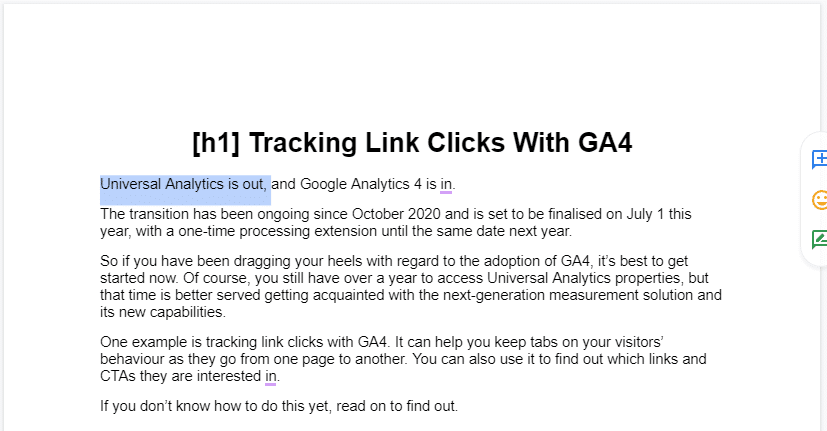
- Press Alt + Shift + 5 on Windows, or Cmd + Shift + X on Mac.
- The selected text now has a line through it.

To toggle strikethrough off, select the text again and press the same shortcut. The behavior is identical on Windows and Mac: the only difference is whether you press Alt or Cmd.
If you regularly use keyboard shortcuts, check out this guide to Google Sheets keyboard shortcuts to speed up your spreadsheet workflow too.
How to Strikethrough Text Using the Format Menu
If you prefer not to use keyboard shortcuts, the Format menu gives you direct access to the strikethrough effect from the toolbar.
- Highlight the text you want to strikethrough.
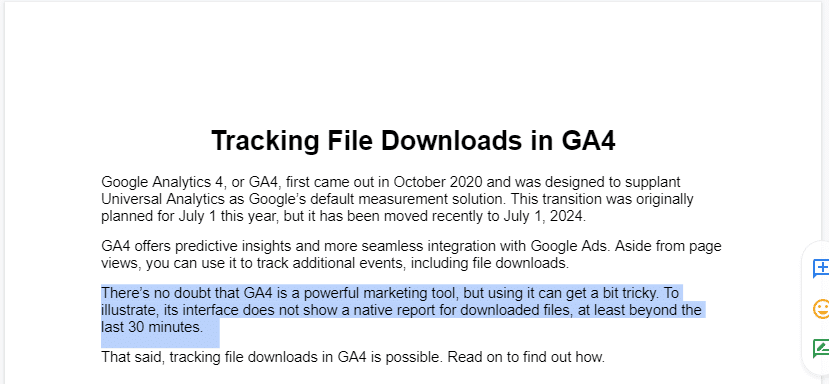
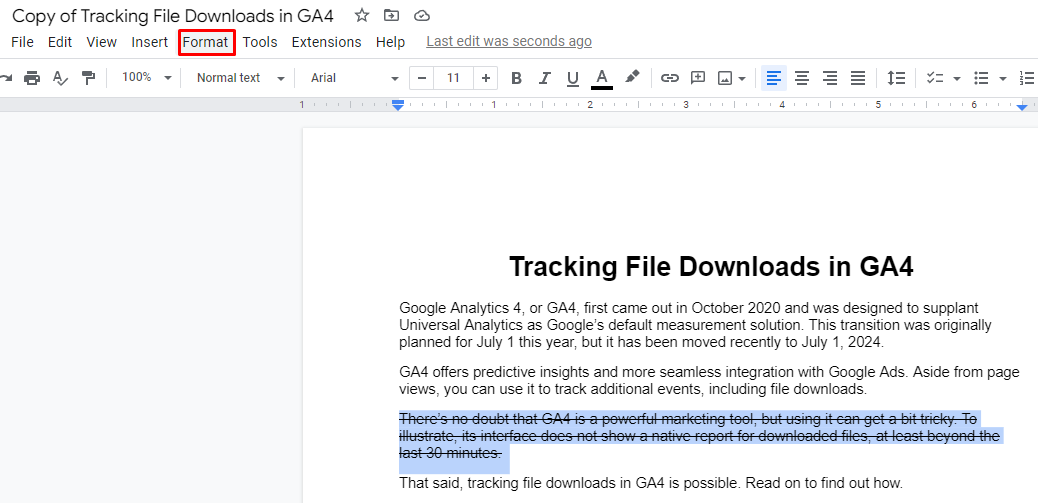
- Click Format in the top menu bar.
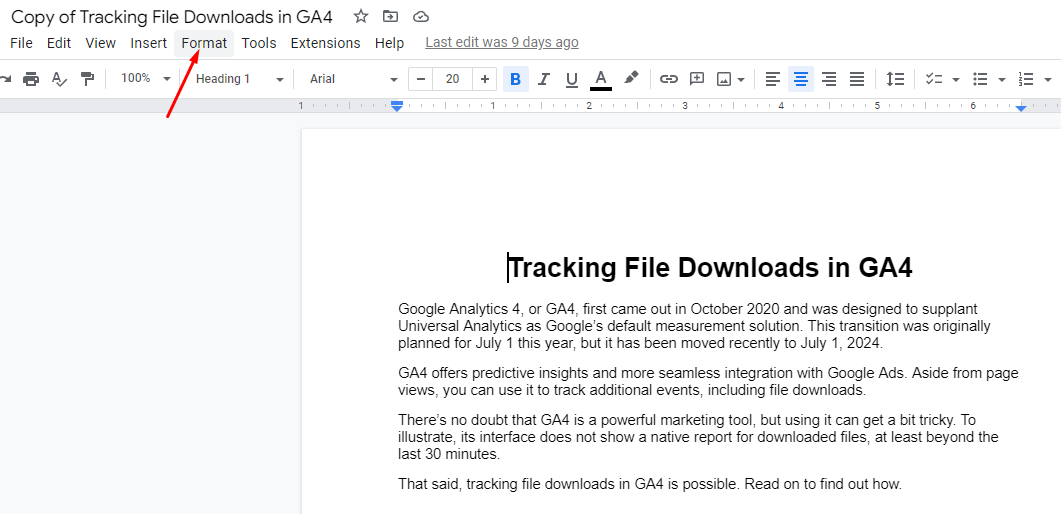
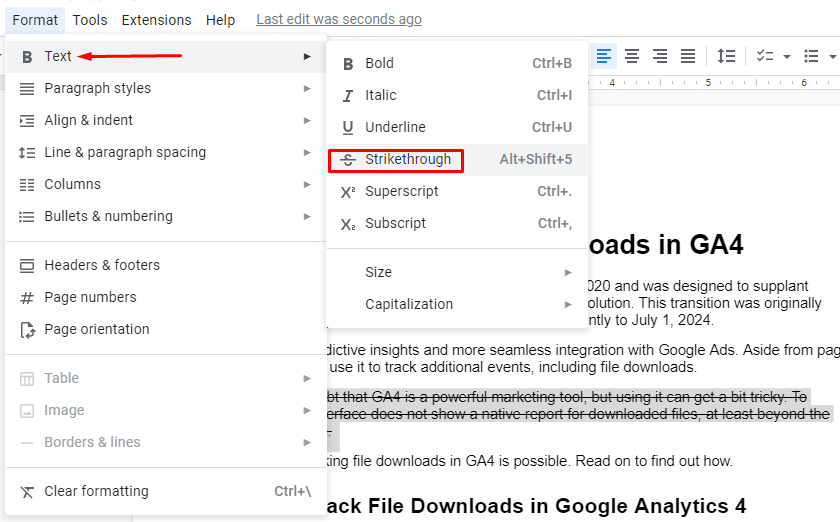
- Select Text, then click Strikethrough from the drop-down menu. A sub-menu appears with text formatting options.
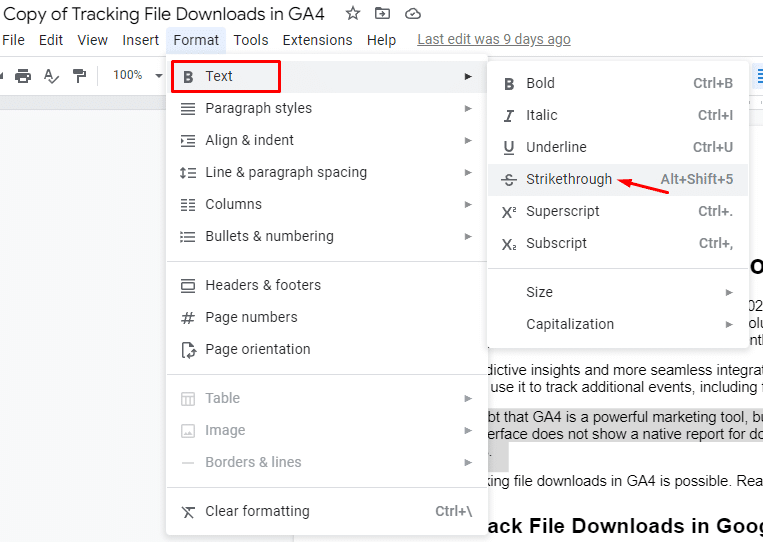
- The selected text now shows a line through the middle.
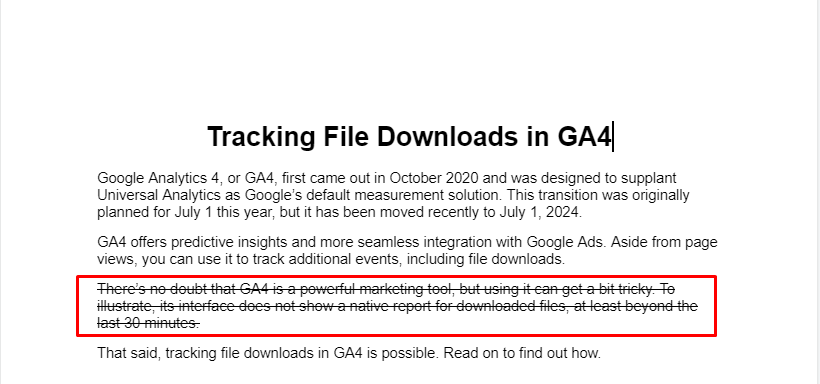
Note: strikethrough does not appear in the right-click context menu in Google Docs. The Format menu or keyboard shortcut are your only desktop options.
How to Strikethrough Text in Google Docs on Mobile
The mobile steps are slightly different from desktop, but the formatting works the same way on both Android and iOS.
- Open the Google Docs app and tap the document you want to edit.
- Tap the pencil icon in the bottom right to enter edit mode.
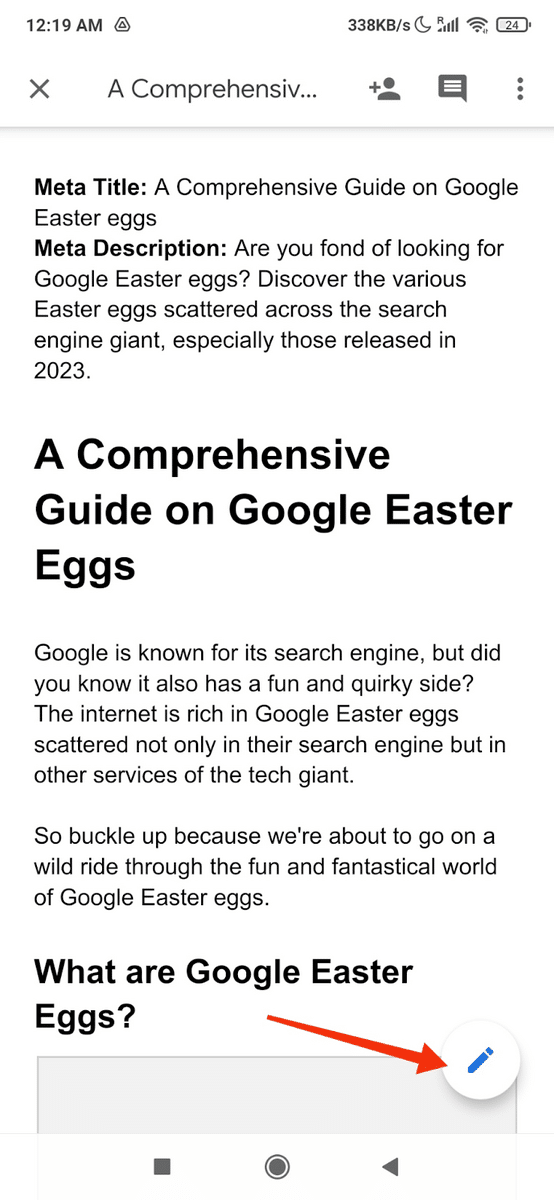
- Tap and hold to select the text you want to cross out.

- Tap the A icon with horizontal lines in the formatting toolbar at the top of the screen.
- Tap Strikethrough (the S with a line through it).
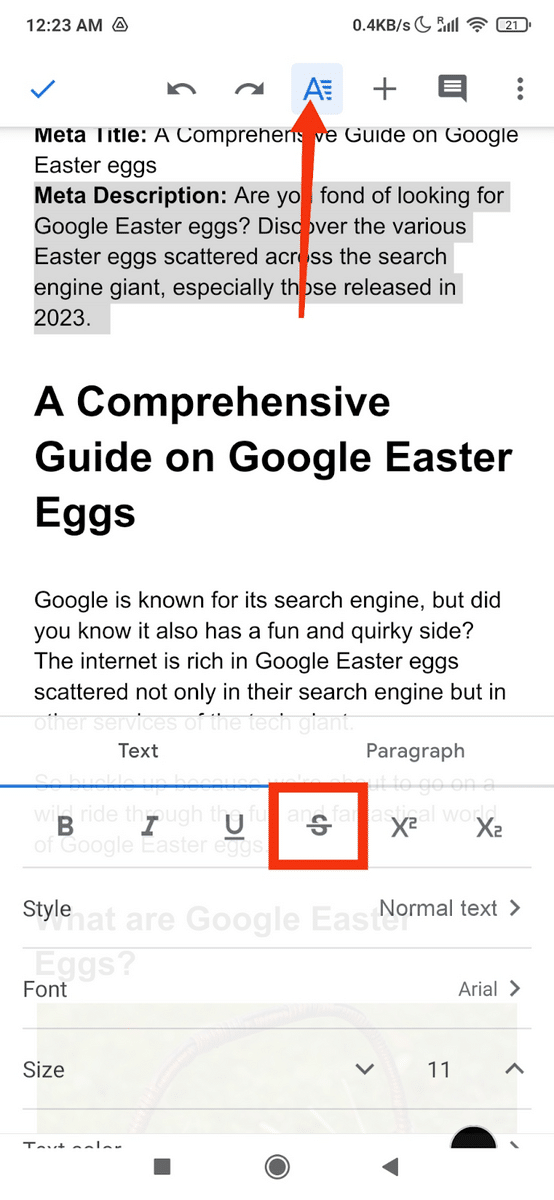
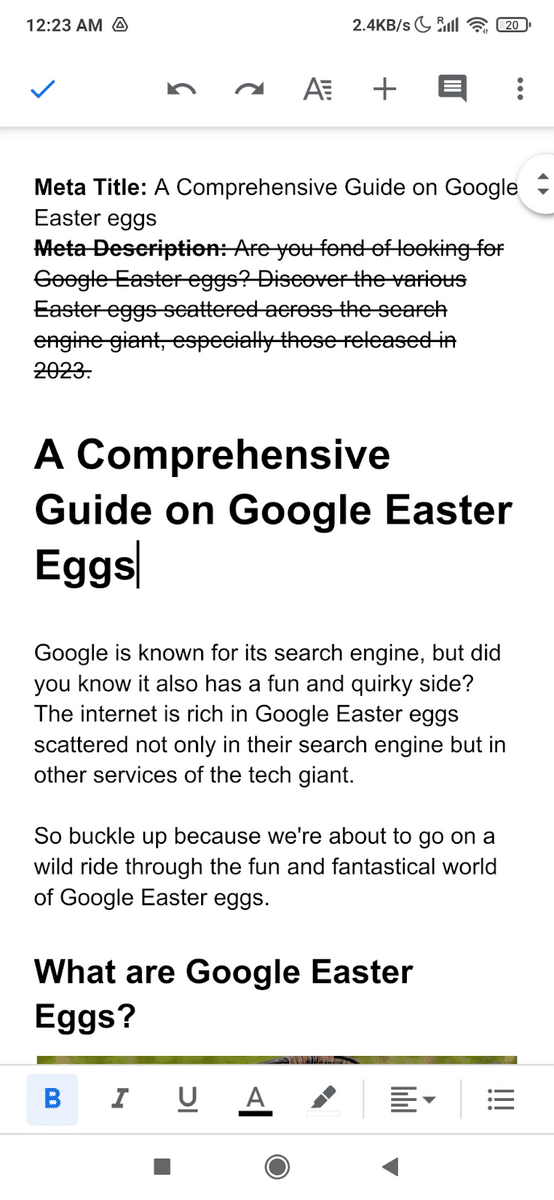
- The text now shows the strikethrough formatting.
On iPad with a physical keyboard attached, the Mac shortcut applies: press Cmd + Shift + X with the text selected. The on-screen formatting menu also works if you prefer that.
How to Remove Strikethrough in Google Docs
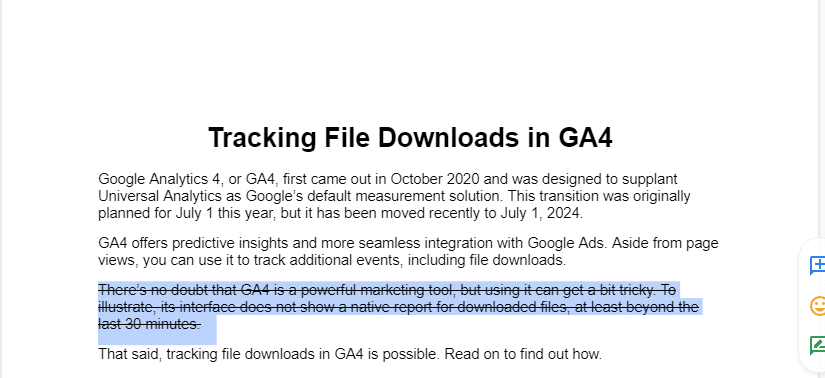
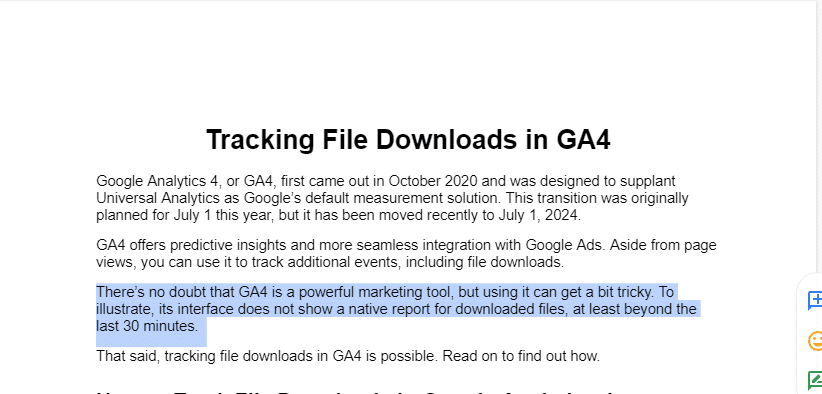
Removing strikethrough uses the exact same steps as adding it. Select the formatted text and apply the shortcut or menu option again to toggle it off.
- Select the text with strikethrough formatting.
- Click Format in the top menu bar.
- Select Text, then click Strikethrough to uncheck it.
Or use the keyboard shortcut: press Alt + Shift + 5 on Windows, or press Cmd + Shift + X on Mac. The strikethrough formatting is removed and the text returns to normal.
Using Strikethrough When Collaborating in Google Docs
Strikethrough is most useful in collaborative documents where you want to flag text for removal without deleting it outright. The person you’re collaborating with can see exactly what you’re proposing to cut before it’s gone.
For more structured editing workflows, Google Docs has a built-in Track Changes feature called Suggesting mode. When you delete text in Suggesting mode, Google Docs automatically displays it with strikethrough formatting so reviewers can accept or reject each change. You can switch to Suggesting mode from the pencil icon in the top-right corner of any document.
For a simpler workflow, manually applying strikethrough to text you want to remove works well in smaller documents or quick reviews where full change tracking is more than you need.
Does Strikethrough Survive Export to Word or PDF?
Yes. When you export a Google Doc to Microsoft Word (.docx) or PDF, strikethrough formatting carries over correctly in both cases. The line-through stays on the text exactly as it appeared in Google Docs.
One thing to note: if you copy strikethrough text from Google Docs and paste it into another app, whether the formatting survives depends on the destination. Pasting into Gmail or Google Slides preserves it. Pasting into a plain text editor strips all formatting including strikethrough.
If your document workflow moves between Google Docs and Excel, the formatting rules differ slightly. Google Docs uses Cmd + Shift + X on Mac, while the Google Sheets strikethrough shortcut on Mac is Alt + Shift + 5, which is the same key combination Windows uses in Docs. Worth knowing if you switch between the two often.
Tips for Using Strikethrough Effectively
- Use it for to-do lists. Crossing off completed tasks is a satisfying way to track progress. Strikethrough keeps the item visible so you have a record of what was done.
- Keep it intentional. Heavy use of strikethrough in a shared document can make it hard to read. Use it to mark specific changes, not as a general annotation tool.
- Combine with comments for context. If you’re crossing out text and the reason isn’t obvious, add a comment explaining the change. That gives collaborators the full picture.
- Know the shortcut for your platform. On Windows you press Alt + Shift + 5. On Mac you press Cmd + Shift + X. Getting these mixed up is the most common source of confusion.
Frequently Asked Questions
What is the keyboard shortcut for strikethrough in Google Docs?
On Windows, press Alt + Shift + 5 with the text selected. On Mac, press Cmd + Shift + X. Both shortcuts toggle strikethrough on and off.
How do I cross out text in Google Docs on a Mac?
Select the text you want to cross out, then press Cmd + Shift + X. This applies strikethrough formatting instantly. Press the same combination again to remove it.
Can I use strikethrough in Google Docs on my phone?
Yes. In the Google Docs mobile app, select your text, tap the A icon in the formatting toolbar, then tap Strikethrough. This works on both Android and iOS. On iPad with a keyboard, you can also press Cmd + Shift + X.
How do I remove strikethrough formatting in Google Docs?
Select the text with strikethrough and press the same shortcut you used to apply it: Alt + Shift + 5 on Windows or Cmd + Shift + X on Mac. You can also go to Format, select Text, then click Strikethrough to uncheck it.
Does strikethrough in Google Docs carry over when I export to Word or PDF?
Yes. Strikethrough formatting is preserved when you export to Microsoft Word (.docx) or PDF. The formatting also carries over if you copy and paste into Gmail or Google Slides, but pasting into plain text editors will strip it.
Is there a strikethrough button in the Google Docs toolbar?
Not by default. Google Docs does not show a strikethrough button in the main toolbar. You can access it via Format, then Text, then Strikethrough, or use the keyboard shortcut for faster access.
Can I use strikethrough in Google Docs Suggesting mode?
When you delete text in Suggesting mode, Google Docs automatically displays it with strikethrough formatting so collaborators can see exactly what you are proposing to remove. You can also manually apply strikethrough in Suggesting mode by using the Format menu or keyboard shortcut.