
In this guide, I will show you the best free Google Sheets budget template, plus six other free options and how to use them. I will also cover the fundamentals to include if you want to create a budget template from scratch.
Pick the right template in 60 seconds
If you just want the quickest match, use this:
- Best for most people: Monthly budget template
- Best for strict control: Zero-based budgeting template
- Best for weekly spending habits: Weekly budget template
- Best for families: Simple household budget template
- Best for small business: Simple business budget template
- Best for students: Student budget template
- Best for planning the year: Annual budget calendar template
Compare the budget templates
This table help you choose fast, then scroll to the template you want.
| Template | Best for | Copy |
|---|---|---|
| Zero-based budgeting | Assign every dollar, track remaining balance, good for strict planning | Make a copy |
| Simple business budgeting | Track income streams and operating expenses for a small business | Make a copy |
| Student budget | Semester planning, tuition and living costs, simple tracking | Make a copy |
| Household budgeting | Family bills, groceries, utilities, leftover cash after essentials | Make a copy |
| Monthly budget | Best default starting point, repeatable month-to-month tracking | Make a copy |
| Weekly budget | Weekly guardrails and real-time spending visibility | Make a copy |
| Annual budget calendar | Year planning with monthly tabs and a yearly summary rollup | Make a copy |
The 7 best free budget templates for Google Sheets
Not sure how to create a spreadsheet for your budgeting goals? These templates are free, easy to copy, and straightforward to customize. Click Access Template, make a copy, and you are ready to go.
1. Zero-Based Budgeting Template for Google Sheets
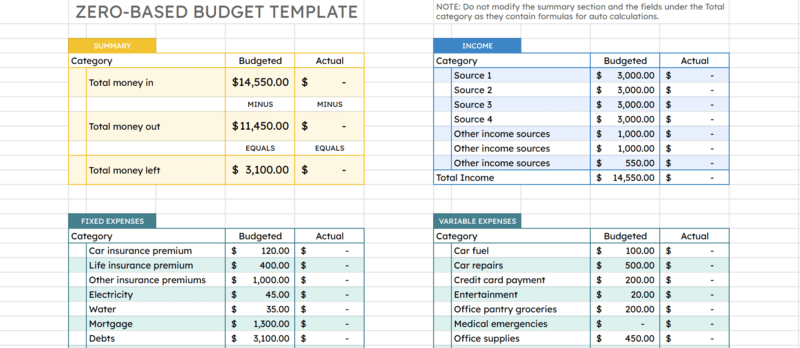
Best for: Anyone who wants every dollar assigned to a category.
Why it works: It forces clarity, your planned spending plus saving equals your income, leaving a remaining balance of zero.
One popular budgeting technique is zero-based budgeting. With a zero-based budget, you allocate all your net income into planned expenses and goals until the difference becomes zero. This is a practical way to control spending and plan for savings targets.
You can also adapt it for business transactions. For example, if you have $20,000 in startup capital, list key operating expenses such as materials, logistics, software, and marketing until the budget is fully assigned.
This template shows total income, total allocated funds, and the remaining balance you still need to assign. It works for personal budgets, family budgets, and simple business budgeting.
2. Simple Business Budgeting Template for Google Sheets
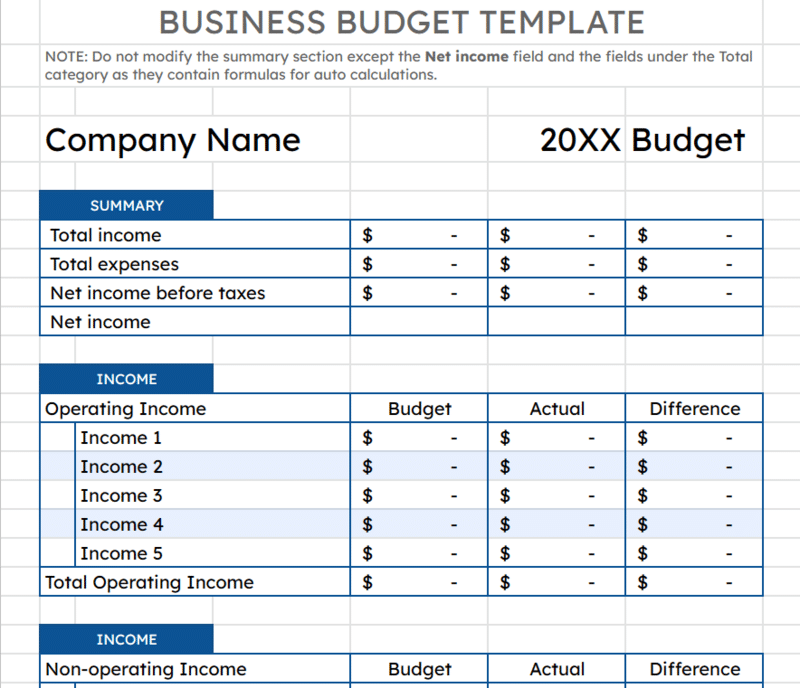
Best for: Early-stage businesses that want a clear view of money in and money out.
One of the most important aspects of any business is cash flow, money generated, spent, and retained. A simple budget sheet provides clearer insight into your budget strategy and helps you plan for the future.
To use this template, separate operating income and expenses into categories, then enter each item under the appropriate rows. If you want this to update automatically, you can connect it to another sheet so it pulls data. If you prefer static numbers, it also works as a printable budget spreadsheet.
Start by listing income sources such as sales, services, grants, and other receipts. Then list expenses such as payroll, tools, rent, marketing, and subscriptions. The template tallies totals automatically.
3. Google Spreadsheet Budget Template for Students
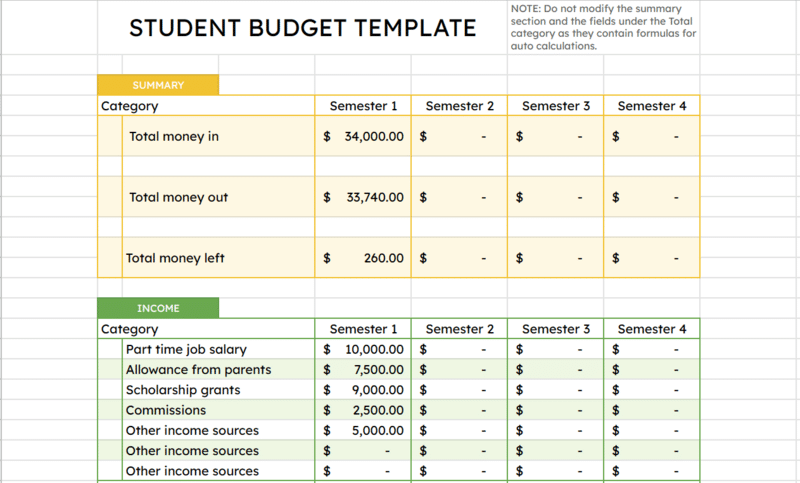
Best for: Students managing school costs plus living expenses.
Learning how to budget as a student can help you control spending, avoid overdrafts, and pay down loans faster. If you are familiar with compounding interest, you already know why early savings matter.
Start by listing your total income. That might include part-time work, scholarships, internships, or family support. Then add your recurring expenses to create a complete budget plan.
This template is organized into four phases, from semester 1 to 4, and includes typical student expenses such as tuition, books, and living costs.
4. Simple Household Budgeting Template
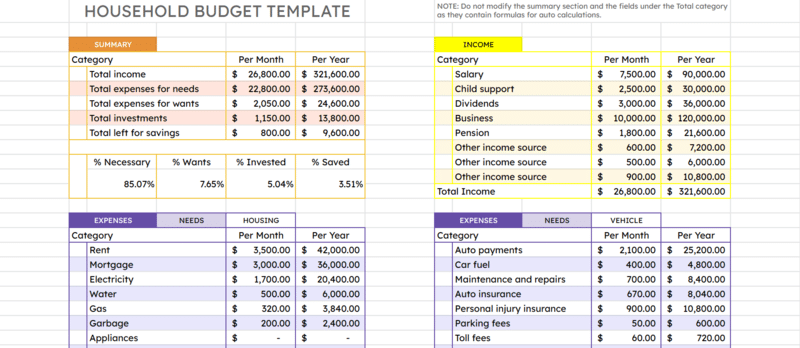
Best for: Households that want to see what is left after monthly bills.
This free household budget spreadsheet helps you estimate remaining funds after you cover your living expenses.
It comes pre-filled with common categories such as property tax, mortgage, school costs, groceries, auto payments, and utilities. There is also a section for wants and investments. Many families add sinking funds here, such as travel, home repairs, and holiday spending.
5. Monthly Budget Template for Google Sheets
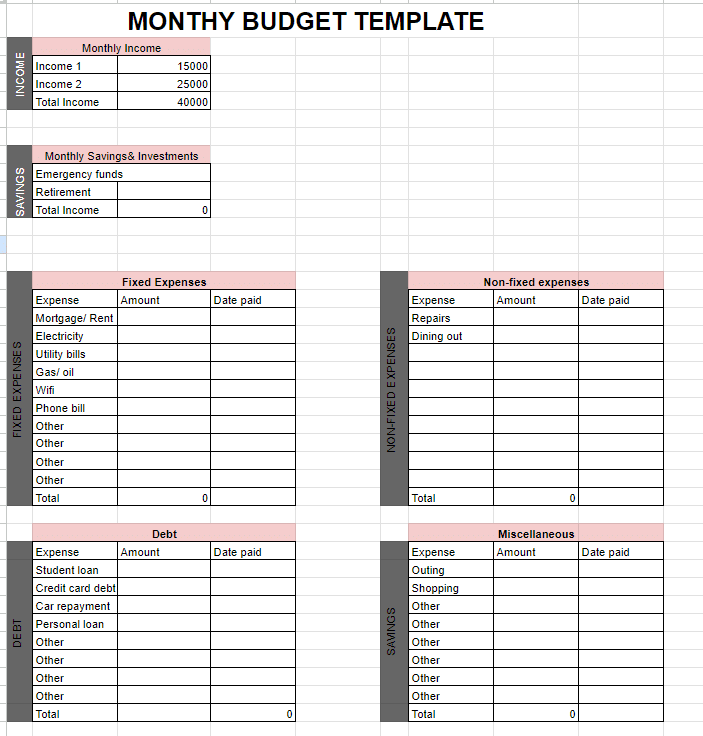
Best for: A repeatable month-to-month budget, especially for beginners.
This template is divided into categories and is easy to customize based on your priorities. It includes formulas that calculate totals for income and expenses under each category, giving you a clear view of your monthly cash flow.
Tip: If you are new to budgeting, start here, then move to zero-based once you want tighter control.
6. Weekly Budget Template for Google Sheets
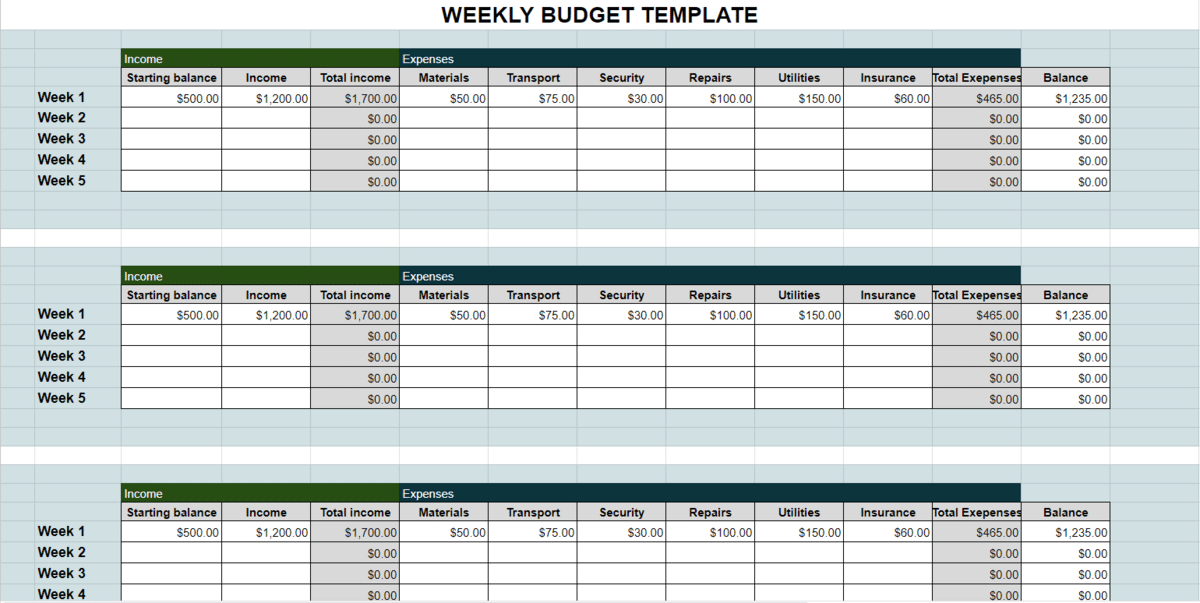
Best for: People who want real-time weekly tracking, especially for variable spending.
As you incur expenses throughout the week, record amounts spent under each category. The sheet calculates total income, total expenses, and remaining balance for each week.
It also supports multiple income sources, such as salary and freelance income, which is helpful if you get paid irregularly.
7. Annual Budget Calendar Template
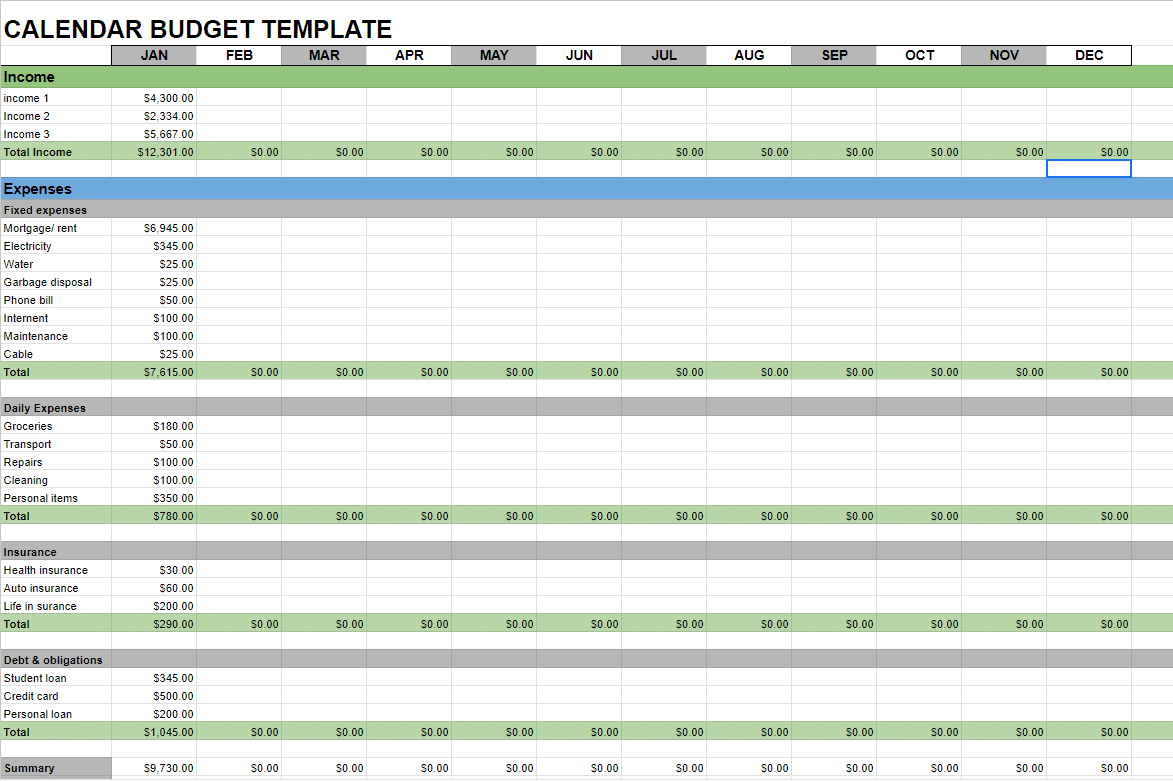
Best for: Year-long planning, monthly sheets, and an annual summary.
Each month, input income and budget amounts into dedicated categories. Built-in formulas calculate planned vs actual expenses to reduce manual work and improve accuracy.
The template includes a summary that consolidates data from each monthly sheet so you can see your year at a glance.
How to use any template
- Click Access Template, then select Make a copy.
- Rename the sheet so you can find it later, for example, 2026 Budget or Family Budget.
- Customize categories to match your real life, then delete categories you will never use.
- Set a budget amount for each category first, then record actual spending during the week or month.
- Review totals at the end of the period, then adjust next week or next month based on what happened.
How to create a custom budget spreadsheet
If you prefer building your own, a good 2026-friendly budget sheet usually includes more than just income minus bills. It also accounts for variable income, sinking funds, and rollups that show whether you are improving over time.
What to include before you build
- Income inputs: multiple paychecks, freelance income, irregular deposits
- Fixed expenses: rent or mortgage, insurance, subscriptions, loan minimums
- Variable spending: groceries, dining, fuel, entertainment
- Sinking funds: car repairs, holidays, annual subscriptions, travel
- Debt payoff: minimums plus extra payments, track remaining balances if you want
- Simple dashboard: savings rate, net cashflow, fixed vs variable split
- Optional imports: paste a bank CSV export into a Transactions tab and categorize it
Calculating monthly budget

- Fill in your data in the template sheet.
- Calculate total earnings using the =SUM function.

- Drag the formula across to fill the remaining months.

- Calculate the actual spent value using the =SUM function.

- Drag the formula across to fill the remaining months.

- Calculate the difference between budget and actual spending using a subtraction formula.

- Drag the formula across to fill the remaining months.

- Calculate monthly savings with another subtraction formula, such as income minus expenses.

Conditional formatting
In line 17 in the screenshot above, surplus and deficit automatically change color. Deficits turn red and surpluses turn green with conditional formatting in Google Sheets.
To add this to your own budget, select the cells and choose Format > Conditional formatting, then set conditions like:
- Color the cell red if the value is less than 1
- Color the cell green if the value is 1 or higher
Calculating annual budget
- Calculate total earned using the =SUM function.
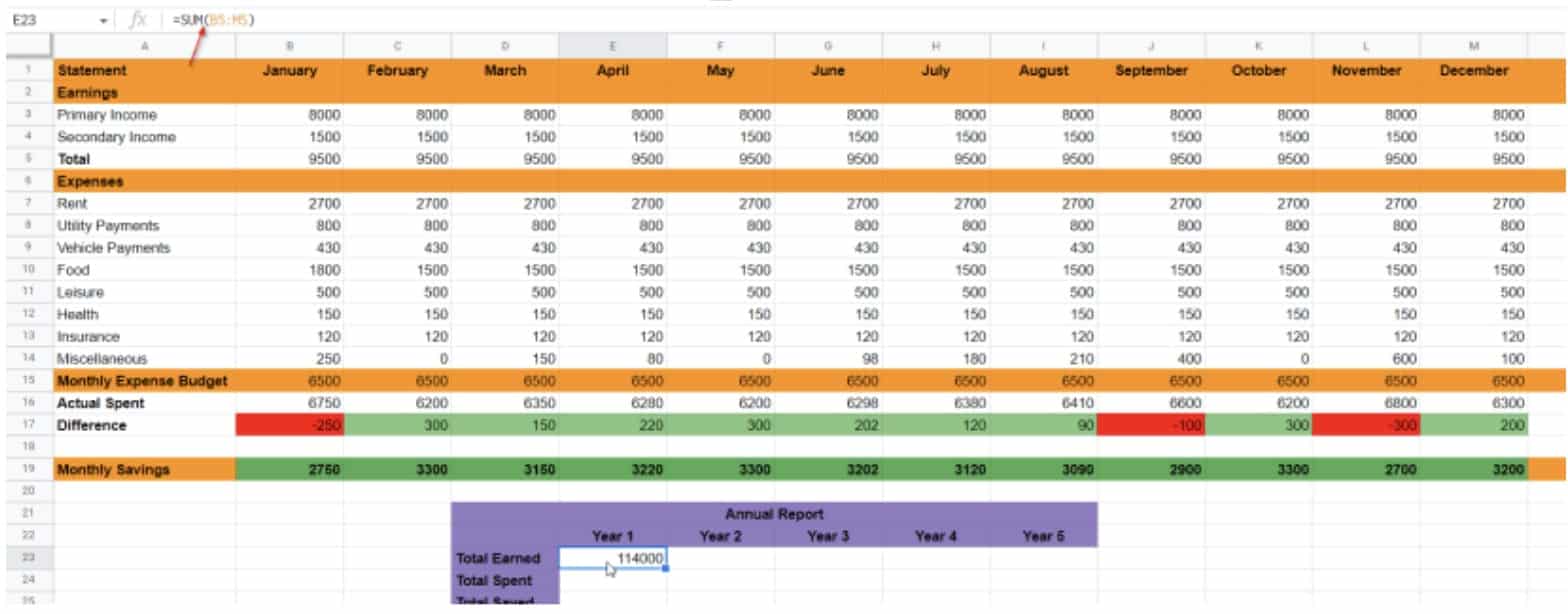
- Calculate total spent using the =SUM function.

- Calculate total saved using a subtraction formula.

You have officially set up a budget spreadsheet of your own.
Video explainer: Making a budget template in Google Sheets
I made this video to show the whole process, including how I built my template and how you can build yours too.
What is a budget template
Without a way to organize financial information, it is hard to track where your money goes. A budget template helps you track spending and income, then plan future spending based on what you learn.
Do I need a Google Sheets budget template
If you are struggling to balance finances, a budget spreadsheet helps you identify spending patterns, avoid surprises, and create a plan for your goals.
Maybe you need to start saving for retirement. Maybe you want an emergency fund. Either way, financial clarity helps you make better decisions.
Benefits of using a Google Sheets budget template
- Organized finances: Categories help you see what is happening without guesswork.
- Automated calculations: Built-in formulas update totals as you enter new values.
- Collaboration: Easy sharing is useful for couples, families, or small teams.
- Spending limits: Budget caps create guardrails, especially with zero-based budgeting.
- Goal progress: You can track savings targets and adjust month to month.
Related: Want to increase your salary? Coursera online classes can help you build new skills.
What should a good budget template have
Budget templates can be simple, or they can include deeper tracking. If you are planning to create your own budget spreadsheet, these are the most useful elements:
- Clear income and expense categories: Track inflow and outflow, and keep important payments visible.
- Formulas that reduce manual work: Totals, subtotals, and variance calculations should be automatic.
- Optional color cues: Helpful for quickly spotting overspending or surplus.
- Sinking funds: Annual or irregular expenses that can wreck a monthly budget if you ignore them.
- A simple summary: Savings rate and net cashflow are usually enough for most people.
Frequently asked questions
Does Google Sheets have a budget template?
Yes. Google Sheets includes budgeting templates in its template gallery, and availability can vary by account and region. If the built-in options do not fit your needs, you can use one of the free templates above.
Is Google Sheets good for budgeting?
Yes. Spreadsheets are effective for budgeting because you can customize categories, automate calculations, and share the sheet with others. Google Sheets is especially useful if you want collaboration and access across devices.
How do I create a budget in Google Spreadsheet?
The easiest approach is to start with a template, then customize categories to match your real spending. If you want to build your own, use income and expense categories, totals with SUM, and a simple variance section for budget vs actual.
Can you use Excel to create a budget?
Yes. You can use any spreadsheet software for budgeting. Excel templates can work well too, but Google Sheets makes sharing and collaboration simpler.
Is there a free budget template?
Yes. The templates above are free to copy. You can also find free options in other tools such as Excel, Notion, and Smartsheet, depending on how you prefer to budget.
How do I add more rows for categories without breaking the formulas?
Do not insert rows in the middle of a formula range unless you confirm the formula will expand. The safest approach is to add new categories inside the existing category block, then copy an existing row that already has the correct formulas and paste it into the new row. If your totals use SUM across a fixed range, update the range once to include the new rows. If you want it to scale automatically, use an open-ended range where it makes sense, for example =SUM(B5:B) instead of =SUM(B5:B25), then keep blanks below the last category.
How can I change the currency symbol from $ to £/€/¥ across the whole sheet?
Select the entire sheet (click the top-left square above row 1 and left of column A), then go to Format > Number > Custom currency and choose the symbol you want. If you want it consistent across multiple tabs, repeat on each sheet. If the symbol still appears as $, check the spreadsheet locale under File > Settings and set a locale that matches your currency, then apply the custom currency format again.
How do I rename the default categories (e.g., Food to Groceries) so they update in the dropdown menus?
First, find the list that powers your dropdowns, it is usually on a tab named Categories, Settings, or Lists. Rename the category in that source list (change Food to Groceries there). Then check any data validation rules: select a dropdown cell, go to Data > Data validation, and confirm it points to the category list range, not typed values. If your dropdown is pulling from a named range, update the named range list under Data > Named ranges. Once the source list is updated, the dropdown options will update automatically.
Can I switch a Monthly Budget template to a Bi-Weekly or Weekly view in a spreadsheet?
Yes. The easiest method is to keep the monthly summary and add a Weekly or Bi-Weekly tab that feeds it. Create a new tab with weeks as rows (Week 1, Week 2, and so on) and categories as columns, then total each category to the monthly sheet using SUM. If you want a single view instead, replace the month columns with week columns, then update any formulas and charts that reference the old month ranges. For most people, adding a weekly tab is faster and less likely to break formulas.
How do I add a Savings category that does not count as an Expense?
Treat savings as its own section, not part of variable spending. Add a Savings block under Income or in a separate Savings section, then exclude it from your Expense totals. For example, keep your Expense total as =SUM(ExpenseRange) and your Savings total as =SUM(SavingsRange). If you want a single net number, calculate Net cashflow = Income – Expenses – Savings. This keeps spending analysis clean while still making savings visible and measurable.
Is there a way to automatically import transactions from my bank account into Google Sheets?
Direct, automatic imports depend on your bank. The most reliable no-code approach is to export a CSV from your bank and paste or import it into a Transactions tab on a regular schedule. If you want automation, you typically need a connector or an integration tool, or you can use Apps Script with a supported source. In practice, many people start with a CSV-based workflow because it is fast, consistent, and does not break when banks change authentication.
How can I make a dropdown list for my categories so I do not have to type them every time?
Create a dedicated Categories list (one column), then apply data validation to your entry cells. In Google Sheets, select the cells where you choose a category, go to Data > Data validation, set criteria to Dropdown (from a range), and select your category list range. If you also work in Excel, this guide shows the same concept step by step: drop down list in Excel.
Can I see a Year-to-Date summary to track my annual spending trends?
Yes. Add a Year-to-Date section that sums each month to date, then chart it. If you have one tab per month with consistent category placement, you can sum across sheets. If your data is in a single Transactions tab, a pivot table is usually best: rows as Category, values as Sum of Amount, and a filter for Date set to this year. A simple YTD metric many people like is YTD spending by category plus YTD savings rate as savings divided by total income.
How do I filter my expenses to see only Order-in or Food Delivery Orders for the last 3 months?
Use a Transactions tab with at least Date, Category, and Amount. Then filter by Category for Order-in or Food Delivery, and filter Date to the last 3 months. If you want it to update automatically, use FILTER with a date condition. For example, if Date is in column A and Category is in column C, you can filter like:
=FILTER(A:E, (C:C=”Order-in”)+(C:C=”Food Delivery”), A:A>=EDATE(TODAY(),-3))
This returns only matching rows for the last three months. If your category labels are different, update the text conditions to match your sheet.
Can I track debt payoff (Snowball or Avalanche method) inside my budget sheet?
Yes, and it is worth separating from your day-to-day spending categories. Add a Debt tab that lists each debt, balance, interest rate, and minimum payment. Then choose Snowball (pay smallest balance first) or Avalanche (pay highest interest first), and track your extra payment allocation each month. If you want a dedicated sheet designed for this, use the debt snowball spreadsheet, then link the monthly payment totals back to your budget so your plan stays realistic.
Final thoughts
Managing your money in a clear, organized way is useful for individuals, families, and small businesses. If you want a quick start, choose one of the Google Sheets budget templates above, copy it, and customize categories to match your real life.
Related: