How To Highlight Duplicates in Google Sheets

Highlight duplicates in Google Sheets with a single formula.

Highlighting duplicates in Google Sheets takes one formula and a conditional formatting rule. This guide shows how to do it in a single column, across multiple columns, and for entire duplicate rows, including how to flag only the second occurrence, combine multiple conditions, and fix the two most common reasons the formula stops working.


How toย Split Cellsย inย Google Sheets [2 Methods]

To split cells in Google Sheets, highlight the cell, select the “data” menu, and click “split text to columns”. Otherwise, use the SPLIT function. I’ll demo both in my guide below. In Short: How to Split Cells in Google Sheets Hereโ€™s how to split a cell horizontally in Google Sheets: Highlight the cell(s). Select Data … Read more

How to Indent on Google Docs App [2-Minute Guide]

A stylized visual showing indentation in Google Docs

How to Indent on the Google Docs App: Select the text or paragraph you want to indent. Tap the โ€œAโ€ (Format) icon in the top-right corner of the screen. Tap the “Paragraph” tab in the formatting menu. Tap the “Right Indent” icon to increase the indent level. Repeat as needed to achieve your desired formatting. … Read more

How To Highlight the Highest or Lowest Value in Google Sheets (Easy Guide)

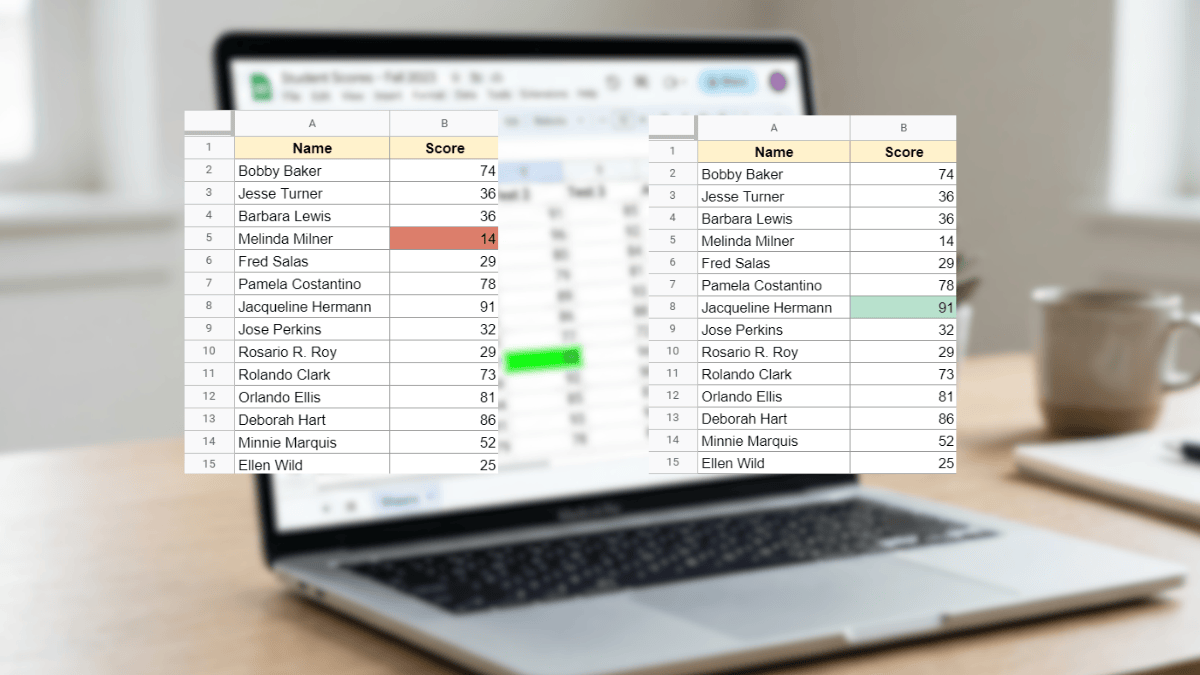
Highest and lowest cells highlighted in google sheets

Use Conditional Formatting in Google Sheets to automatically highlight the highest or lowest value in any dataset with no manual scanning required. This tutorial covers max, min, top N, bottom N, and full-row highlighting with simple custom formulas.