
I use both. That is probably the most useful thing I can tell you upfront. Google Calendar handles my meetings. Google Sheets handles my week. The two tools solve different problems, and the mistake most people make is expecting one to do the job of the other.
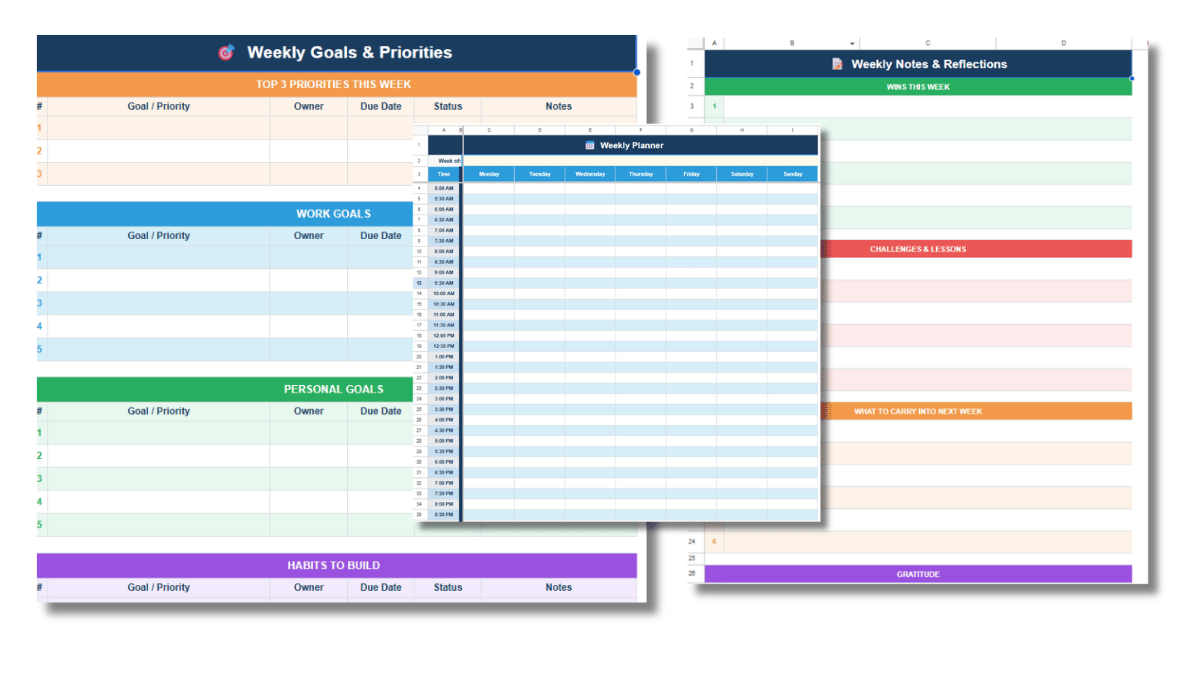
If you want to see what planning in Sheets looks like in practice, the free weekly schedule template is a good place to start. Copy it and use it alongside your calendar for a week. Most people find the two complement each other quickly.
What Google Calendar Does Well
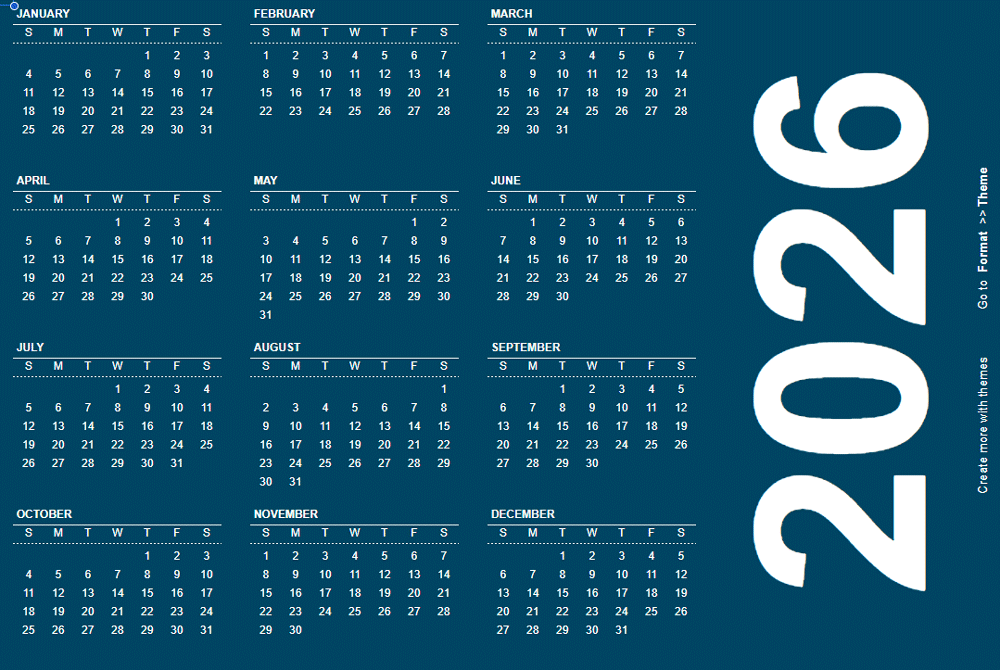
Google Calendar was built for events with other people attached to them. It sends invites, manages RSVPs, sets reminders, and shows you when your teammates are available for a meeting. That infrastructure is genuinely useful and hard to replicate in a spreadsheet without a lot of effort.
It also handles recurring events cleanly. A weekly standup, a monthly review, a quarterly check-in: set it once and the calendar manages it forever. If the time changes, one edit updates every future instance.
For anything that involves coordinating with other people on a schedule, Calendar is the right tool.
Where Google Calendar Falls Short
The gap shows up when you try to use Calendar as a planning tool rather than a scheduling tool. Planning means figuring out what your week should look like before you commit anything. It means holding tasks loosely, rearranging them, estimating how long things actually take, and thinking about the week as a whole rather than event by event.
Calendar’s interface is designed around the event. Everything is a fixed block at a fixed time. That rigidity works for meetings but fights against the kind of flexible, iterative planning that solo or small-team work actually requires. Moving things around in Calendar generates notifications. Editing a block feels more committed than it needs to be for a task you are still figuring out.
There is also no good place in Calendar to keep a task list, a set of weekly goals, or notes about what went well last week. You end up with a calendar full of events and a separate app for everything else, and the two never quite talk to each other.
It’s also not a good stand-alone tool for managing tasks. I use project management spreadsheets to help in those cases. In my operations role, I tend to focus on prioritizing tasks and monitoring budgets. So I need to organize my data in other ways. That’s where Sheets and Excel win out.
What Google Sheets Does Well for Weekly Planning
Sheets gives you a planning surface. A grid with days across the top and times down the side is a time block schedule. A grid with days across the top and task rows below is a to-do list. You can build both in the same file and see them together.
The flexibility is the point. You can rearrange tasks without triggering anything. You can add a priority column, a status column, or a notes field right next to your schedule. You can color-code by project or type of work. You can share the file with a small team and everyone sees the same thing in real time, with no per-seat subscription required.
I run a small portfolio of content sites with a lean team. Paying monthly fees for a scheduling tool to coordinate a handful of people never made sense. A shared Google Sheet does the same job for free. Everyone has a Google account. The file lives in Drive. That’s the whole setup. (Well, aside from Trello or in some cases Asana).
When to Use Each One
Use Google Calendar for anything with another person attached to it: meetings, calls, shared deadlines, events with a specific time and date that others need to know about.
Use Google Sheets for your personal weekly planning layer: blocking time for solo work, tracking daily tasks, setting weekly goals, and reflecting on how the week went. The weekly schedule template covers all of that in one file with four tabs.
The workflow that works for me is: Calendar for coordination, Sheets for planning. I look at my Calendar to know when I am committed to other people. I look at my Sheet to know what I am doing with the rest of my time.
The Cost Difference
Google Calendar and Google Sheets are both free with a Google account. That is worth saying plainly because a lot of productivity tools in this category cost money, often per user per month. If you are running a small business or a small team, the cost of scheduling software adds up fast.
A shared Google Sheet has no per-user cost. You share it, they open it, everyone sees the same file. For small teams doing straightforward weekly planning, that is hard to beat.