
I have tried a lot of ways to plan a focused work day. The method that stuck is time blocking in Google Sheets. The setup takes about five minutes and the file lives in my Drive forever, free, shareable with anyone who needs to see it.
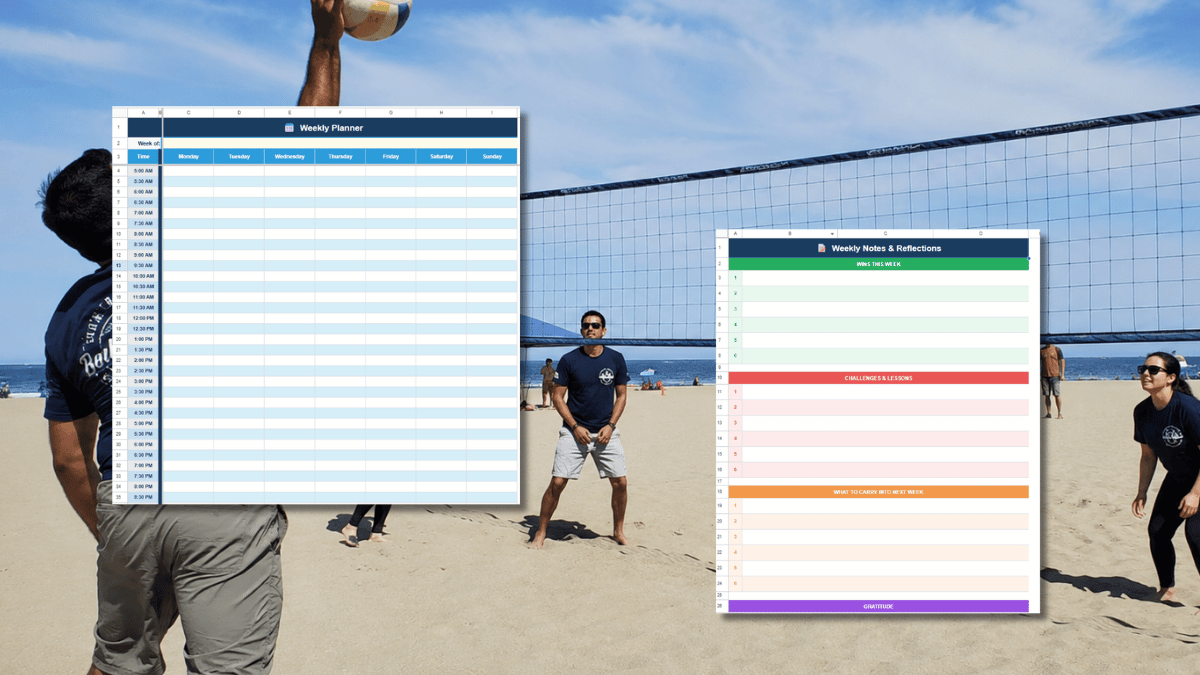
If you want a head start, the free weekly schedule template already has the time block grid built out across all seven days. Copy it and skip the setup entirely.
What Time Blocking Actually Means
Time blocking is the practice of assigning specific tasks to specific windows of time on your calendar instead of keeping a flat to-do list. The difference matters in practice. A to-do list tells you what to do. A time block tells you when you are doing it and how long you have.
That constraint forces a more honest conversation with yourself about what a day can actually hold. Most people discover their to-do lists are two or three days of work crammed into one. Time blocking surfaces that problem before it turns into a missed deadline.
Why Google Sheets Works Better Than a Calendar App for This
Calendar apps handle meetings well. They were built for that. What they struggle with is the planning layer that happens before you commit a time block to your calendar: figuring out what deserves a block, how long each task realistically takes, and how the week adds up.
Google Sheets handles that planning layer better because it is just a grid. You can see the whole week at once. You can drag blocks around without the app trying to send notifications or invite attendees. You can add a notes column next to your time blocks, or a status column, or a priority flag. The spreadsheet does not have opinions about how you use it.
The other reason I reach for Sheets is cost. A Google account is free. The file lives in Google Drive and syncs across every device. If I am working with a small team and we want shared visibility into who is doing what this week, I share the file and everyone can see it without anyone paying for a seat in a scheduling tool.
How to Set Up Time Blocking in Google Sheets
- Open a new Google Sheets file. Go to http://sheets.google.com and click the plus sign to start a blank sheet. Or just go to sheets.new and a new Google Sheet will automatically open if you’re logged into a Google account.
- Set up the header row. In row 1, type “Time” in cell A1. Then type each day of the week across columns B through H: Monday, Tuesday, Wednesday, Thursday, Friday, Saturday, Sunday. Bold the row and add a fill color so it stands out.
- Build the time column. In cell A2, type your earliest block, say 7:00 AM. In A3, type 7:30 AM. Select both cells, then grab the fill handle in the bottom-right corner and drag it down. Google Sheets will autofill the 30-minute increments all the way to whatever end time you need.
- Freeze the header row and time column. Click View, then Freeze, then 1 row. Repeat for 1 column. Now when you scroll, your day headers and time labels stay visible.
- Start filling in blocks. Click any cell where a day column meets a time row and type the task. Keep entries short: “Deep work: client proposal” or “Team standup.” The cell wraps if you need more room.
- Color-code by category. Select a block, right-click, and choose Format cells. Use fill color to assign a color to each type of work, meetings in one color, focused work in another, admin in another. You can see your week’s shape at a glance without reading every cell.
- Duplicate the tab each week. Right-click the tab name at the bottom and select Duplicate. Rename the new tab with the week’s start date. Your color coding and structure carry over automatically. You only edit the content, not the format.
Tips That Make It Stick
Block time for the work that never gets scheduled first. Most people block meetings because those have other people attached to them. The focused, solo work gets pushed to “whenever I have time,” which often means never. Block that first, then fit meetings around it.
Leave buffer blocks. A 30-minute block between major tasks costs almost nothing and saves a lot. Context switching takes longer than people account for. Buffer blocks absorb overruns without cascading into the rest of the day.
Review Friday afternoon, not Monday morning. Looking at next week on Friday, while the current week is fresh, gives you better information. You know what is actually done and what is carrying over. Monday morning review happens under pressure and tends to be optimistic in ways that Friday afternoon review is not.
Using the Weekly Schedule Template Instead
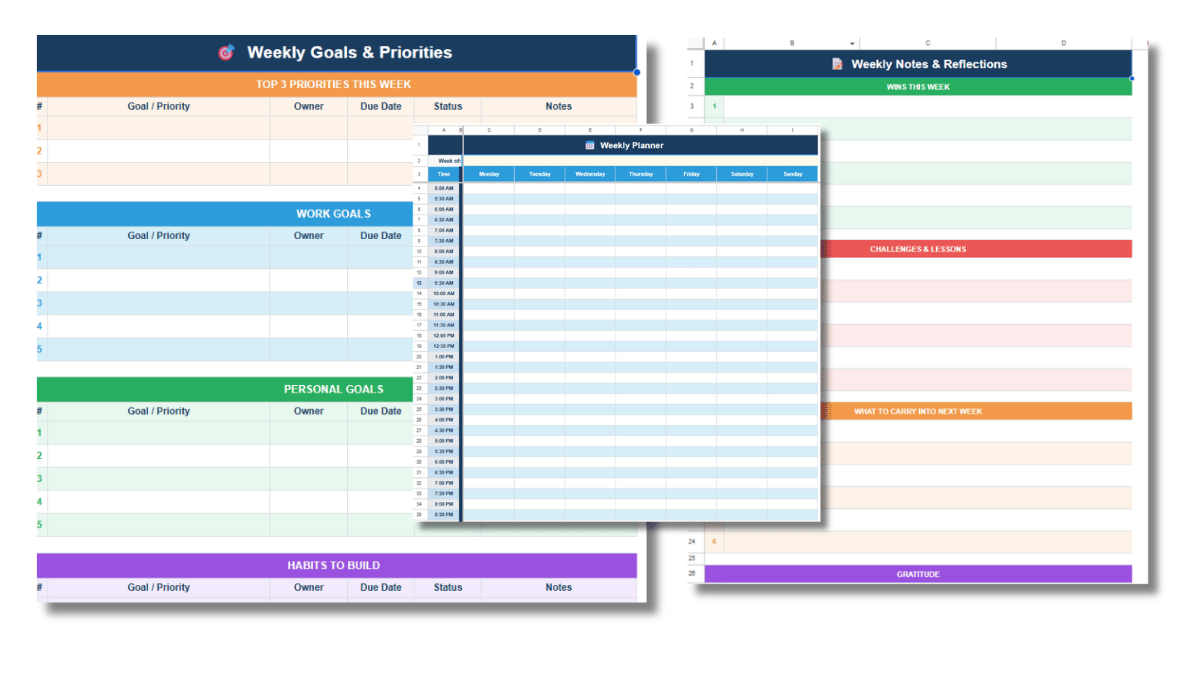
If building the grid from scratch sounds like more work than you want to do right now, the weekly schedule template has it already built. Time slots from 5:00 AM to 10:00 PM, all seven days, frozen headers, color-ready cells. Copy it to your Drive from the template page, rename it, and start blocking.
The template also has separate tabs for daily to-do lists, weekly goals, and end-of-week notes. Whether you use all four tabs or just the time block grid is up to you. The file does not care either way.
Frequently Asked Questions
How long should each time block be?
Thirty minutes is the smallest useful block for focused work. Most deep work tasks benefit from 90-minute blocks with a break after. Meetings can be 30 or 60 minutes. The template uses 30-minute increments so you can merge cells for longer blocks or use single cells for short ones.
Can I share my time block schedule with my team?
Yes. Click the Share button in the top-right corner of Google Sheets, enter your teammates’ email addresses, and choose Viewer or Editor access. They can see your schedule in real time and you can build a shared version where multiple people’s blocks appear in the same file.
Does this work on mobile?
Yes. The Google Sheets app on iOS and Android handles the file well. Editing individual cells is slightly slower on mobile than desktop, but reading your schedule and checking off tasks works fine. The frozen header row and time column stay visible on mobile too.
What if my schedule changes mid-week?
Just edit the cell. There is no event invite to cancel or attendee to notify unless you want there to be. This is one advantage of a spreadsheet over a calendar app. Adjustments are instant and do not generate notifications.