
Most people know roughly what they’re saving for. They just don’t know if they’re on track. That gap is where savings goals fall apart.
A spreadsheet fixes that. It forces you to put a number next to a name and a date. Once you do that, vague intentions turn into something you can actually measure.
These two free templates handle the whole thing. One is built for tracking individual savings goals. The other maps out a monthly savings plan so you know exactly how much to set aside each month to hit each target on time.
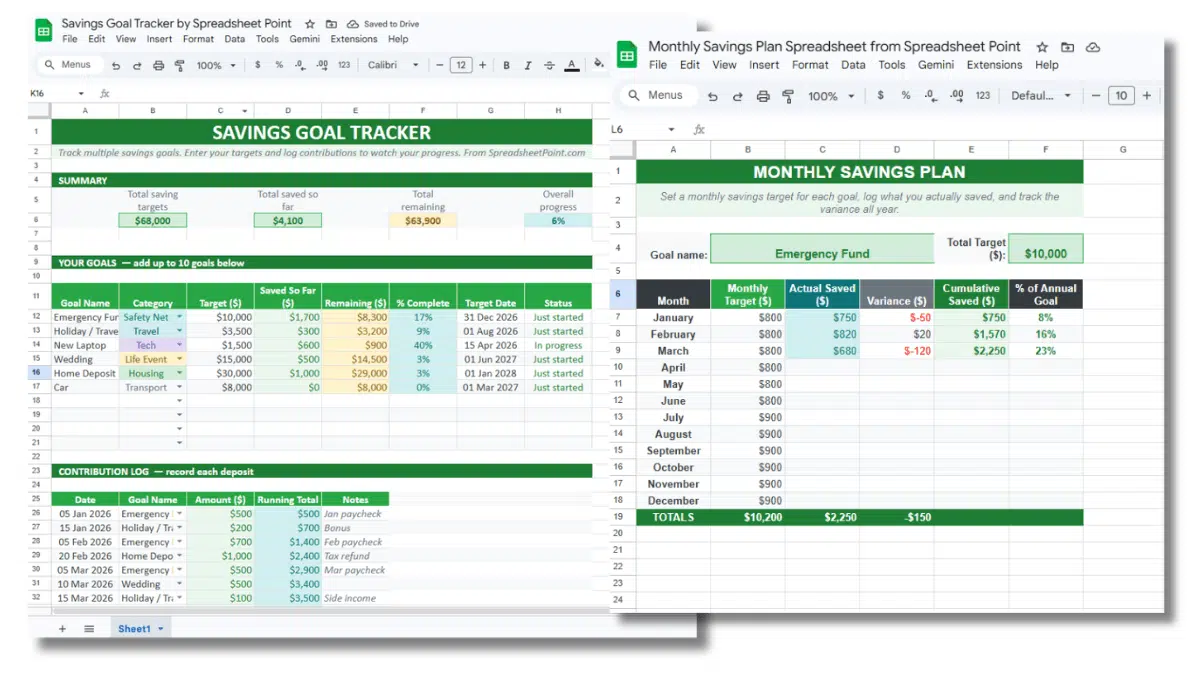
Both work in Google Sheets. Both are free to copy and use for personal use. If you prefer Excel, you can download either one and open it locally.
Free savings goal tracker template for Google Sheets
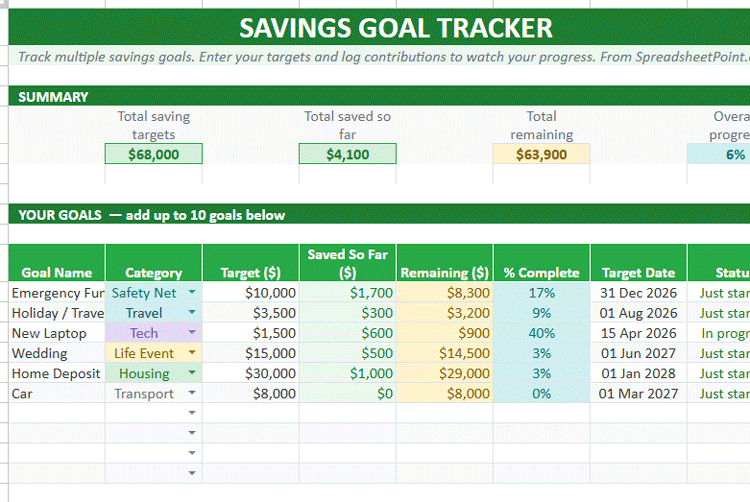
This savings goal tracker is designed to hold up to ten goals at once. You give each one a name, a target amount, a category, and a deadline. The spreadsheet handles the rest.
The layout is split into two sections. The top is a summary of all your savings goals: total target across all goals, total saved so far, total remaining, and overall progress as a percentage. Below that is the goal list itself, with a status column that updates automatically based on your numbers and deadlines.
The bottom section is the contribution log. Every time you add money to a savings account tied to one of your goals, you log it here: the date, the goal name, and the amount. That entry automatically rolls up into the goal section. The “Saved So Far” number updates on its own.
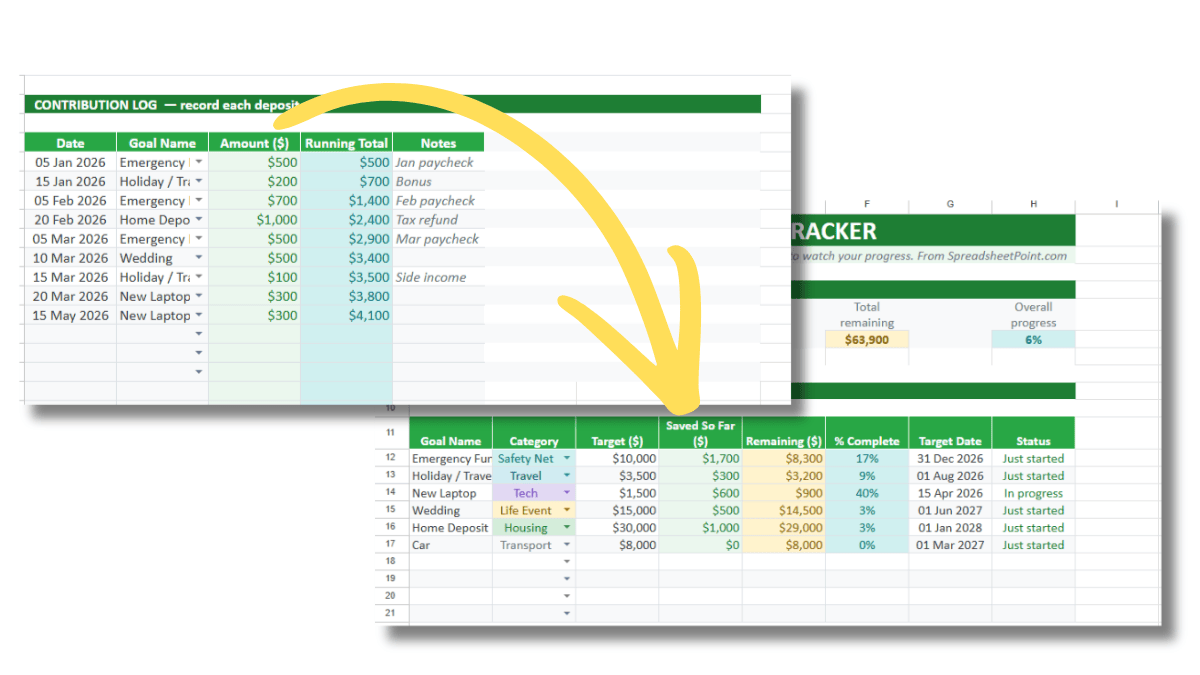
The status column gives each goal a label: Just started, In progress, Almost there, Reached, or Overdue. It checks your deadline against today’s date and your progress percentage. You don’t have to think about it.
How to set up the savings goal tracker
Copy the template. Then fill in the goal section starting at row 12. For each goal:
- Enter a goal name (this is what the contribution log matches against)
- Pick a category from the dropdown or type your own
- Enter the target amount in dollars
- Set a target date
The Saved So Far column, Remaining, % Complete, and Status columns will all fill in on their own once you start logging contributions.
To log a contribution, scroll to the contribution log section and add a row: date, goal name, and amount. The goal name has to match exactly what you typed in the goal section for the formula to pick it up.
What the categories are for
The template includes a categories column so you can group your goals by type. Default options include Safety Net, Travel, Tech, Life Event, Housing, and Transport. You can edit these or add your own.
Categories are mostly for your own clarity. They don’t affect any calculations. But if you’re managing a mix of goals like an emergency fund alongside a vacation fund and a house fund, it helps to see them labeled. It makes the goal list easier to scan at a glance.
Deadlines and the status column
The status column is the most useful part of this savings tracker if you set your deadlines correctly. It doesn’t just show you how far along you are. It shows you if you’re going to make it in time.
A goal shows “Overdue” if you’ve passed the target date and haven’t fully funded it. “Almost there” kicks in once you’re past 75% of your target. “In progress” covers the 25% to 75% range. Below that, it shows “Just started.” And once you hit 100%, it flips to “Reached.”
The deadlines create the pressure that makes the whole system work. Without them, a savings goal is just a wish with a dollar sign.
Free monthly savings plan template for Google Sheets
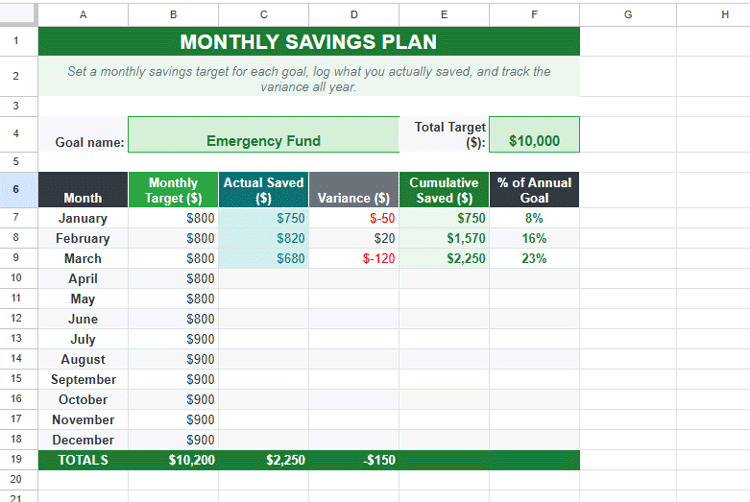
The monthly savings plan template answers a different question. The goal tracker tells you where you stand. The monthly plan tells you what you need to do each month to get there.
You enter your goals, your target amounts, and your deadlines. The spreadsheet calculates a required monthly contribution for each goal so you can hit it on time. It also shows total monthly savings required across all goals, which makes it easy to see if your plan is realistic given your actual income and expenses.
This is the template to use first if you’re starting from scratch. Figure out what you need to save each month, then use the goal tracker to log your actual contributions and watch your progress.
What to use these templates for
The obvious ones: emergency fund, vacation fund, house fund, new car, home renovation. These templates work for any goal where you have a number and a date.
They’re also useful for less obvious goals. Saving for unexpected expenses, for example. You might not know exactly what the emergency will be, but you can still set a target for your buffer and track progress toward it. Same with longer-term goals like financial independence, where the timeline is years out but monthly progress still matters.
The contribution log is what makes it practical for day-to-day use. You don’t have to update a formula or recalculate anything. Add a row, pick the goal name, enter the amount. Everything else updates.
Tips for getting the most out of these templates
A few things that help:
- Set a recurring calendar reminder to log contributions. Monthly works fine. The habit matters more than the frequency.
- Be consistent with goal names. The contribution log matches by exact text. “Emergency Fund” and “emergency fund” are different as far as the formula is concerned.
- Use the monthly savings plan first. Know what you need to set aside each month before you start tracking. Otherwise you’re measuring without a target.
- Don’t cram in ten goals at once if you’re just getting started. Pick three or four that actually have deadlines. The rest can wait.
Frequently asked questions
Can I use these templates in Excel?
Yes. Both are Google Sheets templates, but you can download them as .xlsx files and open them in Excel. The formulas used are standard and should work without any changes.
Can I add more than ten goals to the savings goal tracker?
The default layout supports ten goals. You can extend it by copying the formula rows down and adjusting the summary section to include the new rows. The contribution log range is already set to handle a large number of entries.
What if two goals have the same name?
The SUMIF formula that powers the “Saved So Far” column will add contributions for both goals together if they share the same name. Use distinct goal names to avoid this.
Can I share these templates with someone else?
Yes. These are free for personal use. You can share your copy with a partner, spouse, or anyone else you’re saving with. Just make sure only one person logs contributions at a time to avoid conflicts.
How is “Saved So Far” calculated?
The savings goal tracker uses a SUMIF formula that scans your contribution log and adds up every entry that matches a goal’s name. You don’t need to update it manually. Log contributions and it updates on its own.