Most months, the content plan never exists. It exists as a note in your phone, a sticky idea in the back of your head, or a vague intention that turns into posting whatever comes to mind at 8pm on a Tuesday.
Then the algorithm punishes the inconsistency, engagement dips, and you tell yourself you’ll get organized next month.
A free Google Sheets content calendar fixes this in one sitting. In about two hours, you can map every post for the next 30 days, assign it to a platform, attach a status, and never open a blank page wondering what to say today.
We built this template for creators, small business owners, and marketing teams who want the structure without paying $40 a month for a scheduling tool that does more than they need. In short, it’s a simple and free solution for small businesses and solopreneurs.
We just wanted to know what we’re posting, where it was going, and when. So that’s what it does.
What the template tracks
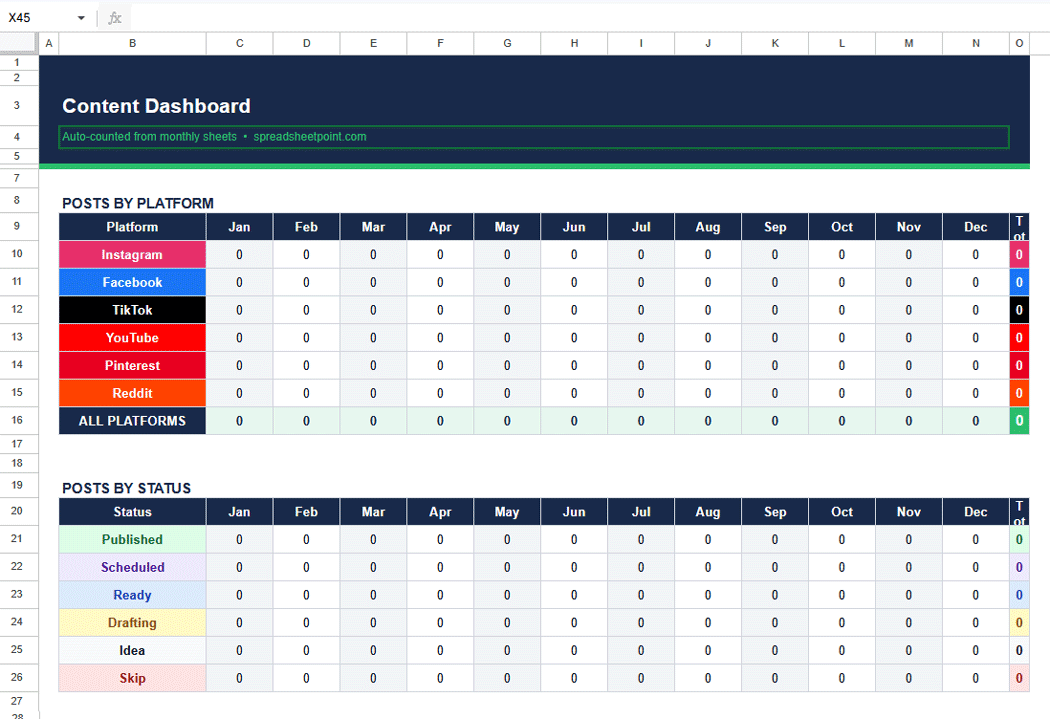
Open the template, and you’ll see one row per post. Each row captures the date, platform, content type, caption draft, visual notes, and publish status.
That’s it. No color-coded priority matrix. No nested tabs for every social network. Just a clean list that moves left to right the same way the week does.
You can filter by platform to see your Instagram week in isolation. You can sort by status to find everything still sitting in draft. You can share it with a team member or a client without explaining how anything works.
How to use it
Start by grabbing the template. Make a copy to your own Google Drive so you own it and can edit freely.
Then block an hour or two. One afternoon is enough to fill the whole month if you come in with a rough sense of your content pillars, the two or three themes your account returns to consistently.
Work in batches. Fill in all the educational posts first. Then do the promotional ones. Then, focus on personal or behind-the-scenes content. Batching by type is faster than thinking chronologically, and it naturally spaces your content mix across the month without forcing it.
Once the rows are filled, scan the calendar view to check the rhythm. You’re looking for obvious gaps like two dead days in a row or a week that runs four promotional posts back-to-back. Adjust these before you caption anything.
From here, the drafting happens in the caption column. Some people write every caption in the same session. Others use the template as a skeleton and fill in the copy in the days before each post goes live. Either approach works. What matters is that the plan exists somewhere other than your head.
If you want something more structured around dates and deadlines, a Google Sheets calendar template pairs well here. Use it to map out campaign windows, product launches, or seasonal moments before you drop them into the content calendar.
Where most people get stuck
The template won’t help if the content pillars aren’t defined before you open it. Spend ten minutes before you start writing down three to five things your account talks about. Products, process, education, story, industry news — whatever fits. Those pillars become the repeating structure the calendar fills in around.
The other common mistake is building a plan too ambitious for the actual publishing pace. If you’ve been posting twice a week, don’t plan five posts a week because the month feels fresh. Plan three. Hit it. Build from there.
For teams juggling multiple campaigns at once, a Google Sheets project management template can sit alongside the content calendar to track deliverables, owners, and deadlines without everything living in the same sheet.
Get the template
The Social Media Content Calendar Template is free. Make a copy, fill in the month, and post with a plan for once.