
If you work with numbers in Google Sheets, there is one thing that can frustrate a lot of users.
When you enter a number in a cell that has leading zeros, Google Sheets often removes those leading zeros. For example, if you enter 000123, it may remove the first three zeros and show 123 instead.

But sometimes those zeros matter, ZIP codes, phone numbers, item IDs, employee IDs, order numbers, and other identifiers. And those all happen to show up a lot in my spreadsheets.
In this tutorial, I will show you multiple ways to keep leading zeros in Google Sheets. These same ideas also work in Excel, with a few minor UI differences. If you are looking for the Excel version, see how to add leading zeros in Excel.
Quick answer, choose the right method
- If the value is an identifier (ZIP, phone, ID), store it in your spreadsheet as text using plain text formatting or an apostrophe.
- If you want a fixed-width display but still want the underlying value to stay numeric, use a custom number format like 000000.
- If you already lost the zeros and need to rebuild them, use a formula like TEXT or an ARRAYFORMULA helper column.
How to keep leading zeros in Google Sheets
Google Sheets removes leading zeros because they do not change a numeric value. For example, 000123 equals 123.
If you change how the cell treats the entry, either as text, or as a number with a fixed display format, you can keep those zeros.
The methods covered below are:
- Adding an apostrophe before the number
- Changing the format of the cells to plain text
- Creating a custom number format for a fixed number of digits
- Using formulas to pad zeros for existing data
- Keeping leading zeros when importing a CSV
Method 1, add an apostrophe (‘) before the number
This is best when you manually enter values.
Type an apostrophe first, then type the value. If you want the cell to show 000123, enter:
'000123
The apostrophe forces the entry to text, so the zeros do not disappear. You will also notice the value aligns left, because Sheets treats it as text.
Note
Text that looks like a number often still works in calculations because Sheets can coerce it, but not always. If a formula or lookup behaves strangely, you may need to convert text to a number with VALUE(), or keep a separate numeric column for math.
Method 2, change the cells format to plain text
This is a clean option when you will type, paste, or import values and you want Sheets to preserve them exactly as entered.
Steps:
- Select the cells you want to format.
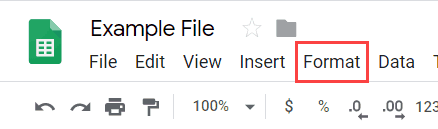
- Click the Format option in the menu

- Hover over Number.
- Click Plain text


Important
Do this before you enter or paste values. If the zeros already disappeared, formatting alone will not restore them.
Tip
When pasting into cells formatted as plain text, paste values when possible. That keeps the text formatting intact and avoids unexpected conversions.
Method 3, create a custom format with a fixed number of digits
This method forces a specific display length. For example, you can format a cell to always display six digits. If you enter 123, it will display as 000123.
Steps:
- Select the cells for which you want to change the format.
- Click Format in the menu
- Hover over Number.
- Hover over More formats.
- Click Custom number format

- Enter a format such as
000000(six zeros)

- Click Apply.


Note
This changes how the number is displayed, not the underlying value. If you enter 123, the cell still contains 123, it just displays as 000123. This distinction matters for exports and some workflows.
Add leading zeros to existing values with formulas
If the leading zeros already disappeared, formulas are the fastest way to rebuild a padded version. This is also useful if you want a clean export column that always includes the zeros.
Use TEXT for fixed-width padding
If A2 contains 123 and you want six digits:
=TEXT(A2,"000000")
This returns a text result like 000123.
Pad an entire column with ARRAYFORMULA
If your values start in A2:
=ARRAYFORMULA(IF(A2:A="","",TEXT(A2:A,"000000")))
Important
TEXT returns text. For identifiers, that is usually correct. If you need math on the original values, keep a separate numeric column.
Keep leading zeros when importing a CSV into Google Sheets
CSV imports are a common place where zeros disappear, because Sheets tries to convert anything that looks numeric into a number.
Option 1, import the CSV without converting text to numbers
- Go to File, then Import.
- Upload the CSV, or select it from Drive.
- In the import settings, look for the conversion option that converts text to numbers, dates, and formulas.
- Turn that conversion off, then import.
This keeps values like 000123 as text, so the zeros remain.
Option 2, pre-format destination columns as plain text, then paste
This works well if you are pasting CSV data, or importing into an existing sheet layout.
- Select the destination column(s).
- Format, Number, Plain text.
- Paste the values. Use paste values when possible.
- Verify the zeros remain.
Option 3, fix it after import with a helper column
If you already imported and the zeros disappeared, create a helper column using TEXT or ARRAYFORMULA (shown above). Use that helper column for exports, labels, and lookups where the padded format matters.
Quick check
If the value is right-aligned, Sheets is probably treating it as a number. If it is left-aligned, Sheets is treating it as text.
FAQ, keeping leading zeros in Google Sheets
Why does Google Sheets remove leading zeros?
Because as a number, 000123 equals 123, so Sheets treats the extra zeros as unnecessary. If the value is really an identifier, store it as text, or use a fixed-width display format.
What is the fastest way to keep leading zeros when typing values manually?
Type an apostrophe first, then the value, for example '000123. This forces the entry to text so the zeros stay.
What is the best method for ZIP codes and other ID-style fields?
Format the column as plain text before you enter or paste values. ZIP codes, IDs, and phone numbers are identifiers, not numbers you do math on, so text storage is usually the cleanest choice.
How do I keep leading zeros but still treat the value as a number for calculations?
Use a custom number format like 000000. The underlying value stays numeric, but the display adds zeros up front. If you need a padded value for export, also create a TEXT-based helper column.
What is the difference between plain text formatting and a custom number format?
Plain text stores the value exactly as typed, including zeros. A custom number format keeps the underlying value numeric, but changes how it displays, which matters for exports and some integrations.
How do I add leading zeros to values that already lost them?
Use a formula such as =TEXT(A2,"000000") to create a padded version. If you need it for a full column, use ARRAYFORMULA.
How do I add leading zeros to an entire column at once?
Create a helper column with =ARRAYFORMULA(IF(A2:A="","",TEXT(A2:A,"000000"))). Then copy and paste values if you want to replace the originals.
How do I keep leading zeros when importing a CSV into Google Sheets?
In File, Import, turn off the setting that converts text to numbers, dates, and formulas. If you cannot control the conversion, import anyway and build a padded helper column using TEXT.
How do I keep leading zeros when copying and pasting data?
Format the destination cells as plain text first, then paste values. This prevents Sheets from reinterpreting the pasted content as numbers.
Why do my VLOOKUP, XLOOKUP, or MATCH results break after I add an apostrophe?
Because the apostrophe forces text, so you can end up matching text against numbers, or vice versa. Make sure both sides use the same type. Either format both as text, or convert both to numbers, depending on your use case.
Why does Sheets show 000123 but formulas or exports still use 123?
That usually means you used a custom number format. It changes display only. For exports where the padded value must be literal, use a TEXT formula to generate the padded output.
How do I keep leading zeros when exporting back to CSV?
For exports, plain text or a TEXT-based helper column is the safest approach. Custom number formats often look correct in the sheet but can export as the underlying numeric value without the display zeros.
How many zeros should I use in a custom number format?
Use the fixed length you need. If your IDs should always be 8 digits, use 00000000. If the length varies, custom formats are less suitable, store as text instead.
Can I keep leading zeros for phone numbers, and should I?
You can, but phone numbers should almost always be stored as text. They are identifiers, not values for math, and they may include formatting, country codes, or extensions.
How do I prevent someone from stripping leading zeros later?
Keep the column formatted as plain text and consider protecting the sheet range if others edit it frequently. If the column must remain numeric, keep a separate padded helper column for reporting and exports.
You may also like the following Google Sheets tutorials:
- How to add a trendline in Google Sheets
- How to hide zero values in Google Sheets
- How to remove duplicates in Google Sheets (3 easy ways)
- How to hide columns in Google Sheets
- Remove the first character from a string in Google Sheets
- How to round numbers in Google Sheets
- How to add leading zeros in Excel