
Google Sheets now has AI in two completely different places, and most people have no idea which one they’re actually using.
But the difference isn’t too extreme. The Gemini sidebar and the AI function look related because they’re both powered by Gemini. But they work in fundamentally different ways, serve different use cases, and produce results you have to handle differently. Using the wrong one for a task is like using a calculator when you needed a notebook.
I’ll explain exactly what the Gemini sidebar does, how to use it step by step, and when to reach for it versus the AI formula.
What Is the Gemini Sidebar in Google Sheets?
The Gemini sidebar is a conversational AI panel that opens beside your spreadsheet. Think of it as a chat interface built directly into Google Sheets. You type a plain-English request, Gemini responds, and you decide whether to apply the result to your sheet.
Unlike the =AI() function, which operates formula by formula inside individual cells, the Gemini sidebar sees and reasons about your entire dataset. You do not have to tell it which columns to look at. It reads the sheet and responds to natural language questions about what is in it.
That is a meaningful capability difference, and it matters for how you use each tool.
How to Open the Gemini Sidebar
Getting the sidebar open takes three seconds.
- Open any Google Sheet
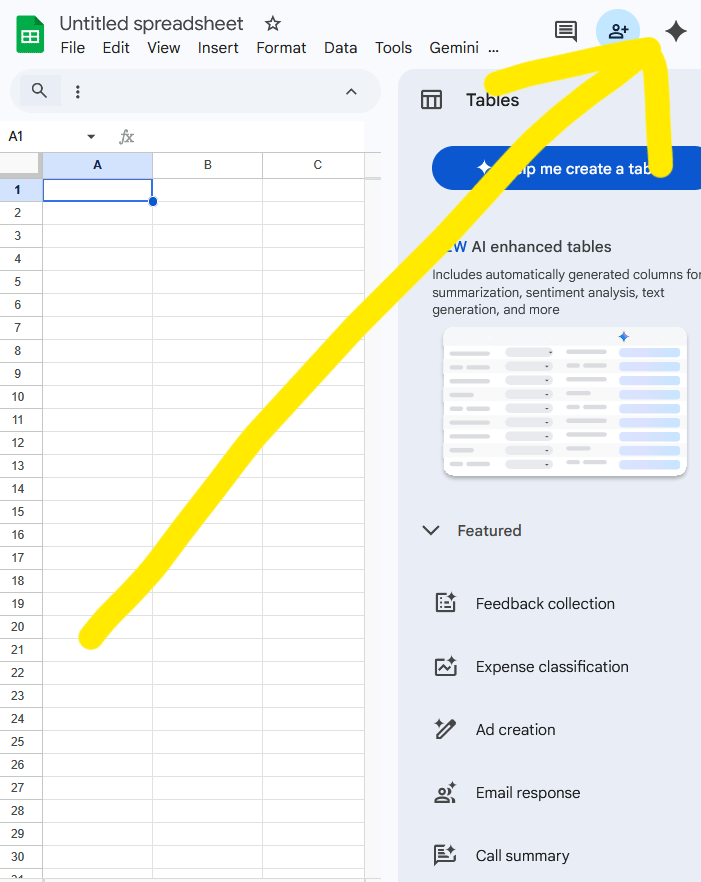
- Click the spark icon (labeled “Ask Gemini”) in the top right corner of the toolbar
- The Gemini sidebar opens on the right side of your screen
- Type your request in the chat box at the bottom
- Review Gemini’s response
- Click “Insert” or “Apply” to move the result into your sheet
That last step matters. Results from the sidebar do not automatically land in your cells. Gemini makes a suggestion. You decide whether to use it.
What Can the Gemini Sidebar Do?
More than most people realize. Here is the full picture.
Answer Questions About Your Data
This is the most underused capability. You can ask Gemini questions in plain English. It scans your sheet to answer them.
- “What’s the average value in column C for rows where column A says North?”
- “Which product has the highest total sales?”
- “Are there any duplicate entries in column B?”
No formula required. No manual scanning. Gemini reads the data and tells you.
Generate Formulas With Explanations
Ask Gemini to write a formula, and it will produce the syntax plus an explanation of how it works. This makes it genuinely useful as a learning tool, not just a shortcut. Once you understand what Gemini wrote, you can modify it yourself. For building on that foundation, the Google Sheets formulas overview covers the functions you will encounter most.
Create Charts From a Prompt
Tell Gemini what you want to visualize, and it builds the chart. “Create a bar chart comparing column A and column B” produces a ready-to-insert visualization in seconds. For more context on chart types and when to use them, the guide to spreadsheet graphs and charts is worth reviewing alongside this feature.
Build Pivot Tables
This is one of the most practical sidebar capabilities. Describe what you want summarized, and Gemini generates the pivot table configuration. “Create a pivot table showing total sales by region and month” produces a ready-to-insert result. No manual drag-and-drop setup required.
Apply Conditional Formatting
Ask Gemini to highlight rows, flag outliers, or color-code values. It will write and apply the formatting rule. This pairs well with learning conditional formatting on entire rows, so you can understand and adjust the rules Gemini creates.
Identify Trends and Outliers
Ask Gemini to tell you what is unusual or what direction your data is moving. It will surface patterns without you needing to build a formula or chart first. Good for a quick gut-check before deeper analysis.
What Can the =AI() Function Do That the Sidebar Can’t?
The sidebar is a one-at-a-time tool. You make a request, get a result, apply it, and repeat.
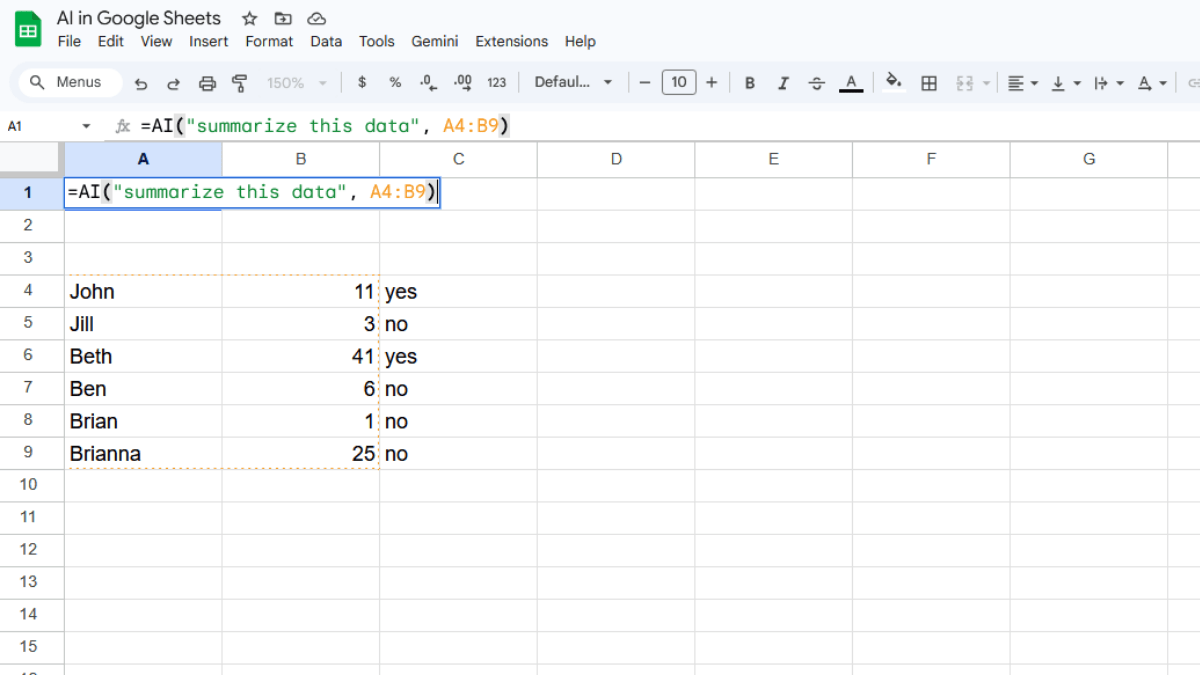
The =AI() function is a formula. You write it once, autofill it down an entire column, and it processes every row simultaneously. That is the critical difference.
If you have 500 customer reviews and you want each one categorized as Positive, Neutral, or Negative, the sidebar would require 500 separate conversations. The =AI() function requires one formula and a drag handle.
Use the sidebar for exploration, one-off tasks, and situations where you want Gemini to reason about your full dataset. Use =AI() when you need to run the same AI task across many rows and store the outputs as cell values you can sort, filter, and reference.
The Gemini Sidebar vs. The AI Function
Reach for the Gemini sidebar when:
- You want to ask a question about your data without knowing the right formula
- You need a chart, pivot table, or formatting rule generated on the fly
- You are doing a one-off analysis that doesn’t need to repeat across rows
- You want Gemini to read and reason about your entire sheet
Reach for =AI() when:
- You need to run the same task across dozens or hundreds of rows
- You are categorizing, tagging, summarizing, or generating text at scale
- You want AI outputs stored as persistent cell values
- You are building a repeatable workflow, not a one-time query
The two tools complement each other well. A common workflow: use the Gemini sidebar to explore your data and understand what questions to ask, then use =AI() to run those questions across every row in your dataset.
Do You Need a Paid Plan?
Yes. The Gemini sidebar requires an eligible Google Workspace plan with Gemini included, or a Google One AI Premium subscription. The sidebar and the =AI() function are part of the same Gemini for Workspace access tier. If you have one, you have both.
If you type your request into the sidebar and see a prompt asking you to upgrade, your current plan does not include Gemini access.
For readers on free Google accounts, the best Google Sheets add-ons roundup covers third-party tools that bring similar AI capabilities to Sheets without a Workspace subscription.
Tips for Better Results From the Gemini Sidebar
The sidebar rewards specific, well-framed requests.
- Name the columns. “Summarize column B” works better if column B has a clear header. Make sure your data is labeled before asking Gemini to reason about it.
- Ask for explanations. When Gemini generates a formula, ask it to explain what each part does. This turns the sidebar into a learning tool, not just a shortcut.
- Start with a question before a command. Ask Gemini what it sees in your data before asking it to build a chart. If its reading looks off, rephrase before going further.
- Be specific about output format. “Create a bar chart comparing monthly revenue in column B to monthly expenses in column C” outperforms “make a chart.” The more specific the request, the more usable the result.
- Rephrase rather than retry. If Gemini’s response misses the mark, rewriting the request produces better results than clicking Generate again on the same prompt.
Limitations to Know
The Gemini sidebar is genuinely useful, but it has real constraints.
- Results require manual application. Nothing the sidebar produces lands in your sheet automatically. You review and apply each suggestion.
- No persistent memory. Gemini does not remember previous sessions. Each time you open the sidebar, you start fresh.
- Headers matter. The sidebar reads your data more accurately when columns are clearly labeled. Unlabeled or inconsistently formatted data produces less reliable responses.
- Multi-sheet analysis is inconsistent. Gemini works best when all relevant data is on the active sheet. Complex cross-sheet analysis can produce unreliable results.
- Python code output is for export. Gemini can generate Python code for advanced analysis, but it does not execute inside Sheets. You would copy it out and run it elsewhere.
Frequently Asked Questions
What is the Gemini sidebar in Google Sheets?
The Gemini sidebar is a conversational AI panel that opens beside your spreadsheet. You type plain-English requests and Gemini responds with answers, formulas, charts, or formatting rules that you can review and apply to your sheet.
Is the Gemini sidebar free to use?
No. It requires an eligible Google Workspace plan with Gemini included, or a Google One AI Premium subscription. Free Gmail accounts do not have access. Third-party add-ons are available for free account users.
How do I open the Gemini sidebar in Google Sheets?
Click the spark icon labeled “Ask Gemini” in the top right corner of any Google Sheet. If you do not see the icon, your plan may not include Gemini access or your Workspace admin may not have enabled it.
What is the difference between the Gemini sidebar and the =AI() function?
The sidebar is conversational and works on one request at a time. It sees your entire sheet and is best for exploration, one-off analysis, and tasks like chart or pivot table generation. The =AI() function is a formula that scales across hundreds of rows simultaneously and stores outputs directly as cell values. Both are powered by Gemini but serve different workflows.
Can Gemini see my entire spreadsheet?
Yes. Unlike the =AI() function, which only sees the data range you pass it explicitly, the Gemini sidebar reads your full active sheet. This makes it better suited for data exploration and questions that require context across the whole dataset.
Can Gemini write formulas for me?
Yes. Describe what you want to calculate in plain English and Gemini will produce the formula syntax plus an explanation. You can then insert it directly into your sheet from the sidebar.
Why can’t I see the Gemini icon in my Google Sheets?
The two most common reasons are that your account is not on an eligible Workspace plan, or that your Workspace admin has disabled Gemini features for your organization. Check both before troubleshooting further.