
In this guide, I’ll show you how to convert currency in Google Sheets using the GOOGLEFINANCE function — a single built-in formula that pulls live exchange rates automatically. No plugins, no manual lookups, no copying numbers from a browser tab.
Below I cover the full syntax, real-world examples, historical rate lookups, common errors, and every currency pair question I hear from readers.
Table of Contents
To get a live exchange rate in Google Sheets:
=GOOGLEFINANCE("CURRENCY:USDEUR")To convert an actual amount (e.g., $500 in cell A2 to euros):=A2*GOOGLEFINANCE("CURRENCY:USDEUR")What is the GOOGLEFINANCE Function
Working with finances can get really tricky, especially with exchange rates which are constantly changing. Luckily, Google Sheets has a convenient function called GOOGLEFINANCE, meant specifically for doing financial calculations.
This is what I use for currency conversion.
The GOOGLEFINANCE function fetches real-time or historical currency information and exchange rates from the Google Finance website. This saves you both the time and energy it would take to import the exchange rates from another source.
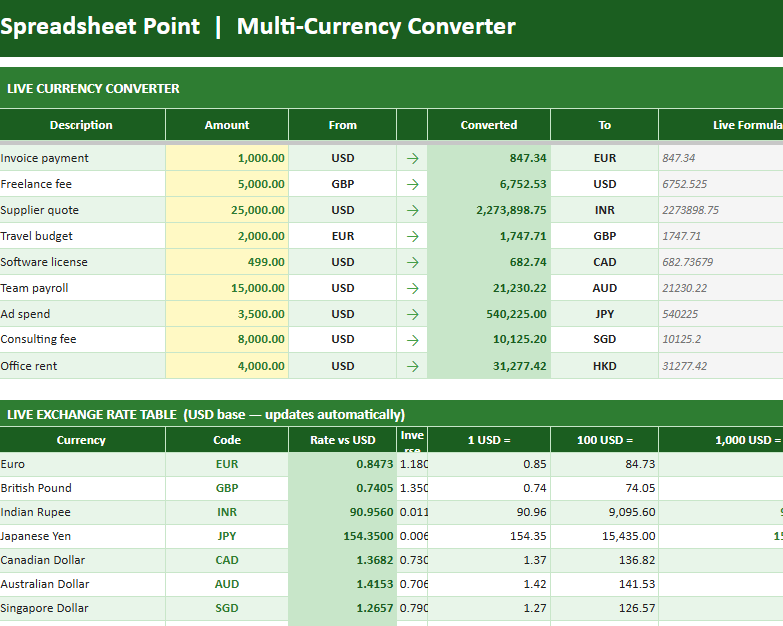
Using GOOGLEFINANCE to Convert Currency in Google Sheets
The GOOGLEFINANCE function is the perfect currency converter for Google Sheets — it fetches currency conversion rates in real-time (well, almost real-time; expect up to a 20-minute delay).
You don’t need to search endless databases for the current exchange rates. All you need is the correct formula. The formula uses currency symbols to track which currency you are converting from and to.
I also made a currency-converter spreadsheet template. You can access it for free here. Just make your own copy, and you can edit it for any conversions you want to perform.
There are other resources available too. These investment tracking spreadsheets are made to track assets with visual dashboards.
Syntax of the GOOGLEFINANCE Function
Here is the basic syntax of the GOOGLEFINANCE function for currency conversion:
=GOOGLEFINANCE("CURRENCY:<source_currency_symbol><target_currency_symbol>")

Note that this is different from the other common syntax for GOOGLEFINANCE. This function also pulls stock information. The syntax for that looks like this:
=GOOGLEFINANCE(ticker, [attribute])

Here is what you need to input for currency conversion:
- source_currency_symbol is a three-letter code for the currency you want to convert from.
- target_currency_symbol is a three-letter code for the currency you want to convert to.
As a real-world example, to convert US Dollars to Indian Rupees:
=GOOGLEFINANCE("CURRENCY:USDINR")
Notice there is no space between the two currency codes. That is a common mistake, and one that is easily avoided.
Three-Letter Currency Codes in Google Finance
To convert to other currencies, you need to know the codes. Here are the most common ones, expanded for 2026:
| Currency | Code | Currency | Code |
| US Dollar | USD | Australian Dollar | AUD |
| Euro | EUR | Swiss Franc | CHF |
| British Pound | GBP | Chinese Yuan | CNY |
| Japanese Yen | JPY | South Korean Won | KRW |
| Canadian Dollar | CAD | Mexican Peso | MXN |
| Indian Rupee | INR | UAE Dirham | AED |
| Singapore Dollar | SGD | Thai Baht | THB |
| Hong Kong Dollar | HKD | Philippine Peso | PHP |
| New Zealand Dollar | NZD | South African Rand | ZAR |
| Brazilian Real | BRL | Swedish Krona | SEK |
These codes follow the ISO 4217 international standard — the same shorthand codes used on international currency exchanges.
How to Use GOOGLEFINANCE for Real-Time Currency Conversion
Here is how to convert dollars into three other currencies. I have included the currency codes in column B:

Steps to get the exchange rate of USD to the currencies in column B:
- Select the first cell of the column where you want the results to appear (C2).
- Type the formula:
=GOOGLEFINANCE("CURRENCY:USDINR") - Press the return key.
You should see the current exchange rate for USD to INR in cell C2.

You can also reference cells dynamically using the ampersand operator:
=GOOGLEFINANCE("CURRENCY:"&A2&B2)
Double-click the fill handle of cell C2 to copy the formula down the column. You should now see conversion rates for USD to all three currencies.

How to Convert USD to INR Using GOOGLEFINANCE
The steps above return the exchange rate only. To convert an actual amount, multiply the rate by the value you want to convert. Here is an example with a list of USD prices to convert to INR:

- Select the first cell of the column where you want the results to appear (B2).
- Type the formula:
=GOOGLEFINANCE("CURRENCY:USDINR")*A2
- Press the return key.
- Double-click the fill handle of cell B2 to copy the formula down the column.
- Column B now shows all prices converted to INR.


Multiplying the GOOGLEFINANCE result by the cell value in column A is all it takes to convert the actual amount. The rate updates automatically whenever the sheet recalculates.
Related Reading: How to Remove a Dollar Sign in Google Sheets
Does GOOGLEFINANCE Update Automatically?
Yes. Google Sheets refreshes GOOGLEFINANCE currency rates approximately every 20 minutes while the sheet is open. To force a manual refresh, press Ctrl+Shift+F9 (Windows) or Cmd+Shift+F9 (Mac), or temporarily change any cell value to trigger recalculation.
To protect against temporary Google Finance outages, wrap your formula in IFERROR:
=IFERROR(GOOGLEFINANCE("CURRENCY:USDEUR"),"Rate unavailable")
This keeps your sheet clean instead of showing an error when Google Finance has a brief hiccup.
How to Use GOOGLEFINANCE to Fetch Historical Exchange Rates
You can alter the GOOGLEFINANCE function to fetch exchange rates over a period of time instead of just the current rate. That is useful when you want to track rate trends or audit past conversions.
The syntax for historical lookups is:
=GOOGLEFINANCE("CURRENCY:<source><target>", [attribute], [start_date], [end_date|number_of_days], [interval])
All parameters in square brackets are optional. Here is what each one means:
- The attribute parameter specifies the type of data to retrieve. The default is “price”, which returns the closing rate.
- The start_date parameter sets the beginning of the historical window.
- The fourth parameter accepts either an end_date or a number of days from the start date.
- The interval parameter sets the frequency: either “DAILY” or “WEEKLY”.
How to Fetch Currency Exchange Rates Over a Specific Date Range
Here is how to fetch daily USD to EUR rates over a two-week window:
- Select a cell where you want the output to start. The function generates column headers automatically, so no need to add them.
- Type the formula:
=GOOGLEFINANCE("CURRENCY:USDEUR", "price", DATE(2025,1,1), DATE(2025,1,14), "DAILY") - Press the Return key.
Two columns appear automatically: one for the date and one for the closing rate each day.

To display weekly rates instead of daily, replace “DAILY” with “WEEKLY” in the interval parameter.
How to Fetch Exchange Rates for a Rolling Window
To always show the last 10 days of exchange rates regardless of when the sheet is opened, use the TODAY function instead of DATE:
- Select a cell where you want the output to start.
- Type the formula:
=GOOGLEFINANCE("CURRENCY:USDEUR", "price", TODAY()-10, TODAY(), "DAILY") - Press the Return key.

Because TODAY() returns the current date each time the file is opened, this formula always reflects the most recent 10-day window without any manual updates.
A Few Points to Remember About Google Sheets Currency Conversion
- Exchange rates from GOOGLEFINANCE can be delayed by up to 20 minutes. These are not suitable for live trading decisions.
- For real-time rates, the function returns a single value. For historical rates, it returns an array with column headers included.
- If you do not provide any date parameters, GOOGLEFINANCE returns the current rate. Any date parameter triggers a historical data request.
- GOOGLEFINANCE is exclusive to Google Sheets. The function does not exist in Microsoft Excel.
GOOGLEFINANCE Currency Limitations
- Not all currency pairs are supported. Uncommon or exotic pairs may return a
#N/Aerror. - Cryptocurrency support is limited to major coins (BTC, ETH, LTC). Many altcoins are not available.
- The function is read-only. You cannot push data back to Google Finance through it.
Google Sheets Currency Conversion Attribute Values
The following attribute values work with the historical syntax for currency pairs. Note that stock-specific attributes like marketcap and volume do not apply to currency pairs.
For real-time currency data:
- “price” — the current exchange rate (default)
- “datadelay” — the delay in minutes for the current data feed
For historical currency data:
- “open” — the opening rate for the specified date(s)
- “close” — the closing rate for the specified date(s)
- “high” — the high rate for the specified date(s)
- “low” — the low rate for the specified date(s)
- “all” — open, close, high, low for the specified date(s)
Google Sheets Currency Conversion FAQ
Can Google Sheets convert currency automatically?
Yes. The GOOGLEFINANCE function pulls live exchange rates directly from Google Finance with no manual updates required. Rates refresh approximately every 20 minutes while the sheet is open.
=GOOGLEFINANCE("CURRENCY:USDEUR")To convert an actual dollar amount in cell A2 to euros:
=A2*GOOGLEFINANCE("CURRENCY:USDEUR")What is the GOOGLEFINANCE currency formula syntax?
The basic syntax is:
=GOOGLEFINANCE("CURRENCY:SOURCETARGET")Replace SOURCE with the 3-letter code for the currency you are converting from, and TARGET with the currency you are converting to. Example for USD to EUR:
=GOOGLEFINANCE("CURRENCY:USDEUR")How do I convert USD to EUR in Google Sheets?
For the live exchange rate:
=GOOGLEFINANCE("CURRENCY:USDEUR")To convert an amount in A2:
=A2*GOOGLEFINANCE("CURRENCY:USDEUR")How do I convert USD to GBP in Google Sheets?
For the live exchange rate:
=GOOGLEFINANCE("CURRENCY:USDGBP")To convert an amount in A2:
=A2*GOOGLEFINANCE("CURRENCY:USDGBP")How do I convert USD to JPY in Google Sheets?
For the live exchange rate:
=GOOGLEFINANCE("CURRENCY:USDJPY")To convert an amount in A2:
=A2*GOOGLEFINANCE("CURRENCY:USDJPY")How do I convert USD to CAD in Google Sheets?
For the live exchange rate:
=GOOGLEFINANCE("CURRENCY:USDCAD")To convert an amount in A2:
=A2*GOOGLEFINANCE("CURRENCY:USDCAD")How do I convert USD to AUD in Google Sheets?
For the live exchange rate:
=GOOGLEFINANCE("CURRENCY:USDAUD")To convert an amount in A2:
=A2*GOOGLEFINANCE("CURRENCY:USDAUD")How do I convert USD to INR in Google Sheets?
For the live exchange rate:
=GOOGLEFINANCE("CURRENCY:USDINR")To convert an amount in A2:
=A2*GOOGLEFINANCE("CURRENCY:USDINR")How do I convert USD to IDR in Google Sheets?
For the live exchange rate:
=GOOGLEFINANCE("CURRENCY:USDIDR")To convert an amount in A2:
=A2*GOOGLEFINANCE("CURRENCY:USDIDR")How do I convert USD to SGD in Google Sheets?
For the live exchange rate:
=GOOGLEFINANCE("CURRENCY:USDSGD")To convert an amount in A2:
=A2*GOOGLEFINANCE("CURRENCY:USDSGD")How do I convert USD to AED in Google Sheets?
For the live exchange rate:
=GOOGLEFINANCE("CURRENCY:USDAED")To convert an amount in A2:
=A2*GOOGLEFINANCE("CURRENCY:USDAED")How do I convert USD to CHF in Google Sheets?
For the live exchange rate:
=GOOGLEFINANCE("CURRENCY:USDCHF")To convert an amount in A2:
=A2*GOOGLEFINANCE("CURRENCY:USDCHF")How do I convert USD to CNY in Google Sheets?
For the live exchange rate:
=GOOGLEFINANCE("CURRENCY:USDCNY")To convert an amount in A2:
=A2*GOOGLEFINANCE("CURRENCY:USDCNY")How do I convert USD to MXN in Google Sheets?
For the live exchange rate:
=GOOGLEFINANCE("CURRENCY:USDMXN")To convert an amount in A2:
=A2*GOOGLEFINANCE("CURRENCY:USDMXN")How do I convert USD to BRL in Google Sheets?
For the live exchange rate:
=GOOGLEFINANCE("CURRENCY:USDBRL")To convert an amount in A2:
=A2*GOOGLEFINANCE("CURRENCY:USDBRL")How do I convert from pounds to dollars in Google Sheets?
For the live GBP to USD exchange rate:
=GOOGLEFINANCE("CURRENCY:GBPUSD")To convert a GBP amount in A4:
=A4*GOOGLEFINANCE("CURRENCY:GBPUSD")Or using the MULTIPLY function:
=MULTIPLY(A4,GOOGLEFINANCE("CURRENCY:GBPUSD"))
For GBP to AUD instead, swap the target in the pair:
=A4*GOOGLEFINANCE("CURRENCY:GBPAUD")
Why is the GOOGLEFINANCE function not working for currency conversion?
The most common causes:
- Missing quotes around the currency pair — use
"CURRENCY:USDEUR", notCURRENCY:USDEUR - A space between currency codes —
USDEURis correct,USD EURis not - A mistyped currency code — double-check against the code table above
- An unsupported currency pair — not all exotic currencies are available in Google Finance
- A temporary Google Finance outage — wrap in IFERROR to handle gracefully:
=IFERROR(GOOGLEFINANCE("CURRENCY:USDEUR"),"")How do I convert multiple currencies at once in Google Sheets?
Put the source currency code in one cell and the target currency code in another, then build the pair dynamically. If A2 contains USD and B2 contains EUR:
=GOOGLEFINANCE("CURRENCY:"&A2&B2)To convert an amount in C2 using those same codes:
=C2*GOOGLEFINANCE("CURRENCY:"&A2&B2)How do I lock an exchange rate for an invoice so it does not change later?
Pull the live rate into a cell using GOOGLEFINANCE. Then copy that cell and use Paste Special to paste as Values Only (Ctrl+Shift+V on Mac and Windows). This freezes the number permanently. Reference that frozen cell in your conversion formula so the rate never recalculates.
This is the approach I use for all international invoicing to keep the agreed rate on record.
How do I change the currency format in Google Sheets from pounds to dollars?
This changes how the number displays — it does not convert the value. To change the formatting:
- Highlight the cells you want to change.
- Click Format > Number.
- Click Custom currencies.
- Select the desired currency (for example, dollars).
- Click Apply.


This works for euros or any other currency. If you need the symbol only, here is how to insert the euro symbol in Google Sheets.
How do I convert BTC to USD in Google Sheets?
Crypto conversions use the same syntax. For the current BTC to USD rate:
=GOOGLEFINANCE("CURRENCY:BTCUSD")To convert a BTC amount in A2 to USD:
=A2*GOOGLEFINANCE("CURRENCY:BTCUSD")
Can I pull crypto prices into Google Sheets?
Yes, you can pull crypto prices into Google Sheets, but only major cryptocurrencies are supported. For Ethereum to USD:
=GOOGLEFINANCE("CURRENCY:ETHUSD")Many altcoins are not available through GOOGLEFINANCE and will return an error.
Is there any delay when GOOGLEFINANCE fetches currency values?
Yes. Exchange rates are typically delayed by up to 20 minutes. To check the exact delay for a specific pair, use the datadelay attribute:
=GOOGLEFINANCE("CURRENCY:USDEUR","datadelay")Does GOOGLEFINANCE work in Excel?
No. GOOGLEFINANCE is a Google Sheets-only function. For currency conversion in Excel, you would need to connect to a live exchange rate API through Power Query or enter rates manually.
How do I get historical exchange rates in Google Sheets?
Use the extended syntax with date parameters:
=GOOGLEFINANCE("CURRENCY:USDEUR", "price", DATE(2025,1,1), DATE(2025,1,14), "DAILY")For a rolling window that always shows the last 10 days:
=GOOGLEFINANCE("CURRENCY:USDEUR", "price", TODAY()-10, TODAY(), "DAILY")How do I use the GOOGLEFINANCE function to track stocks?
I made a video that shows you how to build a stock tracking spreadsheet in under a minute. You list the stocks, ETFs, or cryptocurrencies you want to track and use the GOOGLEFINANCE function to pull their values automatically.
The tutorial is embedded below.