Recent Articles

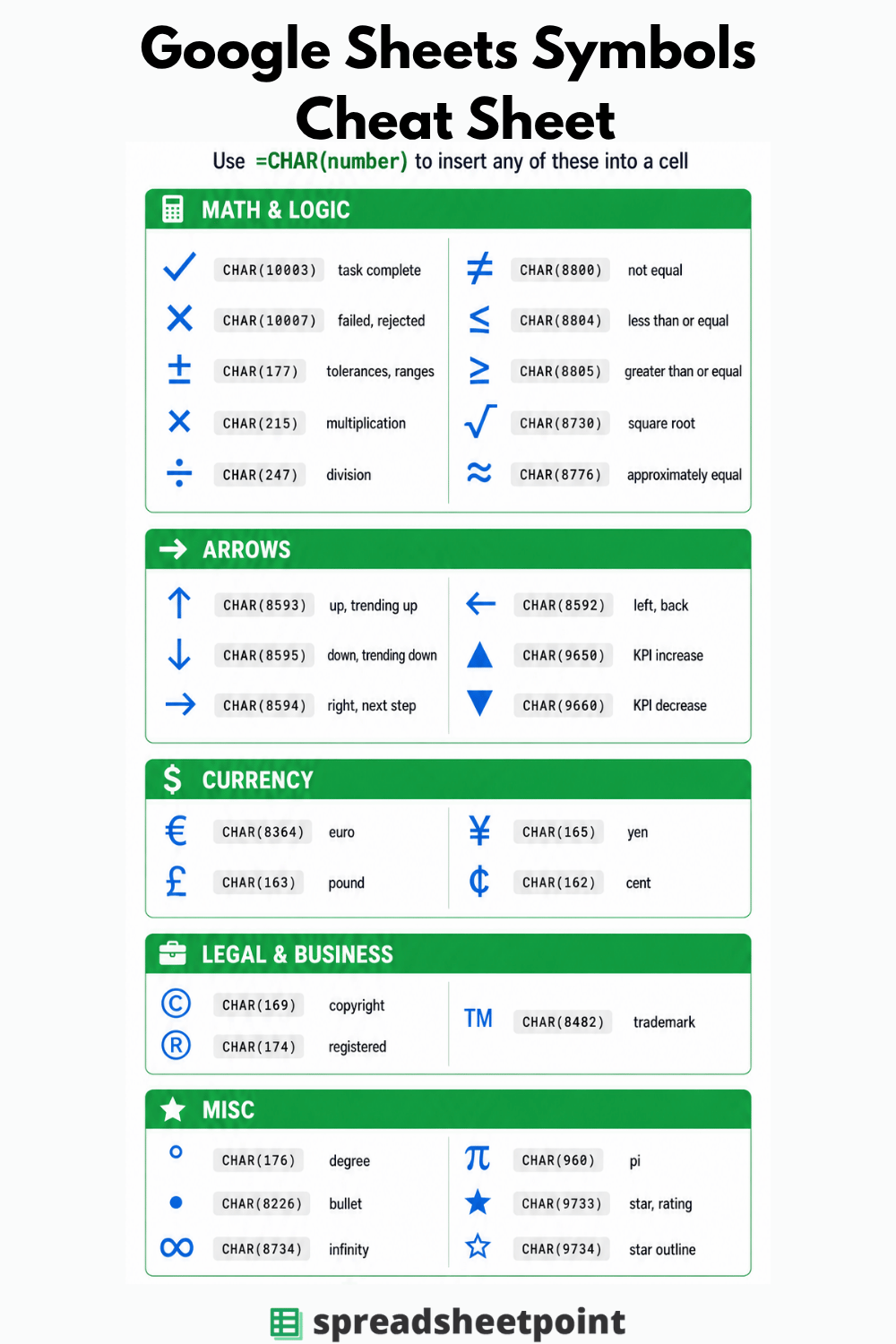
Infographic poster titled โ€œGoogle Sheets Symbols Cheat Sheetโ€ Subtitle reads: โ€œUse =CHAR(number) to insert any of these into a cell.โ€ The design has a white background with dark charcoal text, green section headers, and blue symbol icons. Content is organized into five sections in a clean two-column grid. Each entry shows a large symbol, its CHAR code in a gray rounded label, and a short description. Math & Logic section: Check mark CHAR(10003) task complete; X mark CHAR(10007) failed/rejected; plus-minus CHAR(177) tolerances/ranges; multiplication CHAR(215); division CHAR(247); not equal CHAR(8800); less than or equal CHAR(8804); greater than or equal CHAR(8805); square root CHAR(8730); approximately equal CHAR(8776). Arrows section: Up arrow CHAR(8593) trending up; down arrow CHAR(8595) trending down; right arrow CHAR(8594) next step; left arrow CHAR(8592) back; solid up triangle CHAR(9650) KPI increase; solid down triangle CHAR(9660) KPI decrease. Currency section: Euro CHAR(8364); pound CHAR(163); yen CHAR(165); cent CHAR(162). Legal & Business section: Copyright CHAR(169); registered CHAR(174); trademark CHAR(8482). Misc section: Degree CHAR(176); bullet CHAR(8226); infinity CHAR(8734); pi CHAR(960); star CHAR(9733); star outline CHAR(9734). Footer text reads โ€œSpreadsheet Pointโ€
Google Sheets Tips

How to Insert Symbols in Google Sheets

Learn how to insert symbols and special characters in Google Sheets using the CHAR function, Google Docs, or Alt codes with a full symbol reference table and CHAR codes for 30 common symbols.

Read More ยป

More Spreadsheet Expertise