
Sometimes, you may want a quick way to get the name of the current sheet in a cell (or a list of all the sheets in the Google Sheets documents in cells).
One common scenario where this may be needed could be when you want to create a table of contents and want to quickly get the sheet names in one place as a list.
Unfortunately, there is no inbuilt formula or feature in Google Sheets that will do this directly.
But then, to our good fortune, there is Google Apps Script where you can create a custom formula and do a lot of stuff you otherwise can not (including fetching sheet name).
In this tutorial, I will show you how to use a custom formula to get the name of the current sheets in a cell or get the names of all the sheets in a column.
Table of Contents
Get the Current Sheet Name in a Cell
To get the current Sheet name, we first need to create a custom Apps Script that will create a formula. Once we have that, we can use it anywhere in the spreadsheet to get the name of the currently active sheet.

Below is the script that you can use for this:
/**
 * Returns the name of the current sheet.
 * @param {number} optionalArgument Input a cell reference (like A1) to force the function to update when that cell changes.
 * @customfunction
 */
function GetSheetName(optionalArgument) {
  return SpreadsheetApp.getActiveSpreadsheet().getActiveSheet().getName();
}
Here are the steps on how to use this:
- Copy the above Google Apps script code.
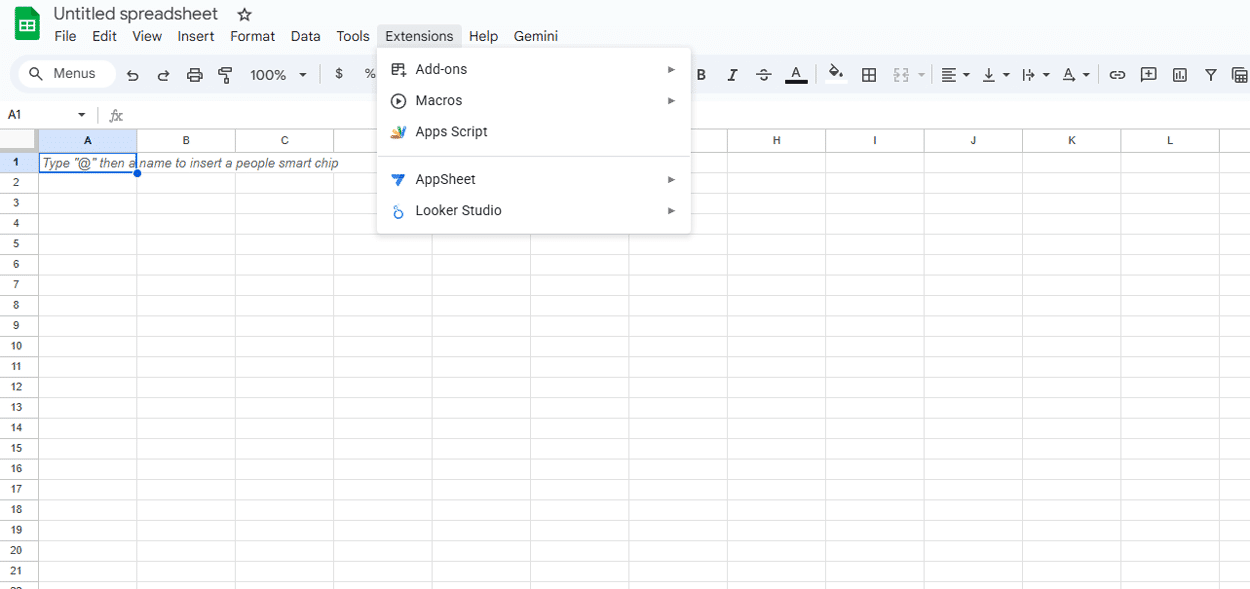
- Click Extensions in the top menu (formerly “Tools”).

(Note: In the older version of Sheets shown below, this was under Tools. In the new version, look for Extensions).
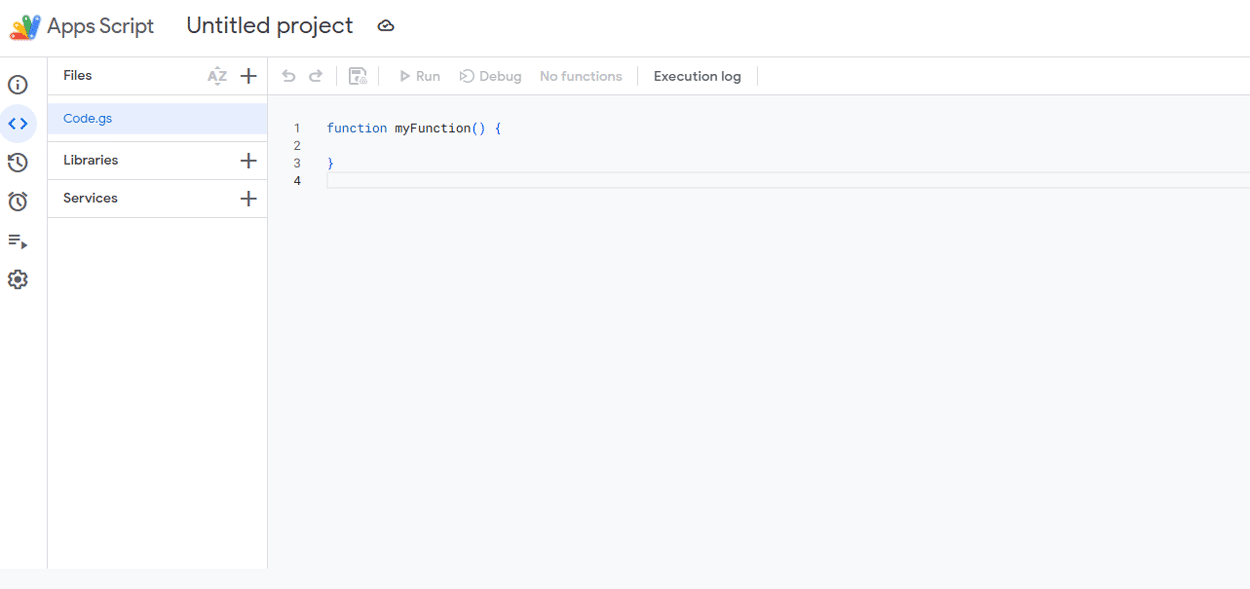
- In the options that show up, click on Apps Script. This will open the back-end Apps Script editor in a new tab.
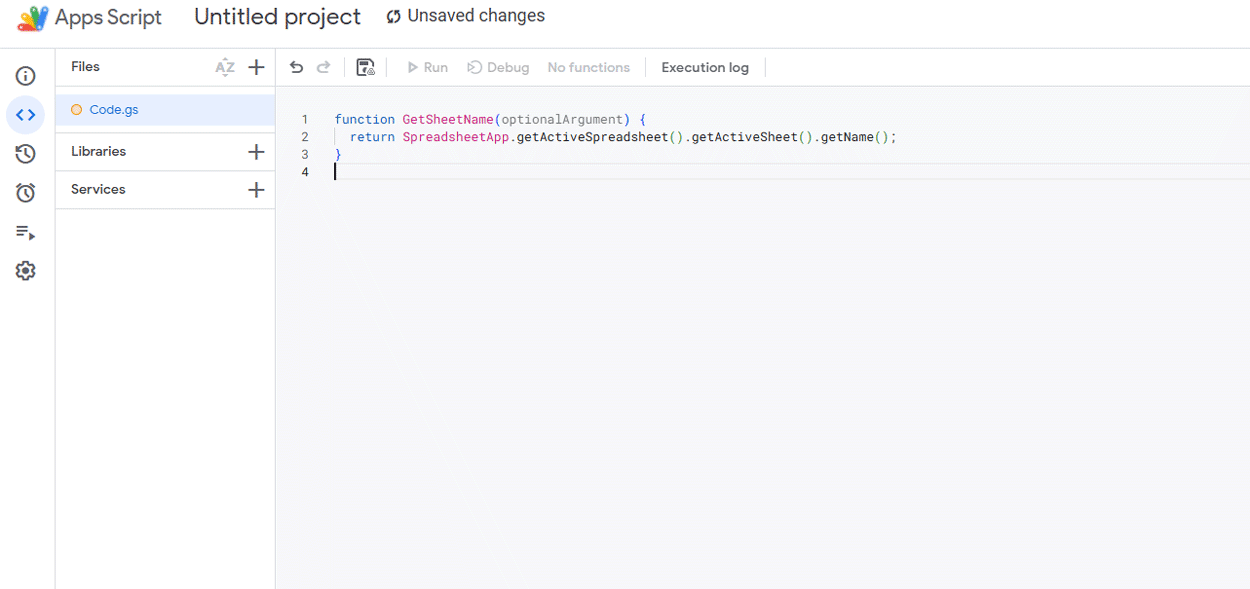
- In the Code.gs window, delete the default text and paste the above script code.
- Save the project by clicking on the Save icon (floppy disk) in the toolbar.

- Close the Apps Script window.

With the above steps, we have added the code in that specific Google Sheets document.
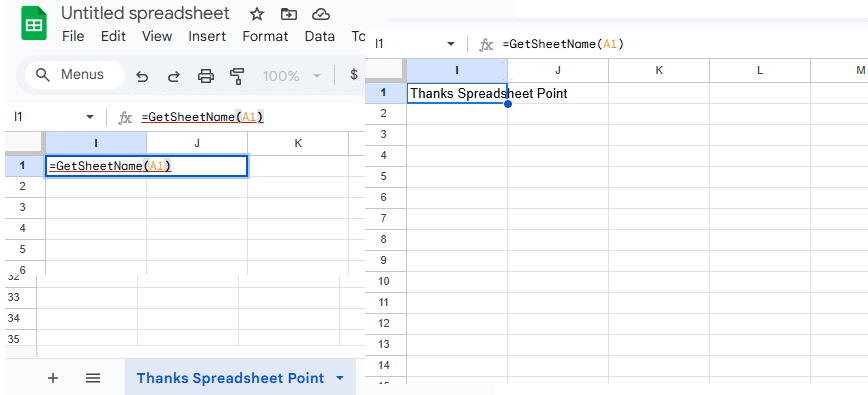
Now you can use the function GetSheetName within the worksheet, and it will give you the current sheet name of the active sheet.
=GetSheetName(A1)
Important Note on “Loading” and Refreshing:
While using the formula, you may see the text ‘Loading’ written in the cell. Just wait for a few seconds and the result should appear.
You might notice I added an optional argument (referencing cell A1) in the formula above.
Because custom formulas in Google Sheets are cached, they often do not update automatically if you just rename the tab. By adding a reference to a cell (like A1), you force the formula to recalculate whenever you edit that referenced cell.
If you do not use the argument, you may need to delete the formula and type it again if you rename your sheet.
Unlike regular formulas, any formula made using a custom Apps Script would not show you help while using the formula in the worksheet. For example, while you are entering the text =GetSheetName, it will not show you a prompt to autocomplete the function.
Here’s a video explainer, too.
Get All Sheet Names in Google Sheets
Just like we created a custom Apps Script formula to get the active sheet name, we can also create a formula that goes through all the sheets in the Google Sheets workbook and lists the names of all the sheets.
Below is the Apps Script code that you can use for this:
function GetAllSheetNames() {
  var out = new Array();
  var sheets = SpreadsheetApp.getActiveSpreadsheet().getSheets();
  for (var i=0 ; i<sheets.length ; i++) out.push( [ sheets[i].getName() ] );
  return out;
}
You can use the same steps mentioned in the previous section to copy this Google Apps Script code and put it in the back end.
Once you have the code in the Google Apps Script editor and you have saved it, come back to the workbook and in any cell enter the formula:
=GetAllSheetNames()

The above code uses a ‘For loop’ to circle through all the worksheets in the Google Sheets document.
It then starts listing these sheet names starting from the cell where you entered the formula and going one cell down with each sheet name.
For this formula to work, you need to have empty cells below where the formula is entered.
For example, if you have 10 worksheets in the document, using this formula is going to occupy 10 cells starting from the cell where you entered the formula.
In case there is any content in any of the nine cells below the cell where you entered the formula, this formula is going to show you a #REF! error.
Bonus: Create a Clickable Table of Contents
If you want to list the sheet names and make them clickable (so clicking them takes you to that sheet), use the following script instead of the one above:
function GetAllSheetNamesHyperlink() {
  var out = new Array();
  var sheets = SpreadsheetApp.getActiveSpreadsheet().getSheets();
  for (var i=0 ; i<sheets.length ; i++){
    var name = sheets[i].getName();
    var id = sheets[i].getSheetId();
    out.push( [ '=HYPERLINK("#gid='+id+'", "'+name+'")' ] );
  }
  return out;
}
Use the formula =GetAllSheetNamesHyperlink() to get a fully functional table of contents.
Note that the formulas in Google Sheets are case-insensitive, so you can use this formula name in all lowercase or all uppercase if you want.
Frequently Asked Questions
Is there a native formula for Sheet Name in Google Sheets?
No, unlike Excel (which has the CELL function), Google Sheets does not have a native formula to fetch the current tab name. You must use Google Apps Script as shown above.
Why isn’t the sheet name updating when I rename the tab?
Custom scripts are cached to save performance. If you rename a tab, the formula won’t know immediately. To fix this, change the formula input (e.g., =GetSheetName(A1)) or delete the cell and undo the deletion to force a refresh.
So this is how you can use a simple Google Apps Script code to quickly get the active sheet name (or all sheet names) in Google Sheets. I hope you found this tutorial useful!