
Travelers looking to optimize their schedules and reduce trip-related stress are turning to Google Sheets itinerary templates for efficient planning. Whether you are heading out on a business trip or a vacation, these templates help organize flights, accommodations, schedules, checklists, and travel plans so the trip feels smoother.
I have never been one of those people who can just wing it when traveling. The idea of stepping onto a plane without a plan gives me instant anxiety. What if I forget something important? What if I miss my flight because I did not double-check the departure time? What if I arrive and have no idea where to go next? Travel used to overwhelm me until I discovered the magic of spreadsheets.
A well-organized travel spreadsheet is my lifeline. It holds every detail I need, flight times, hotel reservations, a comprehensive itinerary for each day, and packing checklists. When everything is laid out in a clear format, I can relax and focus on the trip instead of constantly worrying about what is next.
4 Google Sheets itinerary templates for better planning
If you want to jump straight to the downloads, here are the templates in this post:
- Business Trip Itinerary Template
- Basic Google Sheets Travel Itinerary Template
- Packing List Itinerary Template
- Day by Day Travel Itinerary
1. Business Trip Itinerary Template
Get the template here: Business Trip Itinerary Template
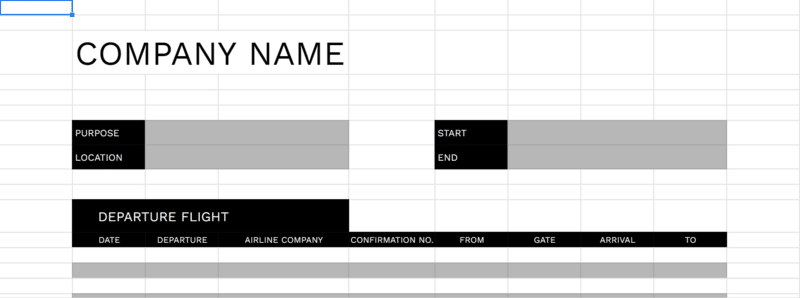
When going out on business trips, you want to keep your travels as organized as possible. This helps you arrive on schedule and respects the time of both you and the people you are meeting.
From your departure flight to your lodging details, a clear itinerary reduces mistakes. By detailing your flight schedule, the hotel you are staying in, and your business agenda, you can keep the trip focused and productive.
This business trip itinerary template lets you record flight information, your to-do list like conferences and meetings, and your accommodation details. It is especially useful when multiple people are editing the same plan, since everything lives in one place.
2. Basic Google Sheets travel itinerary template
Get the template here: Basic Google Sheets Itinerary Template
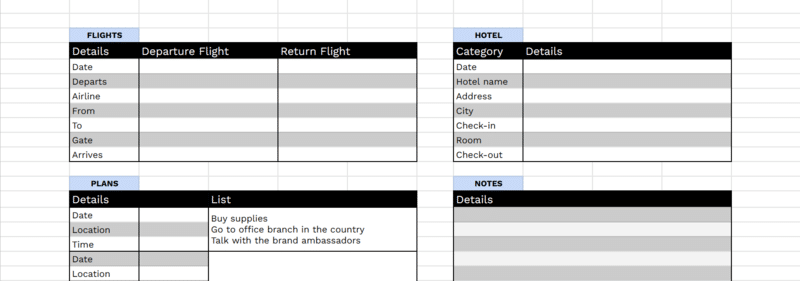
You can use itinerary templates for just about any planned trip. If your travel is not entirely business-related, a general-purpose Google Sheets trip planner still lets you record the details that matter without overcomplicating your travel plans.
Our basic itinerary template features four sections dedicated to flight details, hotel reservations, a task list, and important notes. It also lets you organize your to-dos by date, time, and location, which keeps the sheet readable when you are planning a new trip.
3. Packing list itinerary template
Get the template here: Packing List Itinerary Template
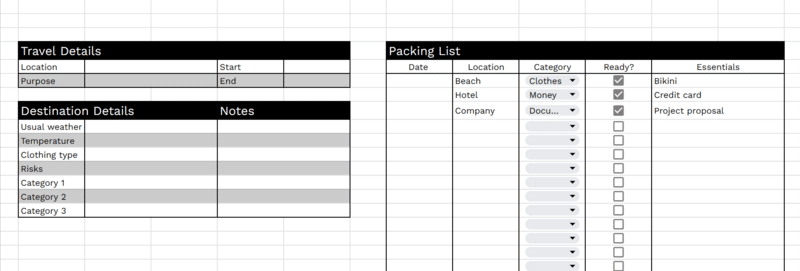
One of the most crucial details you should not forget is your packing list, unless you are ready to buy supplies abroad. You can write a list on paper, but putting it in a spreadsheet has real advantages.
It is accessible from your computer and phone, and it is easy to update. You can also track what you packed and spot missing items quickly. This template is built for checklists, which is exactly what you want when you are packing in a rush.
Using our packing list itinerary template, you can note typical weather and temperatures to guide what goes in your bag. If you are visiting multiple locations, you can also categorize essentials by city or activity.
4. Day by day travel itinerary
Get the template here: Day by Day Itinerary Template
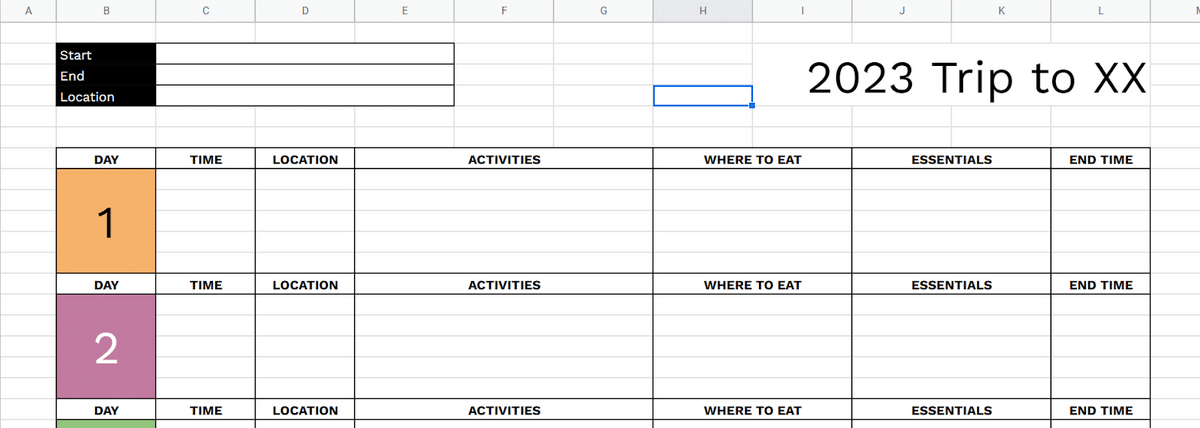
One of the best practices when making an itinerary is planning your activities per day. This supports better time allocation and helps you finish what you need and want to do within your travel schedule.
List the time and location of your plans ahead of time, including where you will eat. It also helps to note how long you want to spend in each spot and what essentials you need with you for that block of the day. If you want a comprehensive itinerary that can handle a busy trip, this is the template I reach for.
Why use an itinerary template?
Itinerary templates serve little purpose on small local errands, but things are different when you travel across states or internationally. Planning ahead using a template can help you:
- Allocate time with realistic buffers so the schedule stays flexible.
- Prioritize what matters by rearranging stops based on importance and convenience.
- Budget more clearly by mapping lodging, transport, food, and activities ahead of time.
- Know what to bring and what to expect, including weather and local notes.
- Optimize routes so travel days feel easier and less chaotic.
What should a good Google Sheets itinerary template include?
The best itinerary depends on your trip type, but most great templates include:
- Flight and transportation details, including times, terminals, confirmation numbers, and links.
- Scheduled activities with date, time, location, and notes for navigation.
- Accommodation details, including address, check-in windows, and contact info.
How to download and use these templates in Google Sheets
- Click the template link, it will prompt you to make your own copy.
- Rename the file with destination and dates, then move it into a trip folder in Drive. I do this for every new trip so nothing gets lost.
- Share it with your travel group. For most trips, one or two people get editing access, everyone else can comment or view.
- Add links to confirmations, tickets, and reservations so everything is in one place.
- If you are traveling with other people, add a split-costs sheet so you can split costs without chasing texts after the trip. If you prefer, keep a simple expense racker tab that lists who paid, what it was for, and how much is owed.
- For group trips, I like adding a change log tab where we note major edits like new booking times, swapped activities, or updated meeting points.
- If you need access on the go, open the sheet in the Google Sheets mobile app and make it available offline before you travel. It works well whether you are on a mac or a PC.
How these keep me sane
As someone who used to stress over travel logistics, these spreadsheets have been a game-changer. Instead of scrambling to remember flight details or wondering what I need to pack, I can open my itinerary and see everything at a glance. The structure helps me stay on top of the trip without feeling overwhelmed. In that way, it’s similar to an expense tracker spreadsheet.
Planning ahead cuts down last-minute surprises and keeps trips running smoothly. Whether it is a well-timed airport transfer or a neatly packed suitcase, these spreadsheets give me peace of mind. If plans change, I can update the sheet quickly and stay on track. A beautiful template does more than look nice, it makes the plan easier to follow when you are tired, rushed, or juggling multiple reservations.
Frequently Asked Questions
How do I download the template and save it to my Google Drive?
Use the Get the template here link, it opens a copy screen. Click Make a copy, then save it in a trip folder in Drive. I rename the file immediately with the destination and dates so it is easy to find later.
How do I make a copy so I don’t edit the original template?
If the link ends in /copy, it will prompt you to make your own version automatically. If it opens the sheet instead, go to File, then Make a copy, and save your copy to Drive.
Can I use a Google Sheets itinerary offline on my phone?
Yes, but do not wait until you land. Open the sheet in the Google Sheets app and make it available offline ahead of time, then test it by switching your phone to airplane mode. I also keep the most important details, flight numbers, hotel address, and check-in window, near the top so I can access them fast.
What is the best layout, day-by-day or hour-by-hour?
Day-by-day is best for vacations, group trips, and anything with sightseeing. Hour-by-hour is best for business travel, conferences, and travel days with multiple legs. If you are unsure, start day-by-day and only add hour-level detail to travel days and reservation windows.
How do I handle time zones for flights and connections?
I add two columns: Local time and Time zone. For flights, I label each row with the departure airport time zone and the arrival airport time zone. This prevents the most common mistake, misreading a connection window because your brain is still in your home time zone.
How do I share an itinerary with my travel group without chaos?
Use one sheet as the source of truth and share it with clear permissions. For most groups, one or two people get edit access, everyone else gets comment access. If you want input without accidental edits, create a second tab called Suggestions where people can drop ideas.
What permissions should I use, view-only, comment-only, or edit?
View-only is safest for large groups. Comment-only is my default for friends and family, people can flag issues and add notes without breaking formatting. Edit access is for the planners, or for one tab like Packing List where checkboxes matter.
How do I add reservation links and confirmation numbers?
Create a column called Links and paste the confirmation email link, hotel booking page, or PDF ticket link. Next to it, add a Confirmation column for the number. When I am moving fast, I want both the link and the code visible without hunting through email.
Can I add Google Maps links for hotels and activities?
Yes. Paste the Google Maps link into a Location or Map link column. I also add the plain-text address in the next column because sometimes you need an address for a taxi or customs form, and a link alone is not enough.
How do I build a packing list with checkboxes?
Add a checkbox column and keep categories simple: Documents, Clothing, Toiletries, Tech, Meds, Misc. I like a second column called Packed where I only check it once it is physically in the bag, not when I merely plan to pack it.
How do I print a clean itinerary from Google Sheets?
Before printing, hide helper columns like Notes or Links if you want a clean one-page view. Set the print area to just the itinerary range, choose portrait or landscape depending on column count, then use Fit to width so it does not cut off times and locations.
Can I export my itinerary to Google Calendar?
There is no perfect one-click export for a custom itinerary sheet, but you can still do it reliably. For key items like flights, hotel check-in, tours, and dinners, manually add calendar events using the times from your sheet. If you want speed, keep a calendar-only tab that lists Title, Date, Start, End, Location so it is easy to copy and paste.
How do I track a travel budget or split costs with other people?
If it is a solo trip, a simple budget tab is enough. For groups, I recommend a split-costs sheet where each line item shows who paid and how the cost should be split. It takes a few minutes to set up, but it saves you from doing math in a group chat at the end of the trip.
What should I avoid putting in a shared travel sheet for privacy?
Avoid passport numbers, full date of birth, full home address, and any payment card details. I keep sensitive data in a private note and only share what is needed for travel logistics like confirmation numbers and addresses.
Wrapping it up
Keeping your flight details, hotel information, schedule, and packing essentials in one Google Sheets itinerary template makes travel less stressful and more efficient, whether it is for business or personal travel.
Related: