
Searching a massive spreadsheet for specific text can be annoying when you do it manually. There isn’t an exact IF CONTAINS Google Sheets function. However, you can use a clever combination of a few formulas to automate the process.
This article serves as a guide to help you use some formulas to search a cell to see whether it contains a specified value.
Copy and paste formulas
If you just want the working formulas first, start here. These cover the most common “if cell contains text” use cases.
- Basic contains check (easy, recommended for most people):
=IF(ISNUMBER(SEARCH("Pencil", B2)), "Yes", "No")This searches B2 for the substring Pencil and returns Yes or No. SEARCH is not case sensitive.
- Case sensitive contains check:
=IF(ISNUMBER(FIND("Pencil", B2)), "Yes", "No")FIND is case sensitive. If you need to treat Pencil and pencil differently, use this.
- Contains one of multiple terms (regex):
=IF(REGEXMATCH(B2, "Pencil|Pen"), "Yes", "No")This returns Yes if B2 contains Pencil or Pen.
- Whole word match (avoid partial matches like “Pen” matching “Pencil”):
=IF(REGEXMATCH(B2, "(^|\\W)Pen(\\W|$)"), "Yes", "No")This checks for Pen as a standalone word. It is useful when partial matches would cause false positives.
Column-wide versions (no dragging)
If you want to apply the same logic down a column without filling down manually, use an ARRAYFORMULA pattern. These versions leave blanks as blanks.
- SEARCH version (recommended for simple substring checks):
=ARRAYFORMULA(IF(LEN(B2:B)=0, , IF(ISNUMBER(SEARCH("Pencil", B2:B)), "Yes", "No"))) - REGEXMATCH version (recommended for multiple terms or pattern rules):
=ARRAYFORMULA(IF(LEN(B2:B)=0, , IF(REGEXMATCH(B2:B, "Pencil|Pen"), "Yes", "No")))
Check against a list of terms (range-based matching)
If your search terms live in a range (for example E2:E10), you can build a dynamic regex that checks whether B2 contains any of those terms.
=IF(REGEXMATCH(B2, TEXTJOIN("|", TRUE, $E$2:$E$10)), "Yes", "No")And here is the column-wide version:
=ARRAYFORMULA(IF(LEN(B2:B)=0, , IF(REGEXMATCH(B2:B, TEXTJOIN("|", TRUE, $E$2:$E$10)), "Yes", "No")))Tip: this works best when your list is clean and does not include regex special characters. If you have special characters in your terms, you may need to escape them.
Syntax for IF CONTAINS in Google Sheets
To perform this operation, we will be using a combination of two formulas:
- IF, to check whether a logical expression is true or false
- REGEXMATCH, to check whether the text matches the data in a cell or simple text strings
Syntax for the IF formula
=IF(expression, if_true, if_false)- expression: defines the value or the cell address as true or false.
- if_true: defines the value to be displayed if the expression is true.
- if_false: optional and can be used to define the value (to be displayed if the expression returns a false value).
Syntax for the REGEXMATCH formula
=REGEXMATCH(text, expression)- text: the text or the cell address to be tested against the expression.
- expression: the expression which the string will be tested against.
A note on the SEARCH function
Instead of REGEXMATCH, you may also want to use the SEARCH function:
=SEARCH(search_for, to_search)- search_for: represents the value to look for within the to_search argument
- to_search: the text that the function will search
Important: SEARCH returns a number when it finds a match and a #VALUE! error when it does not. Because of that, the cleanest pattern is usually ISNUMBER(SEARCH()) or IFERROR().
- Recommended pattern:
=IF(ISNUMBER(SEARCH("Pencil", B2)), "Yes", "No") - Alternative pattern:
=IFERROR(IF(SEARCH("Pencil", B2), "Yes"), "No")
Now that we have discussed the formulas we’ll use, let’s build a Google Sheets formula to solve “if cell contains.”
Related: Check out our Google Sheets Formula Cheat Sheet!
Video guide: How to check for text in a cell in Google Sheets
I made this short video showing how I use my IF cell contains function to show me whether a cell contains text.
Next, I’ll break down the formula so you can duplicate it.
Using Google Sheets IF cell contains text with REGEXMATCH (for one string)
REGEXMATCH in Google Sheets can find text if it contains a specific substring. To discover whether a single string exists in a cell, follow these steps to use the IF and the REGEXMATCH function.
- In this example, we are using sales data. We wish to show either an affirmative or negative, depending on whether the cell range B2:B10 contains the word Pencil. To do this, we create a new column first, including our formula. Select the cell to put the formula. In this case, we’ve chosen cell D2.

- Type in the IF formula first. You can use the autofill feature to input the formula correctly.

- Enter the REGEXMATCH formula directly after the open bracket in the IF formula. First, we put in the cell address as the first argument (here, cell B2). Next, we input the keyword to check for matches after the comma. In this case, the word Pencil. Finish this formula by adding a closing bracket.
=IF(REGEXMATCH(B2, "Pencil"), "Yes", "No")
Note that Pencil could be replaced by a helper cell. You could check cell B2 based on the contents of another cell, and the formula will also work. Here’s how that would look.

Just remember to add dollar signs in front of the letter and number of your helper cell. That ensures that, when you fill down in Google Sheets, the helper cell doesn’t automatically update in your data range like the target cell that you’re checking.
This method also allows you to try for partial matches. Fill in app instead of apple and the formula will just check that partial text.
Related: Here’s a full guide on how to count cells with text in Google Sheets.
- Input the true and false values to finish the formula. Add a comma, followed by the value for the true argument inside quotation marks, another comma, and the value for the false argument. Put both outputs in quotation marks (for example Yes and No).

Note: To apply the formula to the whole column, click on the formula’s cell and drag it down (using the dot in the bottom-right corner). This will automatically apply the formula to all the cells in the column.


How to check for a single string of text (from multiple) with Google Sheets IF cell contains text and REGEXMATCH
If you want to check if a cell contains one of several strings of text, you can use IF with REGEXMATCH.
In this example, we are using sales data. We wish to show either Yes or No depending on whether the cell range B2:B10 contains the word Pencil or Pen.
- Create a new column first (including our formula).
- Type the IF formula first. You can use the autofill feature to input the formula correctly.
- Enter the REGEXMATCH formula after the open bracket in the IF formula. In the cell address, include the first argument in the REGEXMATCH function which should point to the text you want to evaluate (here, cell B2).
- Next, include the keywords to check for matches after the comma. In this case, it’s Pencil|Pen. Finish this part of the formula by inputting a closing bracket.

=IF(REGEXMATCH(B2, "Pencil|Pen"), "Yes", "No") - Add another comma and write the value for the true argument inside quotation marks. Add another comma and write the value for the false argument. Put them both in quotation marks. In this case, we use Yes and No.

- Finally, add the closing bracket and press Enter.
- To apply the formula to the whole column, click on the formula’s cell and drag it down (using the dot in the bottom-right corner). This will automatically apply the formula to all the cells in the column.


Our formula will return a Yes for any cell that includes either the word Pencil or Pen (as shown above).
Example of using Google Sheets IF column contains with SEARCH
This method works similarly to the REGEXMATCH method. However, the FALSE entry for the IF formula will return a #VALUE! error to indicate a missing substring. Here are the steps you need to follow.
- Click on the cell where you wish to write the formula and start typing the syntax for the IF formula. After the open bracket, type SEARCH. Enter the term to search for in quotation marks, write a comma, then click the cell reference.Note: Make sure you close the brackets of the SEARCH formula, or the formula may return an error.

- After the bracket is closed for the SEARCH formula, add a comma and type the value to show if the formula returns true. Add another comma and write the value for false. Ensure the strings are typed within quotation marks.

- Press Enter to execute the formula. You can also drag down the cell’s border to execute the formula in other cells in the column.


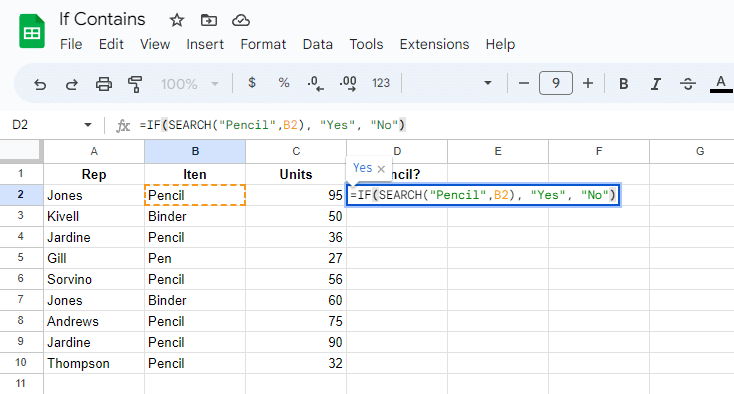

Note: Instead of the No response, you may get a #VALUE error. When you hover over it, it will say: In SEARCH evaluation, cannot find Pencil within Binder (or whichever word you are searching for).
The FALSE value in the IF formula is redundant, so you can skip adding it if you prefer. In practice, I prefer avoiding the error entirely with ISNUMBER(SEARCH()).
The overall formula in our example would look like this instead:
=IF(SEARCH("Pencil", B3), "Yes")Recommended version (returns Yes or No without errors):
=IF(ISNUMBER(SEARCH("Pencil", B3)), "Yes", "No")REGEXMATCH vs SEARCH, which should you use
- Use SEARCH when you want a straightforward substring check and you want an easier formula to maintain.
- Use REGEXMATCH when you need multiple terms, pattern rules, whole word matching, or more control.
- If you need case sensitive matching, use FIND (or a case sensitive regex pattern).
Common mistakes to avoid
- Curly quotes break formulas. Use straight quotes in your Sheets formulas.
- Whole-column references can slow down large files. Use the smallest range you can.
- If you use regex, remember that characters like . + * ? ( ) [ ] { } | have special meanings and may need escaping.
- If you use a helper cell, lock it with dollar signs (for example $E$2) so it doesn’t shift when you fill down.
Frequently asked questions
How do you check if a cell contains a formula in Google Sheets?
You can use the ISFORMULA function to determine if a cell contains a formula. The ISFORMULA function returns TRUE if the specified cell contains a formula and FALSE otherwise.
The syntax for ISFORMULA is:
=ISFORMULA(cell)An example of the formula would be:
=IF(ISFORMULA(A1), "Yes", "No")This will return Yes if there’s a formula and No if there’s none.
How do I check if a cell contains a character?
To check if a cell contains a character, you can use the SEARCH function. For example, if we wanted to check if a cell contains the character P, we would use the formula:
=IF(ISNUMBER(SEARCH("P", B2)), "Yes", "No")This will return Yes if the cell contains the character P. If not, it will return No.
Is there an IF contains function in Google Sheets?
There isn’t a specific IF CONTAINS function in Google Sheets. However, you can combine the IF and the SEARCH (or REGEXMATCH) function to determine whether a cell contains a particular value.
How do you check if a cell contains a certain string?
Here are the formulas you can use to check whether a cell contains a specific string:
=IF(REGEXMATCH(text, expression), if_true, if_false)
=IF(ISNUMBER(SEARCH(search_for, to_search)), if_true, if_false)
Wrapping up the Google Sheets IF contains function
We hope this article helps explain IF CONTAINS Google Sheets formula alternatives. We explained how to use the IF function, how to use the REGEXMATCH function, and how to combine the two for the desired result.
Want to check whether cells contain an error? There’s a function especially for that. Read my guide to the IFERROR function.
Fact checked by Jim Markus.