
Most people are still copying data out of Sheets, pasting it into ChatGPT, then copying the results back. Google quietly made that entire process unnecessary.
The =AI() function brings Gemini directly into your spreadsheet cells. You write a plain-English prompt, reference your data, and the AI returns generated text right inside the cell. No sidebar. No copy-pasting. No external tools.
Here is exactly how to use it.
What Is the =AI() Function?
The =AI() function is a native Google Sheets formula powered by Gemini, Google’s AI model. You type it directly into a cell the same way you would type =SUM() or =VLOOKUP().
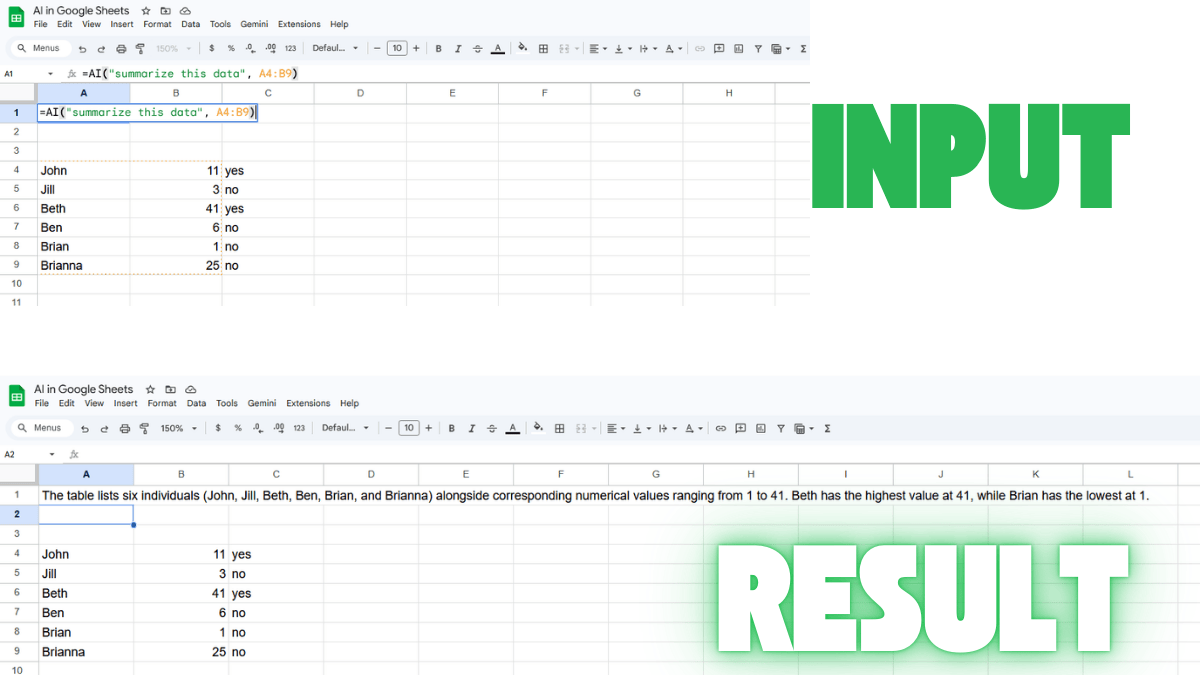
What makes it different from every other formula is that the instruction is plain English. Instead of writing a complex nested IF statement, you write something like:
=AI("Categorize this expense as Travel, Software, or Marketing", B2)Gemini processes your prompt and writes the output directly into the cell.
You can also use =Gemini() instead of =AI(). The two are identical aliases for the same function.
Is This the Same as the Gemini Sidebar?
No, and this distinction matters.
The Gemini sidebar (the “Ask Gemini” spark button in the top right corner of Sheets) is a conversational assistant. It handles one-off requests, answers questions about your data, and can generate charts. But it operates outside your spreadsheet grid. Anything it produces has to be manually moved into your cells.
The =AI() function is the opposite. It lives inside the formula bar, outputs directly into cells, and scales across hundreds of rows just like any other formula. You can autofill it down an entire column in seconds.
Think of the sidebar as a chat assistant. Think of =AI() as a formula that runs AI at scale.
Do You Need a Paid Plan?
Yes. The =AI() function requires an eligible Google Workspace or Google AI plan with Gemini included. If you are on a personal Gmail account, you will need Google One AI Premium.
The feature is also available to Google Workspace Labs participants, which is Google’s free trusted tester program for early features.
If you type =AI() in a cell and see “AI function not available,” one of three things is happening:
- Your account is not on an eligible plan
- Your Workspace admin has not enabled AI features
- Your language setting is not currently supported
If you do not have access yet, there are third-party AI add-ons for Google Sheets that work on free accounts and deliver similar results.
The Syntax
The =AI() function takes two arguments:
=AI("your prompt here", [data_range])- “your prompt” (required): a plain-English instruction written in quotes
- data_range (optional but strongly recommended): the cells containing the data you want the AI to work with
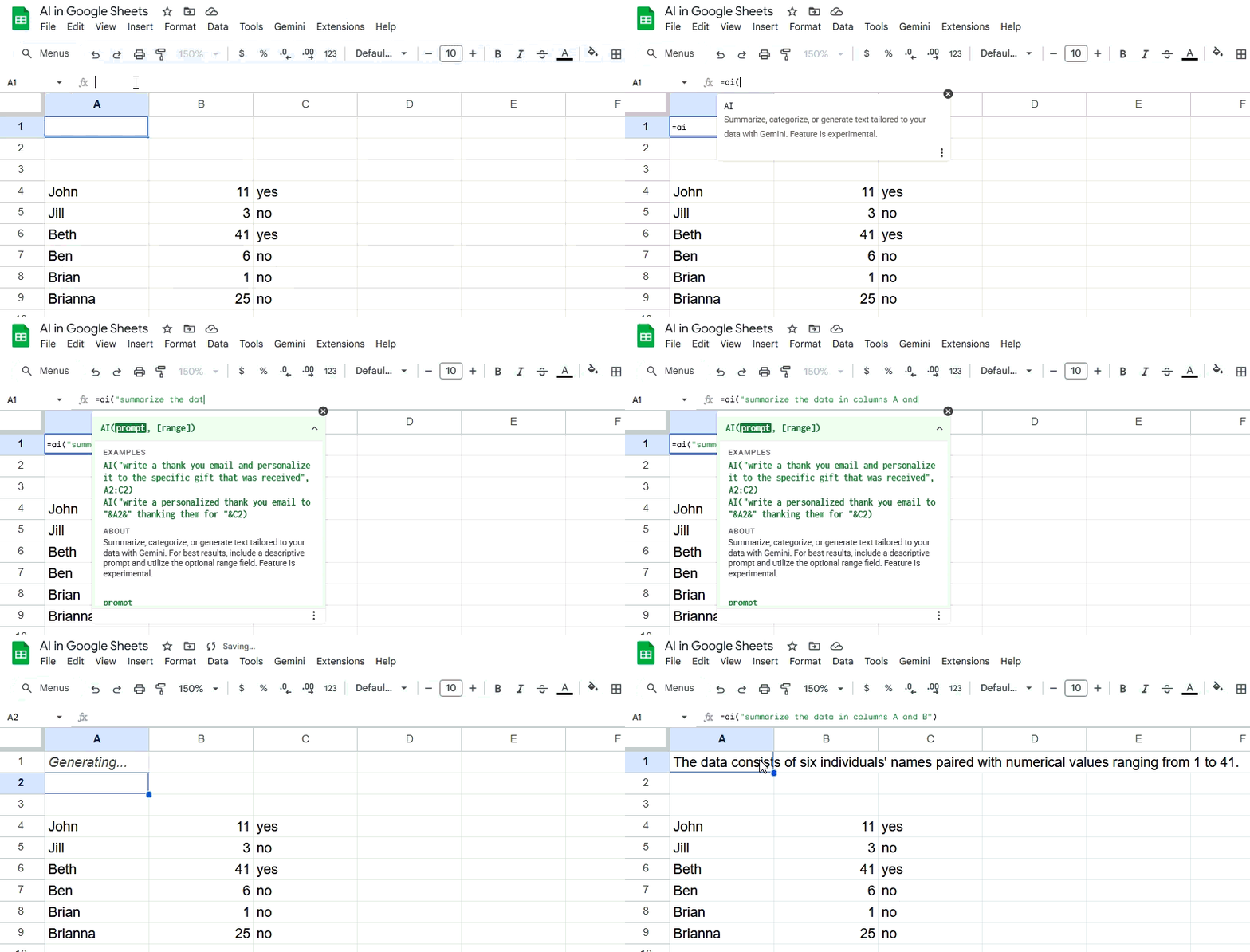
You can enter the function in two ways. Type it directly into a cell, or go to Insert > Function > AI from the menu.
After entering the formula, a “Generate and Insert” button appears. Click it to run the formula and populate the cell. To update the output later, click “Refresh and Insert.”
One important note: once generated, the output is a static text value. It does not update automatically when your source data changes. You have to refresh it manually.
What Can =AI() Do? Real Examples
Here is where it gets useful. The function handles four main types of tasks.
Generate Text
Use this to write product descriptions, email drafts, ad copy, or summaries at scale.
=AI("Write a one-sentence product description for this item", A2)If your product data spans multiple columns, combine them:
=AI("Write a formal ad copy for the product. Cater copy to the objective and target audience", A2:C2)Summarize Information
Perfect for condensing long customer reviews, support tickets, or notes into a single readable sentence.
=AI("Summarize this customer review in one sentence", B2)Categorize Data
Tag rows automatically without writing complex IF formulas or manually reviewing each entry.
=AI("Categorize this expense as Travel, Software, or Marketing", C2)This is especially powerful for organizing large datasets where manual tagging would take hours. Once your data is categorized, a Google Sheets pivot table is the fastest way to summarize and count across those tags. For more ways to work with structured data, see how to use conditional formatting on entire rows once your data is categorized.
Analyze Sentiment
Rate the tone of feedback, reviews, or survey responses at scale.
=AI("Analyze the sentiment of this feedback as Positive, Neutral, or Negative", D2)How to Scale It Across Hundreds of Rows
One formula is useful. One formula applied to 500 rows is transformative.
When you add an =AI() formula to the first data row of a column, Google Sheets treats it as an AI column. You can then autofill it down to every row below, exactly like any other formula.
Select all the populated cells and click “Generate and Insert” to run them all at once. Keep in mind: only the first 350 selected cells will generate per batch. If you have more than 350 rows, generate the first batch, then select the next group and repeat.
How to Reference Multiple Columns in One Prompt
Sometimes your AI prompt needs to pull from multiple separate columns. Use the & operator to concatenate them into a single dynamic prompt.
Here is a real example for analyzing customer feedback where the business name is in column B, the rating is in column C, and the comment is in column D:
=AI("Find the major themes in the customer feedback of "&B2&" using the rating "&C2&" and comments: "&D2&".")This builds a different, data-specific prompt for every single row automatically. For more ways to combine data across columns, the guide to comparing two columns in Google Sheets covers several useful techniques.
Tips for Better Results
Getting good output from =AI() comes down to how clearly you write the prompt.
- Be specific. “Categorize as Positive, Neutral, or Negative” outperforms “analyze this.” Give the AI explicit output options when you can.
- Always include the data range. The function does not have access to your full spreadsheet. Pass the relevant cells explicitly as the second argument.
- Keep cell content under 1,000 characters. The function works best with focused inputs. For long text, use SPLIT to break it into chunks first.
- Spot-check before scaling. Run the formula on 10 rows and review the output before applying it to your full dataset.
- Refresh after edits. If you update the source data in a referenced cell, the AI output will show an out-of-sync indicator. Select the affected cells and click Refresh and Insert to update.
Limitations You Should Know
The =AI() function is powerful, but it has real constraints worth understanding before you build workflows around it.
- Text output only. The function returns text strings. It cannot write formulas into cells or return numbers you can calculate with directly.
- No access to your full spreadsheet. The AI only sees what you pass it in the range argument. If you want it to consider data from another sheet or a distant column, include that data in the range explicitly. See how to reference another sheet in Google Sheets to pull that data in first.
- No nested functions. You cannot embed =AI() inside another formula. A construction like
=IF(AI("sentiment", A2)="Positive", 1, 0)will throw an error. - Generation limits apply. There are both short-term and long-term limits. If you hit the long-term cap, you will see an error and need to wait up to 24 hours before generating again.
- No offline use. Processing happens on Google’s servers. The function returns errors when you are not connected to the internet.
What to Use If You Do Not Have a Workspace Plan
The =AI() function is a Workspace-only feature. If you are on a free Google account, the native formula will not be available to you.
The good news: several third-party add-ons bring similar AI capabilities to Google Sheets without requiring a Workspace upgrade. The best Google Sheets add-ons for AI include tools like GPT for Sheets and SheetAI, which let you run AI prompts directly in cells using your own API key. They work on free accounts and support multiple AI models including ChatGPT and Claude.
The tradeoff is setup complexity. Native =AI() requires zero configuration. Third-party tools require API keys and some initial setup, but they offer more model flexibility and work regardless of your Workspace tier.
Frequently Asked Questions
What plans include the =AI() function in Google Sheets?
The function requires an eligible Google Workspace plan with Gemini included, or a Google One AI Premium subscription. Google Workspace Labs participants also have access through Google’s free early tester program for new features.
Can I use =AI() for free?
Not through a standard Gmail account. You need a qualifying paid Workspace or Google AI plan, or active enrollment in Google Workspace Labs. If you are on a free account, third-party add-ons like GPT for Sheets offer similar functionality using your own API key.
What is the difference between =AI() and =Gemini() in Google Sheets?
Nothing at all. They are two names for the exact same function. Google offers both aliases and either one will work identically in your spreadsheet.
Why does my =AI() formula say “AI function not available”?
The three most common causes are: your account is not on an eligible plan, your Workspace admin has not enabled AI features for your organization, or your language setting is not yet supported. Check all three before troubleshooting further. You can change your language setting in your Google Account preferences.
Can I use =AI() offline?
No. The function requires an active internet connection because Gemini processes every request on Google’s servers. Standard formulas like SUM and VLOOKUP still work offline, but =AI() will return an error without a connection.
Is there a limit to how many cells I can generate at once?
Yes. You can select and generate up to 350 cells in a single batch. For larger datasets, generate the first 350 rows, then select the next batch and repeat until all rows are complete. There are also daily generation limits. If you hit the long-term cap, wait 24 hours before trying again.
Does =AI() output update automatically when my data changes?
No. The output is static text. When source data in a referenced cell changes, the AI output cell shows an out-of-sync indicator. Select the affected cells and click Refresh and Insert to update the output manually.
Can I use =AI() inside another formula like IF or VLOOKUP?
No. Embedded or nested AI functions are not supported. For example, =IF(AI(“sentiment”, A2)=”Positive”, 1, 0) will throw an error. Use =AI() in a dedicated helper column and reference its output in your other formulas instead.