
The crypto industry is booming, with market trends constantly changing. As a crypto investor, you always have to know the most up-to-date information in the most organized fashion possible. There are various great crypto portfolio trackers out there that can help you stay updated. But for most of them, there’s one major downside: they come with a price tag. Their price tag reduces their appeal so much that most people don’t even consider them. This is where Google Sheets comes in.
Google Sheets provides an excellent alternative to paid options. You can track your crypto portfolio with the easy-to-use interface of Google Sheets. You can make use of basic as well as advanced level tracking features to stay in the loop. It doesn’t have any unnecessary complexities, which makes it less confusing to get started with, even for beginners.
Access our free Google Sheets Crypto Portfolio Tracker Template here — make your own copy to get started instantly.
In this article, I will discuss everything you need to know on how to track your crypto portfolio with Google Sheets. I will try to list every essential detail, from its perks and uses to the templates you can use. I will also provide a step-by-step guide showing you how to create a crypto tracking spreadsheet on your own.
Table of Contents
Perks of Using a Crypto Portfolio Tracker in Google Sheets
Some of the main reasons why I suggest you choose a Google Sheet crypto portfolio tracker are:
- Google Sheets offers an intuitive dashboard view and is able to store unlimited trades, withdrawals, etc.
- With Google Sheets, you’re able to create various reports, including profit & loss, coin location, coin performance, etc.
- You can use the existing Google Sheets features that you love with your portfolio and reports. i.e., creating a table for better viewing or a chart to understand data more quickly.
- You can use existing extensions of Google Sheets with your crypto portfolio spreadsheet, making you feel right at home. For advanced users, you can even connect the Google Sheets API to custom Python scripts for automated data pipelines and analysis.
- You can make use of easy import options, including manual copy/paste, which is compatible with many applications. You also have additional import options available for your convenience.
- With Google Sheets, your data is privately held in your drive. You can choose to restrict access to only yourself or share with anyone you want.
- You have maximum freedom with your data in Google Sheets. You can make any changes you want. For example, add or remove columns, rows, etc. You can also toggle with the source code as it is open source.
Free Crypto Portfolio Tracker Templates for Google Sheets
You can create a few different types of sheets on Google Sheets to keep track of crypto-related information, depending on your needs. If your overall portfolio extends beyond cryptocurrency, such as holding individual stocks like RDDT or NBIS, you can seamlessly integrate those assets by checking out our investment tracking spreadsheets.
Access our Google Sheets Template Here by making your own copy.
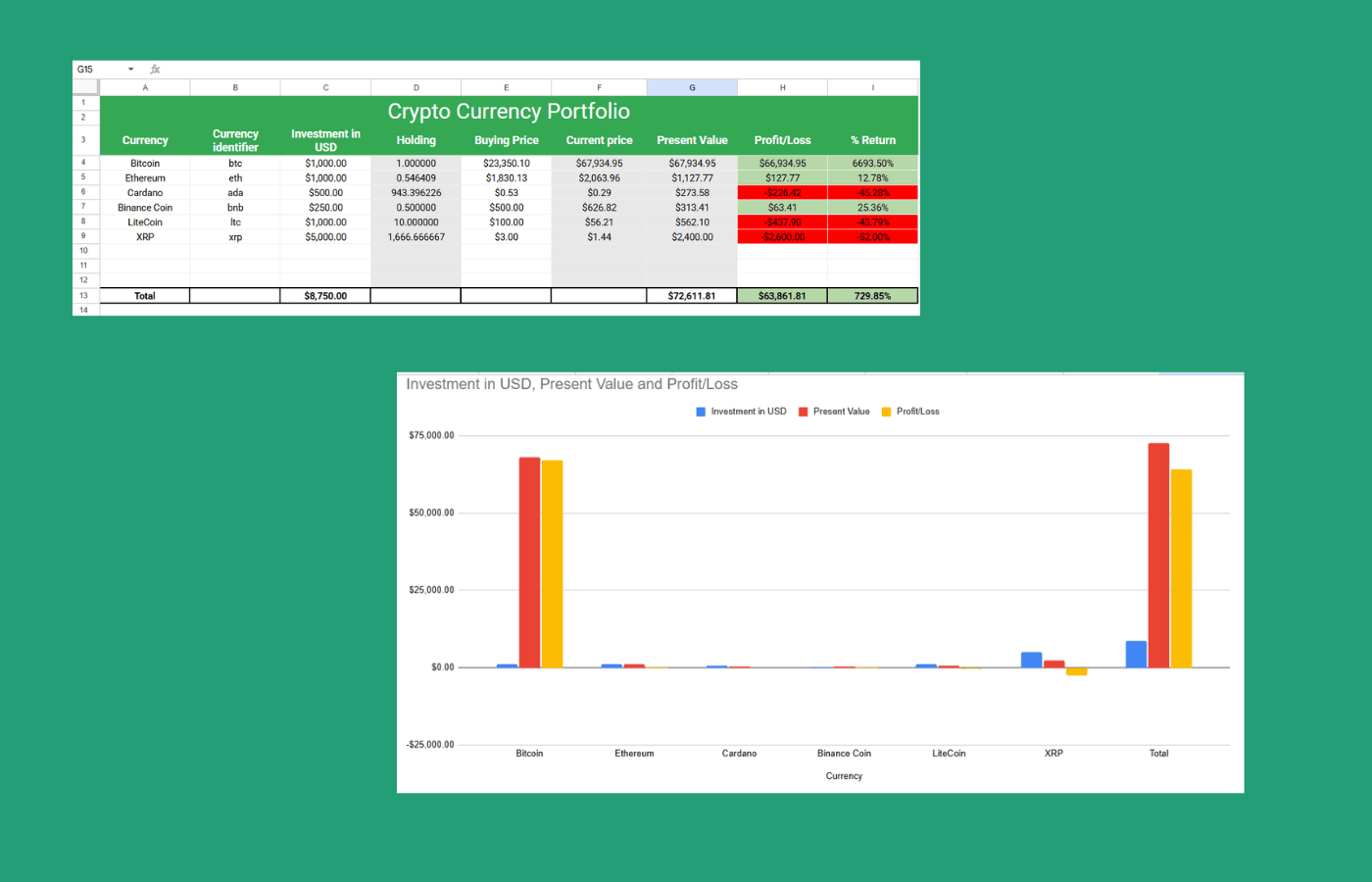
This first template is a pretty basic one. It allows you to track all your crypto holdings by manually entering the quantity you’re holding and then importing the current price of the currency from another source. You can use it to keep track of your holdings as well as their prices and the total value of your holdings. The prices update approximately every 15–20 minutes.
In addition, you can add various other functionalities to your Google Sheets crypto spreadsheet. That includes connecting your crypto wallet to your spreadsheet to keep track of your purchase records in real-time, or adding an auto-refresh trigger using Google Apps Script so prices update on a custom schedule without you needing to reopen the sheet.
Breaking it Down
The first crypto portfolio tracker is the best compared to other methods. It uses the IMPORTHTML formula to get price updates.
Although you get a pre-written source code, using Google Apps Script is not for everyone. This is because Google Apps Script makes customization a lot more complicated than regular Google Sheets customization since it requires some level of programming. Besides, IMPORTHTML does the job just the same, and if you only intend to get price updates, it is definitely the way to go.
Google Sheets Crypto Portfolio Tracker: Step-by-Step Guide
Creating the two templates above is similar. The essential information you need is the name of the currency, the currency identifier, the investment you made, and the buying price. So, let’s take the first example and create a Google Sheets Crypto Portfolio Tracker.
Step 1. Create a custom table to keep track of your portfolio.
I added the following headers:
- Currency: To specify the currency.
- Currency Identifier: This is the column with the URL slugs that I will use to search for the current price.
- Investment: This is the column where I will enter the amount I invested (in US dollars).
- Buying Price: This is the column where I will enter the buying price of the cryptocurrency.
- Holding: This is the column that will determine the total currency amount held.
- Current Price: This column will specify the current price.
- Present Value: This column will calculate the value of my holdings based on the current price.
- Profit/Loss: This column will determine how much I have gained or lost when comparing my buying price to the current price.
- % Return: This column expresses your gain or loss as a percentage of your original investment, useful for comparing performance across coins regardless of position size.

Step 2. Fill in your essential information (currency name and identifier) and purchase records (investment amount and buying price).

Step 3. For the current price column, use the ImportHtml formula to pull the price corresponding to the currency.

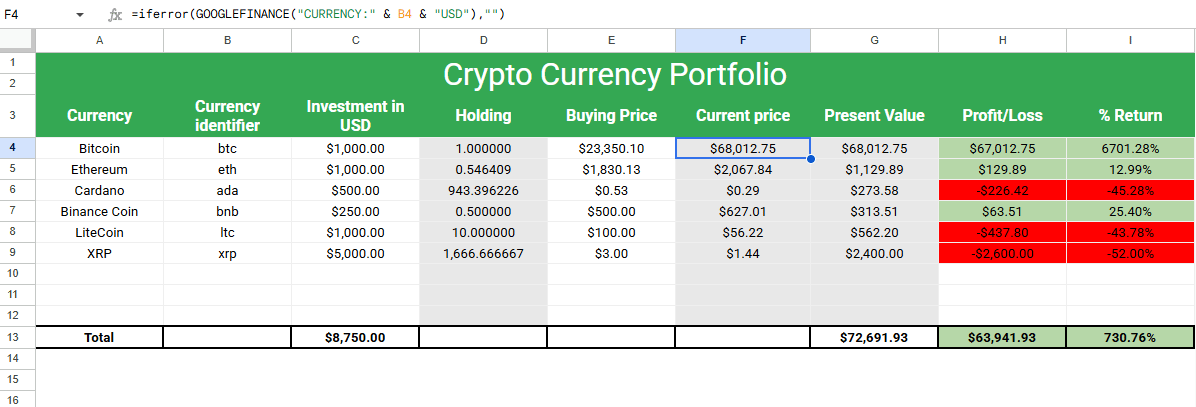
In the table above, I originally used the formula:
=if(isblank(cell_number_with_identifier),"",index(IMPORTHTML(CONCATENATE("price_source",url_slug),"table",1),1,2))
This formula searched in the defined cell and pulls the corresponding price from the price source (CoinmarketCap in this case). You must remember to use the URL slugs (entered in the currency identifier column) from CoinMarketCap URLs for different currencies, such as ethereum for Ethereum, bitcoin for Bitcoin, and usd-coin for USD Coin.
Note for 2026: CoinMarketCap has added bot protections that can intermittently block IMPORTHTML requests. If you find prices aren’t pulling reliably for certain coins, a more stable alternative is the IMPORTDATA formula with a lightweight price API. For example: =IMPORTDATA("https://cryptoprices.cc/SOL/") returns the current Solana price. This approach works for hundreds of coins and is less prone to breaking. Now, I use the following formula, which incorporates the GOOGLEFINANCE function.
=iferror(GOOGLEFINANCE("CURRENCY:" & B11 & "USD"),"")
That pulls the current price of the cryptocurrency, listed with identifiers for cypto data in an updated column B. Here’s what the new version looks like.
Step 4. Use formulas to automate the calculation for the holdings, present value, profit/loss, and % return columns. You can add your own metrics as needed with additional columns.
Holdings

=DIVIDE(C3,SUBSTITUTE(E3,"$", " "))
Using the above formula, I am dividing the investment amount (starting from cell C3) into the buying price (starting from cell E3). I have also used the substitute formula to ignore the “$” sign in the buying price column. I can simply drag the formula down to apply it to different currencies.
Present Value

=MULTIPLY(SUBSTITUTE(F3,"$",""),D3)
Using the above formula, I multiply my current price by my holding to determine the present value of my investment. I am also using the substitute formula to ignore the “$” sign in the current price column.
Profit/Loss

=MINUS(G3,C3)
Using the above formula, I am deducting the present value from my investment to determine the amount I have gained or lost on my investment.
% Return
=DIVIDE(H3,C3)
Format this cell as a percentage. This gives you each coin’s return as a percentage of your original investment, making it easy to compare performance across positions of different sizes. You can also add a totals row at the bottom using SUM across your investment, present value, and profit/loss columns for an at-a-glance portfolio summary.
Adding and Removing Purchase Records
Adding
Adding new records in the cryptocurrency spreadsheet tracker is pretty simple. Enter the essential information (currency name and currency identifier) and your purchase records (investment and buying price), and simply drag down all the other columns (holding, current price, present value, profit/loss, and % return).
Removing
If you wish to remove purchase records, you can simply do that by editing the records from the table.
- If you have sold a partial amount of a cryptocurrency, you need to deduct that from your crypto trading spreadsheet.
- If you have sold the entire amount entered in a previous purchase record, you can remove the entire record from the table.
- You can erase all prior records for a cryptocurrency if you practice DCA (Dollar-Cost Averaging) and only sell a portion of it, then create a new record with the updated average price.
Tracking Dollar-Cost Averaging (DCA)
Dollar-Cost Averaging is one of the most common crypto investment strategies. You buy the same coin multiple times at different prices over time, rather than in one lump sum. There are two ways to handle this in your tracker:
- Single row per coin: Update your buying price to reflect your blended average cost basis after each new purchase. This keeps the sheet clean but requires a manual calculation each time you add to a position.
- Multiple rows per coin: Add a new row for each purchase lot, which preserves a full history of your entries. Use
SUMIFto aggregate total investment and holdings across all rows for the same coin if you want a consolidated view.
Neither approach is wrong. It depends on whether you prioritize simplicity or a full purchase history.
Conclusion
As elaborated above, Google Sheets is one of the most amazing tools to keep track of your crypto portfolio. Using Google Sheets, crypto prices can be tracked easily and free of cost. Remember, you can find our template here.
I suggest you practice the parts of the crypto tracking spreadsheet you find most complex after reading this article. It helps you grasp the concept better and clear out any confusion. I hope this article and our free templates were of help to you!
Frequently Asked Questions
Does Google Sheets support crypto tracking?
Yes, Google Sheets is one of the best free tools for tracking a crypto portfolio. You can use built-in formulas like GOOGLEFINANCE or IMPORTDATA to pull live prices, and pair them with custom calculations for holdings, present value, and profit/loss. It also integrates easily with your broader personal finance or investment dashboards.
Does GOOGLEFINANCE work for crypto in 2026?
The GOOGLEFINANCE formula supports a limited number of major cryptocurrencies — primarily Bitcoin (BTC), Ethereum (ETH), and Litecoin (LTC). For altcoins and a wider range of assets, it’s more reliable to use IMPORTDATA with a lightweight price API. For example: =IMPORTDATA("https://cryptoprices.cc/SOL/") will pull the current Solana price. This approach works for hundreds of coins that GOOGLEFINANCE doesn’t cover.
How do I track profit and loss in a crypto spreadsheet?
To calculate profit and loss, subtract your original investment from the current present value of your holdings. In Google Sheets, the formula looks like: =MINUS(present_value_cell, investment_cell). For a percentage return, divide that result by your original investment: =DIVIDE(profit_loss_cell, investment_cell) and format the cell as a percentage.
How do I track Dollar-Cost Averaging (DCA) in Google Sheets?
For DCA tracking, you can either maintain a single row per coin with an updated average buy price, or add multiple rows for the same coin representing each separate purchase. If using multiple rows, your present value and profit/loss columns will reflect each lot individually. For a blended view, use SUMIF to aggregate total investment and holdings across all rows for the same coin.
Is a Google Sheets crypto tracker private and secure?
Your Google Sheets crypto tracker is stored in your personal Google Drive and is private by default — only accessible to you unless you explicitly share it. Unlike third-party portfolio apps, you’re not handing your holdings data to an external platform. That said, it’s best practice not to store wallet addresses, seed phrases, or exchange API keys directly in the sheet.
Can I use Google Sheets to track crypto for taxes?
A Google Sheets tracker is useful for monitoring performance, but it’s not a substitute for dedicated crypto tax software. For accurate tax reporting, you typically need FIFO or LIFO cost basis calculations across every transaction, including transfers between wallets. Tools like Koinly or CoinTracker are better suited for that purpose. Your Google Sheets tracker works well as a companion to those tools for day-to-day portfolio visibility.
How often do prices update in a Google Sheets crypto tracker?
By default, GOOGLEFINANCE data refreshes approximately every 15–20 minutes, and IMPORTDATA and IMPORTHTML formulas refresh when the sheet is opened or recalculated. To force more frequent updates, you can use a Google Apps Script time-based trigger to refresh the sheet on a set interval — see our auto-refresh guide for step-by-step instructions.
How do you keep track of a crypto portfolio?
Tracking a crypto portfolio in Google Sheets is simple. You can use our free templates provided in this article to log your holdings, or build your own from scratch using formulas like IMPORTDATA or IMPORTHTML to pull live prices from exchanges, giving you a real-time view of your present value and profit/loss.