
Most months, the money leak never looks dramatic. It looks like $7.99 here, $12.99 there, $29.00 you barely remember agreeing to. Then you hit the end of the month, check the balance, and wonder why the math never works out.
This is where a quick subscription purge pays off. In about 30 minutes, you can pull a CSV from your bank, drop it into a spreadsheet, and surface recurring monthly costs with enough clarity to save $500 a year, sometimes far more, without touching the bills that actually improve your life.
We do this at least once a year in our family, usually when we want a clean finish to the month. The goal stays simple, find what repeats, decide what stays, cancel what fails to earn its spot.
If you want broad, reliable results, follow the same steps in the same order. You’re building momentum as much as you build the list.
What you’ll do in 30 minutes
- Export your last 90 days of transactions as a CSV
- Import the CSV into Google Sheets
- Clean merchant names so repeats become obvious
- Use a pivot table to surface recurring charges
- Cancel, downgrade, or consolidate while you have momentum
Before starting
- Your bank or credit card login
- 10 minutes of focus, no multitasking
- A decision rule, keep it only if it delivered value in the last 30 days
The Subscription Purge Protocol (30 minutes, start to finish)
Minute 0 to 3: Pull the CSV
Log into your bank or credit card account and export transactions as a CSV. Use the most recent 90 days if you can. That window usually catches monthly, annual, and every-four-weeks billing patterns without burying you in old noise.
If you use multiple cards, download one CSV per account. You can combine them later.
Minute 3 to 8: Import into a spreadsheet
Open Google Sheets and import the CSV (File, Import, Upload). If your file includes columns like Date, Description, Amount, and Category, you’re ready.
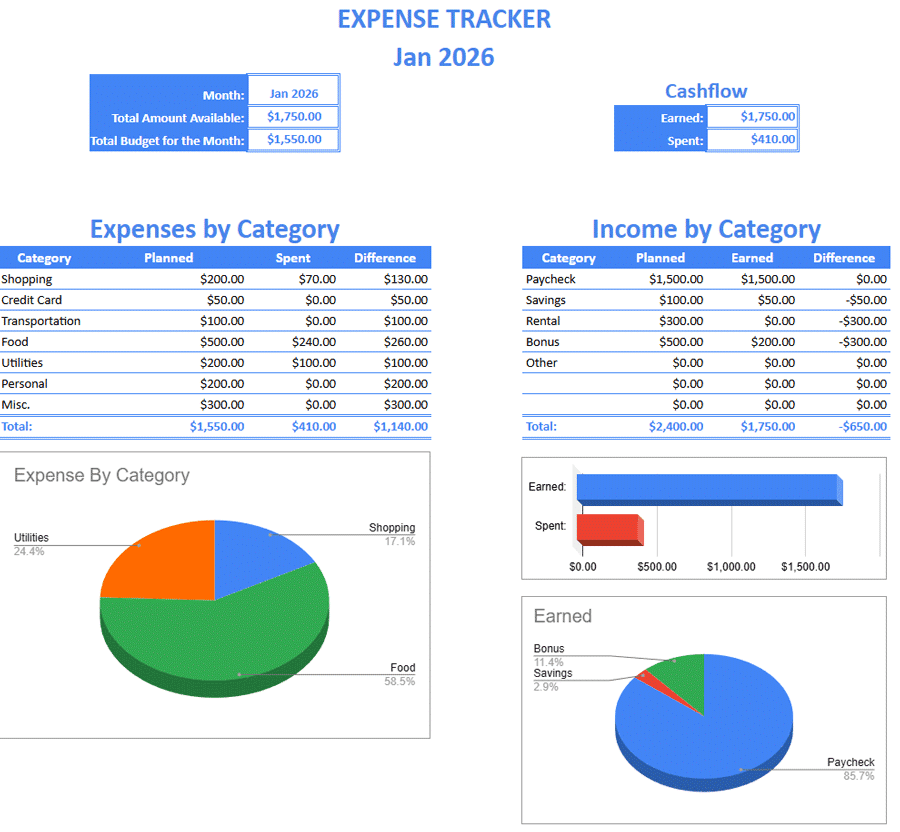
If you want a structured place to organize the cleanup, plug your transactions into an expense tracker spreadsheet template and keep everything in one system. This makes it easier to compare before and after, and it reduces work the next time you run the purge.
Here is a visual of what that kind of tracker can look like once it starts grouping expenses and income by category.
Minute 8 to 12: Create a clean Merchant column
Bank descriptions can be chaotic. You want a Merchant column that turns something like “APPLE.COM/BILL 866-712-7753 CA” into “APPLE” or “APPLE BILLING” so repeats become obvious.
Add a new column called Merchant. In many cases, you can manually clean the top 30 to 50 lines and be done. If you want a faster, repeatable approach, use one of these tactics:
- Manual standardization, find the core brand name and overwrite the Merchant cell
- Simple extraction, keep the first word or first few words of the description
- Find and replace, remove phone numbers, state abbreviations, and extra punctuation
This step matters because recurring charges often hide behind slightly different text strings.
Minute 12 to 18: Identify repeats with a pivot table
Now you want the spreadsheet to do what it does best, summarize patterns.
- Select your transaction range (include Date, Merchant, Amount).
- Insert a Pivot table.
- Set Rows to Merchant.
- Set Values to Amount (Sum) and Merchant (Count), or Date (Count).
Sort by Count (descending). Merchants with 3, 4, or more hits over 90 days deserve a closer look. Monthly subscriptions often appear exactly three times in that window, sometimes with the same amount, sometimes with small variation due to tax or plan changes.
Then sort by Sum of Amount. This catches the quiet expensive subscriptions, the ones that feel professional or useful enough until you see the annual total.
Quick filter: avoid false positives
Not every repeat is a subscription. Before you start canceling, separate normal life repeats from real recurring services.
Often false positives:
- Grocery stores and big-box stores
- Gas stations
- Pharmacies
Common subscription hiding spots:
- App store renewals and in-app upgrades
- Cloud storage and backup plans
- Domain renewals and website tools
Minute 18 to 24: Flag true subscriptions
Look for a specific shape:
- Same merchant, same billing cadence (about every 30 days)
- Amount that stays consistent or within a small range
- Description that looks like a service, membership, app, streaming, storage, or fee
A quick rule we use at home, if the transaction repeats and nobody can explain what value it delivered in the last 30 days, it goes on the “prove it” list.
Subscription categories that surprise people:
- Streaming add-ons and channel bundles
- Delivery memberships
- Gym or class auto-renewals
- Identity monitoring services
- AI tools, PDF tools, and free trial conversions
Minute 24 to 30: Cancel, downgrade, or consolidate
Do the cuts while the spreadsheet is open. Momentum is the point.
- Cancel anything you have not used in the last month
- Downgrade anything you use lightly, especially software tiers
- Consolidate overlapping services, one music service, one cloud storage plan, one primary streaming platform
- Switch annual to monthly if you want flexibility, or switch monthly to annual if you are confident you’ll keep it and the discount is real
Track decisions in a Notes column, keep, cancel, downgrade, review next month. That small record prevents subscription creep from rebuilding itself.
Two fast spreadsheet tricks that make this easier
1) Add a Month helper column
Creating a Month column helps you confirm cadence. If your Date is in column A, you can create a Month label like this:
=TEXT(A2,"YYYY-MM")Then, in your pivot table, add Month as a secondary row under Merchant to see whether charges appear once per month, or randomly.
2) Add a “Recurring?” checkbox
Once you spot a subscription, mark it. Over time, this becomes your subscription ledger. The next purge becomes a quick scan, not a full investigation.
What saving $500 looks like
Saving $500 rarely comes from one dramatic cancellation. It usually comes from five to ten small decisions that add up:
- Cancel one or two unused services ($10 to $30 per month)
- Downgrade one premium plan ($5 to $20 per month)
- Remove add-ons you forgot you had ($3 to $15 per month)
- Consolidate overlapping subscriptions ($10 to $25 per month)
Do the math and the results become predictable. A $15 cut plus a $12 cut plus a $9 cut plus a $6 cut equals $42 per month, which lands at $504 per year.
There is mental value, too. You finish the month with fewer silent commitments, fewer renewals waiting in the dark, and a spreadsheet that tells the truth the moment you open it.
When you’re done, add a reminder for a 10-minute version of this audit once per quarter. The first run takes the longest. The next ones feel like maintenance.